Review partner applications
When a program takes applications from the web and does not approve them automatically, each applicant waits for a person on your team to decide. This article covers finding applicants, deciding, and what each applicant is told.
Before you start
- Role: Owner, Admin or Manager to approve or reject. Analysts and Support can read applications but see no buttons.
- You need: a program with Take applications from the web on and Approve applicants automatically off. See Create a program.
Find the applicants
- Go to Partners.
- In the stage filter (it reads All stages), choose Applicant.
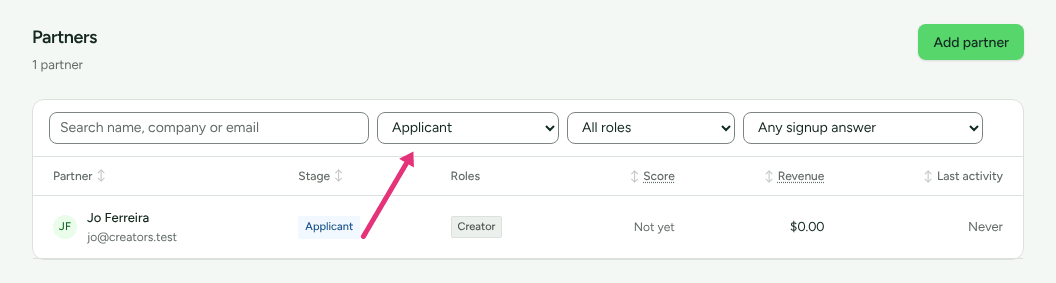
The list shows everyone waiting, newest first. Press a column heading (Partner, Stage, Score, Revenue, Last activity) to sort by it; press it again to reverse the order. Score reads Not yet until a partner has some recorded activity, which most applicants do not.
You are also told by email. What is waiting on you, a daily email that counts partner applications among other things, is on by default for Managers, Admins and Owners. Each person can change it under Settings › You › Your emails.
To be told some other way, add an automation on Partner applied under Campaigns › Automations (see Automations), or subscribe to the event under Integrations › Webhooks.
Read an application
Open the applicant. Their page opens on Overview. Above every section are the Applicant badge, and Found you in the directory if they applied through the partner directory rather than your signup page. What they sent is in three of the sections:
- Overview: Details (company, country and website, as they typed them), and the Screening note card if AI assistance is on (below).
- Account: What they told you when they applied, their answers to your own signup questions, if your form asks any.
- Notes: their answer to "How you plan to promote them", filed as a note with no author.
Ask for a screening note (optional)
If AI assistance is on for your workspace, a Screening note card appears on the applicant's Overview, under Details, while somebody is an applicant: "How this application reads against the programme. You decide."
- Press Ask how this application reads.
- Read the result, marked as written by AI with the model named. It carries one of three readings, Worth a closer look, Reads as a good fit or Reads as a poor fit, with reasons and anything "Worth checking before you decide".
Before you press, the card says what is sent: "their answers, their own note, their website address and the programme's description". Not their name, their country, or anything your team wrote about them. The note "did not visit their website or accounts, cannot tell whether anything they said is true, and approves nobody."
AI assistance is off unless Refficks has it on for this service and your workspace has not switched it off under Settings › Partners and payouts › AI assistance. When it is off, the card is not shown.
Decide
On the applicant's page, press one of these at the top right, whichever section is open:
- Approve: they are in.
- Reject: they are not taken forward.
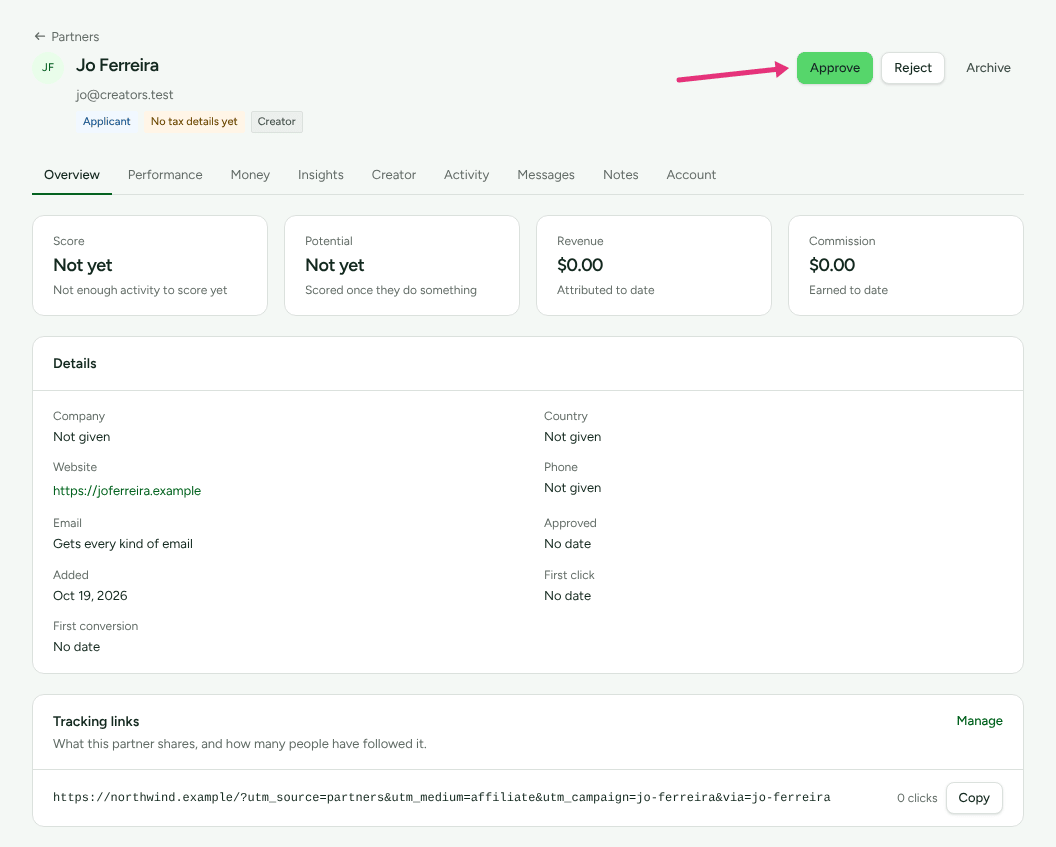
The page reloads with the new stage.
What the applicant is told
| You press | Their portal | |
|---|---|---|
| (Nothing yet) | Application under review, with your waiting message (or Refficks's: "Your application is with us. We review every one by hand, so this can take a few days…") and the date they applied. | When they applied, a link to set a password. |
| Approve | The waiting panel goes and their program appears, with the tracking link made when they applied. It now earns. | None from Refficks, unless you set one up (below). |
| Reject | Not taken forward: "This programme is not taking your application forward." | None. |
On the signup page itself, an applicant who is waiting for you reads "Your application is in" and "Check your email. We have sent you a link. Open it to sign in and follow your application to <your company>."
Refficks sends no email on approval or rejection by itself. To email approved partners their link, add an automation on Partner approved that sends the built-in Welcome to the programme email. See Send approved partners a welcome email.
The Approve applicants automatically box says "Either way, an approved partner is sent your welcome email, which you can change." That is true only once the automation above exists. Without it, nothing is sent.
An applicant who never used their set-password link can still use it after you approve them, for 14 days from when it was sent. If it is lost or out of date, open their Account section and press Re-invite in the Partner portal card.
Someone who is already your partner applies
The signup page gives the same answer to everyone, so it never tells a stranger whether an address is on file. When the address already belongs to a partner in your workspace, Refficks emails that address "Confirm your application to <program>". Nothing changes until the person opens the link (it works for 7 days) and presses Confirm it was me. Then:
- Their answers are added to their record, as anyone's are.
- If they are approved with you and the program approves automatically, they join it at once.
- Otherwise they wait in that program for you, like any applicant. A partner you rejected is not readmitted by applying again.
Change your mind
- After rejecting: a rejected partner's page shows a button labelled Applicant. Press it to put them back in the queue, then approve or reject again.
- After approving: Reject is not offered on an approved partner, because it would cut nothing off. Use Suspend on the program's Partners in this program card to stop them earning in that program, or Archive on their page to stop them everywhere. See Suspend, archive or end a partner's access.
Approve applicants automatically instead
In the program's Public signup page card, tick Approve applicants automatically and press Save changes.
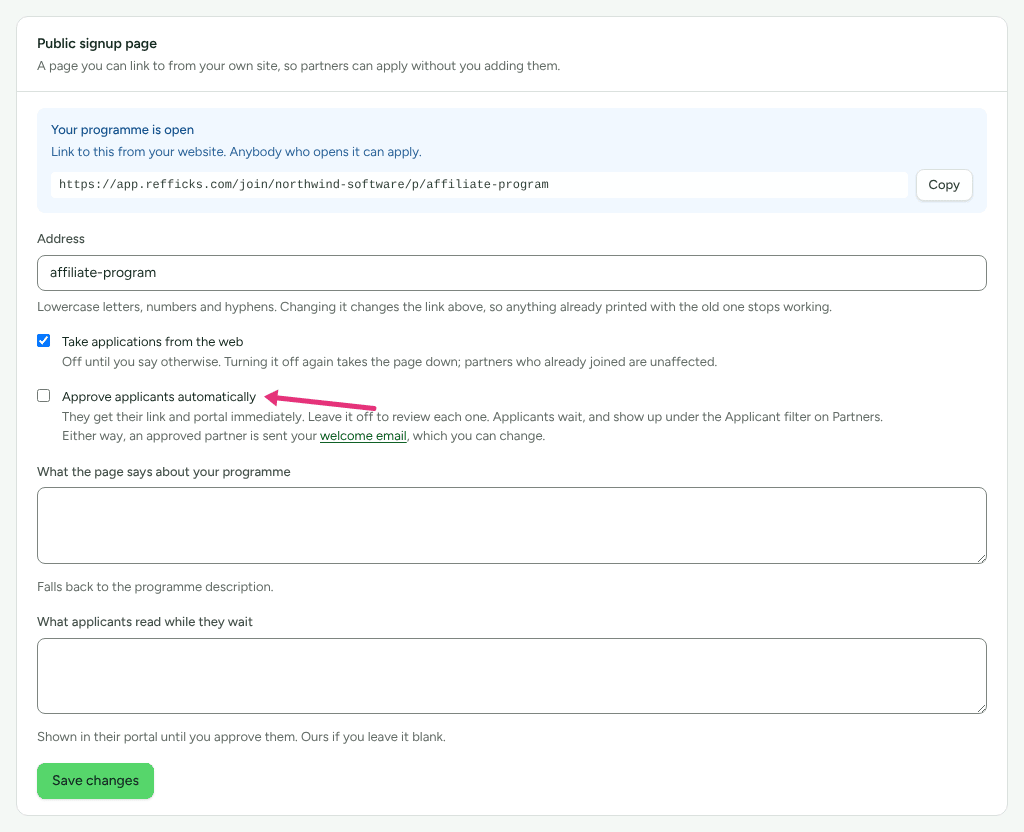
From then on:
- The signup page says "You are approved straight away." instead of "Applications are reviewed before you are let in."
- New applicants are approved and enrolled on the spot, and read "Check your email to finish joining" and "We have emailed you a link. Open it to finish joining <your company> and get into your portal."
- Their email is the set-password link, and their tracking link is already in their portal.
Applicants who were already waiting stay waiting. Approve them by hand.
Keep bots out
The Bot check card on a program's page turns on Cloudflare Turnstile for every signup page your workspace has, not only that program's.
- Open any program from Programs.
- In Bot check, tick Check that applicants are people. Where Refficks has not set the bot check up, the card reads "The bot check is not set up on this Refficks installation yet, so it cannot be switched on." and the box cannot be ticked.
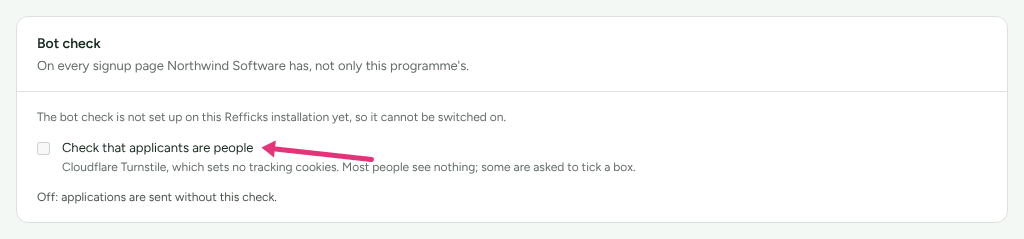
"Most people see nothing; some are asked to tick a box." An application without a passing check is refused with "Confirm you are a person, then send it again." Only an Owner or Admin can change this.
The line under the box says where you stand:
- "On: everybody who applies is checked before their application is sent."
- "Switched on, but not asked for yet: it is not set up on this Refficks installation." Refficks has not set up its Turnstile keys, so nothing is asked.
- "Off: applications are sent without this check."
If Cloudflare cannot be reached when someone applies, the application goes through unchecked rather than being refused.
Check it worked
- On the partner's page, the badge reads Approved (or Rejected).
- The Applicant filter on Partners no longer lists them.
- After approving, the program's Partners in this program card shows them as Approved, and the Tracking links card on their Overview shows their link.
- Settings › Developer › History records the change of stage and who made it.
What this does not do
- There is no bulk approve. Each application is decided on its own page.
- No automation can reject anybody. Rejecting is always a person pressing Reject.
- The screening note never decides, and never runs unless somebody presses the button.
- Rejecting does not email the applicant or delete them. Their record stays, and applying again does not readmit them.
Related
- Invite partners: the other ways a partner gets in.
- Send approved partners a welcome email: what to set up so approval is followed by an email.
- A partner cannot get in, or cannot apply: when an applicant cannot apply or never gets the email.
- Team roles and permissions: who can approve.