Customise your signup page and portal
Make the page applicants fill in, and the portal your partners work in, look and read like your business: your questions, your words, your logo and colours, the screens partners need, and the terms they agree to. Some of this is set once for the workspace and some per program.
Before you start
- Role: Owner or Admin for Settings › Workspace › Branding (everybody else can read it: "Only an owner or an admin can change what partners see. You can see what is set."). Owner, Admin or Manager for the cards on a program's page.
- You need: for a logo, a PNG or WebP at least 120 × 32 pixels. A PNG also appears in your partner emails; a WebP does not.
| What | Where | For |
|---|---|---|
| The questions on the signup form | A program's Signup form card | That program |
| What the signup page says about the program | A program's Public signup page card | That program |
| Which portal screens partners have | A program's What partners see card | That program |
| The agreement partners accept | A program's Partner agreement card | That program |
| Logo, icon, background, link preview | Settings › Workspace › Branding | The whole workspace |
| Colours | Settings › Workspace › Branding › Colours | The whole workspace |
| Welcome, support details, payout terms, privacy link, page title | Settings › Workspace › Branding › Words partners see | The whole workspace |
| Your words for partner, commission, payout, referral, reward | Settings › Workspace › Branding › Your words for things | The whole workspace |
| The new partner's checklist | Settings › Workspace › Branding › Getting set up | The whole workspace |
Add your own questions to the signup form
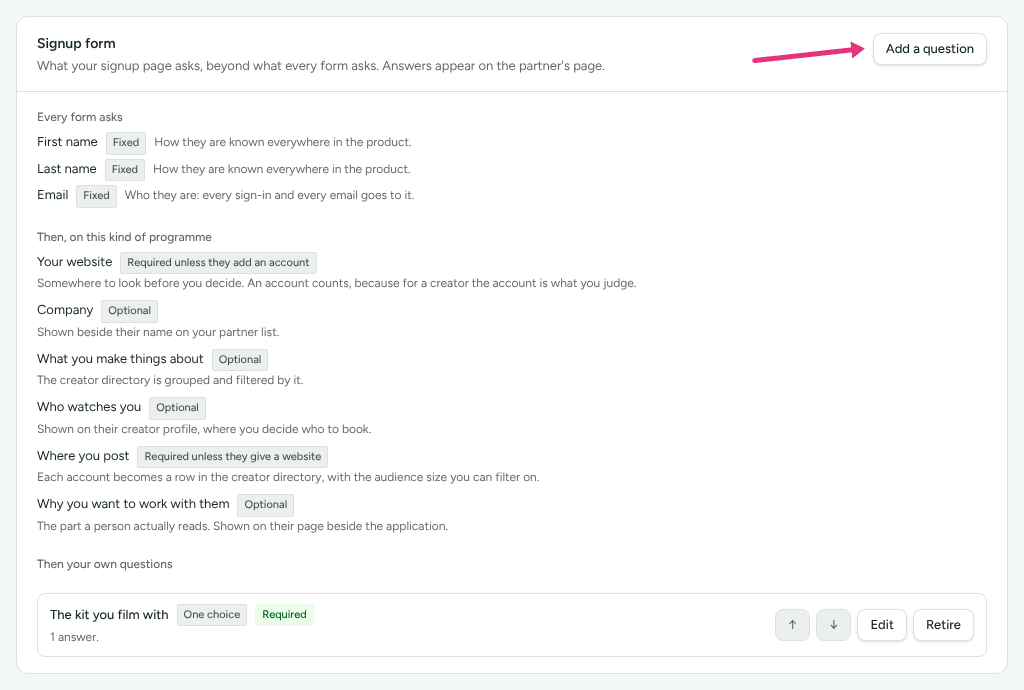
Every form starts with First name, Last name and Email, marked Fixed: they cannot be renamed, moved or removed. Under them the card lists the questions this kind of program always asks (for example Your website or How you plan to promote them), with whether each is required. Then come your own.
Go to Programs and open the program.
In Signup form, press Add a question.
Choose its Kind: Short answer, Long answer, Email address, Web address, Phone number, Number, One choice, Several choices, Tick box, Date or Country.
Type the Question, and optionally Help (optional), "A line under the question."
For a choice, type the Options: "One per line, two to thirty."
Tick Required if it must be answered (for a tick box, Must be ticked to apply).
Press Add it. The card says "Added. It is on the signup page now."
Move a question with the arrow buttons or by dragging it. Edit changes it. A question nobody has answered is removed with Remove and Remove it. One that has answers is retired instead (Retire, Retire it): it leaves the page, and its answers stay on the partners who gave them, under Retired questions. Answers appear on each partner's page.
Say what the page says about the program
On the program's Public signup page card:
- What the page says about your programme is the pitch under the heading. "Falls back to the programme description." The program made at signup has the description "Your first programme. Rename it, change the terms, or add more.", and no screen edits a description, so write this before you open the page.
- What applicants read while they wait is shown in an applicant's portal until you approve them. "Ours if you leave it blank."
Press Save changes. See Create a program for opening the page.
Add your logo and images
Go to Settings › Workspace › Branding.
In each card you want, choose a file under Upload one (or Replace it) and press Upload. The image is saved at once.
Card Where it shows What it takes Logo The portal's header, the top of your signup page, and the top of your partner emails "PNG or WebP, at least 120 × 32 pixels and no more than 2000 × 1000, under 1 MB. A transparent background works best." Browser tab icon The browser tab, on the portal and your signup page "A square PNG or WebP, between 32 × 32 and 512 × 512 pixels, under 256 KB." Background image Behind the portal and your signup page, under a wash that keeps the words readable "PNG, WebP or JPEG, at least 1200 × 600 pixels and no more than 4000 × 4000, under 4 MB." Link preview image The picture a chat app or social network shows for a shared signup page "PNG or JPEG, at least 600 × 315 pixels and no more than 4000 × 4000, under 4 MB. 1200 × 630 is what most services draw." 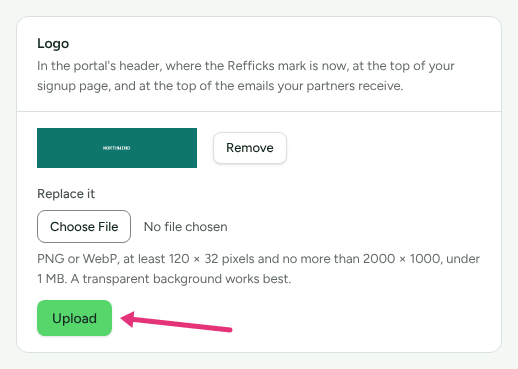
Optionally, in Where your logo goes, type a Link for when a partner presses your logo, and press Save link. Left empty, the logo takes them to their own overview.
Remove takes an image away; partners then see the Refficks default.
Choose your colours
In Colours, press a preset (Harbour, Plum, Ember or Graphite) or type your own for Links and highlights, Buttons, Navigation bar and Page background, once for the Light theme and once for the Dark theme: "Partners choose light or dark for themselves, so each colour has a value for both." Anything left empty keeps the Refficks colour. Press Save colours.
Refficks checks each colour against what is written on it. A pair that would be hard to read is refused: "Some of these colours would make words hard to read. Each one is explained below." Use the Refficks colours clears your own. The Preview beside the cards shows the real pages in the colours you have chosen, before you save.
Write the words partners read
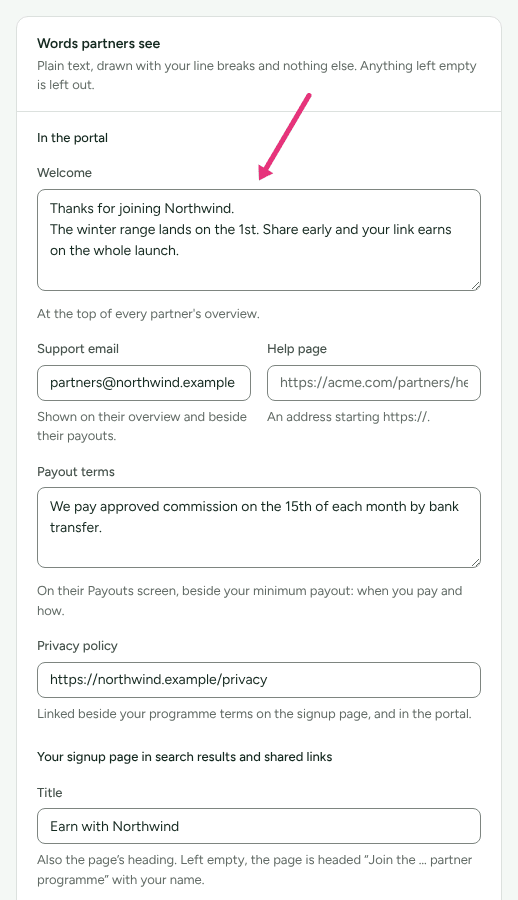
In Words partners see ("Plain text, drawn with your line breaks and nothing else. Anything left empty is left out."):
| Field | Where partners see it |
|---|---|
| Welcome | "At the top of every partner's overview." |
| Support email | "Shown on their overview and beside their payouts." |
| Help page | "Their help page", a link in the Help from … card on their overview and beside their payouts. |
| Payout terms | "On their Payouts screen, beside your minimum payout: when you pay and how." |
| Privacy policy | "Linked beside your programme terms on the signup page, and in the portal." |
| Title | Your signup page's heading, and its title in search results and shared links. "Left empty, the page is headed “Join the … partner programme” with your name." |
| Description | "The line under the title in a search result or a link preview. Not shown on the page itself." |
Press Save words. The card says "Saved. Partners see these words."
Rename the five words
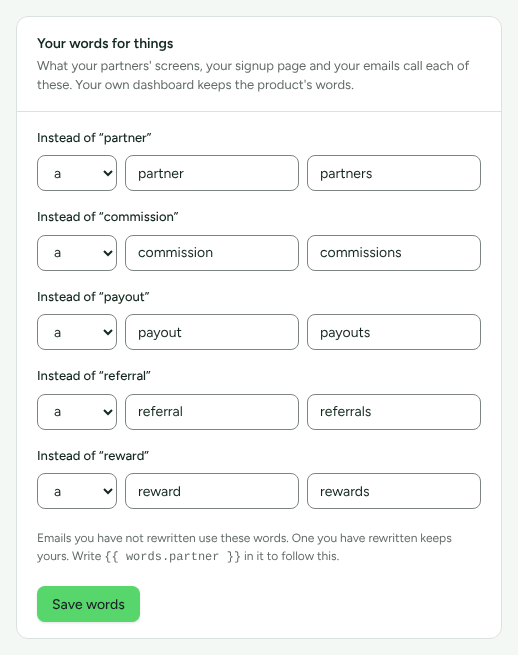
Your words for things changes what "your partners' screens, your signup page and your emails call each of these. Your own dashboard keeps the product's words." For each of partner, commission, payout, referral and reward, type the word for one and for more than one, and choose a or an. Each word is up to 30 characters, letters only, with spaces, hyphens or apostrophes between them. Use “partner” (and so on), beside a word you have changed, puts the product's word back. Press Save words.
An email you have rewritten keeps your wording. Write {{ words.partner }}
in it to follow this setting.
Choose which portal screens a program shows
On the program's What partners see card, untick a screen to leave it out of the portal for partners in that program, and press Save what partners see. The screens offered depend on the kind of program:
| Screen | What it is | Offered on |
|---|---|---|
| Messages | "A conversation with you, one thread per partner." | Every program |
| Notices | "The notices you publish to this programme, and what has happened to them." | Every program |
| Campaigns | "The campaigns you are running and whether they have opted in to each." | Affiliate programs |
| Assets | "Your creative library: banners, product shots and copy to use." | Affiliate programs |
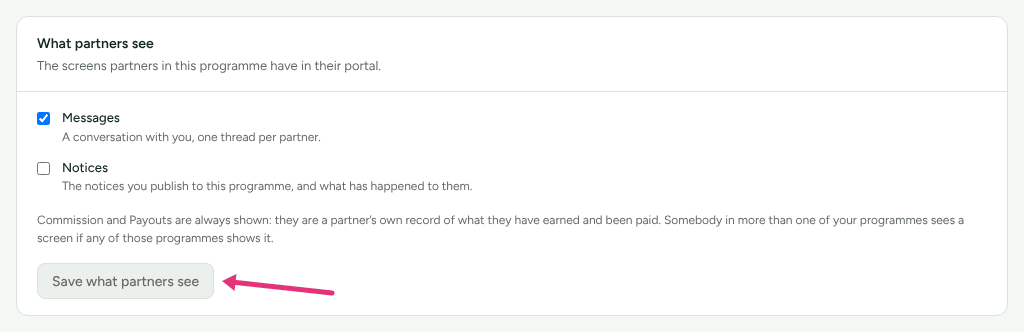
"Commission and Payouts are always shown: they are a partner's own record of what they have earned and been paid. Somebody in more than one of your programmes sees a screen if any of those programmes shows it."
Choose the steps on a new partner's checklist
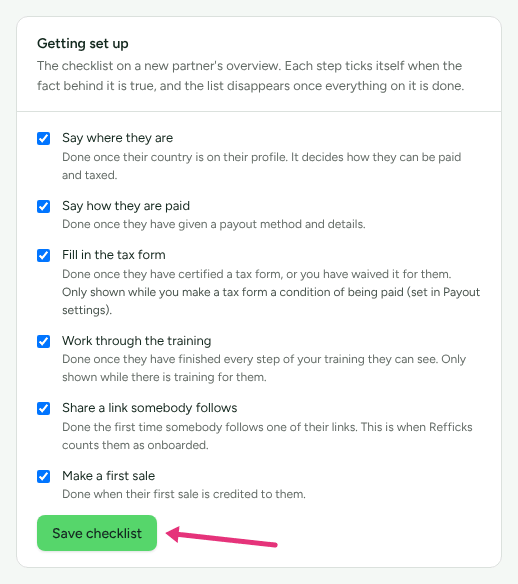
Getting set up on Settings › Workspace › Branding is "The checklist on a new partner's overview. Each step ticks itself when the fact behind it is true, and the list disappears once everything on it is done." Untick a step to take it off, and press Save checklist.
| Step | Done when |
|---|---|
| Say where they are | "Done once their country is on their profile." |
| Say how they are paid | "Done once they have given a payout method and details." |
| Fill in the tax form | "Done once they have certified a tax form, or you have waived it for them." Shown only while a tax form is a condition of being paid (Only pay partners who have a tax declaration on file, on Settings › Partners and payouts › Payout runs). |
| Work through the training | "Done once they have finished every step of your training they can see." Shown only while there is training for them. |
| Share a link somebody follows | "Done the first time somebody follows one of their links." |
| Make a first sale | "Done when their first sale is credited to them." |
Ask partners to agree to your terms
Each program can have its own Partner agreement: "What partners in this programme agree to. Raising the terms means a new version, and everybody agrees again." Without one, "Refficks' own partner terms are separate and still apply."
On the program's page, in Partner agreement, press Add an agreement (or Add a version).
Type a Version: "Your own label: whatever your agreement already calls itself."
Choose Where the agreement is: Written here, A page on your site, or An uploaded document (PDF or Word, up to 10 MB).
Press Save as draft. "Saving writes a draft. Partners see nothing until you put it in force."
Press Put in force on the draft.
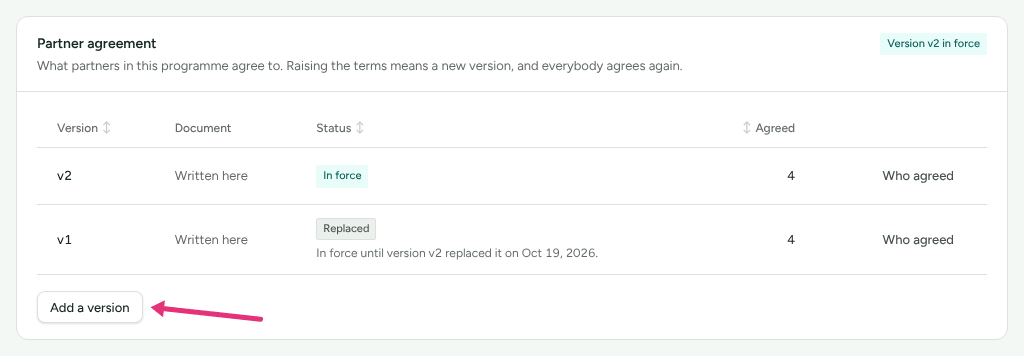
The next time each partner in the program opens their portal, the agreement is put in front of everything else, with I agree to version …. While it waits: "Your links keep working while you decide. Anything bought through them still earns you what it would have earned. This only holds back the portal itself." Who agreed lists who accepted each version and when.
Check it worked
- Open your program's signup address in a private window. You see your logo, your title (or "Join the <your company> partner programme"), your pitch and your questions.
- The Preview on Settings › Workspace › Branding shows the portal and the signup page as partners will see them.
- Getting started › Your logo is on the portal counts as settled once a logo is uploaded. Settled checks are folded away: press Show the N settled in its card to see it.
- In Partner agreement, the version in force has a badge, "Version … in force", and Agreed counts who has accepted it.
What this does not do
- The five words change only what partners read. Your dashboard keeps Refficks's words.
- A program's description cannot be edited on any screen; write What the page says about your programme instead.
- First name, Last name and Email cannot be removed from the form, and the built-in questions for a kind of program are shown but cannot be edited.
- Commission and Payouts cannot be hidden from the portal.
- "Your signup page ends with “Partner programme powered by Refficks”, and the Refficks mark appears wherever you have no logo." Removing both (white-label) "is granted by Refficks rather than switched on here", so ask support@refficks.com. Even then, password-reset emails still come from Refficks.
- A logo uploaded as WebP is left out of partner emails, because some email apps cannot show it. Upload a PNG to have it in your emails too.
Related
- Create a program: opening the signup page.
- Use your own domain: the signup page and portal on your own address.
- Review partner applications: what to do with the answers.
- Partner emails: the emails your words and logo go into.