A partner cannot get in, or cannot apply
For merchants whose partner never received a portal invitation, whose link does not work, or who cannot fill in the signup page. The most common cause is an email that was never delivered, and Refficks records every send, so start there.
Check this first
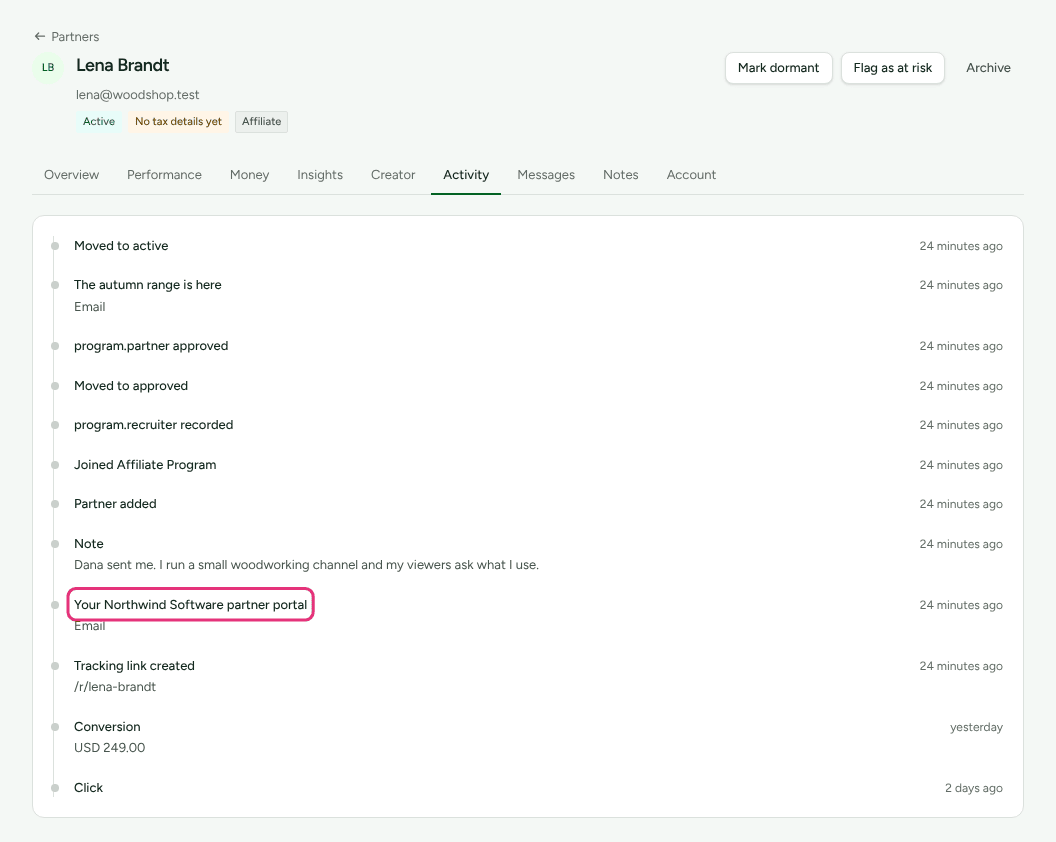
- Open the partner and choose Activity.
- Find the email titled "Your <your company> partner portal". Its line says
what happened to it:
- Email or Email · delivered: it left Refficks. Ask the partner to search their inbox and spam for that subject.
- Email · bounced, Email · not sent or Email · not delivered, each with a reason: it did not arrive. See The email did not arrive.
- Email · never sent: "It was queued and never handed to the mail server. Nothing will retry it, so send it again." Press Re-invite under Account.
- No such line: no invitation was ever sent. Press Invite to portal under Account.
Likely causes
| What you see | Likely cause | Fix |
|---|---|---|
| The partner says the email never came, and Activity shows it sent | Spam folder, or a filter at their end | Send a new invitation |
| A warning on the partner's page: Refficks does not send to this address | The address bounced, or its owner complained | The address is on the do-not-send list |
| Settings › Partners and payouts › Emails shows These did not arrive | The mail server refused or bounced it | The email did not arrive |
| The partner sees That link is no longer valid | The link was used, replaced by a newer invitation, or is more than 14 days old | The link no longer works |
| The partner says their password is refused on the invitation page | They already have a Refficks login from another merchant | They already have a Refficks login |
| The partner asks you to forward the link | There is no copy to forward | Send a new invitation |
| An applicant sees There is no programme at this address | The program is not open, not active, or the address is wrong | The signup page is not there |
| The signup form will not send | A required field, the bot check, or too many tries | The signup form is refused |
| An existing partner applied and nothing changed | Their application waits for them to confirm it by email | An existing partner applied |
| An applicant thinks they were approved | The set-password email says "You've been added" | The applicant thinks they are in |
| An approved partner has no link, or no code in their portal | Not in a program, or codes hidden | Approved but no link or code |
| "A partner with that email already exists." when adding someone | They are already in your workspace | Search Partners for the address and open the existing record. |
Fixes
Send a new invitation
- Open the partner and choose Account.
- In Partner portal, press Re-invite. (If the card shows Active, they have already joined; ask them to sign in to the portal instead.)
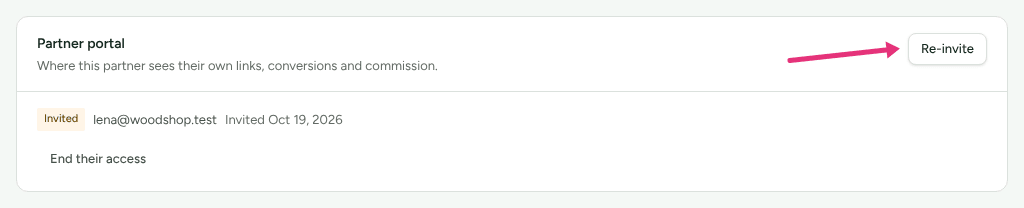
- Read the box that appears. Invitation sent means it was emailed to the address on their record. We could not send the invitation means the mail server refused it; see the next section.
Re-invite sends a new email with a new link, and any earlier link stops working. Ask the partner to use the newest email.
The link goes only to the partner's own address and is never shown on any screen, so you cannot copy it and send it another way. Whoever holds the link could choose the password of a login that covers every merchant the partner works with, so it stays in their inbox. If the email keeps failing to arrive, fix the cause first.
The email did not arrive
- Go to Settings › Partners and payouts › Emails and read These did not arrive: "Nothing retries them. Fix the address or the cause, then send again." Each row has the partner, the subject and the mail server's own reason.
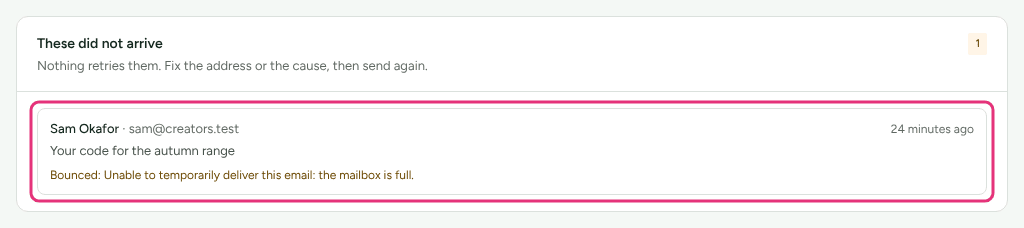
- If the reason is about the address (it does not exist, the mailbox is full), see the next section.
- If the reason is about the sender (your own sending address under Settings › Partners and payouts › Emails stopped verifying, for example), fix that first, then press Re-invite.
- If every email is failing, write to support. See When to contact support.
The address is on the do-not-send list
Refficks keeps one list of addresses it will not write to, shared across the whole service: addresses that bounced for good, and addresses whose owners complained. A partner on it shows Refficks does not send to this address on their page and a No email badge in the Partners list. Choose Cannot be emailed in the stage filter to see them all.
- "This address does not accept mail. Nothing was sent." It bounced. Usually a typo or an old mailbox. You cannot change a partner's email yourself: "A partner's email is also how they sign in, to every merchant they work with, so it cannot be changed here. Refficks support can change it for them." Write to support with the partner's id and the correct address.
- "This address asked not to receive programme email. Nothing was sent." Its owner marked your mail as spam or unsubscribed at their mail provider. It stays stopped, and nobody, including support, lifts it for you. Ask the partner directly how they want to be reached.
No merchant can take an address off the list, because the list is shared.
The link no longer works
The partner sees That link is no longer valid: "It may already have been used. Ask the company running the programme to send you a new invitation."
A link stops working when it is used, when you press Re-invite (which replaces it), when you end their access, or 14 days after it was sent.
- If the Partner portal card under the partner's Account reads Active, they already used it. They sign in to the portal with the password they chose. If they forgot it, see A partner cannot sign in to the portal.
- If it reads Invited, press Re-invite and ask them to open the new email within 14 days.
- If it reads Ended, you ended their access. Press Give it back to send a new invitation.
They already have a Refficks login
One partner login covers every merchant a partner works with. Being added by a second merchant is a confirmation, not a new signup:
- On the invitation page, they enter the password they already use with the other merchant. The page says so: "Already have a Refficks login? Enter that password."
- If they are already signed in to the portal, the page shows Confirm and join and asks for nothing. Sign in first on the invitation page gets them there.
A wrong password, a password too weak for a new account, and a missing one all get the same refusal, on purpose. If they have forgotten the password they use elsewhere, they reset it from the portal sign-in page (Forgotten your password?), then open the invitation again.
The signup page is not there
Applicants see There is no programme at this address: "The link may be out of date, or the programme may have closed to new partners. Check with whoever sent it to you." The page says the same for every cause, so check each:
- Open the program from Programs. Its Status must be Active. A draft, paused or archived program has no signup page.
- In Public signup page, Take applications from the web must be ticked, and the box Your programme is open must be showing. If it is not showing, the page is closed.
- Compare the address you published with the one in that box. It changes
when:
- you open a second program (the kind, or the program's own Address, is added to the address of each);
- you change the program's Address (the old program address stops working);
- you change your workspace's address under Settings › Workspace › Domains (the old one redirects, though for up to a minute after the change a recently visited address may still answer from the old one).
- On your own domain, check Settings › Workspace › Domains. The domain must be added for Partner portal and signup page, and its badge must read Live. Waiting for DNS or Not working means the records are missing or wrong: add both the TXT and the CNAME shown, then press Check DNS. A domain added for Single sign-on never serves a signup page.
- A workspace that Refficks has paused, or that its owner closed, takes no applications, and its signup pages give the same answer.
The signup form is refused
The form says what is wrong beside each field. The usual reasons:
- A required field is empty. On affiliate and B2B programs, Where you will promote them is required. Your own questions marked Required must be answered too.
- "Confirm you are a person, then send it again." The bot check is on and the applicant did not pass it, or the check was spent by an earlier try. They complete the check again and resend. If people keep failing, an Owner or Admin can untick Check that applicants are people in any program's Bot check card.
- "Too many requests." One network may send five tries a minute. Wait a minute.
- "This programme is not open for applications." The program closed after the applicant opened the page.
An existing partner applied
When an application names an address that already belongs to a partner in your workspace, nothing changes straight away. The signup page answers as it does for anyone, and the address is emailed "Confirm your application to <program>". The person opens the link (it works for 7 days) and presses Confirm it was me; only then are their answers added and, if they are approved with you and the program approves automatically, are they enrolled. Otherwise they wait for you like any applicant.
- Ask them to look for that email, including in spam.
- Applying again while an earlier confirmation link still works sends no second email.
- A link more than 7 days old shows This link does not work any more. They apply again to get a new one.
The applicant thinks they are in
Every new applicant is emailed a set-password link straight away, so they can see where their application stands. That email reads "You've been added to <your company>'s partner programme." even while you are still reviewing. When they sign in, their portal shows Application under review with your waiting message. Approve or reject them from their page; see Review partner applications.
Approved but no link or code
- Open the partner. On Overview, look at Tracking links.
- If it says "No links yet", they are in no program. This happens when you added them by hand while you had more than one program. Open the right program, and in Partners in this program type their name, choose them and press Add. A link and a discount code are made at once.
- If they have a link but their portal shows no code, open the program and check Show partners their code in Partner discount codes. It is off until you confirm the codes exist as discounts in your store.
- If they have a code but no link, neither the program nor your workspace has a website address. Set the program's Default destination.
- If their link exists but does not earn, check the program's Status (paused and archived programs do not earn), their row in Partners in this program (Suspended does not earn), and whether they are Archived. See Suspend, archive or end a partner's access.
When to contact support
Write to support@refficks.com if Activity says an invitation was delivered and several partners still have not received it, if every email is failing, or if a partner's email must be corrected. Include:
- your workspace's name;
- the partner's id, from the address of their page
(
/dashboard/partners/<id>), rather than their email address; - the program's name, and the signup page address if it is about applying;
- the exact message the partner or you saw, and roughly when.
Never send a secret key, a webhook signing secret, or a partner's payout details. Support does not need them and will not ask for them.
Related
- Invite partners: every way in, and what the invitation says.
- Review partner applications: approving and rejecting applicants.
- A partner cannot sign in to the portal: after they have joined.
- Create a program: opening the signup page and its address.