Reports, exports and History
Where Refficks shows how your program is doing, how to have the figures emailed to your team, how to take your data out as CSV files, and where to see who changed what. For anyone on the team; exports, scheduled reports and History need an owner or admin.
The short version
- Overview is the morning view: four figures for today, the last 7 or 30 days, or dates you pick, each compared with the same number of days just before, and what needs you.
- Reports has the same figures at more length, up to 12 months, plus where revenue comes from and whether recruited partners keep earning.
- Activation shows where partners stall on the way to a first sale, and names who is stuck.
- Every table sorts from its column headers. Press a column's name to sort by it; press it again to turn the order round.
- Days close in your workspace's timezone. Closed days come from a nightly count; today is counted live, so a sale made a minute ago is already there.
- Every money figure is in one currency. Refficks never converts or adds currencies together. Money in another currency is named on its own line.
- Import and export › Export takes a copy of everything as CSV files. Settings › Developer › History is the record of every change and who made it.
In detail
Overview
Go to Overview. Choose a period at the top: Today, 7 days or 30 days, or press Dates… to pick a From and a To date and press Apply. A picked range can be up to a year long and cannot end in the future.
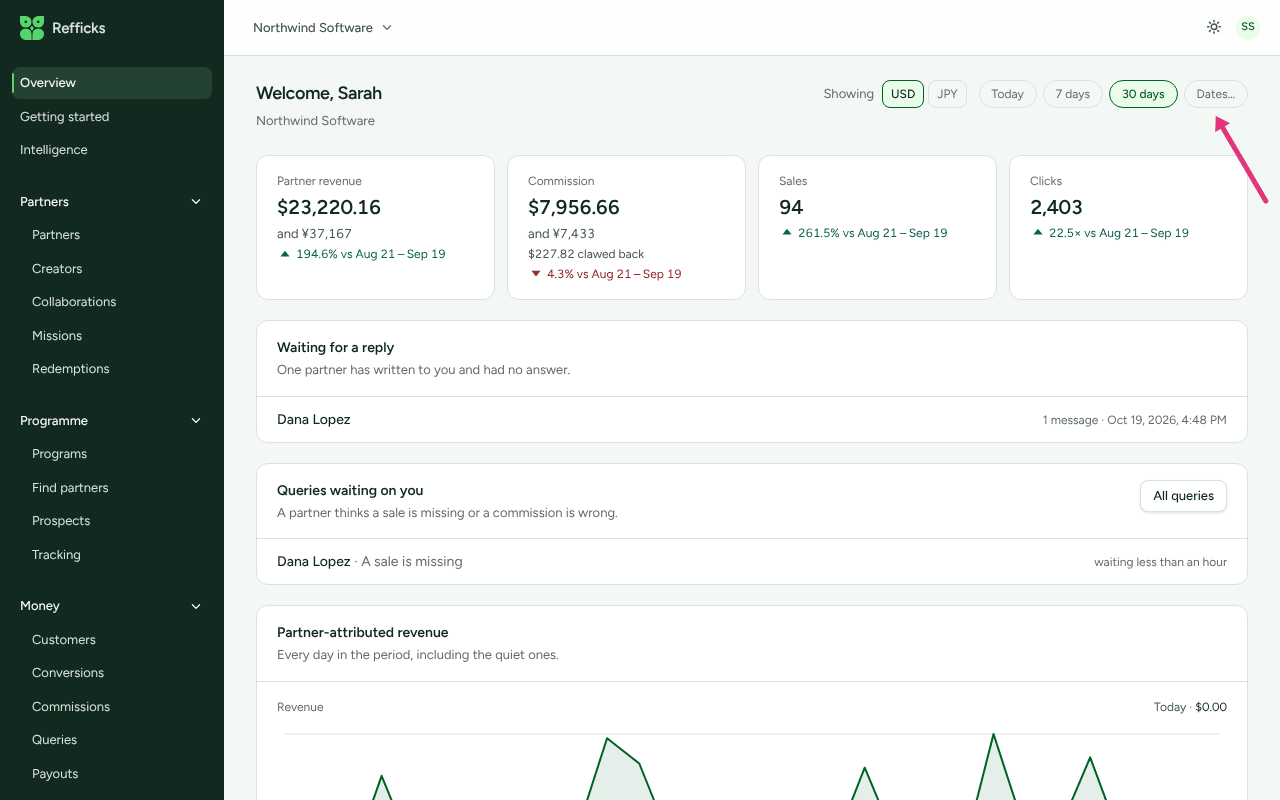
| Figure | What it is |
|---|---|
| Partner revenue | What the sales credited to partners were worth, on the day each sale was made |
| Commission | Commission earned in the period. When refunds took some back, a line under it says how much was "clawed back" |
| Sales | Sales credited to partners |
| Clicks | Clicks on partner links |
Under each figure is the change from the same number of days immediately before, and the line names those days, for example "12% vs Sep 16 – Oct 15". A change of five times or more reads as a multiple, such as "23.9× vs Sep 2 – 8". Where those earlier days had nothing to compare with, Refficks says so rather than showing "+100%": once, above the four figures, as "Nothing in … to compare these with." when none of them has anything to compare with, or under the one figure, as "Nothing in … to compare with", when only some do. Today is compared with yesterday.
When the period also has sales in another currency, the money figures name it on a line of its own, for example "and ¥20,667", never added in.
Below the figures:
- Partner-attributed revenue: a chart of "Every day in the period, including the quiet ones", with a second chart for clicks. The figure at the top right of the chart reads today's until you point at another day. On Today, the chart draws the week ending today.
- Who is doing the work: your five partners with the most revenue in the period. The green bar under each is that partner's revenue next to the top partner's. All reports opens Reports on the same days and currency.
- Needs you: Commission awaiting approval (with Review), Approved and not yet paid (with Pay out), and Partners active in this period, out of all your partners: "Partners who sent at least one click or made a sale in … Archived partners are not counted."
A workspace with no partners yet shows No partner data yet instead of zeroes.
Reports
Go to Reports. The periods are Today, 7 days, 30 days and 12 months, and Dates… for a range you pick.
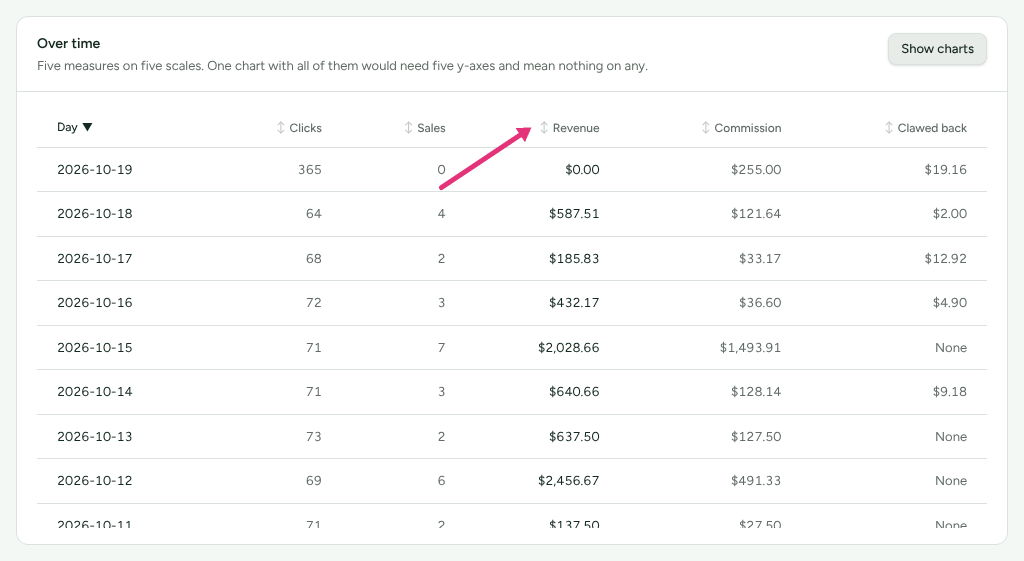
- Over time: five charts on one set of dates: Attributed revenue, Commission earned, Clicks, Sales and Clawed back. Press Show the numbers for the same figures as a table, one row per day, which you can sort by any column. Commission is shown gross; Clawed back is what refunds and disputes took back from it.
- How much rests on how few: what share of revenue came from your largest partners.
- What the commission brought back: revenue per unit of commission, as a multiple such as "4.20×", with a note on what the ratio is and is not. It is never called profit: Refficks does not know what your goods cost.
- Where your revenue comes from: how much of your revenue reached a partner, and what the rest was.
- How people get here: the routes that led to a sale, and how much came down each.
- Activation: the activation funnel, with the typical time to a first click and then to a first sale.
- Partners: "Everyone with activity in this period", with Clicks, Sales, Converted, Revenue and Commission; sort by any of them.
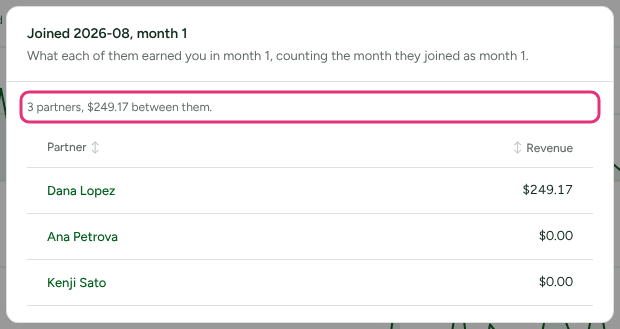
- Do the partners you recruit keep earning: one row per month a group of partners joined, complete months only. It ignores the period you chose, and keeps its own order. Every number in it opens the partners behind it. A month's figure lists the partners who joined that month and what each earned you in that month of their age, the most first, under a line such as "4 partners, $1,240.00 between them", which is the figure you pressed. The Partners count lists the same people and what each has earned you over every complete month so far. Somebody who earned nothing is listed at nought rather than left out. Each name opens the partner, and the list sorts by Partner or Revenue.
Activation
Go to Activation. It answers where partners get stuck.
- How far partners get: every partner who is not archived, at four stages: Signed up, Sent a click, Made a sale and Earned commission.
- How long each step takes: Approved to first click and First click to first sale, as the median: "The middle partner, not the average one." A step nobody has taken yet says so, for example "Nobody has clicked yet.", rather than showing 0 days.
- Never sent a click and Clicks, but no sales: the partners stuck at each stage, longest-waiting first, each linking to their page. Beyond the first few it says "and … more".
Days, timezones and today
- A day starts and ends at midnight in your workspace's timezone, set under Settings › Workspace › Organization › Timezone ("Used for reporting periods and scheduled work.").
- Each night Refficks counts the day that has closed, and the day before it again, so an event a provider delivers after midnight but dated before it still lands on the right day.
- Today is counted live from the same arithmetic. A sale made a minute ago is on Overview now, and the total does not move when the day closes.
- A day that has just closed is counted live too until the nightly count has reached it, so yesterday's figures are there first thing in the morning, and a weekly report sent on Monday includes Sunday.
Currencies
Each figure is in one currency: your workspace's currency unless you choose another. When the period holds sales in more than one currency, Overview and Reports show a Currency choice beside the period, and the Overview's money figures name the other currencies on their own lines. Counts (sales, clicks, partners) cover every currency. Where a table holds money in more than one currency, its money columns sort by currency first, then by amount, so two currencies are never compared.
Scheduled reports
An owner or admin can have the figures emailed to the team.
- Go to Settings › Partners and payouts › Scheduled reports.
- On the Weekly report ("Every Monday, covering the week that just ended.") or the Monthly report ("On the first of each month, covering the month that just ended."), tick Send this report.
- Choose Send it after, an hour in your workspace's timezone. It starts at 8am.
- Under Who gets it, tick the people to send it to. Only teammates who have joined are listed; you cannot type in an outside address.
- Press Save. The page says "Saved."
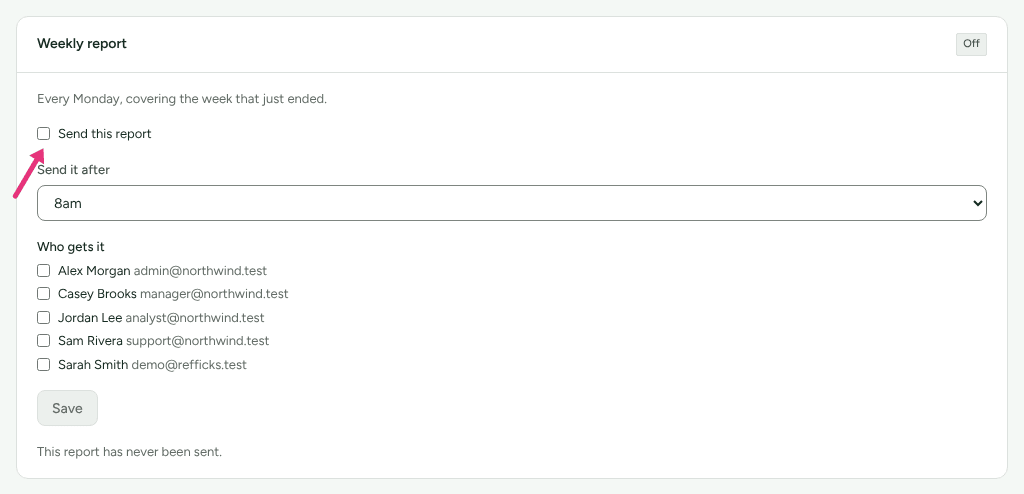
The email is plain text, with the period's figures in the message itself, and a subject such as "Your weekly report: …". Each card says when it was last sent and what it covered, or "This report has never been sent."
Exports
There is no CSV download on the partner, conversion or commission lists. Take those from Import and export › Export. The downloads that exist:
| Download | Where | Who | What it contains |
|---|---|---|---|
| Whole-account export | Import and export › Export | Owner, admin | Your choice of eight files (below), in one archive |
| Download these (CSV) | Settings › Developer › History | Owner, admin | Every History entry matching your filters, not only the page on screen |
| Download (CSV) | A partner's Performance section, under Over a period | Anyone on the team | That partner's panels for the period you chose |
| Export approved (CSV) and Files for PayPal and Wise | Payouts | Owner, admin | Approved payouts, to pay from. See Pay your partners |
| Download 1099-NEC data (CSV) | Payouts, tax year | Owner, admin | The year's 1099-NEC figures |
Take a copy of your data ("Everything in your account, as CSV files in one archive. Yours to keep, whatever happens to this account."):
- Go to Import and export and open the Export tab.
- Untick anything you do not want. Everything starts ticked: Partners, Programmes, Tracking links, Conversions, Commission entries, Payouts, Signup answers and Audit trail.
- Press Build an export. It shows Waiting to start, then Building.
- When it shows Ready, press Download.
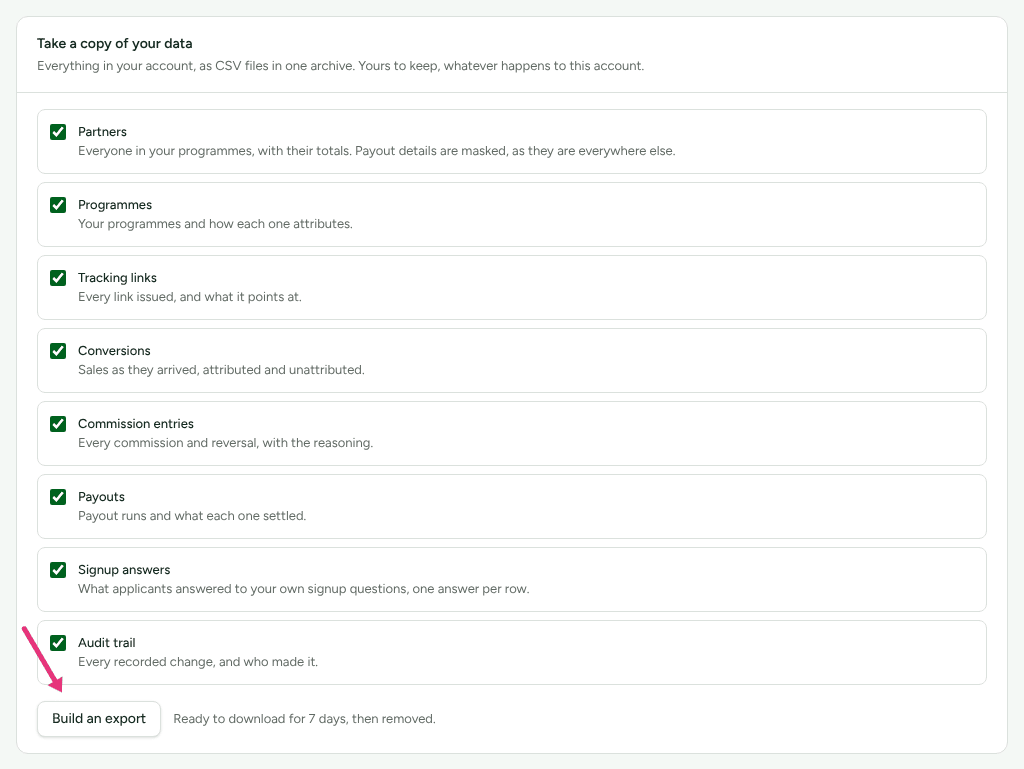
An export is "Ready to download for 7 days, then removed", after which it shows Expired and you can ask for another. Exports you have asked for lists who took each copy and when, and every download is recorded in Settings › Developer › History. Partners' payout details are masked in the export, as they are everywhere else.
History
Settings › Developer › History is "Everything that has changed on this account: who changed it, when, and what it was before." Owners and admins can open it, filter it, download it, and take back an approved payout run or a commission reversal from it. See Read History.
Where to see it in Refficks
| Question | Screen |
|---|---|
| How did we do this month? | Overview, 30 days |
| How did we do this quarter? | Overview or Reports, Dates… |
| Which partners are stuck? | Activation |
| Why was this sale credited to this partner? | Conversions › a conversion › Why this conversion was attributed |
| Who approved this payout? | Settings › Developer › History, filtered by Action |
| Can I have everything in a spreadsheet? | Import and export › Export |
Settings that change it
| Setting | Where | Default | What it changes |
|---|---|---|---|
| Timezone | Settings › Workspace › Organization | Set when the workspace was created | When each reporting day starts and ends, and when scheduled reports go |
| Weekly report, Monthly report | Settings › Partners and payouts › Scheduled reports | Off, 8am, nobody ticked | Whether figures are emailed, when, and to whom |
Limits
- Refficks does not convert currencies, so there is no single total across currencies.
- A picked range covers a year at most.
- Days that closed before you change the timezone keep the dates they were counted under; only days counted afterwards use the new timezone.
- Reports count only what Refficks recorded. A sale your payment provider never reported is in no figure.
- Scheduled reports go only to teammates who have joined the workspace.
- An export link works for 7 days.
- History cannot be edited or deleted, by you or by Refficks.
Related
- Read History — filters, Refficks support sessions, and taking an action back.
- Team roles and permissions — who can open exports, History and scheduled reports.
- Retention, erasure and closing your workspace — how long data is kept, and what an export is for before closing.
- How attribution works — what decides which partner a sale is credited to.
- Approve commissions — act on Commission awaiting approval.