Team roles and permissions
What each of the five roles in a Refficks workspace can do, how to invite a teammate, change their role or remove them, and how ownership is handed over. For owners and admins who manage the team, and for anyone wondering why a button is greyed out.
The five roles
The Role menu on Settings › Workspace › Team describes each role in one line:
| Role | What the Team page says |
|---|---|
| Owner | "Full access, including billing." |
| Admin | "Manage the team, programs and money." |
| Manager | "Manage partners and campaigns." |
| Analyst | "Read-only: sees reports, commission and payouts, and changes nothing. The seat for somebody in finance, who can choose the monthly payout reminder and be sent scheduled reports." |
| Support | "Read-only access to partner records." |
To see your own role, open the account menu (your initials, at the top right of every page): it shows your name, your email and your role.
Roles are ranked: each role can do everything the role below it can. In practice:
- Ownership is held by owners. Only an owner can make someone an owner, change an owner's role or remove an owner. Admins manage every seat below owner. Owners also keep their password when single sign-on is required.
- Owners and admins share everything else, billing included.
- Money is owner and admin work. Managers run partners and programs but cannot approve commission or move money.
- Risk is for managers and above. What Refficks suspects about a partner (the risk score, review prompts, a payout waiting on a review) is not shown to analysts or support. Their screens say "Risk is shown to a manager or above."
- Analysts and Support change nothing. Both can open the dashboards and lists. Analysts also read the quality analytics and what a migration found, and can connect an AI app; Support cannot.
Permission matrix
✓ = can do it. The server enforces every one of these; the screens hide or disable a control you cannot use and usually say why.
| Action | Owner | Admin | Manager | Analyst | Support |
|---|---|---|---|---|---|
| See Overview, Reports, Activation, partners, programs, conversions, customers, commissions and payouts | ✓ | ✓ | ✓ | ✓ | ✓ |
| Read quality analytics (a partner's quality score, the quality-versus-risk grid) and what a migration found | ✓ | ✓ | ✓ | ✓ | |
| Connect an AI app such as Claude or ChatGPT (where Settings › Partners and payouts › AI assistance allows it) | ✓ | ✓ | ✓ | ✓ | |
| See a partner's risk score and its factors, review prompts and payouts waiting on a review; work the review queue | ✓ | ✓ | ✓ | ||
| Add and edit partners; approve or reject applicants; archive and unarchive a partner | ✓ | ✓ | ✓ | ||
| Credit a sale to a partner, or move it to another partner (see the note below) | ✓ | ✓ | ✓ | ||
| Message partners, send newsletters, answer partner queries | ✓ | ✓ | ✓ | ||
| Create and edit programs, collaborations and gifts; create commission plans; change how a plan pays (Paid as) | ✓ | ✓ | ✓ | ||
| Sync partner codes to Stripe or a store; name a Stripe coupon as a partner's code | ✓ | ✓ | ✓ | ||
| Add store credit for a referral reward or an ambassador redemption | ✓ | ✓ | ✓ | ||
| Create and edit automations; edit partner emails (Settings › Partners and payouts › Emails) | ✓ | ✓ | ✓ | ||
| Add creatives under Assets; create and edit Campaigns | ✓ | ✓ | ✓ | ||
| Review a migration's mappings, duplicates, codes and balances | ✓ | ✓ | ✓ | ||
| Set what a reward paid in money or store credit is worth | ✓ | ✓ | |||
| Let a plan approve commissions by itself; change a B2B program's payment terms | ✓ | ✓ | |||
| Approve, reject or reverse commissions | ✓ | ✓ | |||
| Build, approve and mark payouts paid; send them through PayPal or Tremendous; add a payout's store credit | ✓ | ✓ | |||
| Connect PayPal or Tremendous for payouts | ✓ | ✓ | |||
| Download payout files (Export approved (CSV), PayPal and Wise files, 1099-NEC data); Settings › Partners and payouts › Payout runs | ✓ | ✓ | |||
| Erase a partner's data; forget a customer | ✓ | ✓ | |||
| Start, import and cut over a migration | ✓ | ✓ | |||
| Invite teammates below owner, change their roles, remove them | ✓ | ✓ | |||
| Make someone an owner; change or remove an owner | ✓ | ||||
| Step down from owner to another role | ✓ | ||||
| Connect or disconnect integrations; choose a guide (I sell with …); see the address a provider's deliveries are sent to | ✓ | ✓ | |||
| Create and revoke API keys (Settings › Developer › API keys) and automation keys (Integrations › Developer); Integrations › Webhooks | ✓ | ✓ | |||
| Settings › Workspace › Billing | ✓ | ✓ | |||
| Import and export › Export (take a copy of your data) | ✓ | ✓ | |||
| Settings › Developer › History (read and download the audit trail) | ✓ | ✓ | |||
| Settings › Partners and payouts › Scheduled reports (choose who gets them) | ✓ | ✓ | |||
| Settings › Partners and payouts › AI assistance, Autopilot settings | ✓ | ✓ | |||
| Under Settings › Workspace: Organization (currency and timezone included), Branding, Domains, Single sign-on. Settings › Partners and payouts › Partner links. Under Settings › Developer: Website orders, Retention | ✓ | ✓ | |||
| Be sent scheduled reports | ✓ | ✓ | ✓ | ✓ | ✓ |
| Set up your own two-step sign-in; delete your own login (both on Settings › You › Security) | ✓ | ✓ | ✓ | ✓ | ✓ |
| Close the whole workspace | Ask Refficks support |
Money a manager sets in motion by hand waits for an owner or admin. A manager can credit a sale to a partner, or move it to another one, and the partner is credited. But the commission it makes does not approve itself on its plan's timer: the conversion page says so before the manager presses the button, and the commission waits for an owner or admin to approve it. A move that would take back a commission already approved or paid is refused to a manager with "Moving this sale would take back a commission that is already approved or paid, so it needs someone who may approve money."
Team emails follow the same lines. Under Settings › You › Your emails, each person sees the emails their role can act on; a switch their role does not reach says who it is for, for example "For people who approve payouts: an admin or owner."
Invite a teammate
Role: owner or admin. Only an owner can invite somebody as an owner: an admin's Role menu does not offer it.
- Go to Settings › Workspace › Team.
- Under Invite a teammate, type their Work email.
- Choose a Role. The line under the menu describes it.
- Press Send invite. The page says "Invitation sent to … The link works until …".
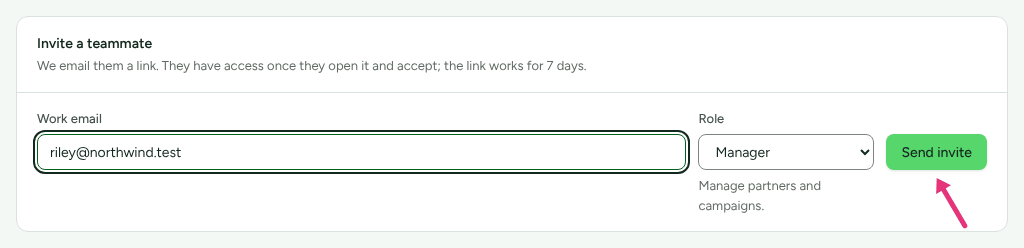
The invitation link works for 7 days. Your teammate opens it and sees "Join {your workspace}" with your name, their address and their role. New to Refficks, they choose a name and a password (at least 12 characters, with letters and numbers); already on Refficks, they use their existing password. They press Join {your workspace}, and have access from then on. If your workspace requires single sign-on for their address, they press Use your company account instead.
Check it worked
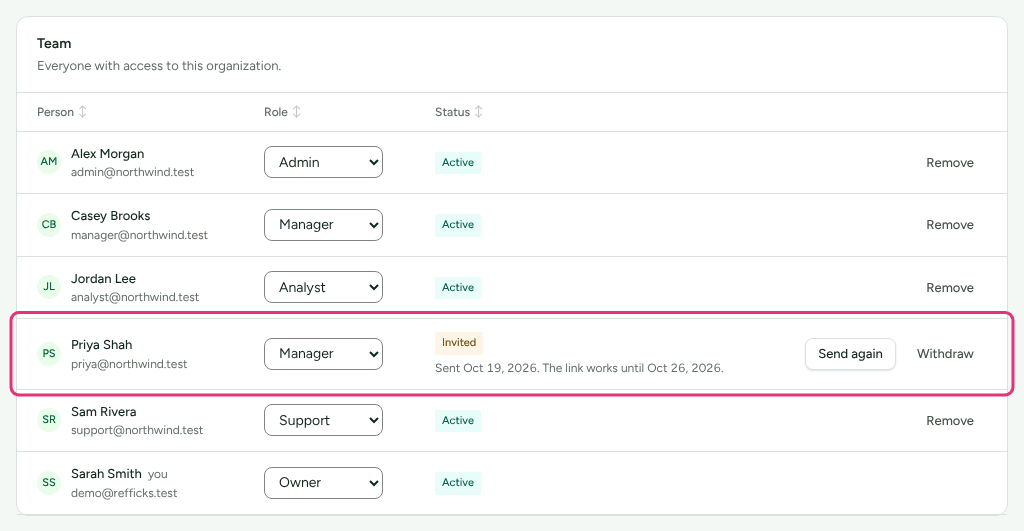
The Team list shows them with a status:
- Invited: "Sent … The link works until …". Waiting for them.
- Email not sent: the last attempt failed. Press Send again.
- Invitation expired: press Send again for a new 7-day link.
- Active: they joined.
To cancel an invitation, press Withdraw, then Yes, withdraw. The link stops working. Press Person, Role or Status at the top of the list to sort it; press again to turn the order round.
Change someone's role
Role: owner or admin. An admin can change any seat below owner; only an owner can change an owner's seat or make someone an owner.
- Go to Settings › Workspace › Team.
- In their row, choose the new role from the menu (Role for …). It saves at once.
The menu offers only the roles you may give. Where you cannot change a seat at all, the row shows the role as a label with the reason beneath it:
- "Only an owner can change an owner's role." (an admin, on an owner's row)
- "You cannot change your own role. Ask an owner." (your own row, unless you are an owner)
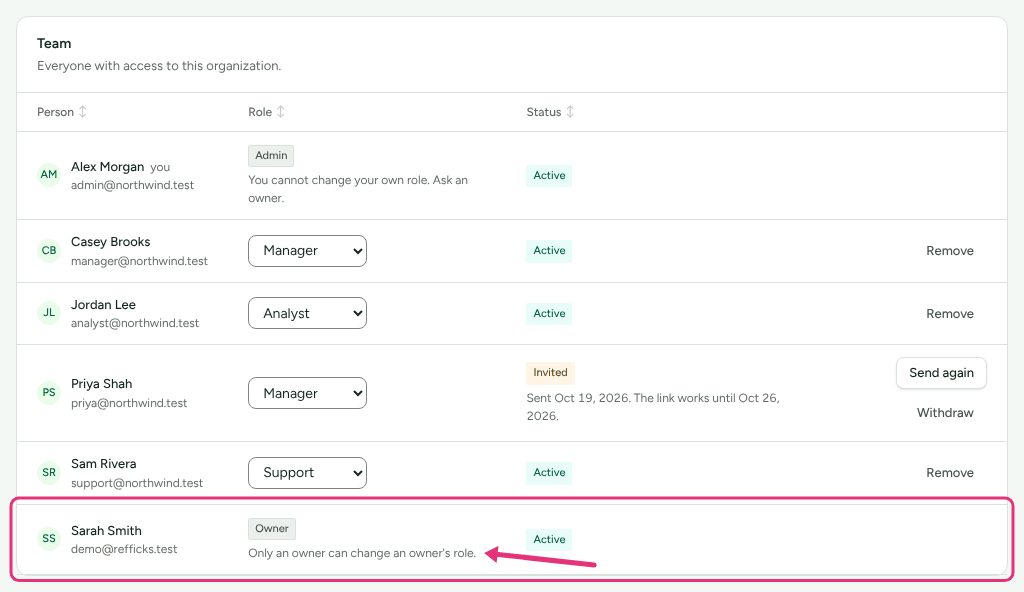
Nobody can raise their own role. Every role change is recorded in Settings › Developer › History.
Hand ownership over
An owner hands ownership over in two steps, both their own:
- Make the new owner: invite them as Owner, or change their row's role to Owner. Wait until their status reads Active.
- In your own row, choose your new role from the menu (Step down from owner). The row asks "Step down to …? Only another owner can make you an owner again." Press Yes, step down.
A workspace must always keep at least one owner who has joined. Stepping down while the only other owner is still an unopened invitation is refused with "An organization must keep at least one owner." Nobody else can demote or remove you while you are an owner, except another owner.
Remove someone
Role: owner or admin. Only an owner can remove an owner.
- Go to Settings › Workspace › Team.
- In their row, press Remove, then Yes, remove. The page says "… no longer has access."
You cannot remove yourself here, and you cannot remove the last owner. What they did stays in Settings › Developer › History under their name.
What lower roles see
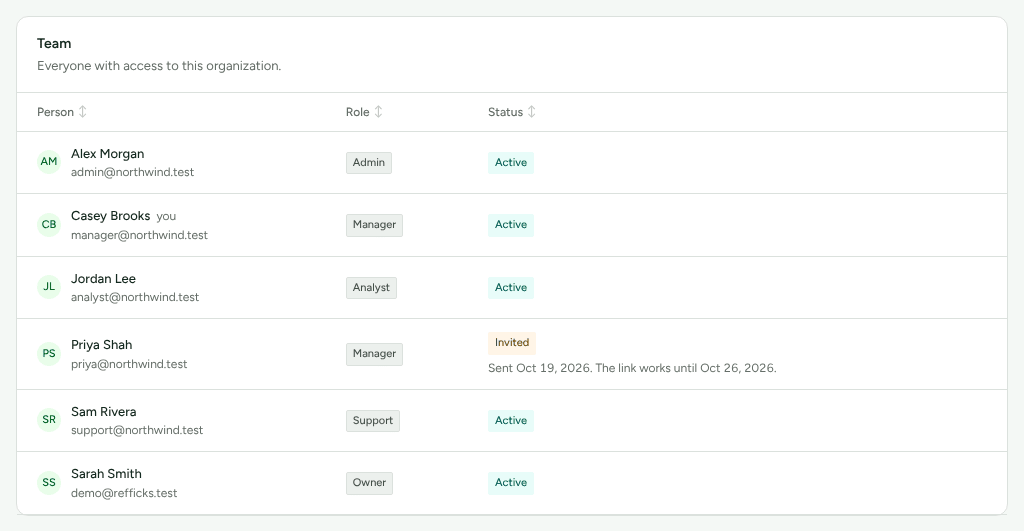
Managers, analysts and support see the Team list with each role as a label and no Invite a teammate card. Elsewhere, a control they cannot use is disabled or missing, and the screen usually says who can use it, for example "Only an owner or an admin can change how people sign in." on Settings › Workspace › Single sign-on.
When Refficks support works in your account
To help with a problem, someone at Refficks support can sign in as one of your team for up to 30 minutes at a time. You can always see it:
- your owners are emailed when it starts;
- Settings › Developer › History shows a Refficks support in your account card listing each session: who they acted as, the reason, the reference, and In here now while it is open. Press End it to end a live session;
- everything they change is recorded in Settings › Developer › History under "Refficks support, acting as …".
While acting as someone, support can do what that person can do, with these limits:
- Nothing that outlasts the session. Support cannot make API keys, helpdesk or store keys, team invitations, webhook addresses or AI app connections. Those controls are disabled for them with "Refficks support cannot make API keys, helpdesk or store keys, team invitations, webhook addresses or AI app connections here, because each would keep working after this session ends. Ask them to make it when they next sign in."
- A button that moves money (approving a payout run, for example) asks them to confirm the amount and your workspace first.
- They cannot delete anyone's account: "Refficks support cannot delete somebody's account for them."
- They never make an assertion on somebody's behalf: they cannot accept terms, an agreement or self-billing, certify a tax form, or publish a directory card for a partner. The person does it when they next sign in.
If your workspace is read-only because of billing, someone at Refficks with admin access is not held by it: their changes go through, and History records who made them. See Read History.
What this does not do
- There are no custom roles, and no per-program permissions: a role applies to the whole workspace.
- There is no "transfer ownership" button. Ownership moves only by an owner making a new owner and then stepping down.
- Nobody can see another person's two-step codes or recovery codes, or turn their two-step sign-in off.
- Partners' payout details are never shown to anyone, whatever their role, and no role can change where a partner is paid: only the partner can, from their own login.
- Removing someone does not delete what they did; History keeps it.
- Refficks does not ask a second person to approve what one owner or admin does: one admin can build and approve the same payout batch.
- There is no button to close the whole workspace. Refficks support closes it on request. See Retention, erasure and closing your workspace.
Related
- Two-step sign-in and single sign-on — protect each login, or let your company's provider sign the team in.
- Read History — who changed what, and Refficks support sessions.
- Approve commissions — the owner and admin task that most often prompts a role change.
- Pay your partners — payouts, also owner and admin only.
- API keys — keys act for the workspace, not for a person.