Send approved partners a welcome email
Refficks does not email a partner when you approve them. This article sets up the one automation that does: when a partner is approved, send them the built-in Welcome to the programme email with their link. It is for merchants and program managers, and takes about five minutes.
Before you start
- Role: Owner, Admin or Manager. Analysts and Support see the Automations card but not the form.
- You need: nothing else. The welcome email is written for you and works as it is.
- Know this first: without this automation, an approved partner hears nothing from Refficks about the approval. The portal invitation is a separate email that only sets a password (see Invite partners).
Check the email (optional)
The built-in email is called Welcome to the programme. Its subject is "You're in. Welcome to <your company>" and it says, in full:
Hi <first name>,
You're approved. Here's your link:
<their tracking link>
Share it anywhere. Every click is credited to you, and you can see them as they happen in your portal:
<portal address>
<your company>
To change the wording:
- Go to Settings › Partners and payouts › Emails.
- Find the Welcome to the programme card. It shows the email's name, its subject and its state; press Show wording to read the body. Programme email means partners who opted out of program email do not get it; Yours appears once you have changed it.

- Press Edit on that card, change the Subject, Preview line or Body, and press Preview to see it with a real partner's details.
- Press Save. The card stays open on the wording you saved. Back to the original undoes your changes.
Leave Send ticked on the card. With it unticked, "This email is switched off. Nobody receives it.", and the automation below sends nothing.
The program's Approve applicants automatically box links here too, as "welcome email".
Steps
- Go to Campaigns.
- Scroll to the Automations card. With none yet it reads "Nothing runs on its own yet" and "The most useful one to start with: when a partner is approved, send them their link."
- In Call it, type a name you will recognise, for example "Welcome new partners".
- In When, choose Partner approved.
- In Do, choose Send them an email.
- In Which email, choose Welcome to the programme.
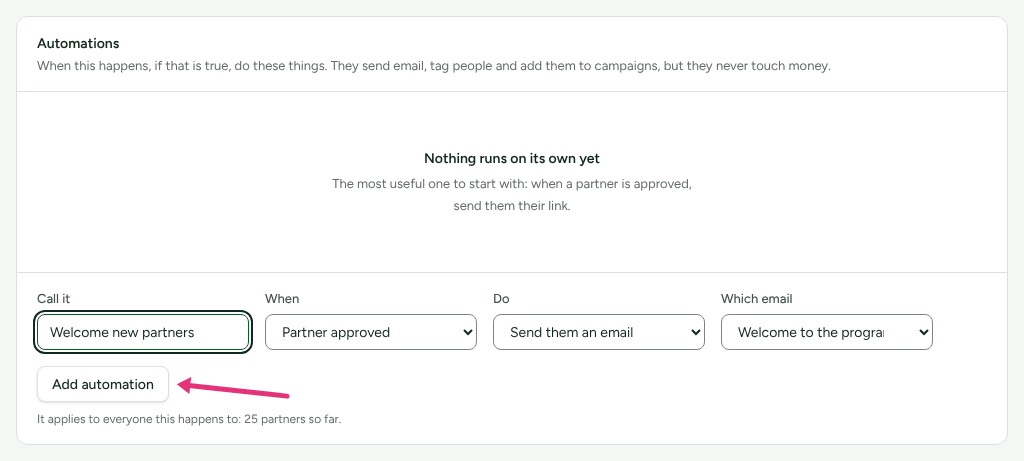
- Press Add automation. It is on as soon as it is saved.
Check it worked
The rule appears in the Automations table with When reading Partner approved, Does reading "email partner.approved", a Ran count of 0, and a Pause button.
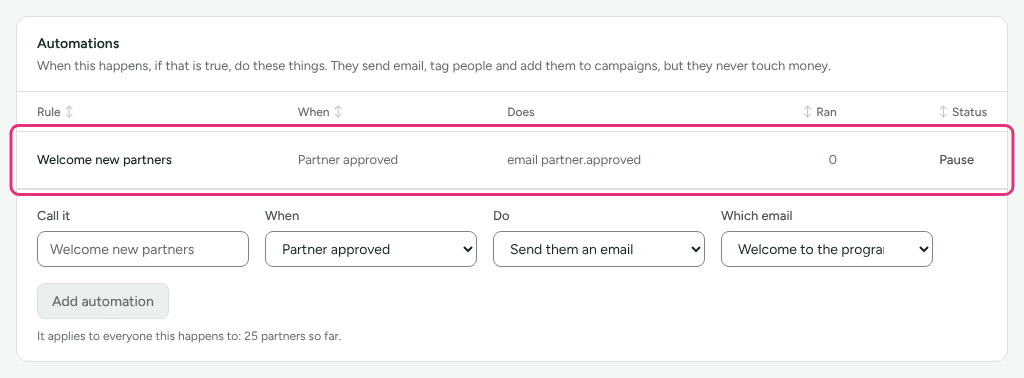
Then approve someone, or add a partner by hand (they are approved on arrival):
- The rule runs in the background straight after the approval. Reload the page: the Ran count has gone up by one.
- Open that partner and choose Activity. It lists the email by its subject, "You're in. Welcome to <your company>", with a line saying whether it was sent.
- If it did not arrive, see A partner cannot get in, or cannot apply.
When it is sent, and when it is not
It is sent when a partner becomes approved:
- you press Approve on an applicant;
- you add a partner by hand (Partners › Add partner);
- you import partners from a file (Import and export › Import a file);
- a program that approves applicants automatically takes an application.
It is not sent:
- to partners who were approved before you added the rule. Nothing is sent backwards;
- to partners brought in by a migration (Import and export › From another platform). A migration never starts automations, whatever you tick;
- twice to the same partner by the same rule, even if they are approved again later;
- to a partner who turned off program email, or its Tips and reminders kind, in their portal. The run records that it was skipped;
- while the email's Send box is unticked, the rule is paused, or the workspace is closed.
What this does not do
- The rule does not invite anyone to the portal. Adding, importing and approving applicants already send that email.
- The link in the email is the partner's first tracking link. A partner added by hand while you have more than one program is in no program yet, so their welcome arrives with an empty line where the link should be. Their portal shows the link once you enrol them.
- There is no screen to edit or delete a rule. Press Pause to stop it, and Turn on to start it again.
- Refficks sends nothing when you reject an applicant, and no automation can reject anybody.
Related
- Automations: every trigger and action, and their limits.
- Review partner applications: approving applicants.
- Invite partners: the portal invitation, which is a different email.
- Partner emails: every email Refficks can send partners.