Invite partners
There are four ways a partner gets into your workspace: you add them, they apply, you import them, or (for someone already added) you invite them to the partner portal. This article covers each, and what a partner needs before they can earn: membership of a program, and a link or code.
Before you start
- Role: Owner, Admin or Manager. Analysts and Support can see partners but not add, enrol or invite them. (The Add partner button is shown to everyone; Refficks refuses the save for the two read-only roles.)
- You need: a program. Every workspace has Affiliate Program from signup.
- Know this first: "Membership is explicit: holding the affiliate role does not put someone in a program." A partner earns only in a program they are enrolled in.
Add a partner by hand
Use this for people you already know. They are approved the moment you add them: "They are approved straight away. You have already made that decision by adding them."
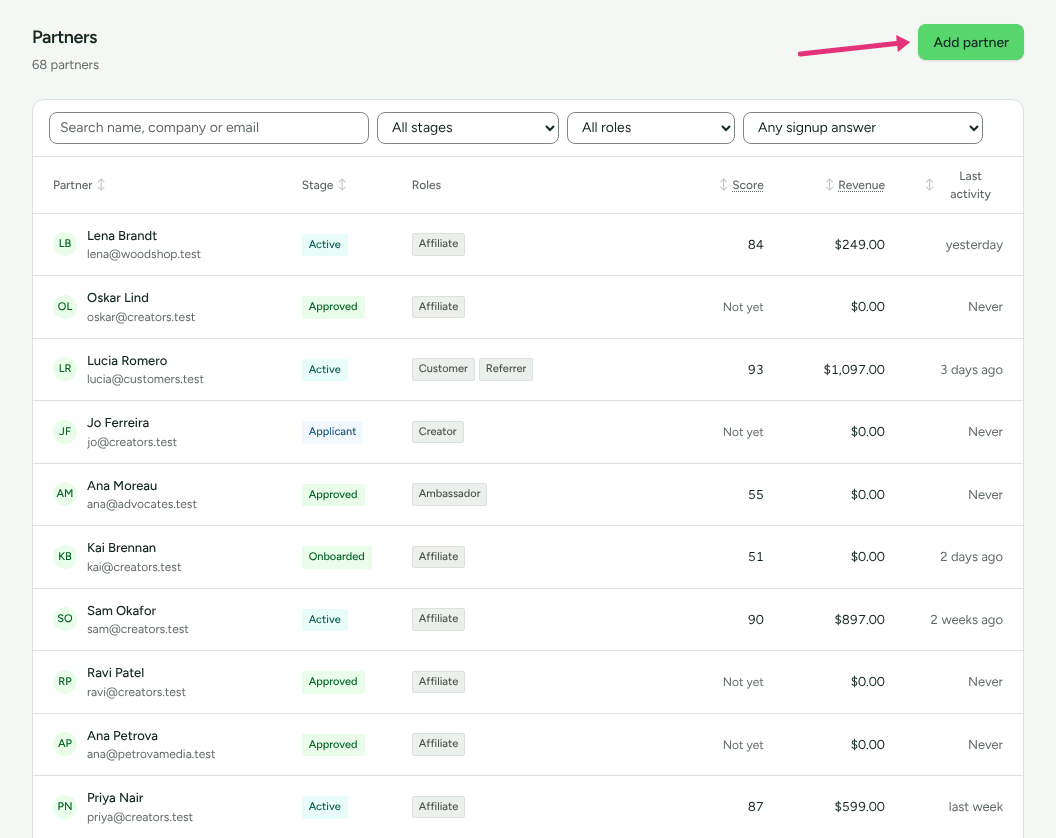
- Go to Partners.
- Press Add partner.
Fill in the form. Only Email is required:
Field Notes First name, Last name Optional. Email Required. "Used for their portal invitation and for matching them later." It must not belong to another partner in your workspace, and you cannot change it afterwards. Company, Country Optional. Partner code "Their link and discount code in each programme they join. Made from their name unless you change it: lowercase letters, numbers and hyphens." The box fills in as you type their name. Website Optional. Roles "Choose every one that fits. A creator can be an affiliate too." Affiliate is ticked to start. The others are Creator, Ambassador, Referrer and Business partner. What kind of business partner Shown only when Business partner is ticked: Agency, Reseller, Consultant, Referral partner, Implementation partner, Integration partner, Technology partner. Tick at least one. Tags Optional, comma separated. Press Add partner. Their page opens.
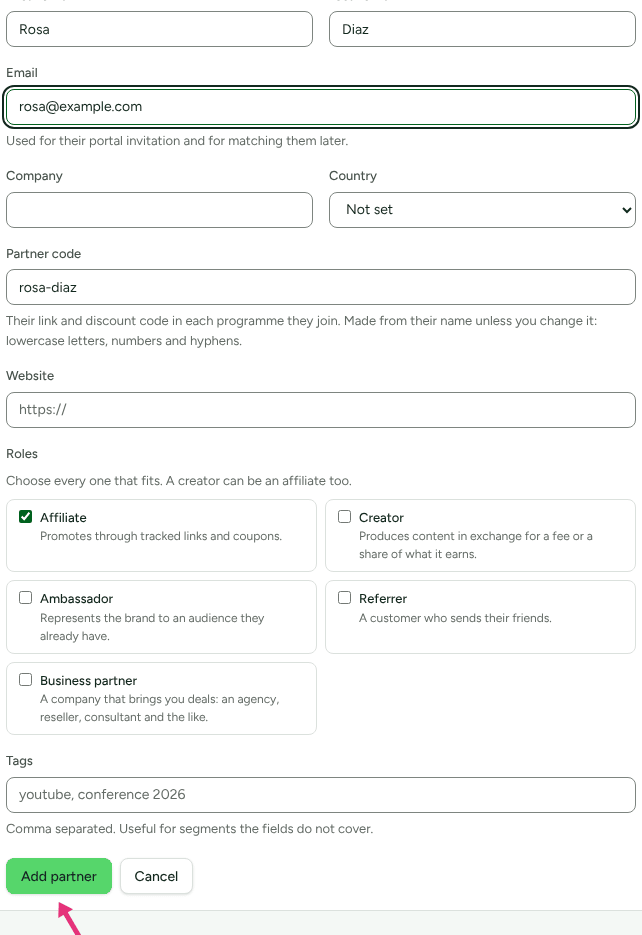
If the code you typed cannot be used, the form says so under Partner code before anyone is added: "A code may use lowercase letters, numbers and hyphens." or "That code is already in use."
What happens when you press it:
- The partner is Approved.
- If your workspace has exactly one program that is not archived, they are enrolled in it and given a tracking link and a discount code. With two or more programs, they are enrolled in none. See Enrol a partner in a program.
- They are emailed an invitation to the partner portal (next section).
- Any automation you have on Partner approved runs for them. See Send approved partners a welcome email.
The portal invitation
Adding a partner by hand sends the invitation for you. To send it to someone added another way, or to send it again:
- Open the partner's page and choose Account.
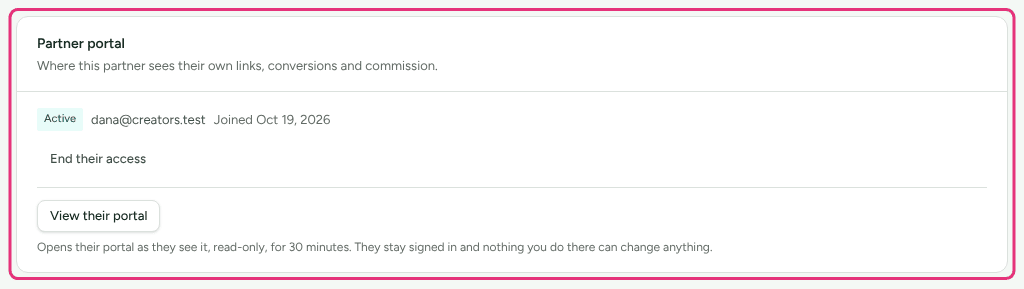
- In the Partner portal card, press Invite to portal (or Re-invite if one was sent before).

- Read the box that appears:
- Invitation sent: "We emailed it to <their address>. The link lets them choose a password and works once, from their own inbox."
- We could not send the invitation: "The mail server refused it." The reason is in the These did not arrive card under Settings › Partners and payouts › Emails. Put it right, then invite them again.
The invitation goes only to the email address on the partner's record, and the link is never shown to you. There is no copy to forward: "whoever holds it could choose their password." If a partner cannot find the email, invite them again.
The email comes from your workspace's sender name. Its subject is "Your <your company> partner portal", and it says:
You've been added to <your company>'s partner programme.
Set a password and your portal is ready. Your links, your clicks, your conversions and what you have earned, all in one place:
<link>
The link works once, for 14 days. If it has expired by the time you get to it, ask <your company> to send another.
About the link:
- It works once, for 14 days. After that it stops working.
- Re-invite sends a new email with a new link, and the earlier one stops working at once.
- This email cannot be switched off or edited, and it is sent even to partners who opted out of program email, because it is how they get in.
What the partner sees when they open it: Join <your company>, a Password box, and Open my portal. Someone who already has a Refficks partner login (from another merchant) enters that same password; someone already signed in sees Confirm and join and types nothing. One login covers every merchant a partner works with.
Re-invite disappears once they have joined. From then on the card offers View their portal (read-only, for 30 minutes) and End their access. See Suspend, archive or end a partner's access.
Let partners apply
Use this for people you do not know yet.
- Open your program from Programs and, in Public signup page, tick Take applications from the web. See Create a program.
- Copy the address from Your programme is open and link to it from your site.
- Optionally add your own questions in the Signup form card: press Add a question, choose its Kind (Short answer, Long answer, Email address, Web address, Phone number, Number, One choice, Several choices, Tick box, Date, Country), type the Question, tick Required if it must be answered, and press Add it.
Every form already asks first name, last name, email, a website or where they will promote you (required on affiliate and B2B programs), company, and how they plan to promote you. On the partner's page, their company and website are under Details on Overview, how they plan to promote you is a note under Notes, and answers to your own questions are in Account, under What they told you when they applied.
What happens next depends on Approve applicants automatically: off, they wait for you (see Review partner applications); on, they are approved and enrolled straight away. Either way the applicant is told to check their email:
- A new applicant is emailed a link to set a password, so they can sign in and see where their application stands.
- Someone your workspace already knows (the address belongs to a partner here) is emailed "Confirm your application to <program>" instead, with a link that works for 7 days. Nothing happens to their record until they press Confirm it was me. The signup page gives everyone the same answer, so it never reveals whether an address is already on file.
Import a list
To bring many partners at once, go to Import and export: the Import a file tab takes a spreadsheet or a LeadDyno export, and From another platform takes a whole program from another platform.
- Every partner from Import a file is approved and sent a portal invitation, as if added by hand. See Import partners from a spreadsheet.
- From another platform asks first, with Invite these partners to your portal. It is off unless you tick it. See Move your program from another platform.
Enrol a partner in a program
Needed when a partner is in no program, or should be in a second one.
- Go to Programs and open the program.
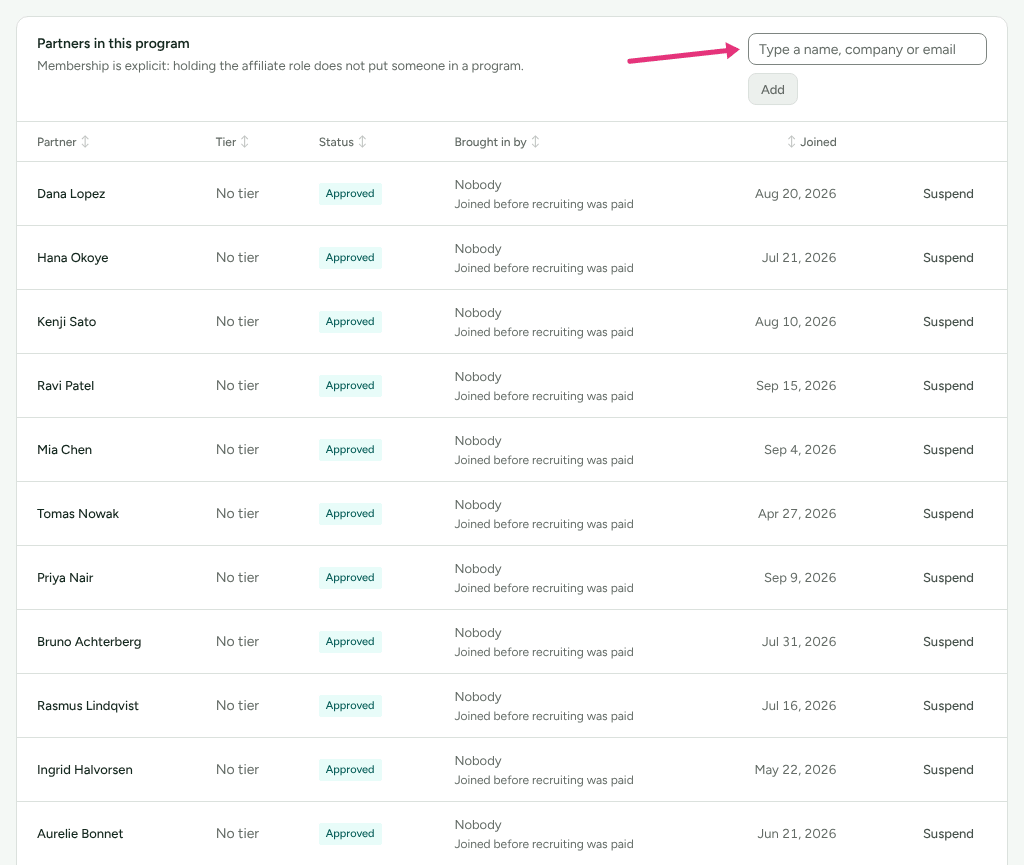
- In Partners in this program, type part of their name, company or email in the box ("Type a name, company or email") and choose them from the list. People already in the program are not offered.
- If the program has tiers, choose one, or leave No tier.
- Press Add.
Refficks refuses two cases with a message:
- "Approve this partner before adding them to a program." The partner is an applicant or was rejected.
- "That partner is already in this program."
How their first link and code are made
Joining a program gives a partner one code, used two ways:
- a tracking link to the program's Default destination, or to your website if the program has none, and
- a discount code with the same text.
The code is the Partner code typed when they were added, if one was, and otherwise one made from their company or name. If the typed code has been taken by the time they join, they get the one made from their name instead. You see both on the partner's Overview, under Tracking links and Discount codes. A partner in no program yet shows "No codes yet. When they join a program they are given <CODE>, the code typed when they were added."

The discount code works at your checkout only once the same code exists as a discount in your store. If you sync codes to your store (Stripe, Shopify, BigCommerce or WooCommerce; each integration's article says how), Refficks creates them. Otherwise, create them yourself, then tick Show partners their code in the program's Partner discount codes card. Until then partners do not see the code in their portal: "A code a partner can see is a code a customer will try."
If neither the program nor the workspace has a website address, Refficks makes no tracking link, and the partner gets only the discount code. Workspaces created through signup always have one.
Check it worked
On the partner's page:
- The stage badge at the top reads Approved.
- On Overview, Tracking links shows their link with a click count, and Discount codes shows their code.
- In Account, Partner portal reads Invited with the date, then Active and "Joined <date>" once they set a password.
- Activity lists the invitation email and whether it was sent.
On the program's page, Partners in this program lists them with status Approved. On Getting started, You have partners reads "N on the books." and At least one is in the programme is done.
What this does not do
- Adding a partner by hand never puts them in a program when you have more than one. Choose it yourself.
- Holding a role (Affiliate, Creator and so on) does not enrol anyone.
- Refficks does not send a welcome email when a partner is approved unless you set one up. See Send approved partners a welcome email.
- You cannot change a partner's email address. "A partner's email is also how they sign in, to every merchant they work with, so it cannot be changed here. Refficks support can change it for them."
- There is no copy of the invitation link to pass on by hand.
- A partner's page offers no way to change their roles after they are added, apart from making somebody a creator.
- If your workspace's plan has a partner limit, adding past it is refused with "Your plan allows N partners." The trial and Alpha plans have no limit. Archived partners do not count towards it.
Related
- Review partner applications: approving or rejecting people who applied.
- Send approved partners a welcome email: the email Refficks does not send by itself.
- A partner cannot get in, or cannot apply: when an invitation does not arrive or a link does not work.
- Get started in your partner portal: what your partner sees after they accept.
- Import partners from a spreadsheet: many at once.