Run a creator collaboration
A collaboration is a piece of paid work you agree with one or more creators: a brief, how they are paid, deadlines, what they owe you, and their answer. This article covers making creators, writing the brief, inviting them, reviewing their work, usage rights, gifts, and the reports.
Before you start
- Role: Owner, Admin or Manager to create collaborations, invite creators, review work and record gifts. Analysts and Support can read everything except the name a gift is addressed to. Fees become commissions, which only an Owner or Admin approves.
- The Creator module. Creators and Collaborations are in your menu under Partners. If they are not, the module has been held back for your workspace; write to support@refficks.com.
- A program, if the creators are to be paid a share of their sales (Commission only or Fee and commission): its plan decides the share, and each creator gets their own links and codes in it. A collaboration that pays Fee only needs none.
Make somebody a creator
A creator is a partner with creator details. The same person can also be an affiliate.
- Open the partner from Partners.
- Choose Creator and press Add creator details.
- Fill in their niche and the accounts they post on, and press Save.
They now appear on Creators, where you can filter by platform, audience size and niche. What you write about their content style, brand fit and rates is yours: the creator never sees it.
Create the collaboration
Go to Collaborations and press New collaboration.
Type a Name and choose an Objective, then press Create as draft. "It starts as a draft. Creators cannot see a draft, so you can write the brief before anybody reads it."
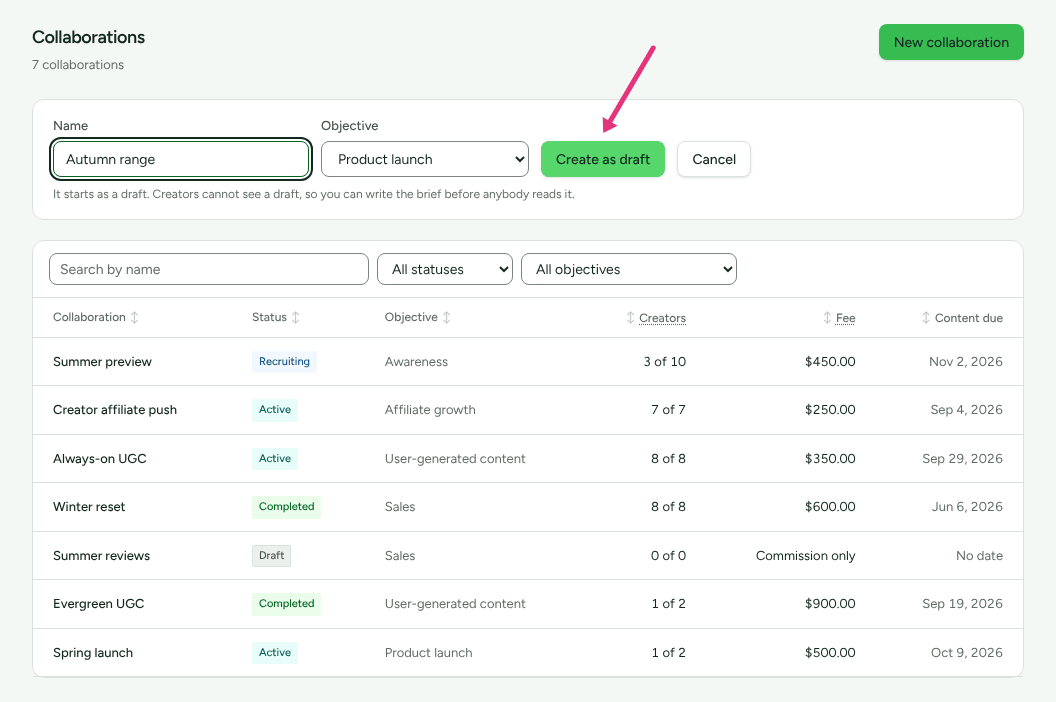
Open it from the list.
Write the brief and the terms
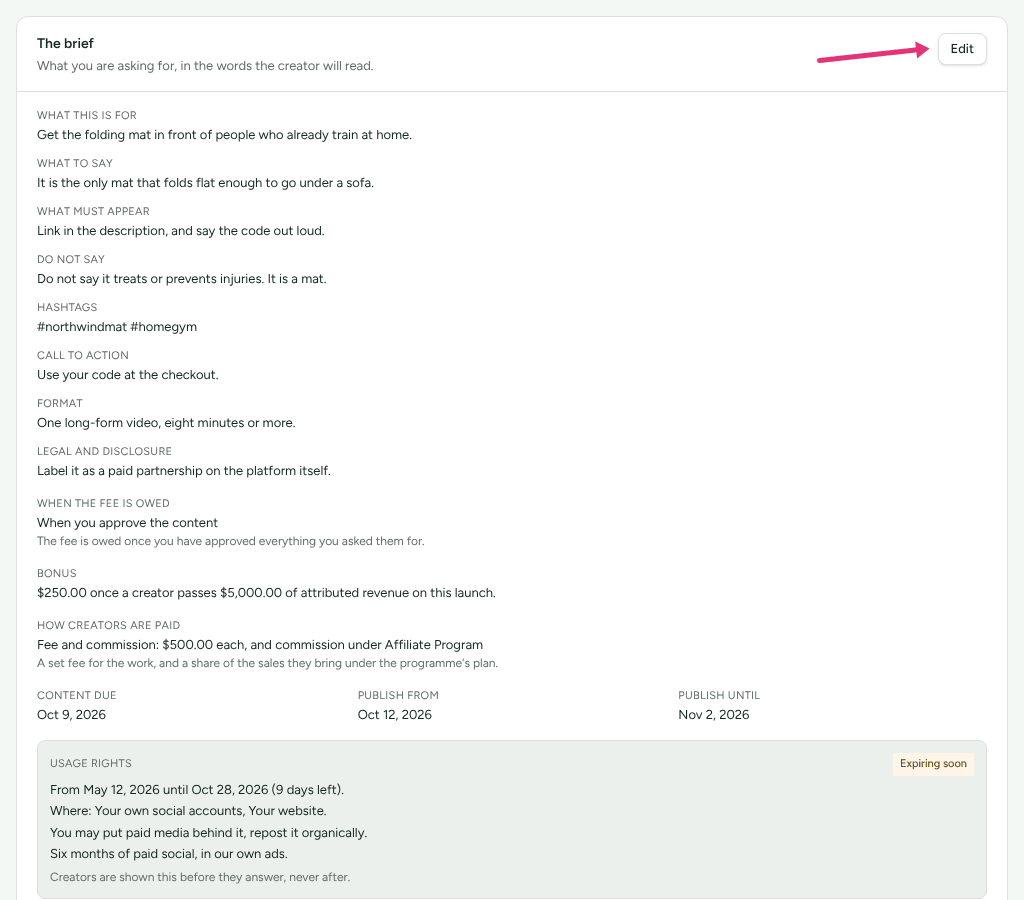
In The brief, press Write the brief (Edit once a brief is written).
Fill in what you are asking for. Each section is what the creator reads: What this is for, What to say, What must appear, Do not say, Hashtags, Call to action, Format and Legal and disclosure.
Under How creators are paid, choose one. Each choice says what it means:
- Fee only: "A set fee for the work. No programme is attached, so no links or codes are made and no share of sales is paid."
- Commission only: "A share of the sales they bring, under the programme's plan, through their own links and codes. No fee."
- Fee and commission: "A set fee for the work, and a share of the sales they bring under the programme's plan."
Until you choose, the form says "Not chosen yet. The rest of the brief saves without it."
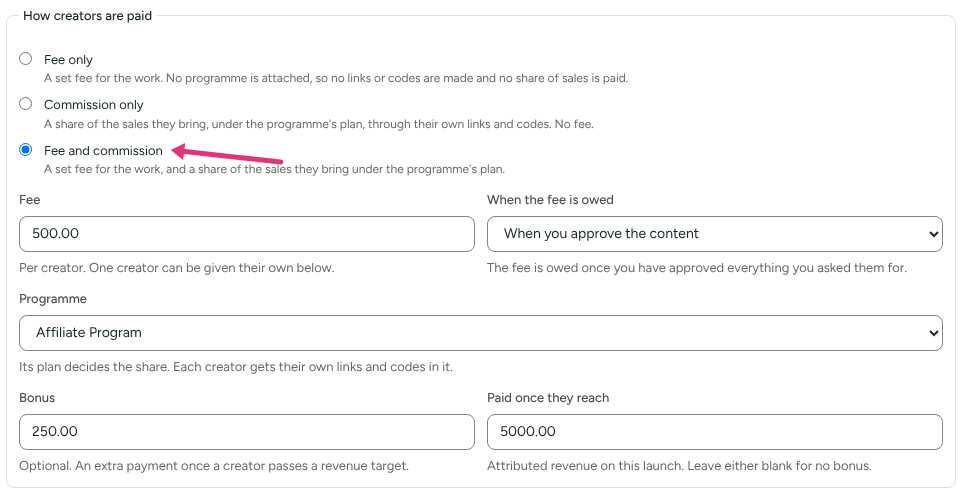
Fill in the fields your choice shows. Only those appear:
- With a fee: Fee ("Per creator. One creator can be given their own below.") and When the fee is owed: When you approve the content (the default), When it is published, When they accept or When you say so.
- With commission: Programme ("Its plan decides the share. Each creator gets their own links and codes in it."), and optionally Bonus and Paid once they reach: an extra payment once a creator's attributed revenue on this collaboration passes a figure. Leave either blank for none.
Set Budget, optional ("What you are willing to spend on this launch in total: fees, commission, bonuses and product."), and the Currency of the fee, the bonus and the budget.
Set Content due, Publish from and Publish until.
If you mean to reuse the content in your own advertising, tick I want to reuse this content in my own advertising, then set Rights start, Rights end ("Leave this blank and you are asking for them forever."), Where you may use it and What you may do with it (Put paid media behind it, Repost it organically, Edit or cut it).
Tick Everyone on this needs a signed agreement if each creator must sign your contract. "Refficks records where each contract lives and whether it has been signed. It does not send anything for signature."
Add Disclosures the post has to carry (your own words, such as
#ad) and Words that must not appear. Each becomes a box on the review checklist.Press Save.
Saving keeps only what your choice says. Fee only clears the program and the bonus: a bonus is paid on the sales a creator brings, and without a program there are no links or codes to bring any. Commission only clears the collaboration's fee. When a change takes something away, the form says so before you press Save: how many creators who accepted have no fee of their own and are no longer owed one, or that the bonus goes. A creator on a fee of their own is not counted and keeps it, and a fee already owed stays in Commissions.
The brief then reads, under How creators are paid, the choice and its terms, such as "Fee and commission: $500.00 each, and commission under" the program's name. Creators read all of it, the usage rights included, before they answer.
Invite creators
- In Creators, press Invite a creator, choose somebody and press Invite. Only people with creator details are offered.
- When the brief is ready, press Open to creators at the top. Until then the collaboration is a draft and nobody you invited can see it.
- To pay one creator a different fee, press Fee on their row, type the amount and press Save. Blank puts them back on the collaboration's fee. On a Commission only collaboration, a creator you give a fee of their own is paid both, and their portal says so.
Each creator answers in their portal. Their row reads Accepted or Declined, with their reason in quotation marks when they gave one. Press Withdraw to take back an invitation; it is kept, not deleted.
On an accepted creator's row you can also:
- press Agreement to record where their contract lives (Where it lives or Or upload a copy), Signed on and Runs until;
- press Code for this launch to give them a discount code that belongs to this collaboration only: "A code says the customer came from them. It cannot say which post they saw.";
- press Mark the fee owed to make the fee owed now, whatever When the fee is owed says.
When AI assistance is on, Draft an invitation on a row still deciding writes a message for you to send. It decides nothing.
Ask for the work
- Under the creator's row, press + Ask for something.
- Choose What (an Instagram post, a TikTok video, a YouTube video, a blog post, a UGC video and so on), How many ("Each is tracked on its own.") and Due.
- Press Ask for it.
Press Get a link for this beside a piece to give it its own tracking link. Sales through that link are credited to the post, not only to the creator, which is how a report can say which video sold.
Review what they send
When a creator sends something in, their piece reads Awaiting review and Waiting on you at the top of the page counts it.
- Find the panel that says which version is waiting on you, and press Open what they sent.
- Work through Before you answer: a box for each disclosure, and one each for the words they must not say, the call to action, what had to be mentioned, and their code or link, with what the caption search found. "You can still answer. This is a record of what you checked, not a gate."
- Answer:
- Approve.
- Request a revision, write What needs changing ("Required for a revision. Without it they are guessing.") and press Send it back.
- Reject.
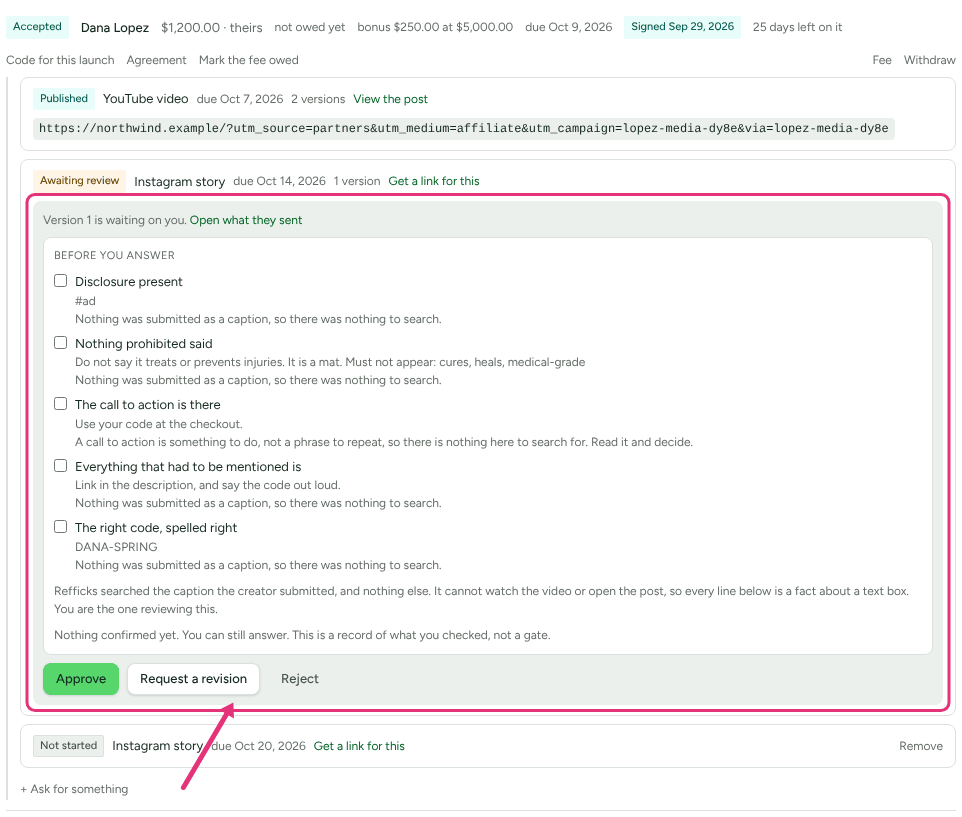
Every version is kept. Press 2 versions (or however many there are) on a piece to see each one, what you checked and what you said.
Once a post is approved and live, the creator adds the link, or you do it in Where it went up and Record the link. A UGC video or an image is "you post it, not them": it is finished when you approve it.
Keep track of usage rights
The Usage rights figure at the top, and the badge in the brief, read:
| Status | Meaning |
|---|---|
| Not required | You did not ask to reuse the content. |
| No dates agreed | You asked, with no window yet. |
| In force | You may use the content. |
| Expiring soon | Still in force, with 14 days or fewer left. |
| Expired | The window has closed. |
When a window is 14 days from its end, Refficks also:
- fires the automation trigger Usage rights expiring, once for each creator who accepted, and Usage rights expired when it closes, so you can email the creator about renewing (see Automations);
- lists "Name: usage rights on collaboration expire in N days" on Intelligence.

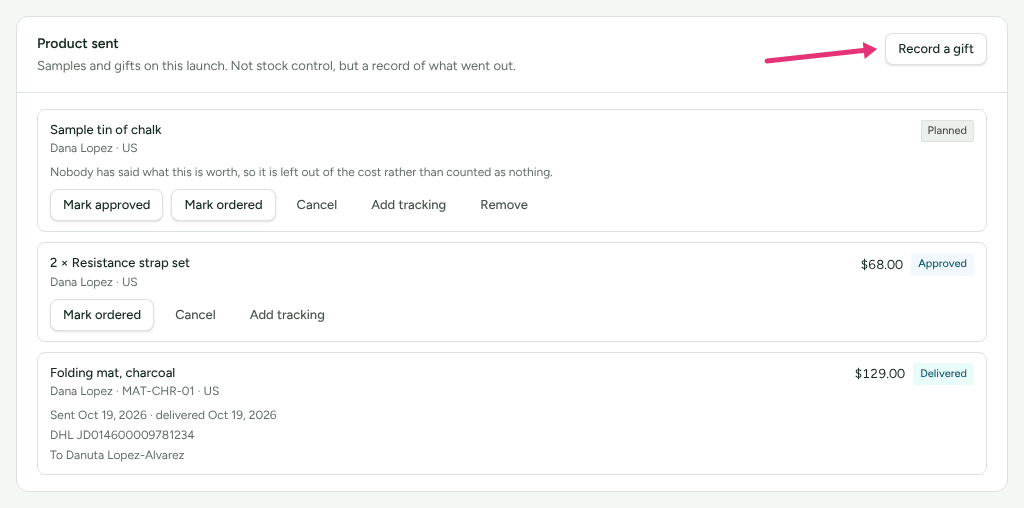
Record gifts
- In Product sent, press Record a gift.
- Choose the Creator, type the Product, How many and Value of one. Left blank, the value is "counted separately rather than as free".
- Optional: Your product ID, Addressed to ("only visible to people who manage partners") and Shipping to ("Country only. No address is stored here.").
- Press Record it.
Move a gift on with Mark approved, Mark ordered, Mark shipped and Mark delivered, add a carrier and number with Add tracking, or press Cancel and say why. A gift still Planned can be taken off with Remove. The creator sees a gift in their portal once it is ordered, with the value you gave it.
How fees and bonuses are paid
- A fee is owed at the moment you chose, and appears in Commissions as a pending fee. Until then the creator's row says "not owed yet".
- A bonus is owed once the creator's sales on this collaboration pass the figure. Only sales in the collaboration's currency count towards it; sales in another currency are counted beside it and said so. A bonus needs a program, so a Fee only collaboration has none.
- Commission on their sales, on Commission only and Fee and commission, follows the program's commission plan, as for any partner.
Fees, commission and bonuses are separate entries and stay separate on every screen. An Owner or Admin approves them in Commissions, and they are paid in your payout runs.
Check it worked
- At the top of the collaboration: Accepted ("1 of 2"), How creators are paid (the choice, and under it "A fee of $500.00 each. Individual creators can differ." or, for commission only, "A share of the sales each creator brings."), Waiting on you and Usage rights.
- On Collaborations, the Fee column shows each collaboration's fee, or "Commission only" for one that pays no fee by design.
- What it earned, at the bottom: Sales, Revenue, Commission and Fees, in the collaboration's currency, with sales in another currency counted separately. Whether it got made shows Content completed, On time and Invitations accepted.
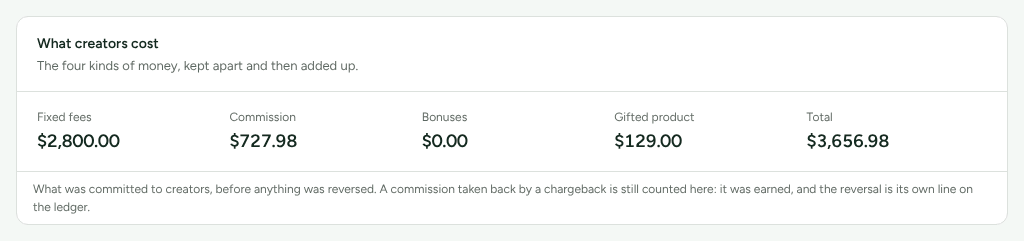
- Creators › Creator reports shows every collaboration over 7 days, 30 days, 90 days or 12 months: What creators cost (Fixed fees, Commission, Bonuses, Gifted product, Total), then Creators, Campaigns, Content and Platforms. The report is in your workspace's currency; money in another currency is left out of the totals and counted.
What this does not do
- No reach is measured. The only audience figures are the ones typed in on a creator's accounts, and no report adds them up.
- Nothing is sent for signature. You record where the contract is and when it was signed.
- A finished or cancelled collaboration cannot be reopened.
- The checklist does not watch a video. It searches the caption the creator typed and leaves the judgement to you.
- A gift has no street address. Only a country and, if you choose, a name.
Switched off: Checking published YouTube videos (whether a video is public, and YouTube's own view counts) and creators connecting their own YouTube channel are built and not yet on. They need Refficks's Google project and, for channels, Google's review of the app. Until then nothing is asked of YouTube and no YouTube figures appear.
Related
- Creator collaborations and gifts: what your creators see.
- Approve commissions: fees and bonuses wait there.
- Automations: act on deadlines and usage rights.
- Commission plans: how a share of sales is worked out.