Create a program
A program holds the terms your partners work under: where their links send people, how long a click counts, what they earn, and whether strangers can apply. This article covers creating one, giving it its first commission plan, and opening it to applications.
Before you start
- Role: Owner, Admin or Manager. Analysts and Support can open a program but not change it.
- You may not need a new program. Every workspace starts with one, Affiliate Program, already Active. If one set of terms covers all your partners, rename that one and skip to Add the first commission plan.
- Know this first: while you have exactly one program that is not archived, a partner you add by hand joins it automatically. Once you have two, you choose each partner's program yourself. See Run more than one program.
- Currency: a new program takes your workspace's currency, and keeps it. If you sell in another currency than US dollars, change the workspace's first. See Change your workspace's currency.
Create the program
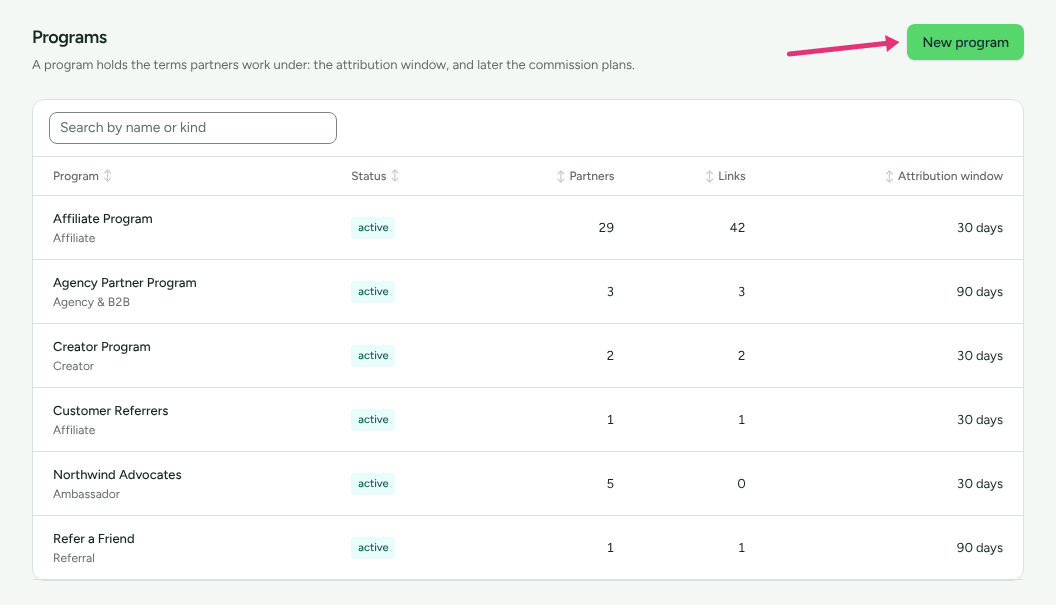
Go to Programs.
Press New program. (In a workspace with no programs, the button reads Create your first program.)
Fill in the form:
Field Required Default What it does Name Yes Empty What you and your partners call it. Module Yes Affiliate "What this program is for. This cannot be changed once the program exists." Shown only when more than one kind of program is available to your workspace. The choices can include Affiliate, Referral, Creator, Ambassador, Agency & B2B and Reseller. Default destination No Empty "Where partner links point unless a link overrides it." Left empty, links go to the website you gave at signup. Attribution window (days) Yes 30 "How long after a click a conversion still counts for the partner. Other platforms call this the cookie duration." From 1 to 365. Press Create program.
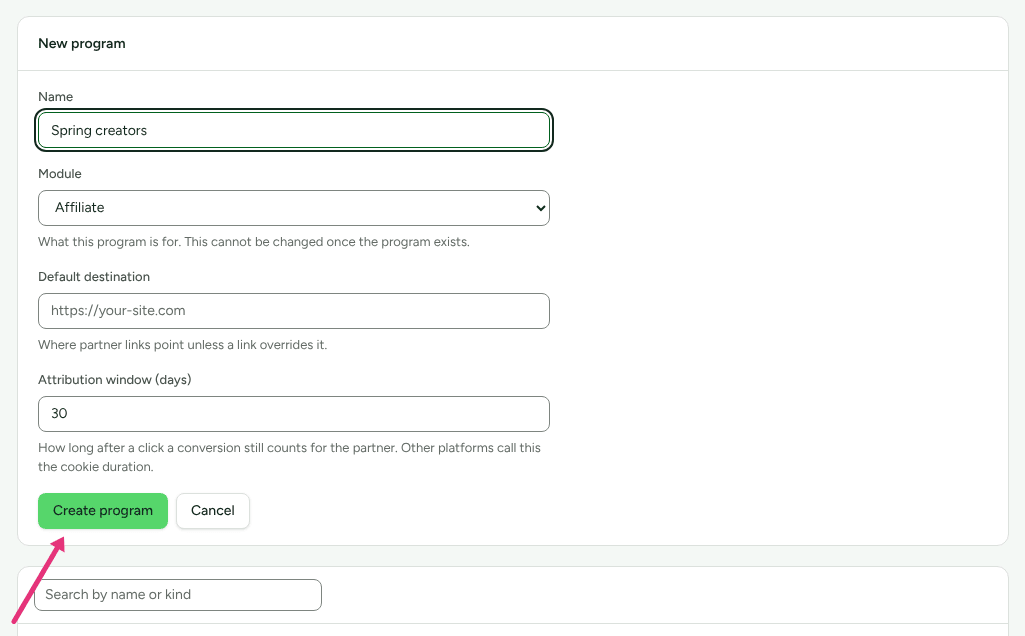
The new program appears in the list. The form does not ask for a status, a currency or a commission plan:
- Status starts as Active.
- Currency is your workspace's currency at the moment you create the program. Changing the workspace's currency later does not change it, and no screen in the dashboard does.
- Commission plans: none. See the next section.
Add the first commission plan
"Until a program has a plan, attributed sales are recorded but nobody is paid for them."
Open the program from Programs.
Scroll to Commission plans.
Press New plan at the top of the card, or Create a plan in the middle of an empty one.
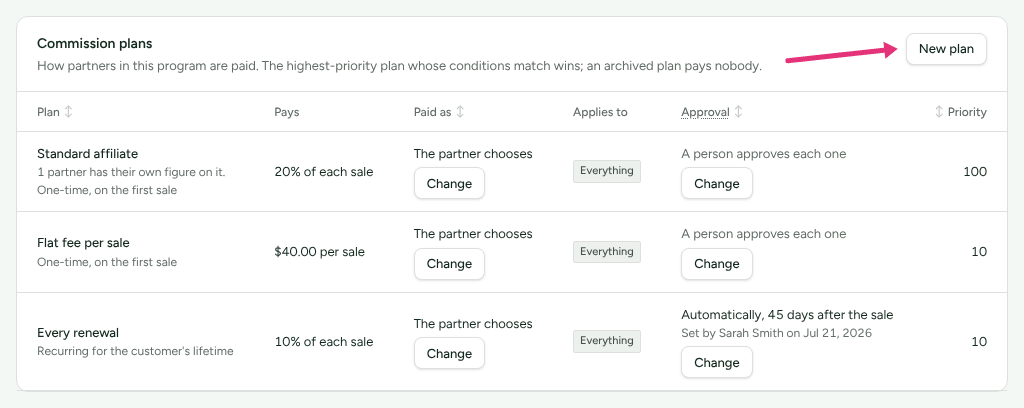
Give it a Name, choose what it Pays (A percentage or A flat amount), and enter the rate. A flat amount is written in the program's currency: the field reads, for example, Amount (USD).
Check Paid as: The partner chooses, Money or Store credit. It starts from the program's How partners are paid.
Press Create plan.
Plans can do much more: renewals, conditions, priorities, a rate for one partner, automatic approval. See How commission plans work.
Change a program later
Open the program. The Settings card holds what you set at creation, plus two more:
| Setting | Can change later | Notes |
|---|---|---|
| Name | Yes | |
| Status | Yes | Draft, Active, Paused, Archived. See below. |
| Default destination | Yes | "Where new partner links point unless the link overrides it." |
| Attribution window (days) | Yes | "A change applies to clicks from now on, not to clicks already recorded." |
| How partners are paid | Yes | The partner chooses, Money or Store credit. "New commission plans start from this, and each plan can say otherwise; bonuses are always paid this way." A change applies to what partners earn from then on, and they are told by email. With store credit on, a second field, Store credit is added in, names the store. |
| Module | No | Fixed at creation. Create another program for another purpose. |
If store credit is switched off for your workspace, Store credit is greyed out and the card says so: "Store credit is switched off for your workspace, so nothing is paid in it until an owner or admin switches it on in Settings › Payout runs." Those last words are a link to Settings › Partners and payouts › Payout runs. See Store credit.
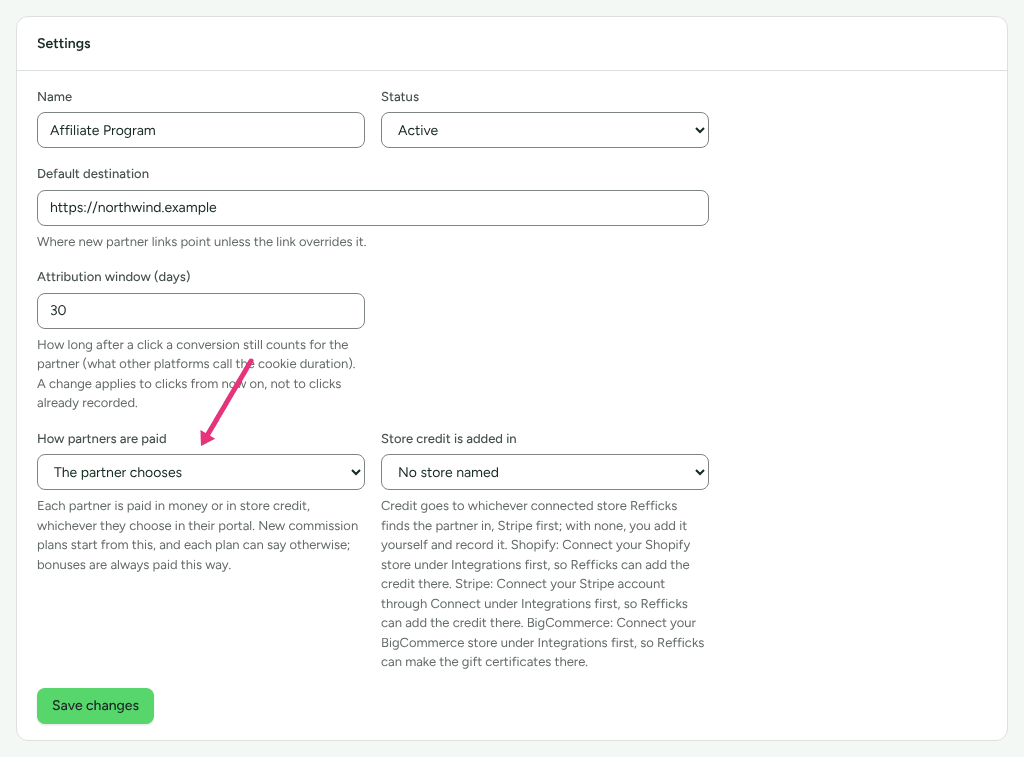
Press Save changes. The card shows "Changes saved."
What each status does:
- Active: links earn, and the public signup page can be open.
- Draft: links still resolve and earn; the public signup page stays closed. Getting started does not count a draft program as live.
- Paused and Archived: links in the program stop earning, and its signup page closes. An archived program does not count against a plan limit.
Open the program to applications
Do this when you want people you do not know yet to apply.
Open the program. It must be Active.
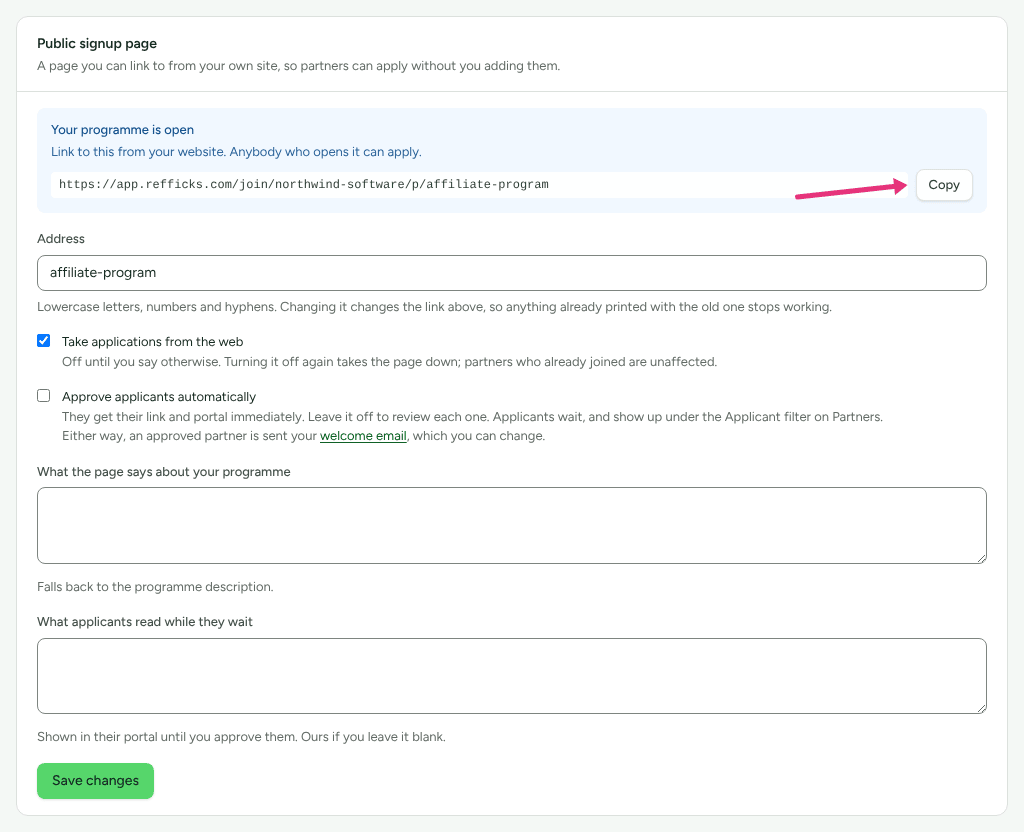
In Public signup page, check the Address: "Lowercase letters, numbers and hyphens." It is the last part of this program's own address,
…/p/<address>.Tick Take applications from the web. ("Off until you say otherwise. Turning it off again takes the page down; partners who already joined are unaffected.")
Choose how applicants get in. Approve applicants automatically can be ticked only once the box above is ticked.
- Leave it off to review each one. Applicants wait, and show up under the Applicant filter on Partners.
- Tick it, and "They get their link and portal immediately."
The box says "Either way, an approved partner is sent your welcome email, which you can change", and its link opens that email under Settings › Partners and payouts › Emails. Nothing is sent, though, until an automation on Partner approved sends it. See Send approved partners a welcome email.
Optionally, fill in What the page says about your programme and What applicants read while they wait (shown in their portal until you approve them; Refficks's own words if you leave it blank).
Press Save changes.
A box titled Your programme is open appears with the address to put on your website, and a Copy button.
The address starts from your workspace's address on Refficks: either
https://app.refficks.com/join/<your-workspace>, or
https://<your-workspace>.<Refficks's domain> where the service gives each
workspace a name of its own. What is added depends on how many programs are
open:
- With one open program, nothing is added.
- With two open programs of different kinds, the kind is added, for example
…/creator. - With two open programs of the same kind, the program's own Address is
added:
…/p/<program-address>.
Always copy the address from the card rather than typing it. If you have your
own domain live under Settings › Workspace › Domains, the same page also
opens there (https://partners.example.com, with the same additions), but the
card shows the Refficks address. See Use your own domain.
On the same page, two related cards:
- Bot check asks applicants to prove they are people, on every signup page your workspace has. It says where it stands: "On: everybody who applies is checked before their application is sent." or "Off: applications are sent without this check." See Review partner applications.
- Signup form adds your own questions to the form. See Customise your signup page and portal.
Check it worked
- Programs lists the program with its Status (it reads
active, in lower case), Partners, Links and Attribution window. Search by name or kind with the box above the list, and press a column's name to sort by it. - The program's page title reads, for example, "Affiliate · 30-day attribution window".
- Getting started counts A programme exists, The programme is live and, once a plan exists, It says what a partner earns as settled. A settled check is folded away: press Show the N settled in its card to see it.
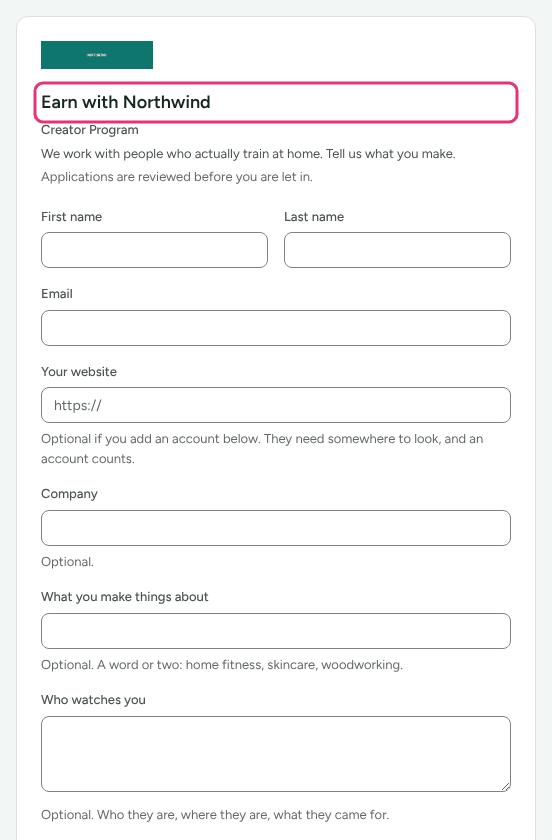
- With applications open, open the copied address in a private window. You see your page's heading ("Join the <your company> partner programme" unless you wrote a title of your own) and an Apply to join button. On a creator program the heading reads "Apply to the <your company> creator programme" and the button Apply.
What this does not do
- The Module cannot be changed. A referral program is created as one.
- The form does not offer a currency. A program takes the workspace's currency when it is created, and no dashboard screen changes it afterwards.
- A Referral program created from this form gets a 30-day window, because the form fills in 30. Refficks's own default for referral programs is 60 days, used only when a program is created through the API without a window. Change the field to 60 if you want it.
- The public signup page shows your program's description when What the page says about your programme is blank. The Affiliate Program made at signup has the description "Your first programme. Rename it, change the terms, or add more." and no screen edits a description, so fill in the field before you open the page.
- Changing the Address breaks anything already printed with the old program address: "anything already printed with the old one stops working." (Changing your workspace's address under Settings › Workspace › Domains is different: the old one keeps working and redirects. See Change your workspace's address.)
- A second program stops the automatic enrolment of partners you add by hand. Enrol each one from the program's Partners in this program card, by searching for them in Partner to add.
- If a plan limit applies to your workspace, creating past it is refused with "Your plan allows N programs." and "Upgrade your plan to add more." The trial and Alpha plans have no limit.
Related
- How commission plans work: rates, renewals, conditions and priority.
- Run more than one program: what a second program changes.
- Invite partners: putting people into the program.
- Customise your signup page and portal: the form, the words and the branding applicants see.
- Get your partner program running: where this step fits.