Edit the emails your partners receive
Change who your partner emails come from, rewrite any of the 19 built-in emails, switch one off, and see which emails did not arrive. For anyone who manages partners.
Before you start
- Where: Settings › Partners and payouts › Emails: "What your partners receive. Every one works out of the box. Change the ones you care about."
- Role: anybody on the team can read this page. Changing anything on it needs owner, admin or manager; an analyst or a support seat sees no Edit buttons and no Send boxes.
- Every email works without you. Each has built-in wording. Editing one replaces it for your workspace; Back to the original puts it back.
Set who the emails come from
- Find Who these come from: "Applies to every email below, including one-off notes you send a partner."
- Fill in Sender name. The hint says what partners see today.
- Fill in Replies go to, for example
partners@example.com. "Leave blank and replies go nowhere anybody reads." - Where it is offered, choose When a partner replies to an email: Into Refficks (the reply lands in the partner's conversation) or To your reply-to address.
- Optional: write Above every email and Below every email ("Your sign-off, written once rather than into every template").
- Press Save.
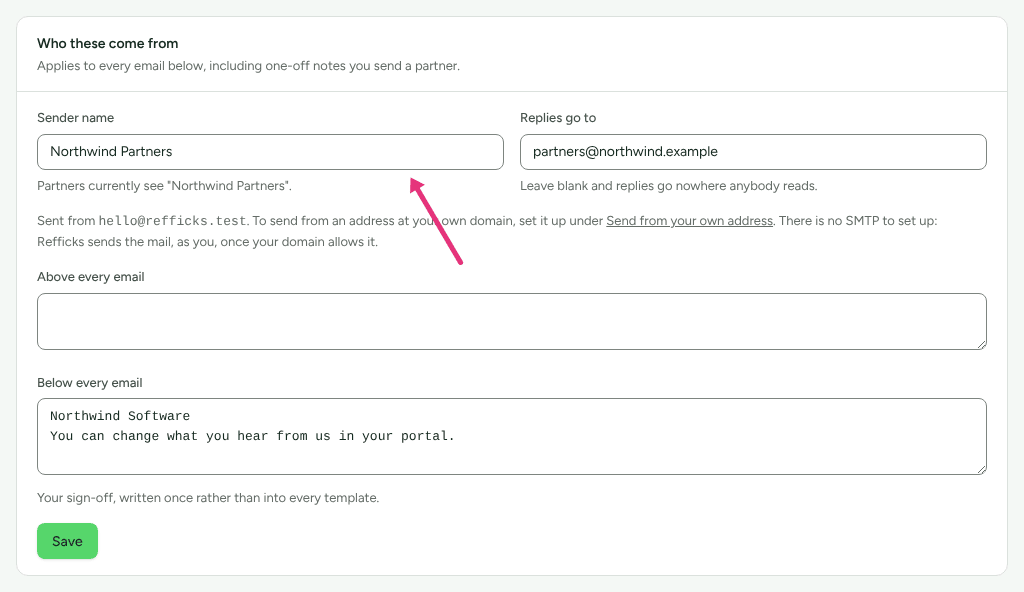
The card says which address mail is sent from. To send from your own domain, see Send from your own address.
The built-in emails
Each card shows the email's name and its subject, with badges: Always sent (it reaches partners who opted out of programme email), Programme email (it respects their opt-outs), Yours (you rewrote it) and Off (switched off). The wording is folded away: press Show wording on a card to read it, and Hide wording to fold it again.
Most are sent only when one of your automations sends it (Campaigns › Automations, Send them an email, Which email), or when you apply a recommendation that names it. Three are sent by Refficks itself when the thing happens.
| Badge | Sent when | |
|---|---|---|
| Welcome to the programme | Programme email | An automation sends it, usually when a partner is approved |
| First click | Programme email | An automation sends it |
| First sale | Programme email | An automation sends it |
| Commission earned | Always sent | An automation sends it |
| Commission reversed | Always sent | An automation sends it |
| Payout sent | Always sent | An automation sends it |
| Checking in | Programme email | An automation or a recommendation sends it |
| Nudge to first click | Programme email | An automation or a recommendation sends it |
| Traffic without sales | Programme email | An automation or a recommendation sends it |
| Invitation to the affiliate programme | Programme email | An automation or a recommendation sends it |
| Affiliate invitation for a creator | Programme email | An automation or a recommendation sends it |
| A deadline coming up | Programme email | An automation or a recommendation sends it |
| An invitation to a collaboration | Programme email | An automation sends it |
| A revision request | Programme email | An automation sends it |
| Content approved | Programme email | An automation sends it |
| Portal access ended | Always sent | You end a partner's access to your portal |
| How a programme pays changed | Always sent | You change how a program pays (money or store credit) |
| Inviting somebody from the directory | Always sent | You invite somebody from Find partners. Switched off for now |
| A referrer who has gone quiet | Programme email | An automation or a recommendation sends it |
Commission earned, Commission reversed and Payout sent go to the partner's finance contact, where you have named one on their Contacts card.
Some emails are not on this page and cannot be changed, because they are how a partner gets in: the portal invitation, the email asking a known partner to confirm an application, and Refficks's own account emails (password resets, sign-in address changes, a payout-details change). Your answers to a query go in your own words.
Rewrite one
- On the email's card, press Edit. The editor opens in the card; the button then reads Close, which shuts it without saving.
- Change the Subject and the Body. In plain text, type details in
braces, such as
{{ partner.first_name }}. What you can put in an email › Show lists every one, with what it usually looks like.

- Optional: press Switch to formatted text for the editor. Its buttons are Bold, Italic, Underline, Heading, Normal text, Bulleted list, Numbered list, Quote and Link, and Insert: adds a detail. Bold, Italic and Underline show as pressed while the text at the cursor has that style. A formatted email also takes a Preview line: "Shown by inboxes after the subject. Nobody sees it in the email itself." Switch to plain text goes back without losing the words.
- Press Preview to see it "With a real partner's details". If a detail is misspelt, Nothing will fill these in names it: "Check the spelling." A misspelt detail arrives in braces, never blank.
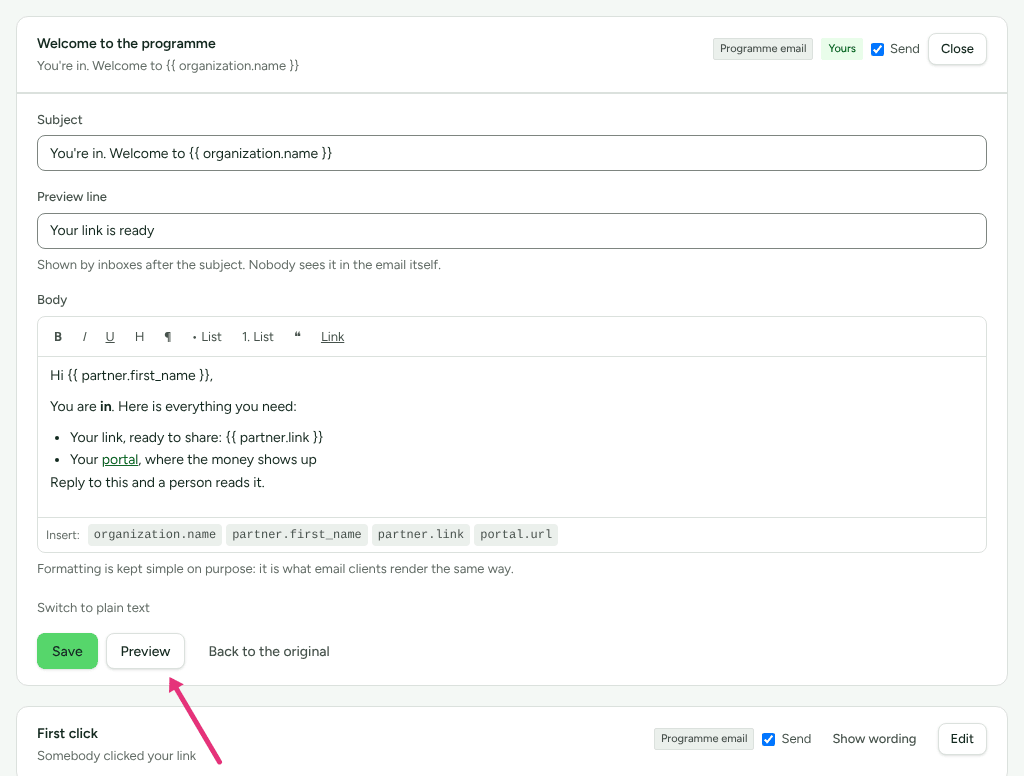
- Press Save. The card then carries Yours, and stays open on the wording you saved.
To undo your changes, press Edit, then Back to the original.
Switch one off
- On the email's card, untick Send.
- For an Always sent email, Refficks asks first: "Switch off "name"?" Press Switch it off, or Keep sending it.
The card shows Off and, whether its wording is open or folded, "This email is switched off. Nobody receives it. Its wording is kept, and turning it back on sends it again." Your switch outranks everything, partners' own choices included: an email you switch off reaches nobody.

See what was sent
Every send is recorded, before it leaves, with what happened to it:
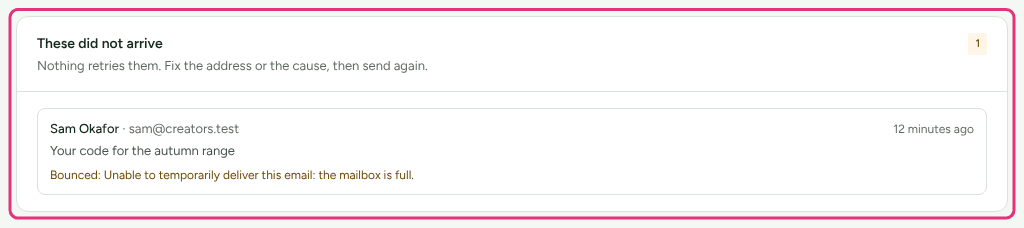
- These did not arrive on this page lists the emails that failed, bounced, were refused, or were queued and never sent, newest three first (Show all). "Nothing retries them. Fix the address or the cause, then send again." The card is not drawn when nothing failed.
- On a partner's page, the Activity section lists every email sent to them, by subject, with "Email", "Email · delivered", or the reason it did not arrive.
- Partners see what you sent them in their portal, under Campaigns › What we've sent you.
Send from your own address
Until you set this up, partner mail comes from Refficks's address with your sender name on it.
Find Send from your own address: "Partners get mail from your domain instead of ours, once your DNS says we may send it."
Type an address at your own domain in Send from, for example
partners@example.com, and press Set it up.Add the two records the card shows at your DNS provider: a TXT record (DKIM) and a CNAME record (Return-Path). Copy sits beside each host and value.
Press Check now. "We also check every hour for a week."
The badge reads Waiting for DNS, Not verified yet, Verified or Stopped verifying. Until it is verified, and whenever it stops, mail keeps going out from Refficks's address. Stop using this address goes back to Refficks's address from the next message.
Only managers and above can set this up: "Only managers and above can change where partner mail comes from."
Check it worked
- The card you changed carries Yours, or Off.
- Preview shows your words with a real partner's details.
- Who these come from says "Partners currently see your sender name".
- Settings › Developer › History records each change.
What this does not do
- Rewriting an email does not send it. An automation, a recommendation or the event in the table sends it.
- It cannot turn an email back on for a partner who opted out of programme email; only Always sent emails reach them.
- It does not change a partner's address. Only Refficks support can.
- Nothing retries an email that did not arrive.
Related
- Send a welcome email: the one automation most programs start with.
- Automations: what can send an email, and what an automation can never do.
- Newsletters, notices and messages: writing to many partners at once, or to one.
- Partner emails are not arriving: when a partner says they heard nothing.