Answer partner queries
When a partner says a sale is missing or a commission looks wrong, find the sale, put it right where you always would, and tell them what you decided. For anyone who manages partners.
Availability: Built on
mainafter the last deployment of app.refficks.com that this article was checked against. If Queries is not in your left menu, your workspace does not have it yet.
Before you start
- Role: anybody on the team can read queries. Answering and resolving needs owner, admin or manager. Everyone else sees "Only people who can manage partners can answer or resolve a query. You can read it."
- To put a sale right: crediting or moving a sale needs owner, admin or manager. Record a sale and correcting a commission (Recalculate…, Cancel commission…) need owner or admin.
- Nothing on the query changes money. A query records what the partner asked and what you decided. Crediting a sale or correcting a commission happens on the screens that already do it, and is recorded there.
How you hear about one
- An email to everyone with the A partner wrote to you email on (managers, admins and owners, on by default). Change it in Settings › You › Your emails.
- Queries waiting on you on Overview, with the five partners waiting longest. It is not drawn when nobody is waiting.
- Their queries on the partner's own page, in its Messages section.
- The daily email's list of what is waiting on you.
Open the queue
- In the left menu, go to Queries.
- Use the filter to choose All queries, Waiting on you, Waiting on the partner or Resolved. The count beside it reads, for example, "2 waiting on you".
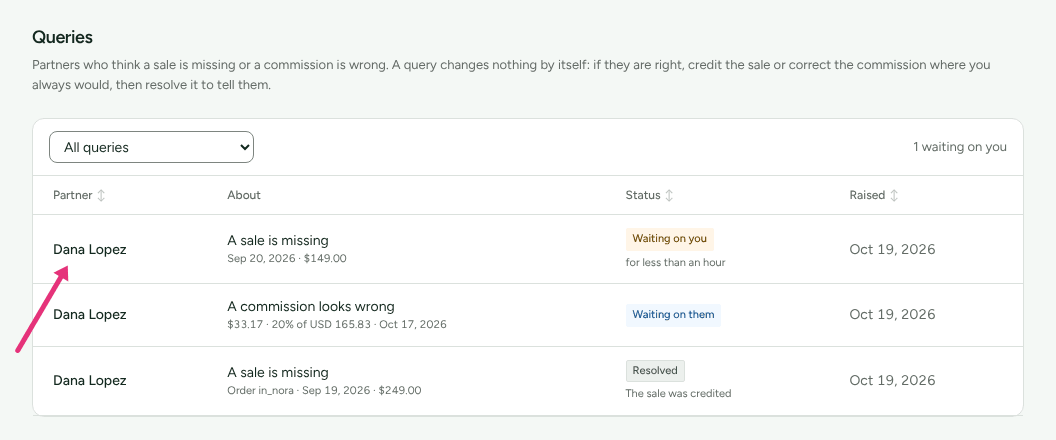
Queries waiting on you come first, the partner who has waited longest at the top. The wait counts from the last thing the partner wrote, so a partner who adds to a query goes back to where they were rather than to the end. Press Partner, Status or Raised at the top of a column to sort by it instead, and again to reverse it.
Work a missing sale
- Press the partner's name to open the query. What they said shows their words, and the order number, day and amount they gave.
- Read Sales that might be it: up to ten sales already on your books that match the order number, the same amount within three days, or, when they gave a day and no amount, sales credited to nobody around that day. Each says Already credited to them, Credited to another partner or Credited to nobody.
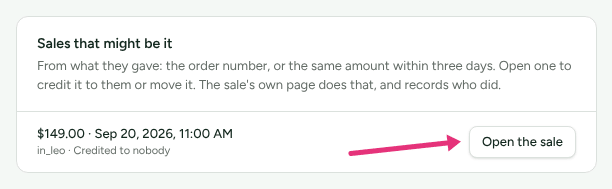
- Press Open the sale on the one that fits, and on the sale's page:
- credited to nobody: Credit this sale to a partner, choose them, press Credit this sale, then Credit it;
- credited to somebody else: Move this to another partner, choose them, press Move this sale, then Move it.
- If no sale matches ("No sale on your books matches what they gave") and it really happened, record it on Conversions with Record a sale, naming the partner. See Sale not credited first: the sale may be missing for a reason worth fixing.
- Come back to the query and resolve it (below).
Work a commission that looks wrong
- Open the query. The line they think is wrong shows the amount, what it was earned on and its status.
- Press Open the sale to see how it was worked out.
- If the figure is wrong, correct it on Commissions. Type the partner's name into Search by partner or customer to find the line, press More on it, and choose Recalculate… or Cancel commission…. Give a reason, then press Recalculate or Cancel this commission. (The card's own sentence says to do this "from the sale it was earned on"; the sale's page shows how it was worked out, and the controls are on Commissions.) See Commission missing or wrong.
- Come back to the query and resolve it.
Answer without resolving
Use this to ask for something, or to say you are looking.
- Under Answer without resolving, type in Your answer.
- Press Send answer (Send another answer if you have answered before).
The query moves to Waiting on them. The partner is emailed your words and sees them in their portal. When they reply, it is Waiting on you again.
Resolve it
- Under Resolve, choose an Outcome: The sale was credited, The figure was corrected or No change.
- For a missing sale, optionally choose The sale it was about. It is linked on your screen and never shown to the partner.
- Under What you tell them, say what you decided and why. This is required: "No change" on its own tells the partner nothing.
- Press Resolve and tell them.
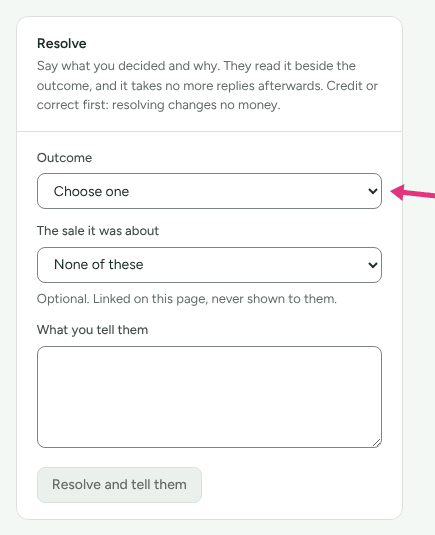
The partner is emailed and reads your words beside the outcome. A resolved query takes no more replies, from either side. A partner who still disagrees raises a new one.
Check it worked
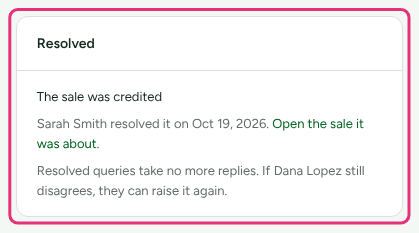
- The query's badge reads Resolved, the Resolved card shows the outcome and who resolved it, and Open the sale it was about appears if you linked one.
- Under Since then, your answer is listed. A line "In their portal only: no email went to them." means the email did not go; the partner can still read it in their portal.
- Settings › Developer › History records that the query was raised and resolved, with the outcome, but not the words.
What this does not do
- Choosing The sale was credited credits nothing. Credit it on the sale's page first.
- There is no appeal step and no reopening. A partner who disagrees raises another query.
- A query is not a message. Write to the partner in Messages if there is more to say after resolving.
- Partners see your answers in your workspace's name, never a team member's.
Related
- Raise a query: what the partner sees and types.
- Sale not credited: why a sale went to nobody, or to the wrong partner.
- Credit or move a sale: the sale page's two buttons in full.
- Team roles and permissions: who can answer, credit and correct.