Run an ambassador program
An ambassador program asks people who already like you to do things for you, such as post, review or bring a friend, and rewards them in points they spend on rewards you choose. This article covers missions, reviewing what comes in, points, the rewards shelf and redemptions, tiers, the leaderboard, the content library and training.
Before you start
- Role: Owner, Admin or Manager to write missions, review them, give points and badges, run the rewards shelf and answer redemptions. Analysts and Support can read. Only an Owner or Admin can set what a store credit reward is worth.
- The Ambassador module. Missions and Redemptions are in your menu under Partners. Missions has three tabs: Missions (writing them), Pending (what is waiting on you) and Approved (the content library). If they are not in your menu, the module has been held back for your workspace; write to support@refficks.com.
- An ambassador program. Go to Programs, press New program and choose Ambassador as the Module. Missions belong to it.
Points are not money. They buy only what you put on the shelf, and nothing an ambassador earns in points is paid out as cash.
Write a mission
Go to Missions and press New mission.
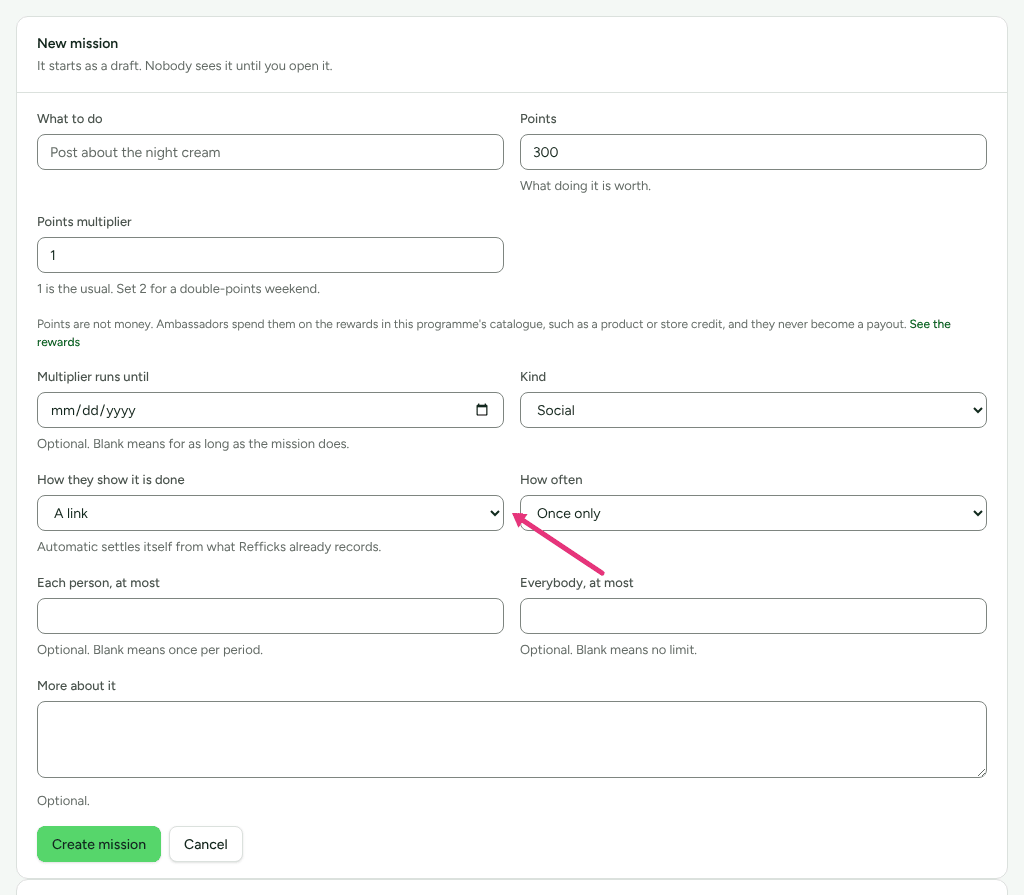
Fill in:
- What to do, for example "Post about the night cream". With more than one ambassador program, choose the Programme first; with one, the form does not ask.
- Points: "What doing it is worth."
- Points multiplier ("1 is the usual. Set 2 for a double-points weekend.") and Multiplier runs until, optional. Under the two points fields the form says "Points are not money. Ambassadors spend them on the rewards in this programme's catalogue, such as a product or store credit, and they never become a payout.", with See the rewards, which opens the program's Rewards card.
- Kind: Social, Content, Referral, Review, Feedback, Product engagement, Event or Recruitment.
- How they show it is done: A link, Written answer or The merchant confirms it (nothing to send; you say whether it happened).
- How often: Once only, Once a day, Once a week or Once a month, and optionally Each person, at most and Everybody, at most.
- More about it, optional.
Press Create mission. "It starts as a draft. Nobody sees it until you open it."
Press Open it on the mission. Close it stops new submissions; what is already in is still reviewed and still paid.
Automatic is also in the list, with the hint "Automatic settles itself from what Refficks already records", but nothing in Refficks settles an automatic mission yet. An ambassador who tries one is told "This one settles itself. There is nothing to send." and earns nothing. Choose one of the other three.
A mission that still asks for A file, which is no longer offered, shows "Ambassadors can't hand this in yet. Change it to a link or a written answer." with Ask for a link instead and Ask for a written answer instead.
Review what comes in
- Go to Missions and open the Pending tab. The tab counts what is waiting, such as Pending (2), and the page says "2 submissions are waiting on you.", oldest first.
- Open the link or read the answer on each.
- Answer:
- Approve: the points become available.
- Ask for more: write "What would make it right?" and press Send. The ambassador reads it as More information needed and sends again; their points stay waiting.
- Not this one: write "Why not, so they know where they stand." and press Send. The points are cancelled, with your reason on their history.
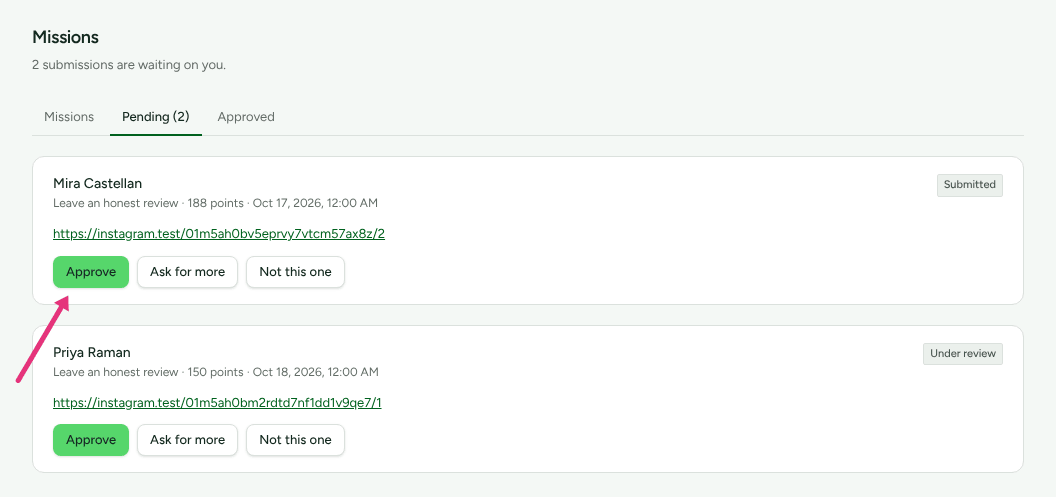
When a mission is sent in, its points show as Waiting on review for the ambassador straight away, so they can see the work counted.
Give points and badges by hand
Open the ambassador from Partners and choose Account:
- Points › Give bonus points: choose the Programme, the Points and What it is for ("They see this on their own points history."), then Give points. They are available at once.
- Badges › Give badge: for recognition nothing can count, such as "Founding Ambassador".
Set up recognition, rewards and how long points last
These are cards on the ambassador program's own page (Programs › the program).
- How long points last: Never expire, After 6 months, After 12 months, After 24 months, or a number you choose. It applies to Points earned from now on. Ambassadors are warned 60 days before points run out.
- Badges and milestones: add a badge (Name, What it is for, Add badge), then a milestone (Name, What it counts: Missions approved, Points earned or Days as a partner; At least; Points it gives; Badge it gives; Add milestone). "Both are given once and never taken back."
- Rewards: what points buy. Under Add a reward, give a Name, a Kind (Product or merchandise, Discount, Access, Experience, Recognition, Something else or Store credit), Points it costs, optionally How many there are and Who may have it (everybody, or a tier and every rank above it), then Save as a draft. Press Put on the shelf to offer it, and Take it off to stop.
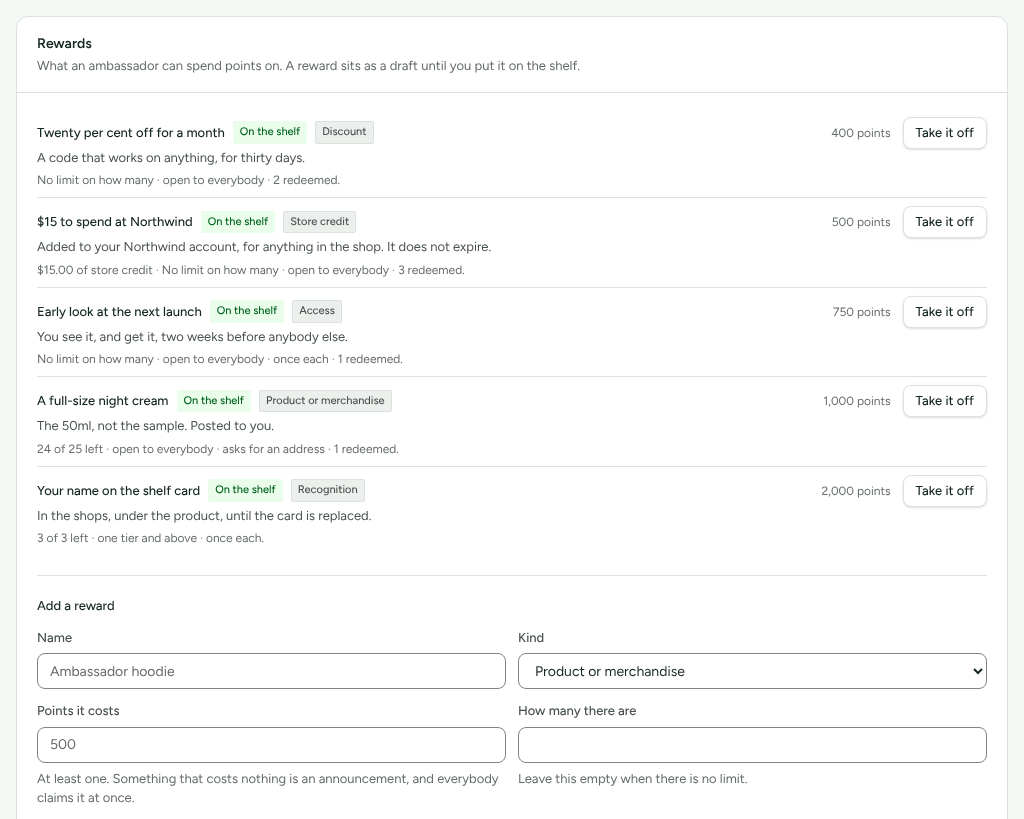
A Store credit reward is "Added to the ambassador's customer account once you approve it: in Stripe from the redemptions queue, or by hand with a reference. Only ambassadors whose customer account is linked can redeem it."
Answer redemptions
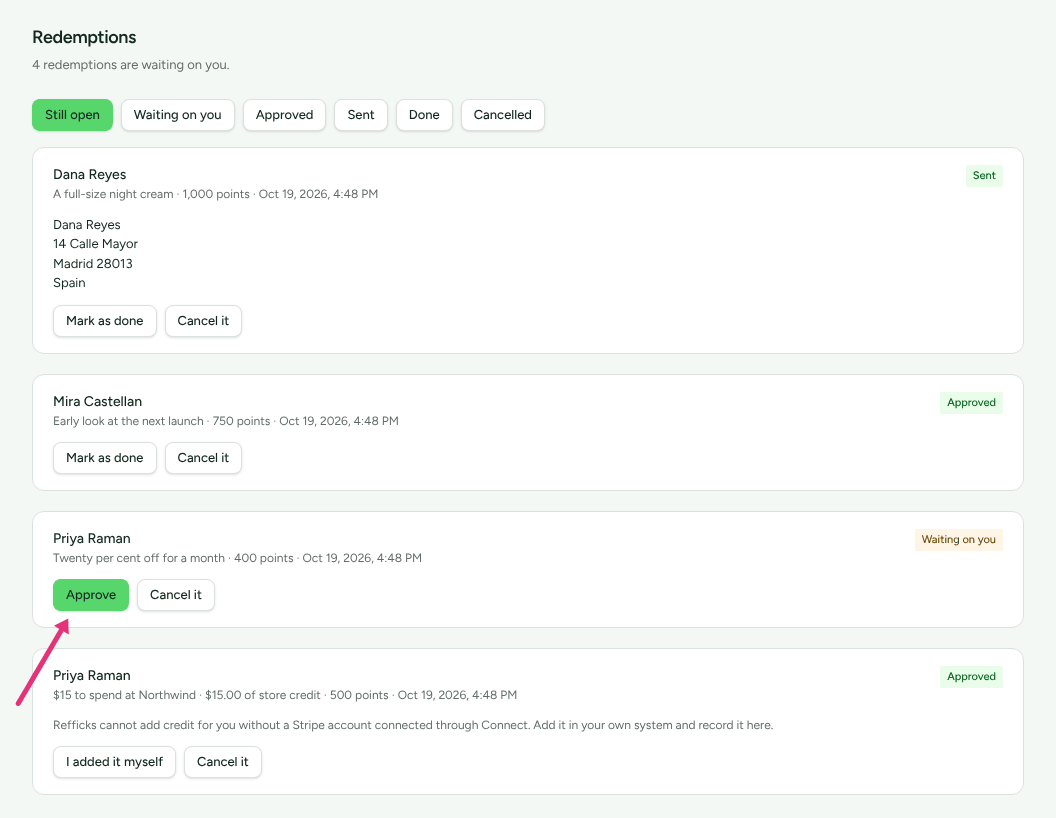
When an ambassador spends points, the points leave their balance and the redemption waits on Redemptions under Still open.
- Press Approve.
- For something you post, press Mark as sent once it is on its way.
- Press Mark as done when they have it. For store credit, press the button that adds it in Stripe, or I added it myself, fill in Where you added it and press Record it.
- To refuse instead, press Cancel it, say why, and press Give the points back: "Cancelling puts the … points back."
Use tiers and the leaderboard
- Tiers (on the program page): add a tier with Name, Rank and What it means, then press Requirements to set what it takes (for example Missions approved, at least 3) and what it is worth: Points are worth ("1.5 pays half as much again on this tier.") and What else they get. Refficks tells you who has earned a tier on Intelligence, and fires Partner earned the next tier for your automations. It never moves anybody: you change their tier in Partners in this program.
- A monthly board: tick Show a monthly leaderboard to ambassadors on this programme. Ambassadors then see the top ten by name and their own position, for points earned this calendar month. There is no per-person opt-out.
The content library and the terms
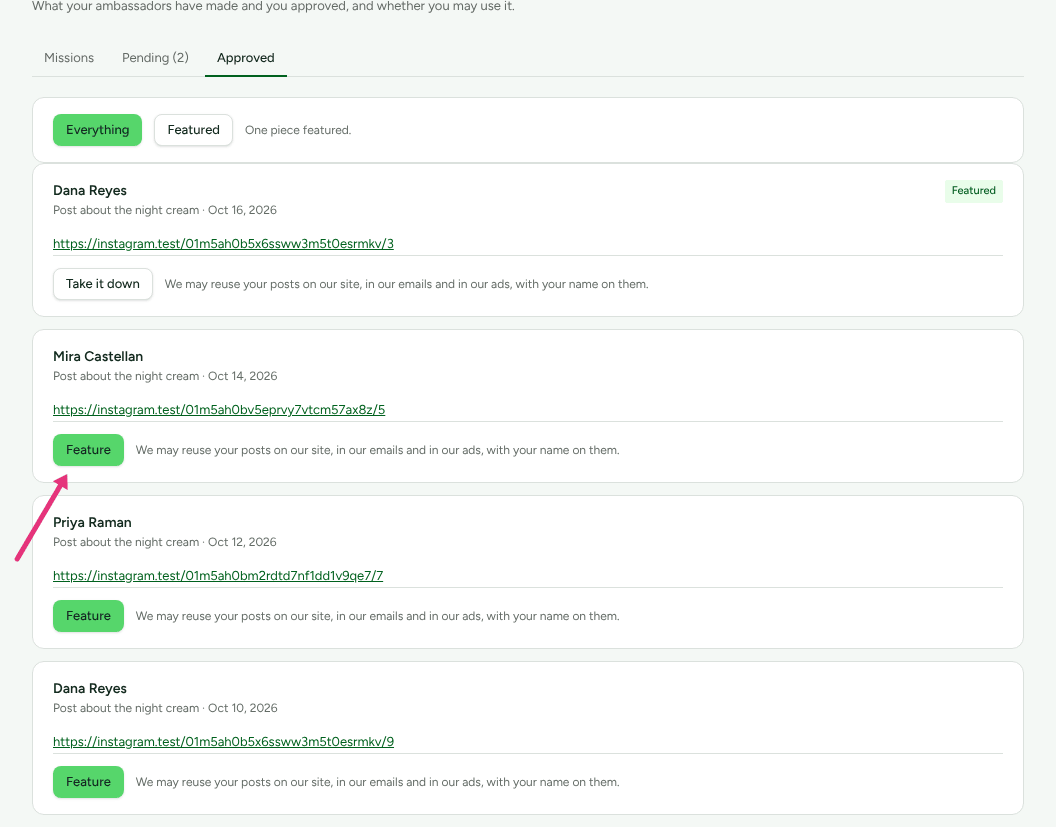
The Approved tab of Missions is the content library: "What your ambassadors have made and you approved, and whether you may use it." It lists approved work that has a link or something written in it, and says on each piece whether you may use it. That permission comes from your Partner agreement on the program page: tick This version asks partners for permission to reuse what they make on a version whose text actually says so. Only work by people who accepted such a version can be featured.
Press Feature on a piece you may use, and Take it down to stop. Featuring records that you chose it; it does not copy or publish it anywhere.
Training
Training is for every partner, not only ambassadors. Under Assets, Training for new partners puts some of your files in the order partners should go through them. "It appears as Training in their portal, and on their getting-set-up checklist."
Check it worked
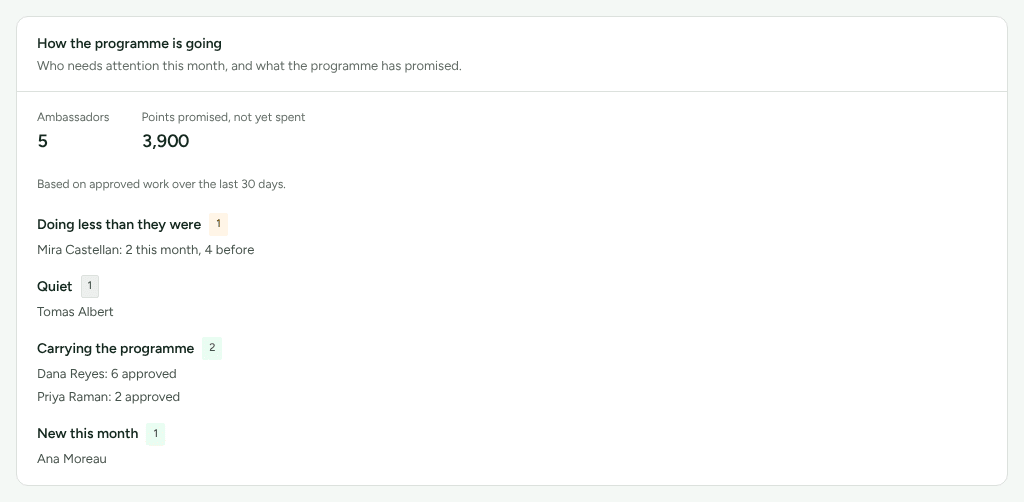
How the programme is going, on the program page, shows Ambassadors, Points promised, not yet spent, and who is Doing less than they were, Quiet, Carrying the programme and New this month.
An ambassador's partner page shows their Points under Account: Available, Waiting on review, Earned in total and Expired, with every line explained.
What this does not do
- Points are never money. They are not paid out and not converted.
- Ambassadors cannot hand in a file. Ask for a link or a written answer.
- Automatic missions are not settled yet. See Write a mission.
- Nothing moves a tier on its own. A person changes it.
- Featuring does not post anything. It marks a piece in the library.
Related
- Ambassador missions, points and rewards: what your ambassadors see.
- Store credit: rewards paid as credit in your store.
- Automations: act on tiers and milestones.
- Intelligence and recommendations: where tier recommendations appear.