Newsletters, notices and messages
Three ways to write to partners yourself: a newsletter emailed to many, a notice posted on a program's board in the portal, and a message in a two-way conversation with one partner. For anyone who manages partners.
Before you start
- Role: anybody on the team can read these. Writing and sending needs owner, admin or manager.
- Which to use:
| Newsletter | Notice | Message | |
|---|---|---|---|
| Goes to | The partners you pick | Everybody in one program | One partner |
| Arrives as | An email | A post on Notices in their portal, and a line under What has happened | A conversation in Messages in their portal, and an email |
| Partners can answer | No | No | Yes |
| Respects opt-outs | Newsletters off, or all programme email off | Not an email | Messages off, or all programme email off |
Send a newsletter
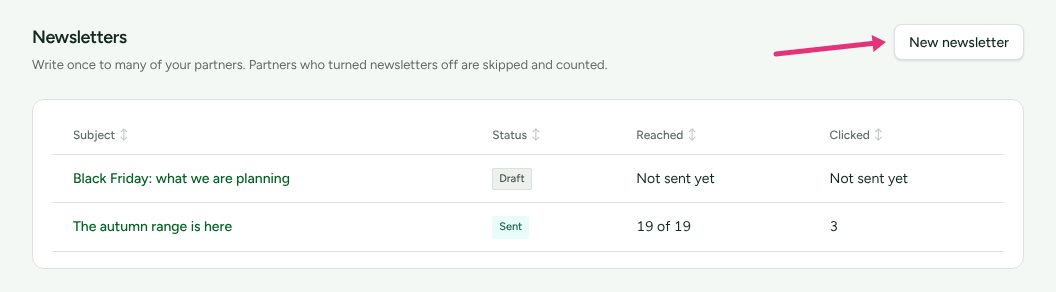
- In the left menu, go to Newsletters: "Write once to many of your partners. Partners who turned newsletters off are skipped and counted."
- Press New newsletter.
- Under The newsletter, fill in Subject, optional Preview text,
and the Message in the editor. The same details as your programme
emails fill in, such as
{{ partner.first_name }}. The editor's B, I and U buttons (Bold, Italic and Underline) show as pressed while the text at the cursor has that style. - Under Who it goes to, narrow "Everybody approved into a programme" by
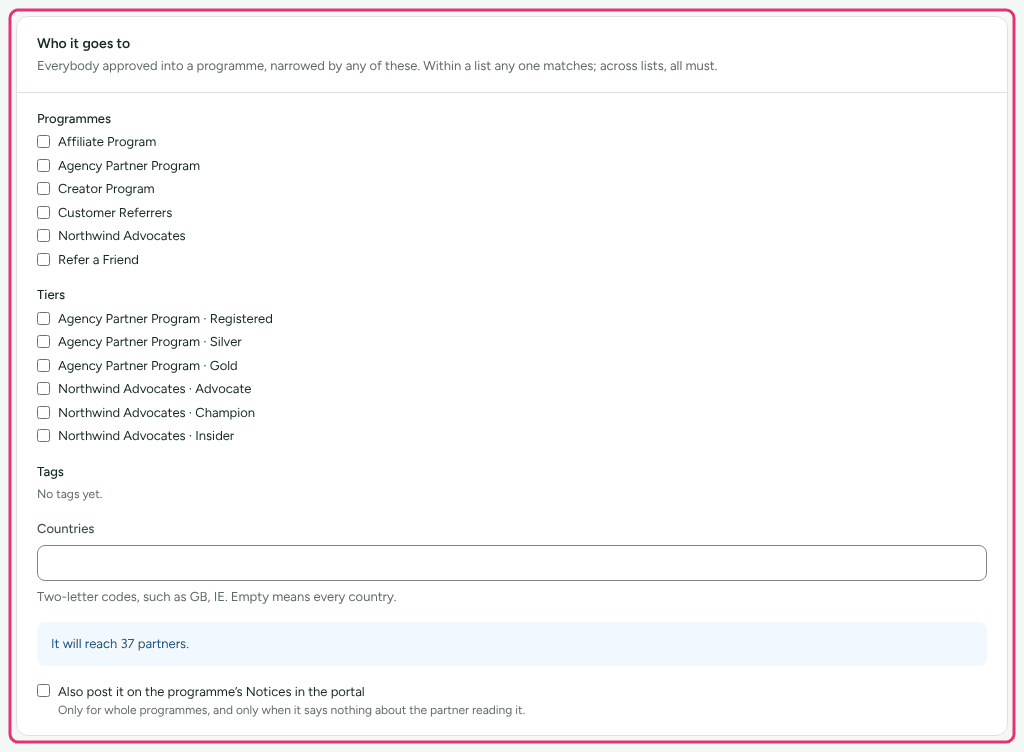
Programmes, Tiers, Tags and Countries (two-letter codes,
such as
GB, IE). "Within a list any one matches; across lists, all must." The count below says who it will reach: "It will reach 40 partners of the 45 it is for: 3 turned newsletters off, 2 have no email address." - Optional: tick Also post it on the programme’s Notices in the portal. "Only for whole programmes, and only when it says nothing about the partner reading it."
- Press Preview as a partner sees it, then Save draft, under Send it. Until it is saved, the line beside Save draft says "Save it first to send yourself a test, schedule it or send it."
- Under Send it, press Send me a test: it goes to you alone, with "[Test]" in the subject, and its links count nothing.
- Either pick a time in Send later and press Schedule ("It goes out within five minutes of the time you pick."), or press Send now, then Yes, send it now.
"It goes out in batches over the next minutes, and cannot be changed once it has started. Saved changes are what is sent." A scheduled one can be taken back with Take the time off.
What happened to it
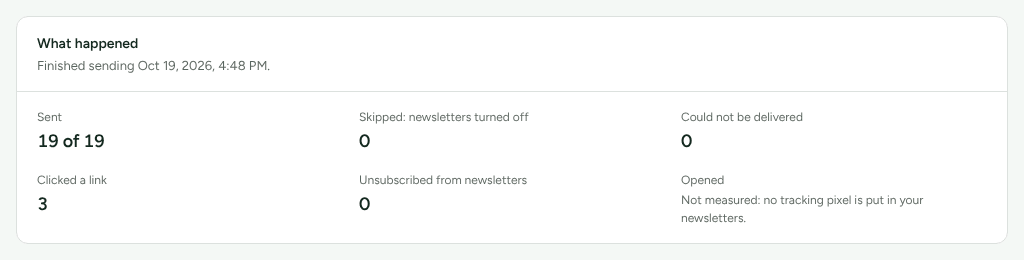
The newsletter's page shows What happened: Sent (of how many), Skipped: newsletters turned off, Could not be delivered, Clicked a link and Unsubscribed from newsletters. Opened reads "Not measured: no tracking pixel is put in your newsletters."
Every newsletter carries a link to turn newsletters off. It turns off newsletters only; the partner keeps your other emails.
Post a notice
- Go to Programs and open the program.
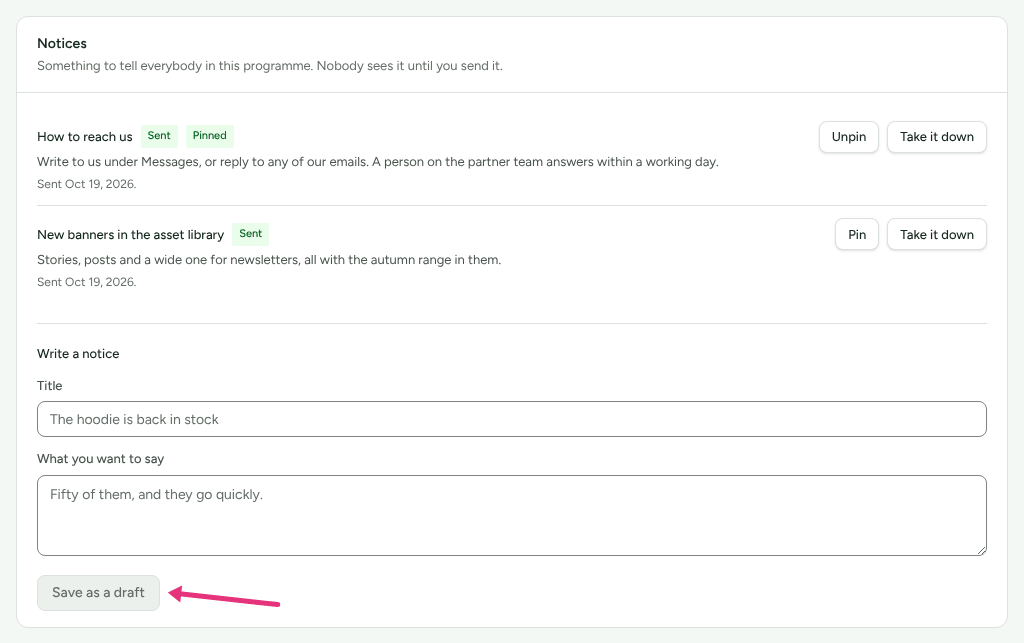
- Find Notices: "Something to tell everybody in this programme. Nobody sees it until you send it."
- Under Write a notice, fill in Title and What you want to say.
- Press Save as a draft. It reads Not sent.
- Press Send to everybody. It reads Sent with the day.
Everybody in the program sees it under Notices in their portal and a line under What has happened. Pin keeps it at the top; Take it down removes it from the board.
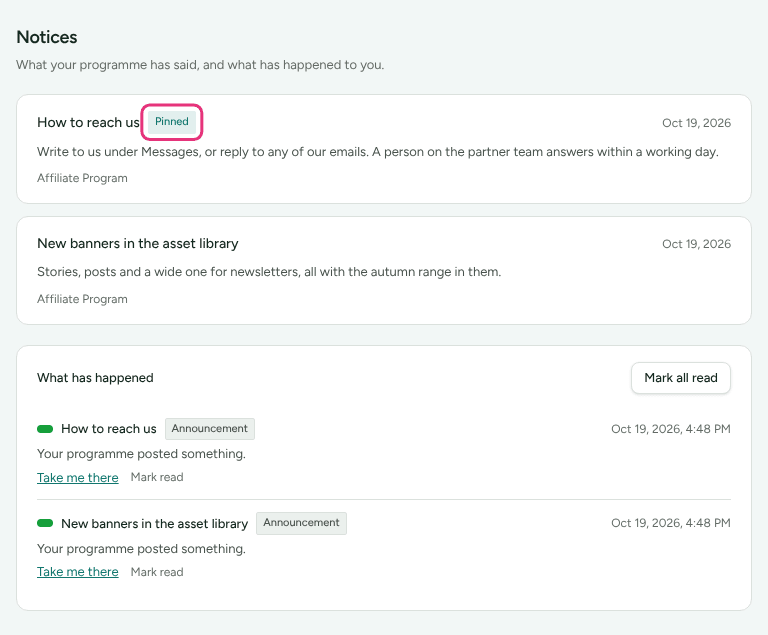
A notice is sent once. Editing a sent one changes what people read next time they look, without telling anybody again, and a notice that was sent and taken down cannot be sent again: "write a new notice instead". A program that leaves Notices out of its portal (under What partners see) takes drafts and refuses to send them.
Write to one partner
- Go to Partners and open the partner.
- Choose Messages.
- Under Write to them, type in the box and press Send.
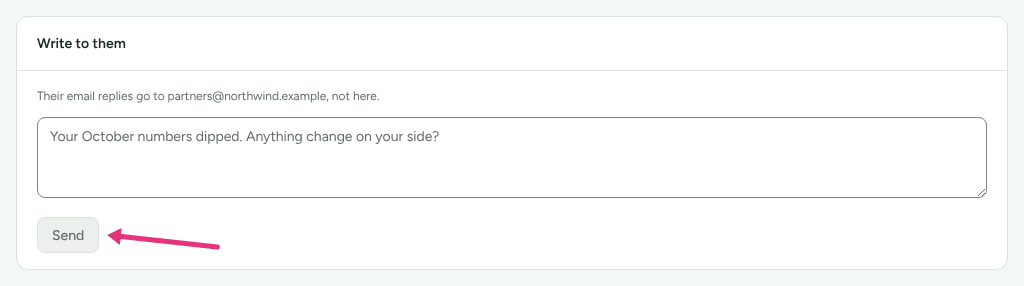
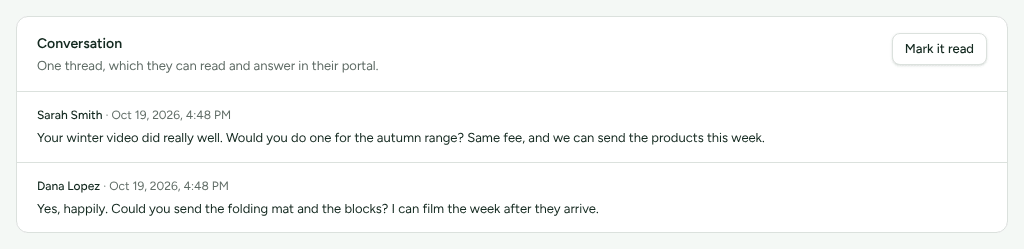
The message lands in Conversation ("One thread, which they can read and answer in their portal.") and is emailed to them. The card says beforehand where their answer goes: "If they reply to the email, it comes back here", or "Their email replies go to your reply-to address, not here." Their queries about sales are listed in the same section.
If they have turned your messages off, the card says so before you type: the message waits in their portal rather than reaching them by email, and "If they answer here, your replies are emailed again."
When a partner writes to you, it shows on Overview under Waiting for a reply, and whoever has A partner wrote to you on is emailed (Settings › You › Your emails).
Check it worked
- A newsletter's status reads Sent, and What happened counts who it reached.
- A notice reads Sent with the day.
- A message is listed under Conversation. "Not emailed" beside it means it is in their portal only.
- The partner's Activity section lists each email sent to them.
What this does not do
- A newsletter cannot be changed once it starts sending, and there is no open-rate.
- A notice sends no email. Partners see it in their portal.
- None of them reach a partner who has turned that kind of email off, except in the portal.
- A message is not a query: resolving a partner's query is done on Queries (see Answer partner queries).
Related
- Edit the emails your partners receive: sender name, reply-to and the built-in emails.
- Answer partner queries: when a partner says a sale is missing.
- Partner emails are not arriving: opt-outs, bounces and refused addresses.
- Turn off program emails: what partners can switch off.