Read History
Find out who changed what in your workspace, and when; see whether Refficks support has been signed in as one of your team; and take back an approved payout run or a commission reversal. For owners and admins.
Before you start
- Role: owner or admin. Other roles are refused Settings › Developer › History.
- History is written by Refficks as things happen. Nobody can edit or delete an entry, you and Refficks included.
What History records
Every change to the workspace, with who made it, when, and the values before and after. Each entry leads with who did it:
| Who it says | What that means |
|---|---|
| A teammate's name, or "Somebody at your company" | Someone on your team, signed in |
| "A partner" | A partner, from their portal |
| "Refficks, automatically" | Refficks itself, with no person behind it: a scheduled check, a clean-up, a provider's answer |
| "Refficks support", with the badge Refficks | Someone at Refficks, in the admin tools |
| "Refficks support, acting as …" | Someone at Refficks signed in as one of your team |
| "Your “…” API key" | Something using one of your API keys, by the name you gave it |
| An AI app's name, "connected by …" | An AI app somebody on your team connected |
| "A CRM you connected" | HubSpot, for example, changing a linked deal |
Downloads are recorded too: taking an export from Import and export › Export, and downloading History itself.
Somebody who deleted their Refficks login still appears on what they did, "recorded as somebody who asked to be erased".
Find an entry
- Go to Settings › Developer › History: press Developer above the tabs, then History.
- Narrow the list with any of:
- Who: a kind of actor from the table above (Anybody by default);
- What: a kind of record, such as Payout or Partner (Anything by default);
- Action: what was done, worded as the rows are, for example "approved · Payout" (Any action by default);
- Search: "A name, an address, a record";
- From and To: dates.
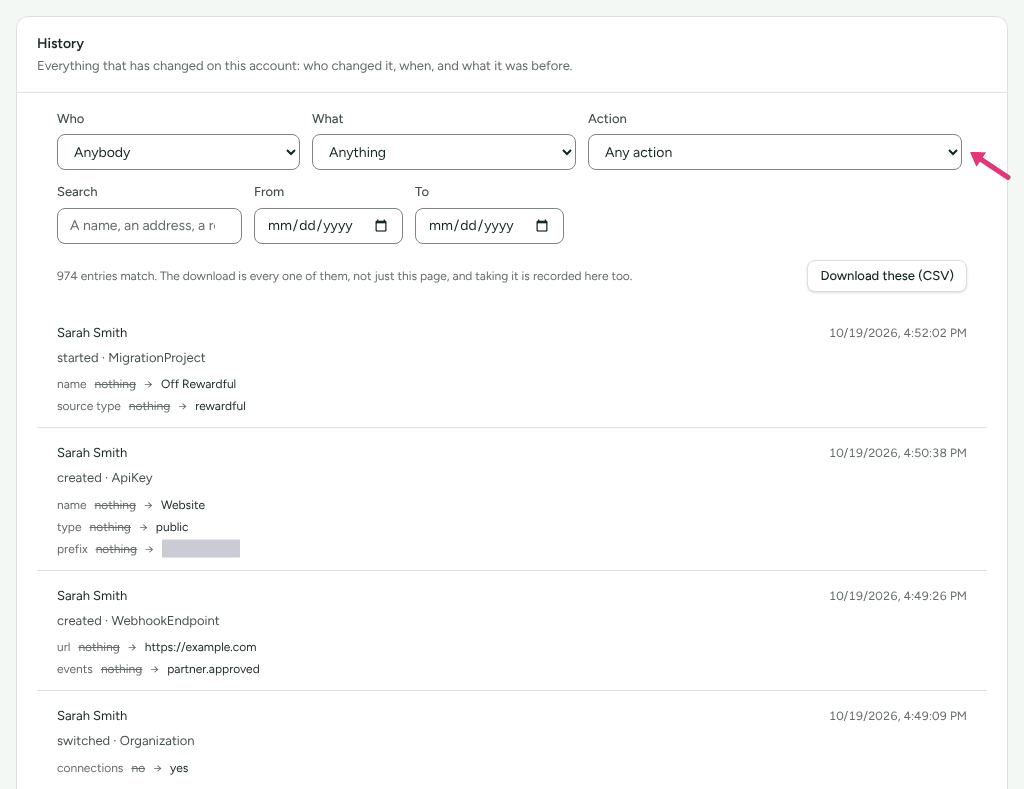
- Read the entries. Each one shows who, when, what was done ("approved · Payout"), and each value that changed, struck through before and plain after.
The line above the list says how many entries match. Clear the filters, or widen the dates, if it reads Nothing in this range.
A team email can bring you here with the search already filled in, for example about a refund that was undone at your payment provider.
Download what you found
Press Download these (CSV). "The download is every one of them, not just this page, and taking it is recorded here too." The file has the columns When, Who, Kind of actor, Action, What, Record, Before and After.
See whether Refficks support was here
When someone at Refficks has ever been signed in as one of your team, a card sits above the list: Refficks support in your account ("Every time somebody at Refficks has been signed in as one of your people, and why.").
Each line says who they were acting as, the reason they gave, the reference, and whether the session is still open. A session can last up to 30 minutes, and your owners are emailed when one starts.
- In here now marks a session that is still open. Press End it to end it.
- Everything they changed is in the list below, under "Refficks support, acting as …".
The card does not name the person at Refficks. Write to support@refficks.com with the reference if you want to know who it was.
Take an action back
A few kinds of entry can be undone from History. Undoing writes a new entry beside the old one: "Taken back. It is in your history beside the entry it undoes." Nothing is edited.
| Entry | Button | What it does |
|---|---|---|
| A payout approved ("approved · Payout") | Take the approval back | Cancels that payout before the money goes. Its commission is released, still approved, for a later payout run |
| A commission reversed, in whole or in part ("reversed · Commission", "reversed in part · Commission") | Take the reversal back | Gives the partner back what the reversal took |
- Find the entry, for example with Action set to "approved · Payout".
- Press Take the approval back or Take the reversal back on it.
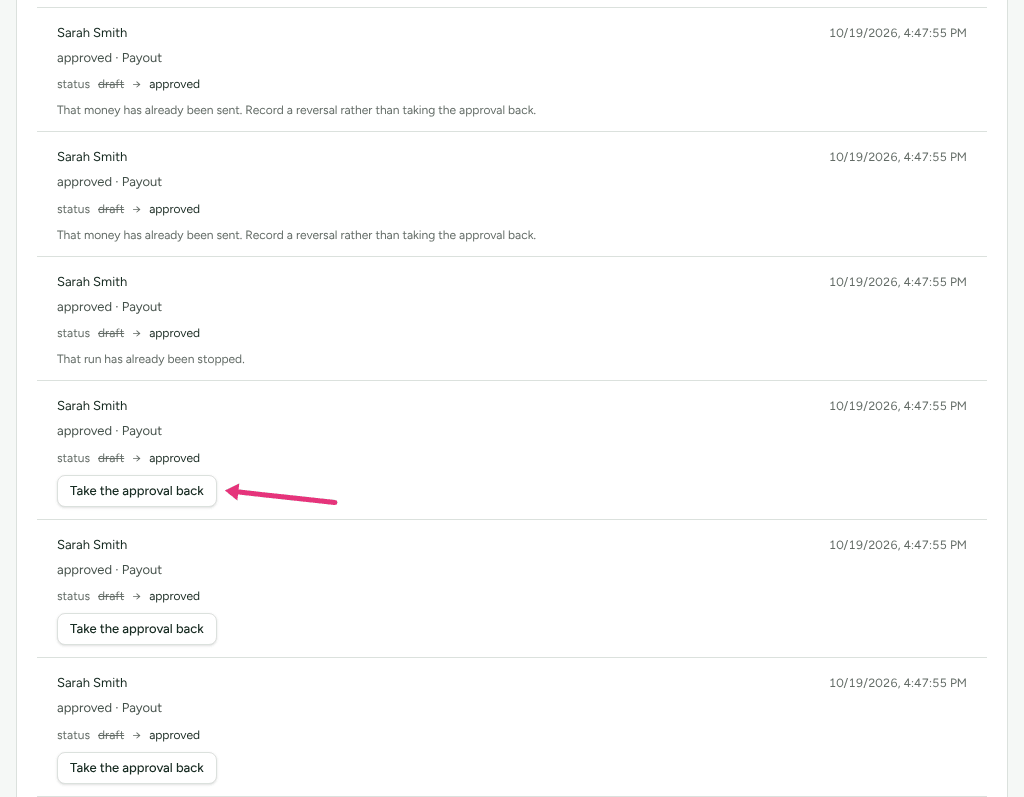
Where it is too late, the entry says why instead of showing the button, for example:
- "That money has already been sent. Record a reversal rather than taking the approval back."
- "That run is being paid out right now. Wait for it to finish, then record a reversal."
- "That run has already been stopped." (the payout was cancelled, or the bank refused it)
- "That reversal is already in a payout run. Take the run back first, or raise a new adjustment."
- "That reversal has already been settled. Raise a new adjustment instead."
Every other kind of entry has no button: it cannot be undone from here. An entry made by Refficks support in the admin tools (the ones with the Refficks badge) is never undone from your History either.
While your workspace is read-only because of billing, you can still take a payout approval back, which only stops money going out. Taking a reversal back pays money again, so it waits until the workspace is paid for.
Check it worked
- After taking something back, the green message appears and a new entry sits at the top of the list, beside the one it undoes.
- A cancelled payout reads as cancelled on Payouts, and its commission is approved and unpaid again.
What this does not do
- History cannot be edited, deleted or hidden, by anyone.
- It is kept for seven years (Settings › Developer › Retention, where seven years is also the minimum), and an erasure request never removes it.
- It records what changed in Refficks, not what happened at your payment provider or store. A delivery a provider sent is on that integration's page.
- Only the two kinds of entry above can be taken back. To undo anything else, make the opposite change yourself; History records both.
When to contact support
Write to support@refficks.com if an entry names Refficks support and you did not expect it, or if a Take … back button is refused with a message not listed here. Include:
- your workspace name;
- the entry's time, who it names and what it says was done;
- for a support session, its reference from the Refficks support in your account card;
- the exact message you saw.
Never send API keys, signing secrets or partners' payout details.
Related
- Team roles and permissions — who can open History, and what Refficks support can do in your account.
- Pay your partners — approving payouts, and what a cancelled payout means.
- Refunds and reversals — what a reversal takes back, and when.
- Retention, erasure and closing your workspace — how long History and everything else is kept.