Automations
An automation is a rule you write once: when something happens to a partner, Refficks does something for you, such as sending an email or adding a tag. This article covers every trigger, the six actions and what each refuses to do, rules that run on a schedule, and where to see what ran. It is for merchants and program managers.
The Automations card puts it this way: "When this happens, if that is true, do these things. They send email, tag people and add them to campaigns, but they never touch money."
Before you start
- Role: Owner, Admin or Manager to add or pause a rule. Analysts and Support see the rules but not the form.
- You need: for an email, the email you want to send. Every built-in email works as written; change it under Settings › Partners and payouts › Emails.
Add a rule
- Go to Campaigns and scroll to the Automations card.
- In Call it, name the rule.
- In When, choose what starts it (see Triggers).
- In Do, choose what it does (see Actions), and fill in the box that appears: Which email, Tag, What to say or Campaign.
- Press Add automation. The rule is on as soon as it is saved.
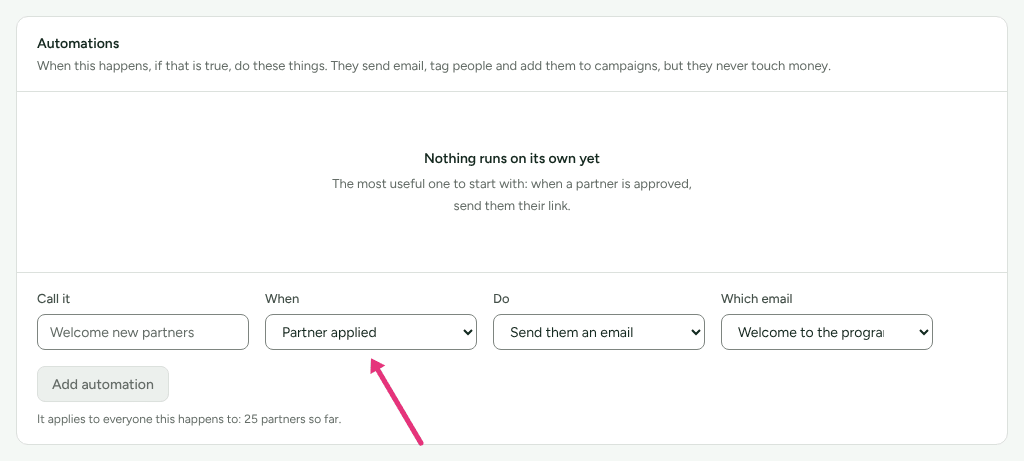
Under the button, "It applies to everyone this happens to" means the rule acts from now on, each time the trigger happens. It does not run for things that happened before you saved it.
The most useful first rule is a welcome email on Partner approved. See Send approved partners a welcome email.
Triggers
When offers 43 choices: 42 moments, and On a schedule.
| About | Triggers |
|---|---|
| A partner | Partner applied, Partner approved, Partner onboarded, Partner first click, Partner first conversion, Partner became dormant, Partner tier changed, Partner earned the next tier |
| Money | Commission earned, Commission reversed, Payout paid |
| Referral programs | Somebody was referred, A referral counted, A referral was refused, A referral ran out of time, A referrer got their first signup, A referrer hit a milestone |
| Agency and B2B programs | A partner submitted a lead, A lead was qualified, A lead was refused, A partner registered a deal, A deal registration was approved, A deal registration was refused, A deal protection window closed, An opportunity was created, An opportunity moved stage, An opportunity was won, An opportunity was lost, Partner won their first deal, Partner passed a pipeline threshold |
| Creator collaborations | Creator invited to a collaboration, Creator accepted a collaboration, Creator declined a collaboration, Creator finished everything on a collaboration, Content submitted for review, A revision was requested, Content approved, Content published, A deliverable is due soon, A deliverable is overdue, Usage rights expiring, Usage rights expired |
| Time | On a schedule |
Every trigger is listed whatever modules your programs use. A trigger for a module you do not run never happens, so its rule never runs.
Actions
Do offers six actions. None of them can touch money, and two only work in one direction, because a rule written months ago is not a person deciding.
| Action | What it does | What it refuses |
|---|---|---|
| Send them an email | Sends the email you choose under Which email. | A partner who opted out of that kind of program email, or a switched-off email, is skipped, and the run says so. |
| Tag them | Adds the tag you type under Tag. | It only adds. It never removes a tag somebody put there. |
| Add them to a campaign | Enrols them in the campaign you choose under Campaign. | |
| Raise it for someone to decide | Puts a recommendation with your words (What to say) in front of your team. | It does not repeat while the same one is still open for that partner. |
| Move them along your lifecycle | Moves them to a lifecycle stage. | Never into Rejected or At risk: "An automation cannot move somebody to [rejected]. Raise it for a person instead." |
| Promote them to a tier | Moves them to a higher tier in a program they are in. | Never down: "An automation cannot move somebody down from <tier> to <tier>. Raise it for a person instead." |
No rule can change a commission, approve or send a payout, reverse anything, or suspend a partner. Use Raise it for someone to decide for anything like that: the rule notices, a person decides.
Two of these cannot be finished from the dashboard yet. The Do list offers Move them along your lifecycle and Promote them to a tier, but the form has no box for the stage or the tier (it shows Campaign instead). A rule saved with either has nothing to move anyone to, and every run of it fails. Use the other four actions until the form asks for a stage and a tier.
Rules on a schedule
Choose On a schedule in When for a rule that is not set off by anything, for example a weekly check-in with partners who have gone quiet.
- In How often, choose Every day, Every week or Every month.
- In Only partners where, choose what to match on, such as "Where they
are in their life as a partner", and type the value in is, such as
dormant. "A scheduled rule acts on everyone it matches, so it needs something to match on." - Choose the action and press Add automation.
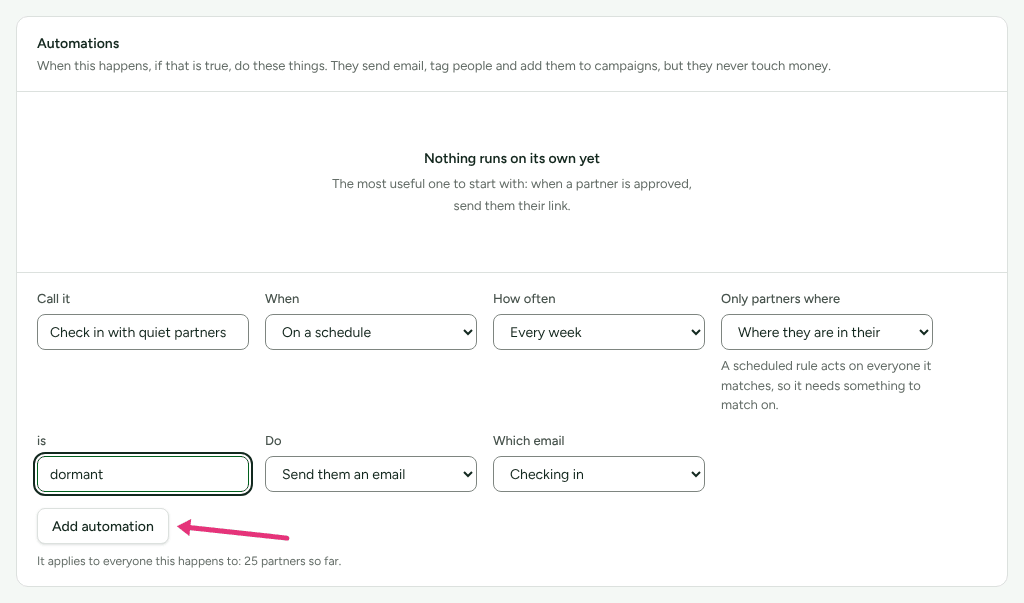
A scheduled rule without a condition is refused: "A scheduled rule needs at least one condition. Without one it would act on every partner you have, every time it runs." Its first run is one interval after you save it, not straight away, so you have time to notice a mistake and pause it. Refficks checks for rules that are due every hour.
See what ran
- The Ran column counts the times each rule matched someone and finished.
- Every email a rule sends is in that partner's Activity section, with whether it was sent.
- Settings › Developer › History records who added or changed each rule, and a lifecycle move made by a rule says "Moved by an automation."
Refficks also keeps a record of every time a rule was considered, including the times it did not match and why an action failed. No screen shows that record yet. If a rule did not do what you expected, write to support@refficks.com with the rule's name and the partner's id.
Pause a rule
Press Pause on the rule's row; Turn on starts it again. While paused it does nothing, and nothing it missed is sent later.
When rules do not run
- Once per partner per moment. A rule on Partner approved runs once for each partner, even if they are approved again later.
- Not for a migration. Partners and history brought in by a migration (Import and export › From another platform) never start a rule. Partners added from a file (Import and export › Import a file) do, like partners added by hand.
- Not while your workspace is closed.
What Refficks may do without you
Settings › Partners and payouts › Automation is a different thing: not your rules, but the recommendations Refficks makes itself, and whether it may carry any of them out on its own. Its card is What Refficks may do without you: "Every setting here narrows. Nothing on this screen can let automation do something the product would otherwise refuse."
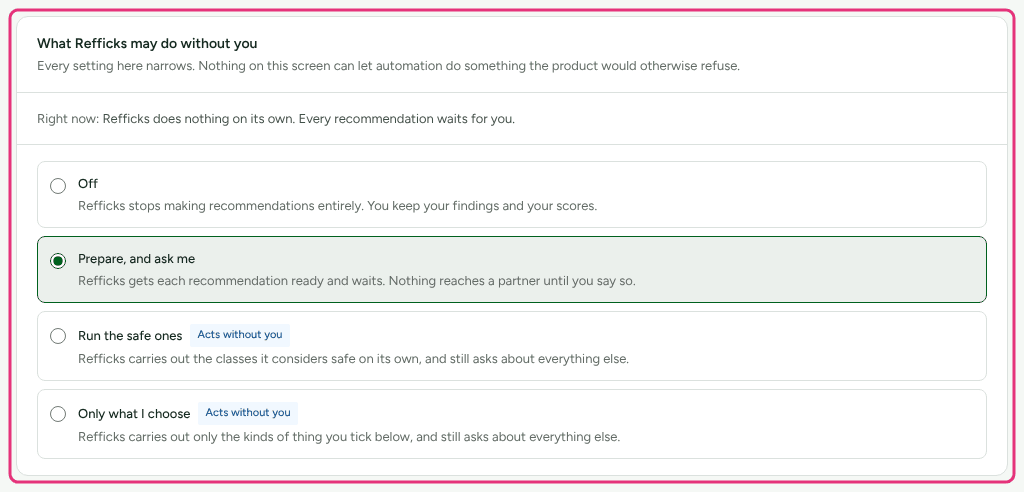
- Off, Prepare, and ask me (the starting setting), Run the safe ones or Only what I choose.
- Today one kind of work is safe enough to run unattended: "Sending a partner their link is the only work Refficks considers safe to do unattended."
- Limits and Quiet hours cap what it does on its own, and Stop everything now pauses it at once.
- Only an Owner or Admin can change these settings.
These settings and limits apply to Refficks's own recommendations, not to the rules on Campaigns. Stopping one does not stop the other. See Intelligence and recommendations.
What this does not do
- No rule can touch money, reject a partner, mark them at risk, demote them or suspend them.
- A rule never starts another rule.
- There is no screen to edit or delete a rule. Pause it and add a new one.
- A scheduled rule from the dashboard takes one condition, compared with "is".
- Rules are not run backwards for things that happened before they existed.
Related
- Send approved partners a welcome email: the first rule most merchants add.
- Partner emails: the built-in emails a rule can send.
- Intelligence and recommendations: what Refficks recommends, and Settings › Partners and payouts › Automation in full.
- Outbound webhooks: telling your own systems about the same moments.