Run an agency and B2B partner program
Agencies, consultants, resellers and implementation partners bring you deals rather than clicks. This article covers setting up the program, the leads they send you, the accounts they claim, the deals in your pipeline, partner tiers, and how they are paid: only when a customer actually pays.
Before you start
- Role: Owner, Admin or Manager to decide on leads and claims, move deals and put partners on them. Only an Owner or Admin can save the program's B2B settings, because they decide when partners are paid. Analysts and Support can read.
- The Agency & B2B module. Leads, Deals, Pipeline and Channel are in your menu under Introductions. If they are not, the module has been held back for your workspace; write to support@refficks.com.
- A program for these partners. Go to Programs, press New program and choose Agency & B2B as the Module (or Reseller, which works the same way: a reseller is a B2B partner paid a share of revenue).
- A commission plan on that program, so a paid invoice has something to pay by. See Commission plans.
Set up the program
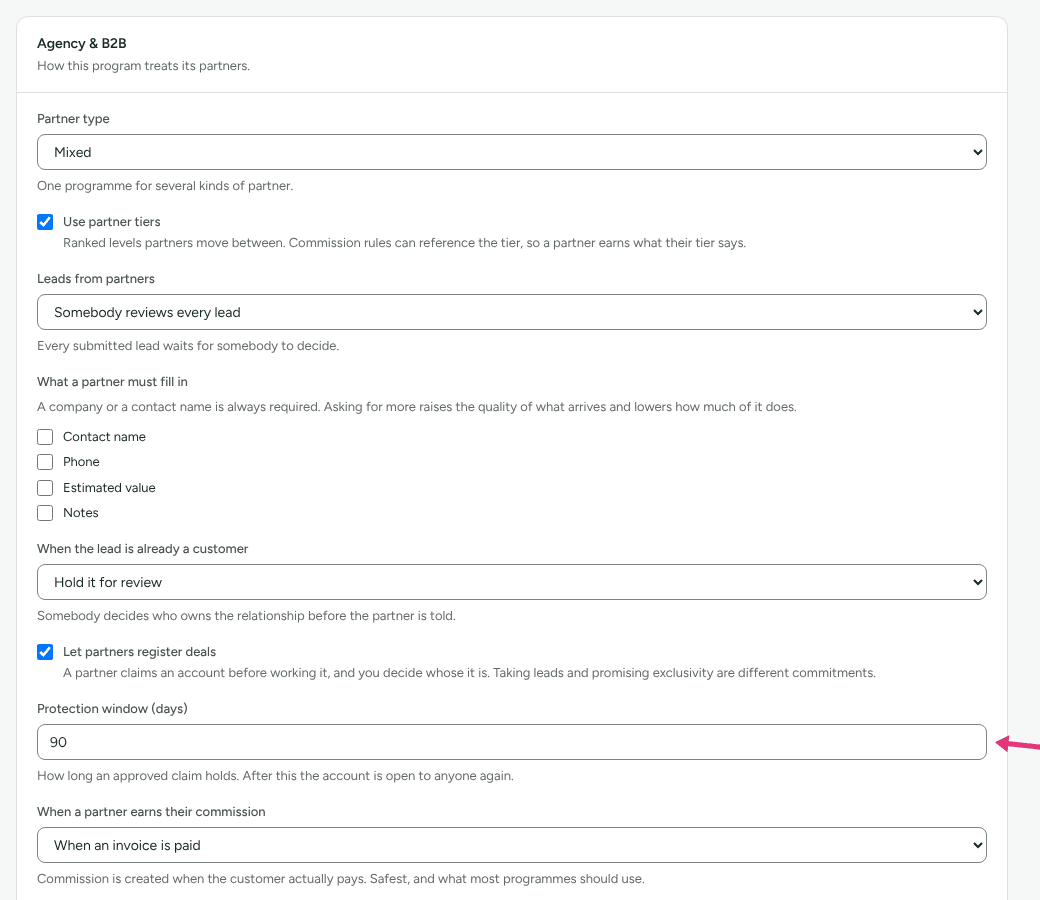
On the program's page, the Agency & B2B card holds the settings.
- Choose the Partner type: Agency, Consultant, Referral partner, Implementation partner, Reseller or Mixed.
- Tick Use partner tiers if partners move between ranked levels.
- Under Leads from partners, choose Somebody reviews every lead or Qualify submitted leads automatically.
- Under What a partner must fill in, tick what else a lead must carry. "A company or a contact name is always required."
- Under When the lead is already a customer, choose Accept it like any other lead, Hold it for review (the default) or Refuse it ("The partner is told straight away that this account is already yours.").
- Tick Let partners register deals if a partner may claim an account before working it, and set the Protection window (days): "How long an approved claim holds. After this the account is open to anyone again." It starts at 90.
- Choose When a partner earns their commission:
- When an invoice is paid (the default): "Commission is created when the customer actually pays. Safest, and what most programmes should use." Then set Pay on revenue for (months), or leave it empty "to keep paying for as long as the customer does", and, with a number of months, Revenue window starts at The first win or The latest win.
- When the deal is won: "Commission is created the moment a deal is marked won, before any money has arrived. Faster for your partners, and you pay on deals that are never invoiced."
- Under Portal sections, choose what partners see: Overview (always), Partnership, Leads, Deals and Earnings.
- Press Set up B2B program the first time, or Save.
Add each partner to the program from Partners in this program on the same page. A partner needs a B2B role, such as Agency or Implementation partner, for Partnership, Leads and Deals to appear in their portal.
Decide on a lead
Partners send leads from their portal. They wait on Leads (headed Partner leads) under Waiting on you.
- Open the lead. What the partner sent shows the company, contact, email, phone and Estimated value: "What the partner thinks it is worth. Not revenue."
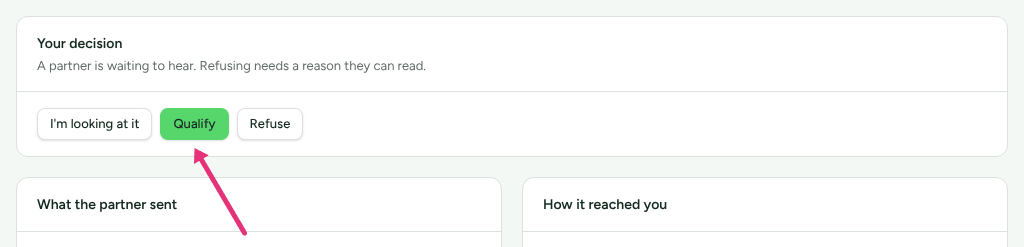
- Press I'm looking at it to tell the partner it is in review, then:
- Qualify, or
- Refuse, write Why? ("The partner reads this. Tell them what to send you instead.") and press Refuse this lead.
- When the lead becomes a customer of yours, press Convert to a customer. "Converting records that this lead became this customer. It does not decide who earned them. That is attribution's job."
Decide on a deal registration
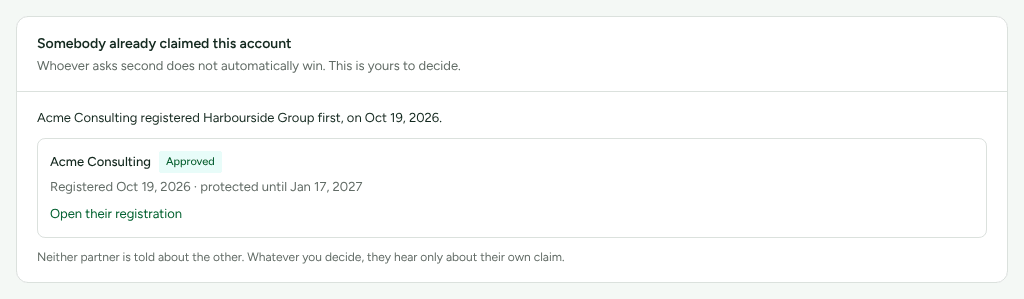
A deal registration is a partner claiming an account before they work it. Claims wait on Deals (headed Deal registrations). The screen opens on Needs a decision: claims on an account somebody else already holds, marked Contested. Waiting on you has the rest.
- Open the claim. On a contested one, Somebody already claimed this account shows the other claim. "Whoever asks second does not automatically win. This is yours to decide." Neither partner is told about the other.
- Under Your decision:
- Approve the claim: "Approving starts the protection window and creates the lead."
- Somebody got here first: the partner reads "Already registered by another partner".
- Refuse, with a reason the partner reads.
- On an approved claim, Take the account back ends it early and tells the partner why.
Two claims are on the same account when the company names match once case, punctuation and the legal suffix are taken off ("Harbourside Group" and "HARBOURSIDE GROUP LTD"), when the contact's email is the same, or when the emails share a company domain. Free mail domains such as gmail.com never count as one company. When the protection window ends, the claim reads Expired and the account is open again; Refficks checks every hour.
The values on this screen "are what the partner expects the deal to be worth. They are not revenue and are never counted as any."
Follow deals in the pipeline
Pipeline lists the deals in progress, which partner brought each, and Open pipeline: "What might happen. Won deals are not counted here and neither is anything closed, because none of it is revenue until an invoice is paid." Filter with Open, Partner-sourced or Everything.
On a deal:
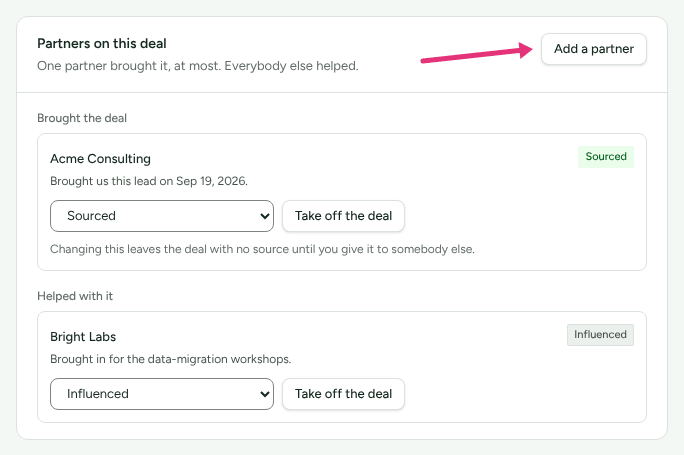
- Partners on this deal: "One partner brought it, at most. Everybody else helped." Press Add a partner, choose the Partner and What did they do?: Sourced (only one partner), Referred, Influenced, Reseller, Implementation, Integration, Consulting or Co-sell. Influence credit (optional) is "Reporting only. It never moves a commission." Press Add to the deal. On each partner's row, change what they did in the list under their name, or press Take off the deal. Moving the one who brought it to anything else "leaves the deal with no source until you give it to somebody else."
- Stage: choose Move to to move it. "Moving the deal tells every partner on it." The stages are New, Qualified, Discovery, Demo, Proposal, Negotiation, Closed won and Closed lost.
- What this deal pays says in words what winning it does under the program's rules.
There is no button on Pipeline to open a deal by hand. A deal is opened when you send a qualified lead to HubSpot (below).
How partners are paid
Pipeline is never revenue. A deal's value is what it might be worth, and a won deal is a decision, not money.
- When an invoice is paid (the default): when the customer on a won deal pays an invoice, each partner on the deal earns under their own commission plan. Two partners on one invoice are two separate commissions, never one split. Closing a deal as won "records a decision, not a payment".
- When the deal is won: each partner whose plan pays on the deal earns on its amount when it is marked won, whether or not it is ever invoiced.
- When a customer has more than one won deal, Refficks does not guess which one a payment was for. The payment waits at the top of Commissions under "A payment needs a decision", and nobody is paid for it until you choose.
Commissions are approved by an Owner or Admin in Commissions, and paid in your payout runs, like any other.
Partner tiers
The Tiers card is on every program's page. Add a tier (Name, Rank, What it means, Add tier), then press Requirements to say what it takes, for example Leads you qualified, Open pipeline they sourced, Deals won or Value of deals won. Refficks recommends a partner who has earned a tier on Intelligence; it never moves them. You change a partner's tier in Partners in this program, and commission rules can pay by tier.
Check it worked
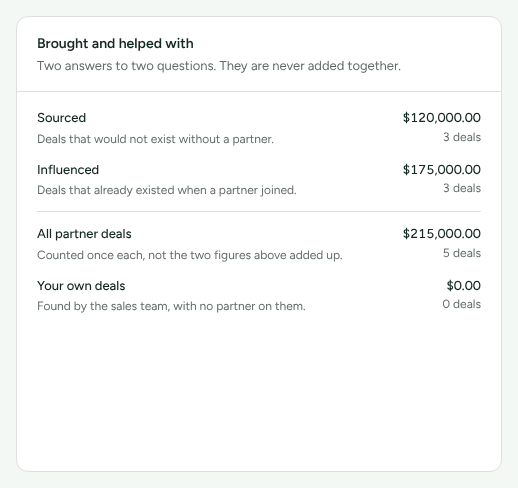
Channel (headed Partner channel) shows "What your agencies and B2B partners are producing, and what has actually been paid": Active partners, Partner pipeline, Won, not yet paid ("A decision, not money in the bank") and Commission earned on what was actually paid. Brought and helped with keeps Sourced and Influenced apart: "Two answers to two questions. They are never added together."
Send deals to HubSpot
With HubSpot connected (see Email and CRM tools), a qualified lead's page has a HubSpot card to send it into HubSpot: the contact, the company, and a deal in the pipeline and stage you choose, with no amount. Refficks opens its own deal from the lead and follows HubSpot's stage from then on. A program can also send each lead when it is qualified.
What this does not do
- A deal's value is never counted as revenue, on any screen.
- Nothing is decided for you. A contested claim is never refused on its own, and a payment with more than one possible deal waits for a person.
- Converting a lead does not credit the partner with the customer. Who earned a customer is decided by attribution.
- A Manager can see the B2B settings but not save them. The fields are not greyed out; saving is refused.
Related
- B2B leads and deals: what your partners see.
- Commission plans: the plans each partner is paid by.
- Approve commissions: B2B commissions wait there.
- Intelligence and recommendations: tier recommendations.