Pay your partners
This article takes an owner or admin from approved commission to a payout marked paid: checking who will be paid, building the run, approving it, paying from a file, PayPal, Tremendous or store credit, and recording that the money went.
Refficks never sends a payout on its own. There is no schedule and no timer: money moves only when a person presses for it.
Before you start
- Role: owner or admin. Managers, analysts and support can see the Payouts list but not Ready to pay, and cannot build, approve or record a payout.
- You need: approved commission (see Approve commissions), and partners who have saved payout details in their portal (see Add payout and tax details). Partners choose PayPal, bank transfer, Wise, something else, store credit where you offer it, or Tremendous where you offer it.
- Where a partner is paid is theirs to change. Nobody on your team can type or change a partner's payout details. The partner changes them in their own portal, with their password, and is emailed the before and after. For 30 days after a change, Ready to pay says so on their row, for example "Destination changed 3 days ago".
- Time: a few minutes to build and approve; paying depends on your bank, PayPal or Tremendous.
Set the rules for payout runs (once)
Go to Settings › Partners and payouts › Payout runs.
In Smallest payout worth sending (USD) (your workspace's currency), type the minimum, or
0to send whatever is owed. Below it, "what a partner is owed rolls into the next run rather than going out on its own". The default is Refficks's own figure for your currency (USD 50.00, EUR 50.00, GBP 40.00, CAD 70.00, AUD 75.00, JPY 7,500, INR 4,000, BRL 250.00).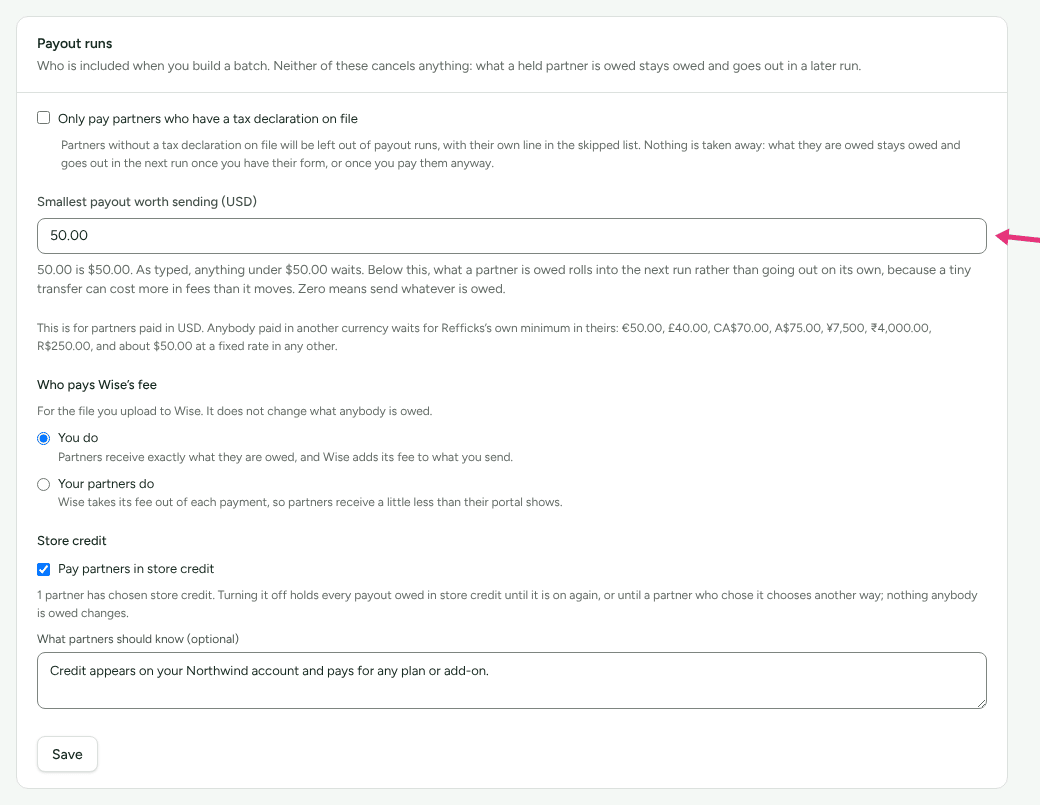
Optional: tick Only pay partners who have a tax declaration on file. "Nothing is taken away: what they are owed stays owed and goes out in the next run once you have their form, or once you pay them anyway." See Tax forms and the 1099-NEC.
Under Who pays Wise’s fee, choose You do (partners receive exactly what they are owed) or Your partners do.
Optional: under Store credit, tick Pay partners in store credit (see Pay partners in store credit).
Press Save.
Your minimum applies to partners paid in your workspace's currency. A partner paid in another currency waits for Refficks's minimum in theirs, which the note under the field lists. If your workspace has changed currency, a minimum you typed in the old currency goes on holding partners paid in that one, and the note says so.
Build and pay a run
Go to Payouts. Ready to pay is at the top: "Approved commission that has not been settled yet. Look before you build: this shows who is being left out, and why."
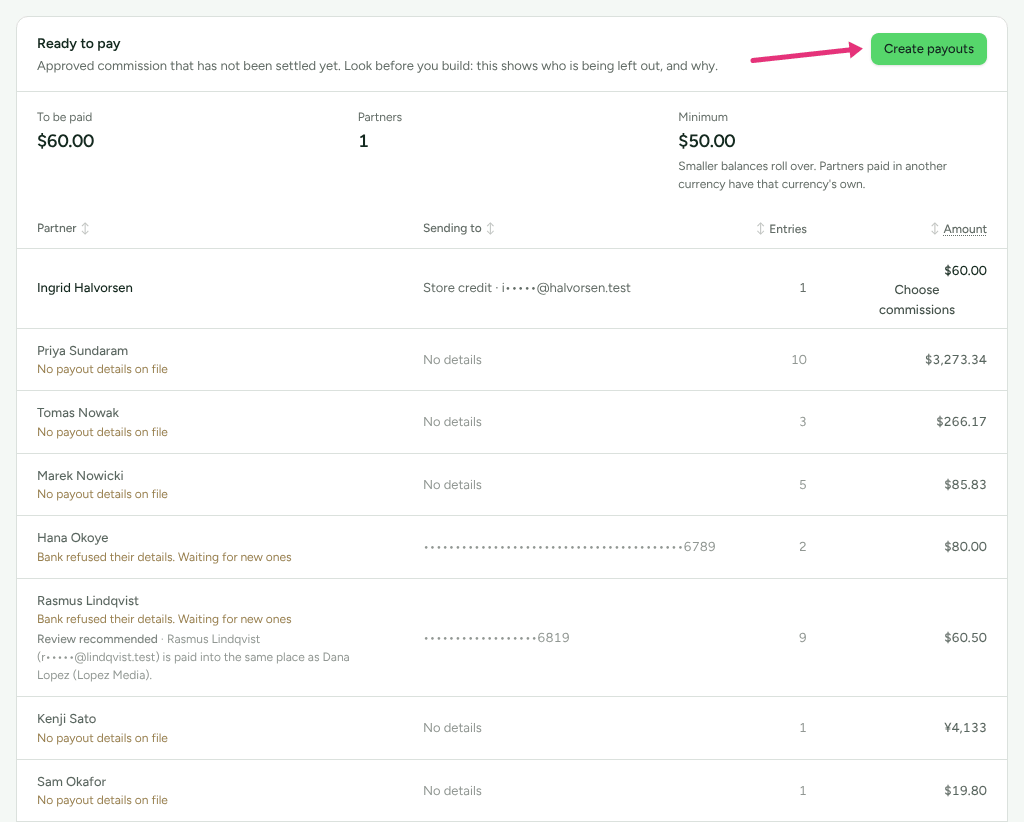
Read To be paid: one figure for each currency owed, side by side, for example "$50.00 · ¥7,500". Different currencies are never added together. Then read the table. Each row is one partner in one currency (and, for store credit, one store), with Sending to (a masked hint of where it goes), Entries and Amount. Rows that will not be paid are dimmed with the reason under the name, for example "No payout details on file" or "Under the $50.00 minimum" (see A partner was left out of a payout). A row with "Review recommended" under the name is still paid; it is there so you look first. A row reading "Destination changed …" is paid too: check with the partner if the change surprises you.
Optional, to pay only some commissions: press Choose commissions on a row, tick the ones to pay, and press Done. "Only the commissions you have chosen will be paid. Everything else stays owed and can be paid later." The button then reads, for example, Pay 3 chosen · 1 payout.
Press Create payouts. The page says, for example, "2 payouts ready to approve." Each payout is a Draft in the Payouts list below.
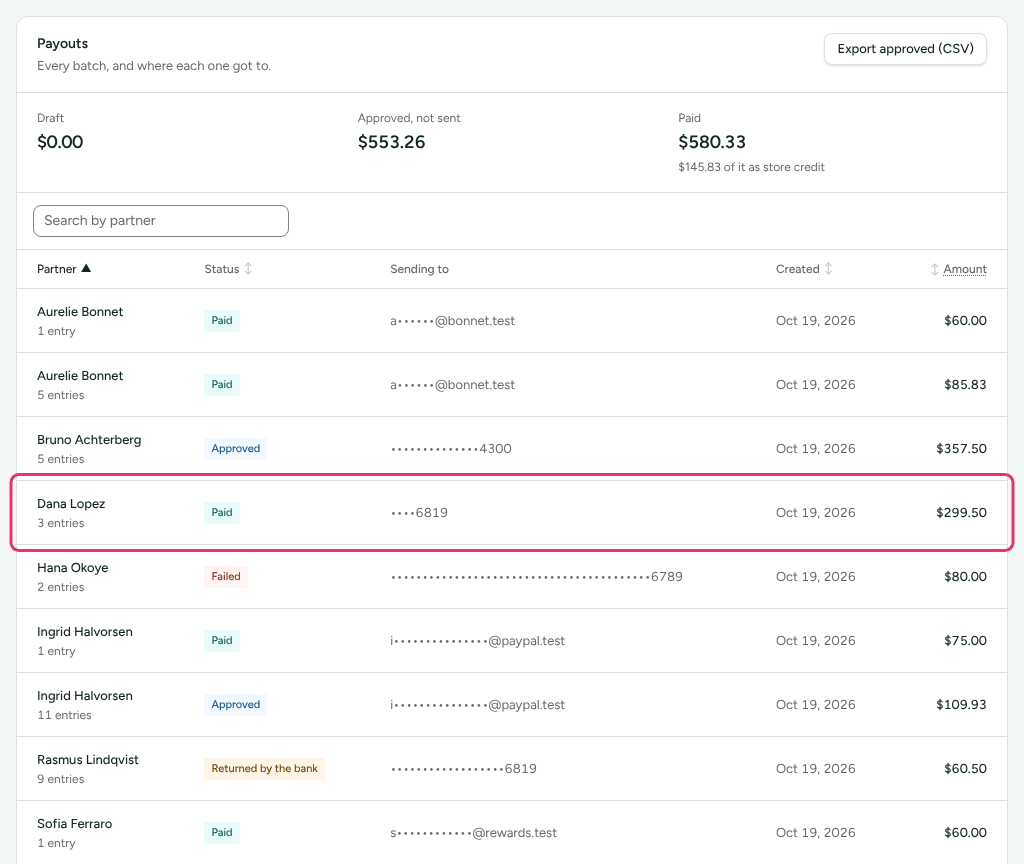
Open a payout by pressing the partner's name in the Payouts list. To find one partner's payouts, type their name, company or email into Search by partner above the list.
Check What this is made of: every commission it settles, with its arithmetic, including any negative amount from a refund.
Press Approve. The payout is now Approved and appears in the files.
Pay it, in one of the ways below.
Record it, unless Refficks sent it for you: type the transfer id in Reference ("The transfer id from your bank or PayPal, so this can be reconciled later.") and press I have sent this.
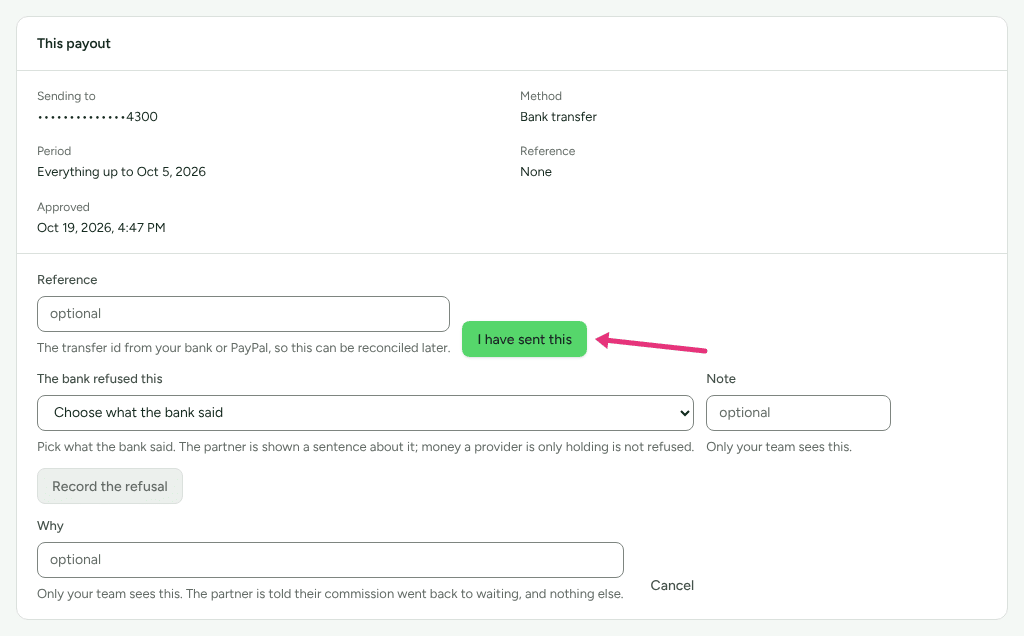
Repeat steps 5 to 9 for each payout. One payout is one partner in one currency: a partner owed in dollars and in euros gets two, and a partner owed store credit in two stores gets one for each.
Ways to pay
From a file
Under Payouts:
Export approved (CSV), on the Payouts card, downloads the general file: every approved payout, with each partner's full payout details, for paying by hand or from your bank's own screens. It is the only file with bank transfers in it.
Files for PayPal and Wise builds each platform's upload from your approved payouts: one PayPal file per currency (up to 5,000 payments) and a Wise file (up to 1,000 transfers). The card lists every approved payout that is in neither file, with why, for example "Paid by bank transfer, which no platform file covers yet. Pay it from the general file."
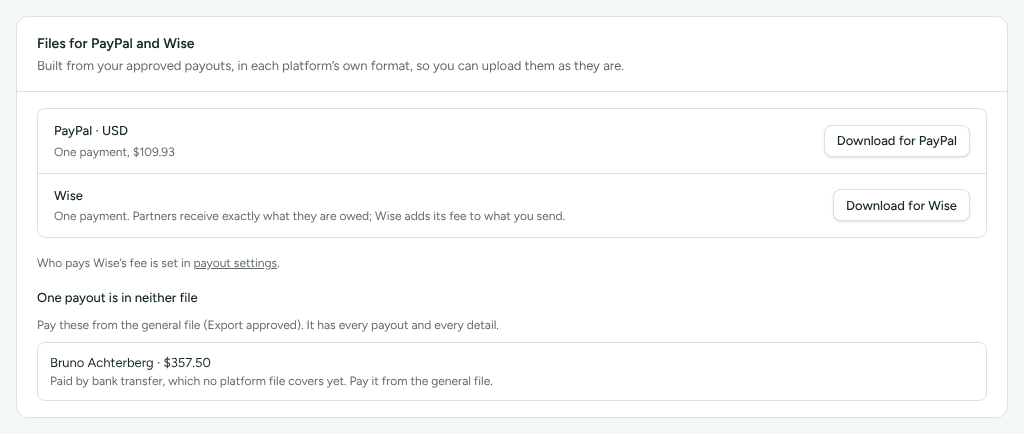
Every download is recorded in Settings › Developer › History, with who took it and which payouts it held, because the files carry partners' payout details. No screen ever shows those details; they leave Refficks only in these files.
After paying from a file, record each payout with I have sent this (step 9).
Through PayPal, from your PayPal balance
With PayPal connected under Integrations › PayPal, an approved PayPal payout shows Send through PayPal on its page, and the Payouts card offers Send every PayPal payout (one PayPal batch per currency). Refficks says exactly what will be sent before you confirm, and marks each payout paid with PayPal's reference once PayPal says it arrived. Setting it up is in Send payouts through PayPal.
Availability: Built on
mainafter the last deployment of app.refficks.com this article was checked against (8 October). If Integrations › PayPal is not there, pay from the file.
Through Tremendous, from your Tremendous balance
With your own Tremendous account connected under Integrations › Tremendous, a partner can choose Tremendous as their way of being paid. An approved Tremendous payout shows Send through Tremendous on its page, and the Payouts card offers Send every Tremendous payout. Tremendous emails the partner, who chooses how to receive it, and the payout is marked paid with the reward's id once Tremendous says the email arrived. Setting it up is in Pay partners through Tremendous.
Availability: Built on
mainon 14 October, after the deployment this article was checked against. Integrations › Tremendous appears only once Refficks has set Tremendous up for the service.
As store credit
A partner paid in store credit gets a payout whose page offers, depending on your store, a button such as Add $50.00 credit in Stripe, Add $50.00 store credit in Shopify or Send a $50.00 gift certificate (BigCommerce). Add every store credit on the Payouts card does all of them. Each is marked paid with the store's reference once the store confirms. To add the credit yourself instead, add it in your store, type its reference in Credit reference (required) and press I’ve added the credit. The whole of it is in Pay partners in store credit.
Check it worked
- The payout's badge reads Paid, with Paid and Reference filled in.
- Its commissions read Paid under Commissions.
- The partner sees the payout in their portal.
- Settings › Developer › History records who built, approved and marked it paid.
When something goes wrong
- The bank refused it before it arrived. On the payout, under The bank refused this (or PayPal did not pay this, Tremendous did not pay this), choose what they said, add a Note if you like ("Only your team sees this."), and press Record the refusal. The commission goes back to waiting for the next run. If the reason says the details are wrong, the partner is left out of runs until they save new details.
- The money came back after you marked it paid. On the paid payout, under The money came back, choose the reason and press Record that it came back. "It stays recorded as sent; the commission is owed again and goes into the next run." The payout reads Returned by the bank.
- You built a payout you do not want to send. Before it is paid, type Why if you like and press Cancel. The commissions go back to waiting. "The partner is told their commission went back to waiting, and nothing else." A paid payout cannot be cancelled.
- You approved too early. In Settings › Developer › History, find the approval and press Take the approval back, while the payout is not yet paid.
While PayPal, Tremendous or your store has a payout and Refficks can read how it ends, the by-hand controls are not shown: the payout's card says where it stands.
The partner is shown one sentence about a refusal or a return, for example "Your bank said the account details were wrong." Your notes are never shown to them.
Tax forms and invoices
- Partners give a W-9, W-8BEN or W-8BEN-E in their portal. The 1099-NEC year card on Payouts gives "Your US partners' totals for the year, the tax declarations you need to file their 1099-NEC, and who you paid without one." You file the 1099-NEC yourself. See Tax forms and the 1099-NEC.
- UK and EU companies can have Refficks switch on Self-billing, so each partner who agrees gets an invoice issued in their name when you pay them. See Self-billed invoices.
- DAC7 reporting is not built.
What this does not do
- Refficks never moves money by itself, and no automation or AI can. Building a run sends nothing; approving sends nothing. Only you paying from a file, or pressing Send through PayPal, Send through Tremendous or a store-credit button, moves money.
- Refficks does not convert currencies. Each currency is its own payout and its own file, and every figure on Payouts (To be paid, Draft, Approved, not sent and Paid) gives each currency its own amount rather than a total.
- The PayPal and Wise files do not cover bank transfers, or Wise's bank-account transfers. Pay those from the general file.
- There is no "unmark paid". Once I have sent this is pressed, a payout can only be recorded as returned.
- A refund that arrives after you build a payout and before you mark it paid can be missed: see the known issue in Refunds and reversals.
Related
- Approve commissions: what puts commission into Ready to pay.
- A partner was left out of a payout: every reason a row is dimmed, and what fixes it.
- Refunds and reversals: how a refund after payout comes off the next one.
- Pay partners in store credit: Stripe, Shopify and BigCommerce credit.
- Add payout and tax details: what your partners fill in.