Approve commissions
Approving a commission is what makes it payable: it goes into the next payout run. This article shows owners and admins how to find, approve or reject commissions one at a time or in bulk, how to recalculate several at once, and how to let a plan approve its own commissions after a holding period.
Before you start
- Role: owner or admin. Managers, analysts and support can read Commissions but see no tick boxes or buttons; the server refuses them too.
- You need: commissions to decide on. A commission appears when a sale credited to a partner matches a plan (see How commission plans work).
What each status means
| Status on the screen | What it means | In the next payout run? |
|---|---|---|
| Pending | Earned and waiting for a decision. | No |
| Approved | Payable. | Yes, unless the partner is left out for a reason the preview shows |
| Rejected | You decided it is not owed. Counts toward nothing. | No |
| Reversed | Taken back, by a refund or by Cancel commission…. The row says why under its status, for example "Cancelled: The customer never took delivery". | No |
| Paid | Settled by a payout marked paid. | Already paid |
| Came back | A paid payment the bank returned; the same money is owed again in a new approved row. | The new row is |
Commission entry types and statuses lists every kind of row and what it means.
In the partner's portal the same entries show the same arithmetic. Their summary calls pending money "Awaiting approval".
Approve or reject one commission
- Go to Commissions.
- Optional: set the status filter to Pending, and type a partner's name, company or email, or the customer's name or email, into Search by partner or customer. Every word you type has to match, so "Dana Lopez" finds Dana Lopez, not every Dana. The search and the filter stay in the page's address.
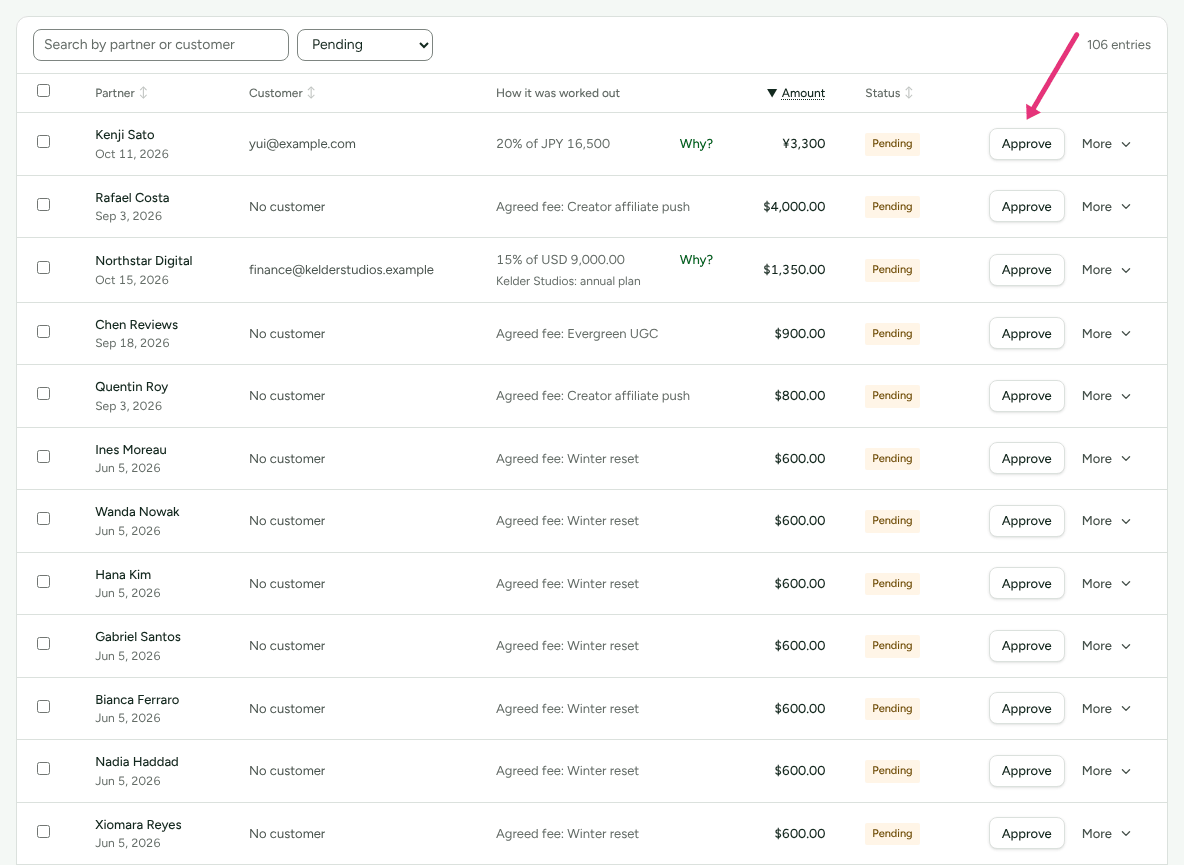
- Read the row: Partner, Customer, How it was worked out (for example "20% of USD 299.00") and Amount. How it was worked out is one line, cut short when it is long; point at it to read the whole sentence. Press Why?, at the end of that line, to open the conversion and see why this partner was credited.
- Press Approve. To reject it instead, press More on the same row and choose Reject.
Approve many at once
- Go to Commissions and set the status filter to Pending.
- Tick the commissions to approve, or tick the box in the header (Select all on this page) to tick every row on this page that has a box.
- Press Approve 12 selected. The number counts only the ticked rows that are waiting for a decision.
The list shows 25 entries a page, and one press approves at most 200. The buttons act only on the ticked rows of the page in front of you, so a hundred commissions are four pages of ticking. Changing the filter or the search clears your ticks, so you never approve rows chosen under another filter. Pressing a column header (Partner, Customer, Amount, Status) sorts the list; amounts sort by currency, then amount, so two currencies are never compared.
Some rows have no tick box. A partial refund's reversal and a recruiter's share say "Approved or rejected with its commission": they follow the commission they belong to, so approving the commission approves them too, and rejecting it rejects them.
A commission earned on a sale has a tick box whatever its status, unless it has been cancelled, because it can also be recalculated (below). A pending one counts for both buttons, so Approve 3 selected and Recalculate 3 selected can stand side by side. Each button acts only on the rows it can.
Recalculate several at once
When a plan or a partner's rate was wrong and you have fixed it, recalculate the commissions it wrote in one go:
- Go to Commissions, and narrow the list with the status filter or the search box.
- Tick the commissions earned on a sale that you want worked out again.
- Press Recalculate 2 selected (the number is how many of the ticked rows can be recalculated).
- Under the filters, write the reason in Why are these 2 being recalculated?. It goes on every adjustment.
- Press Recalculate 2, or Never mind.
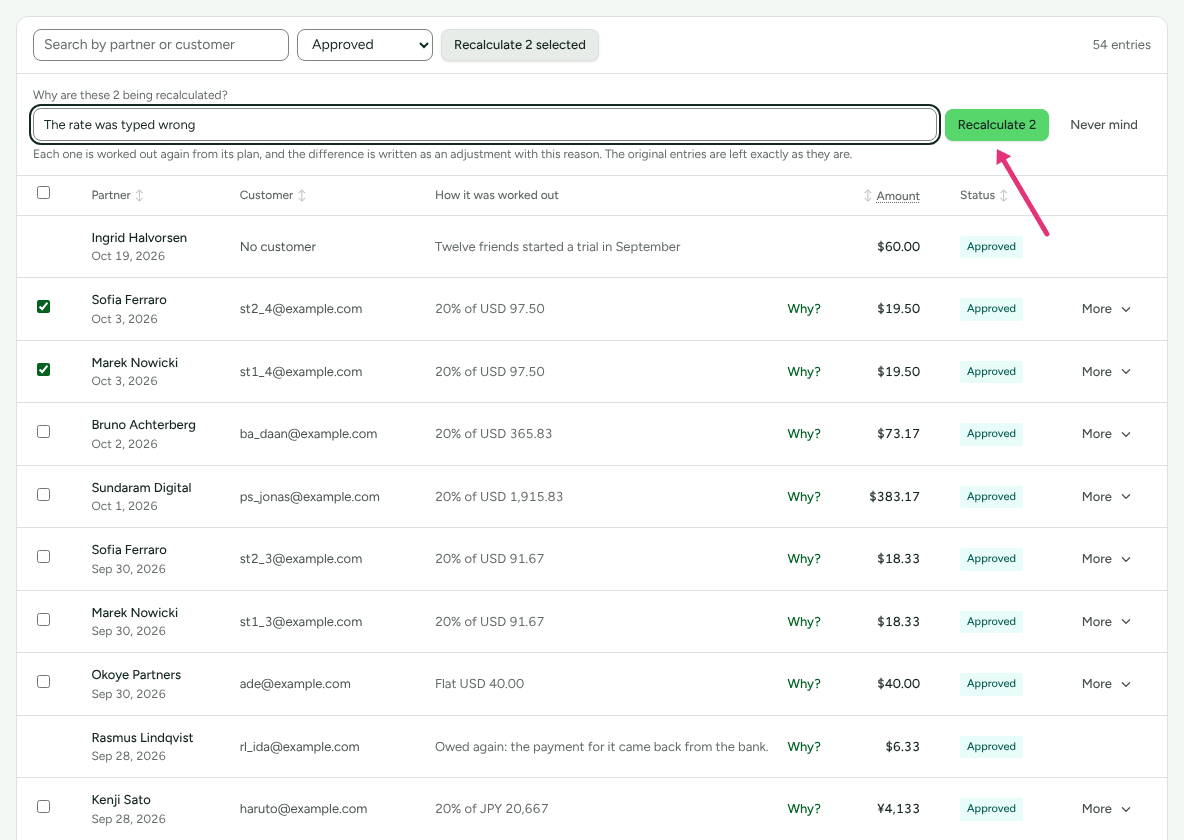
"Each one is worked out again from its plan, and the difference is written as an adjustment with this reason. The original entries are left exactly as they are." Each is the same recalculation as Recalculate… in that row's own More menu. The page then says how many moved and how many did not, for example "2 recalculated, each with an adjustment for the difference." or "3 already matched their plans, so nothing changed." A commission its plan refuses is skipped with the plan's own words ("One was not: The plan no longer pays anything on this sale, …"), and the rest still go ahead. Each adjustment is Pending, waiting for you like any other commission. See A commission is missing or wrong.
A form opened on the list (this one, or Recalculate… or Cancel commission… from a row's More menu) closes when the list moves on to another page, filter, search or sort, so it never sits over rows you have not read. Nothing is changed until you press its button.
Let a plan approve its own commissions
A plan can approve each commission it writes a number of days after the sale, which gives a refund time to arrive first. This is off by default: "A person approves each one".
Go to Programs, open the program, and find the plan in Commission plans.
In the Approval column, press Change.
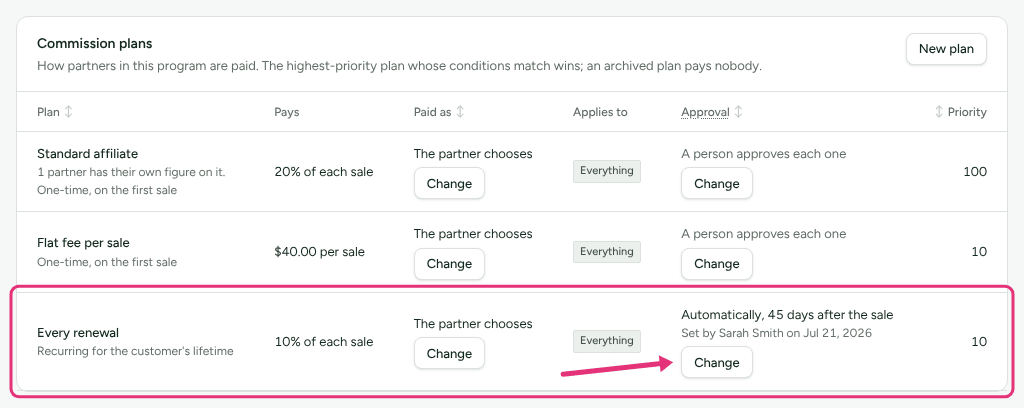
In Approve automatically after (days), type a number from 1 to 365. Leave it empty to switch it off.
Press Save.
The column then reads, for example, "Automatically, 30 days after the sale" and "Set by Sam Rivera on Oct 10, 2026". Every commission the plan approves is approved on behalf of the person who set it, and Settings › Developer › History records each one. Somebody who cannot approve commissions sees "Only someone who can approve commissions can change this." instead of the button.
Three things the form says, because each surprises people:
- "A commission under review, a suspended partner's, or one from an order only a shopper's browser reported never approves by itself; a refunded one is reversed."
- "A new number of days applies to commissions earned from now on; dates already shown keep."
- "Turning it off leaves pending commissions for a person."
Refficks checks hourly, so a commission due at 09:00 is approved within the hour.
Check it worked
- The row's Status changes to Approved. A commission a plan approved says "Approved automatically after the holding period Sam Rivera set on its plan".
- The Pending approval total at the top goes down and Approved goes up, per currency.
- The partner appears under Payouts › Ready to pay with the approved amount.
- A pending commission whose plan approves by itself says "Approves automatically on Nov 9, 2026", or says why it is waiting (below).

What holds automatic approval back
Only commissions earned on a sale approve themselves. A bonus, a creator fee, an adjustment or a balance brought over from your old platform always waits for a person. An earned commission on a plan that approves by itself also waits, and its row says why, when:
| What the row says | Why |
|---|---|
| "Its plan no longer approves commissions by itself, so it waits for someone to approve it." | The plan's setting was turned off after this was earned. |
| "Only a shopper's browser reported this sale, so it waits for someone to approve it." | The order came from your site's page without your server signing it. The row also shows an Unverified badge. |
| "Gumroad sends no signature, so only the address it reports to vouched for this sale, and it waits for someone to approve it." | The sale came from a provider that signs nothing (the provider's name varies). The row shows Unverified. |
| "Refficks holds no Maxio key to check its deliveries with, so only the address it reports to vouched for this sale, and it waits for someone to approve it." | Maxio signs with a key Refficks does not hold. |
| "Refficks brought this sale in from your billing platform's history, after it was paid, so it waits for someone to approve it." | A sale recovered from history is usually past its holding period on the day it arrives. |
| "The shopper declined cookies, so only the code they typed says who earns this, with no buyer to check it against, and it waits for someone to approve it." | Credited by a discount code alone. |
| "A shopper's browser said it was this customer, whom you already knew, and that is all that links the partner's click to this sale, so it waits for someone to approve it." | Only a browser linked the partner's click to a customer you already had. |
| "This sale was credited to the partner by hand by someone who may not approve money, so it waits for someone who may." | A manager (or anyone below admin) credited or moved the sale by hand. |
| "A review was recommended, so it waits for someone to look at it first." | Refficks recommended a look at this money. |
| "It is held for review, so it waits for someone to release it." | Somebody put it on hold. |
| "The partner is suspended, so it waits for someone to decide." (or "archived") | You stopped this partner. A partner marked inactive is not held back. |
| "This workspace is read-only until it is subscribed, so it waits until then, and approves itself at the next hourly check after." | The workspace's trial or subscription has ended (see below). |
A refunded commission is reversed rather than approved; see Refunds and reversals.
None of these stops you approving by hand. A review is a look, not a block: press Approve when you are satisfied.
Read-only and closed workspaces
- Read-only (trial ended or subscription lapsed): tracking is paused, so
no new commission is earned, and a sale made then is never credited.
Payouts of money already approved can still be made, and a refund of an
earlier sale still takes its commission back, but nobody
in the workspace can approve or reject a waiting commission and no plan
approves one, until the workspace is subscribed again. Pressing Approve
is refused with "This commission is waiting to be approved, and while this
workspace is read-only only what is already approved is paid. Subscribe in
Settings › Billing to approve it." The date a commission was due is kept.
See Billing and read-only workspaces.
Switched off: Billing is not switched on for workspaces yet, so no workspace can become read-only today.
- Closed account: nothing is approved by a plan while the account is closed, and nobody can sign in to approve by hand. New sales are recorded and wait; reopening the account works them out by the rules in force then.
What the partner sees
- An approved commission moves from "Awaiting approval" to Approved in their portal, then to Paid when a payout is marked paid.
- A rejected one appears in their history as "Commission of USD 59.80 not approved", with "Ask {your business name} if you would like to know why." The partner never sees your reason.
- The partner never sees why a commission is waiting. A recommended review is shown to your team only.
What this does not do
- Approving does not send money. Money moves only when a person builds a payout run and pays it; see Pay your partners.
- Reject does not ask for a reason. If you want one on the record, choose Cancel commission… from the same More menu instead. It asks "Why is this being cancelled?", you press Cancel this commission, and the partner is told what came off and why. The cancelled row then reads "Cancelled:" and your reason under its status.
- You can only approve or reject a Pending commission. To take back one that is already approved or paid, press More on its row and choose Cancel commission…, which writes a reversal beside it. A paid commission taken back keeps reading Paid, with "Taken back:" and the reason under it.
- Ticks never reach past the page you are on; there is no "select every match" across pages.
- No API key can approve commissions; approving is done by a person signed in.
Related
- How commission plans work: where commissions come from, and where the approval setting lives.
- Refunds and reversals: what a refund does to an approved or paid commission.
- Pay your partners: the step after approving.
- A commission is missing or wrong: when the amount or the partner does not look right.
- Team roles and permissions: who can approve.