How commission plans work
A commission plan says what a partner earns from a sale credited to them in one program, and how that money is paid. Each sale is paid by exactly one plan, the one with the highest priority whose conditions the sale meets, and the sum it worked out is stored on the commission in words, such as "20% of USD 299.00", so it never has to be recomputed to be explained.
This article is for whoever sets up a program's pay: what a plan can do, how to create one, and which plan wins when several could apply.
The short version
- A new program has no plan. The screen says it plainly: "Until a program has a plan, attributed sales are recorded but nobody is paid for them." Creating a plan later does not go back and pay those sales.
- A plan pays a percentage of the sale or a flat amount, either once per customer or on every renewal, for a number of months or for as long as the customer pays.
- "The highest-priority plan whose conditions match wins; an archived plan pays nobody."
- A plan says how what it earns is paid: in money, in store credit, or as each partner chooses. New plans start from the program's own setting.
- A percentage plan can pay a lower rate when the customer used a discount code. On Shopify and BigCommerce a plan can be limited to some products, variants or SKUs (and, on Shopify, collections).
- A partner can be given their own rate on any plan, and a program can pay partners a share of what the partners they recruit earn, on top.
- Money stays in the currency it was earned in. Refficks never converts it, and every total is shown per currency.
Before you start
- Role: owner, admin or manager to create a plan, change how it pays, give a partner their own rate, or set up recruiting. Only an owner or admin can change a plan's automatic approval (see Approve commissions), or switch store credit on.
- You need: a program. Plans live on the program's page, under Programs.
Create a plan
Go to Programs and open the program.
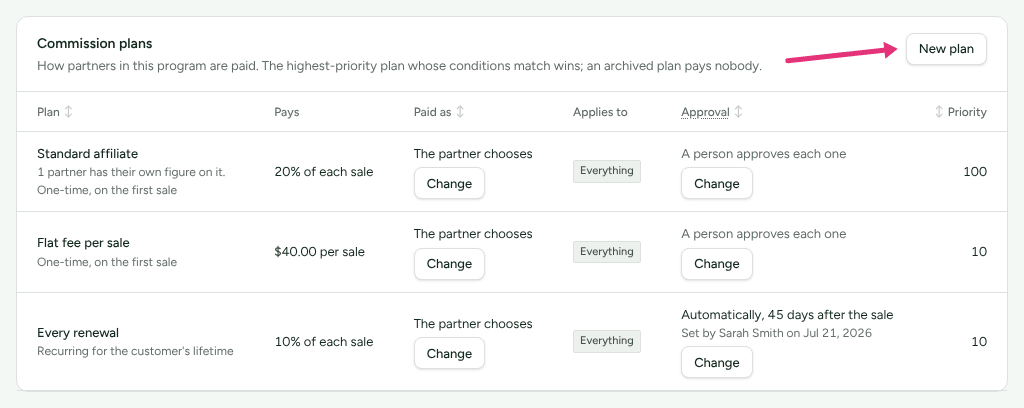
In the Commission plans card, press New plan (or Create a plan if the program has none yet).
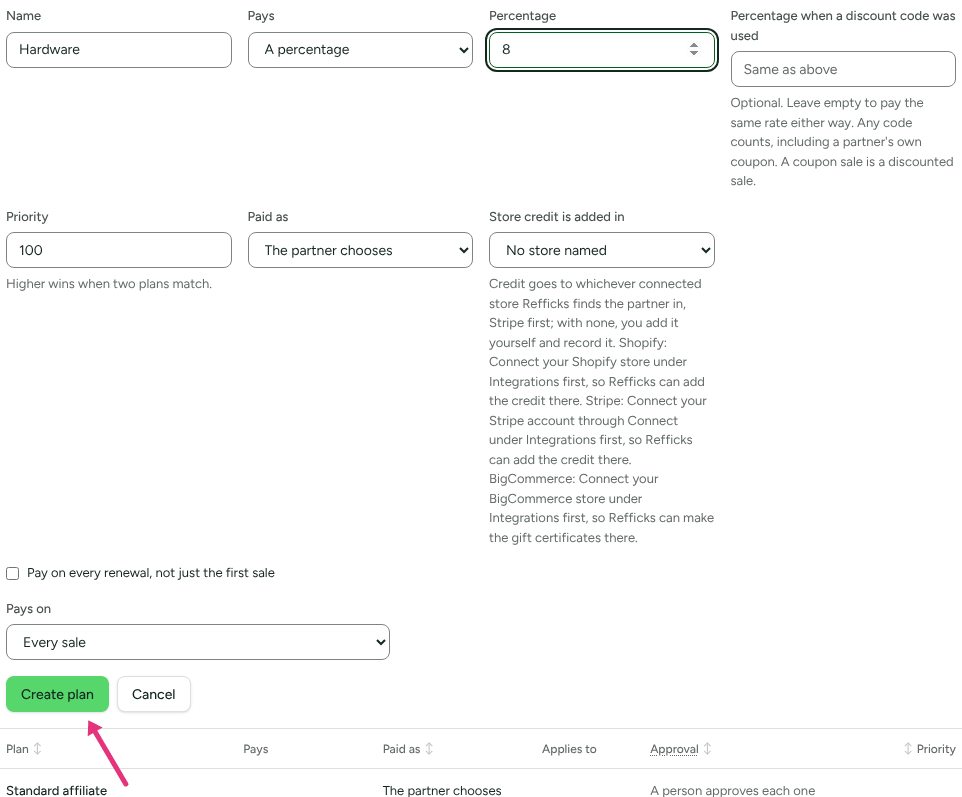
In Name, type what your team will call it, for example "Standard affiliate".
In Pays, choose A percentage or A flat amount.
Type the figure in Percentage, or in Amount (USD) for a flat amount (the currency shown is the program's own). Type money the way you write it,
25.00, not2500. The hint under the field says back what it will pay, for example "This pays $25.00 on each sale."Optional, percentage plans only: in Percentage when a discount code was used, type the lower rate. Leave it empty to pay the same rate either way.
In Priority, leave
100or type another whole number from 0 to 1000. "Higher wins when two plans match."In Paid as, leave what the program pays (see How the plan pays), or choose Money, Store credit or The partner chooses.
To pay on renewals, tick Pay on every renewal, not just the first sale. Then fill For how many months?, or leave it blank, which means "for as long as they pay".
In Pays on, leave Every sale, or choose Only some collections, Only some products, Only some variants or Only some SKUs and tick the items (see Limiting a plan to some products).
Press Create plan.
Check it worked
The plan appears as a row in Commission plans with:
- Pays: for example "20% of each sale", "20% of each sale, 10% when a discount code was used" or "$25.00 per sale".
- Paid as: "Money", "Store credit", "Store credit in Shopify", "The partner chooses", or "The partner chooses: money or store credit in Stripe".
- Applies to: "Everything", or the items you picked, such as "Products: Mugs, Plates".
- Under the name: "One-time, on the first sale", "Recurring for 12 months" or "Recurring for the customer's lifetime".
- Approval: "A person approves each one" until somebody changes it.
- Priority: the number you typed.
Every column header but Pays and Applies to sorts the list when you press it. Until you press one, archived plans are listed last.
The next sale credited to a partner in this program earns a commission, which appears under Commissions with the arithmetic in How it was worked out.
In detail
Percentage or flat amount
A percentage plan pays that share of the sale and writes the arithmetic on the commission: "20% of USD 299.00". The result is rounded once, half up, to the currency's smallest unit.
A flat amount plan pays the same sum on each sale it covers, written as "Flat USD 25.00". A flat amount is stated in the plan's currency and is paid only on sales in that currency. A sale in another currency earns nothing from that plan, rather than being converted at a rate nobody chose.
What the percentage is taken of
The percentage is taken of what you keep from the sale: the amount after tax and shipping, when the store or payment provider reports it. When the source does not say, the amount collected is used instead. Refficks never estimates somebody's tax to work out a smaller figure. Each integration's article says what it reports.
Account credit a customer spent on a Stripe invoice counts as money, so the commission is worked out on the sale's whole value before tax, however it was paid.
Once, or on every renewal
| What the plan list says | What it pays |
|---|---|
| One-time, on the first sale | The first sale this partner is credited with for a customer, and nothing on that customer's later sales. |
| Recurring for 12 months | Every sale from that customer for 12 months, counted from the first sale that paid this partner. |
| Recurring for the customer's lifetime | Every sale from that customer for as long as they keep paying. |
"First sale" is judged per partner and per customer. A sale where nobody knows who bought (for example a sale you recorded by hand with no email) is treated as a first sale on its own, so ten walk-in sales through one partner pay ten times.
How the plan pays
Each plan's Paid as decides how the commissions it writes are paid:
| Paid as | What partners receive |
|---|---|
| Money | Money, to the payout method they gave. |
| Store credit | Credit on their customer account at your store. With a store named in Store credit is added in, in that store only. |
| The partner chooses | Money or store credit, whichever they chose in their portal. |
A new plan starts from the program's How partners are paid setting (on the program page, in the Settings card). After that the plan's choice is its own: changing the program changes plans made afterwards, not plans that exist.
To change an existing plan, press Change in its Paid as column, choose, and press Save. Before you save, the form says: "This applies to what partners earn from now on; what they have already earned is paid as it was promised, and they are told by email."
Store credit is offered only once an owner or admin has switched store credit on under Settings › Partners and payouts › Payout runs. Until then the option is greyed out and the field says: "Store credit is switched off for your workspace, so nothing is paid in it until an owner or admin switches it on in Settings › Payout runs." A store is offered in Store credit is added in only when Refficks can add credit there; the others are greyed out with the reason under the field. See Pay partners in store credit.
Which plan wins
When a sale is credited to a partner, Refficks looks at the program's plans in this order:
- A plan made for that partner alone, if they have one. It applies to every sale they bring, whatever the other plans say. On their page it is marked "Theirs only, beats the rest".
- Otherwise, every active plan in the program whose conditions the sale meets. The one with the highest Priority wins.
- If two matching plans share the highest priority, the more specific one wins (the one with more conditions), so "Hardware" beats the catch-all beside it.
An archived plan is never considered, and the program's plan list shows it with "Pays nobody while archived."
If no plan matches, the sale pays nothing, and the conversion's page says why. Open Conversions, then the conversion: the What it paid card reads "Nothing, and why." followed by a sentence such as "The conditions on “Hardware” rule this sale out, so it paid Sam Rivera nothing."
A lower rate when a discount code was used
A percentage plan can carry a second rate for sales where the customer used a discount code at checkout. "Any code counts, including a partner's own coupon. A coupon sale is a discounted sale." The base does not change, only the rate, and the commission says which rate it used:
10% of USD 299.00 (the discounted rate, because a discount code was used)
This only works when the store or provider reports the code that was used. A flat-amount plan cannot have a second rate.
Limiting a plan to some products
With a Shopify or BigCommerce store connected, Pays on reads the store's catalogue so you can pick items by name:
- Only some collections: Shopify only. BigCommerce sales name products, variants and SKUs, not collections.
- Only some products: search the store and tick products.
- Only some variants: "A variant is that exact item in the store; recreate the product and it is a different variant."
- Only some SKUs: "A SKU is your own stock code, so it still matches if the product is recreated or imported again. A variant with no SKU cannot be chosen here."
With both stores connected, a From box picks which store's catalogue. "Each store numbers its own products, so a plan pays on the store it was limited to."
On a sale with other things in the cart, the plan pays only on the lines you picked. Those line amounts exclude tax. A sale with a single line is paid on the whole sale. "A sale with none of them is left to your other plans", so you normally pair a limited plan with a catch-all at a lower priority.
Without either store connected, the screen says "Connect a Shopify or BigCommerce store to limit a plan to its products, variants or SKUs."
A partner's own rate
You can pay one partner a different figure on any plan without making a separate plan for them:
Open Partners and the partner, and choose Money. Find Commission rules.
Press Give them their own rate (or Change their own rates).
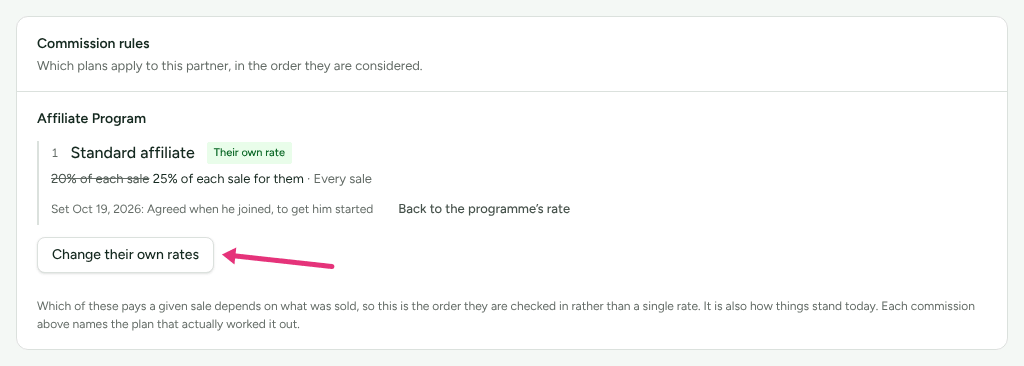
Tick the plans to change, and type Their share of each sale (%) or Their amount per sale (USD). On a plan with a discount rate, With a discount code (%) is optional.
In Why, write the reason, for example "Agreed on the call on 30 September". It is kept with the figures and in Settings › Developer › History.
Press Save their rates.
"Only the figure is theirs. What each rule covers stays the rule’s, and a rule added later applies to them as to everybody." The screen confirms: "Saved. Their next sale is paid at these figures; commissions already worked out stay as they are." To undo it, press Back to the programme’s rate on that plan.
A figure set while a plan paid a percentage stops applying if the plan comes to pay a flat amount; the partner's card says so.
Paying partners for the partners they bring in
A program that pays commission on sales can also pay a partner a share of what their recruits earn. The share is paid by you on top: the recruit's own commission is never reduced.
- On the program's page, find Partners who bring in partners.
- Tick Pay partners for the partners they bring in. Each partner then gets a recruit link to your signup page.
- In Share of the recruit's commission (%), type the share. "At 10%, every 100 a recruit earns pays the partner who brought them in another 10."
- Under For how long, choose For a set number of months (up to 120), On each recruit's first sales (up to 1,000; "A refunded sale still counts as one of them"), or For as long as both stay.
- Press Save recruiting.
The share is one level only: "nobody earns from their recruit's recruits". It is paid on sale commissions only, not on bonuses, fees or rewards. It appears on the recruiter's ledger as, for example, "10% of Sam R.'s commission of USD 59.80." It is approved, rejected and reversed together with the commission it is a share of, and a recruiter who is suspended or leaves earns nothing while they are. "Changes apply from the next sale."
Referral and ambassador programs pay rewards rather than commission, so this card says there is nothing to share there.
Currency
- A plan is created in its program's currency, which is the currency your workspace had when the program was created. Changing your workspace's currency later does not change existing programs or plans (see Change your currency).
- A percentage commission is in the currency of the sale. A EUR 120.00 sale on a 20% plan earns "20% of EUR 120.00", EUR 24.00, even in a USD program.
- A flat amount is paid only on sales in its own currency.
- Amounts are stored as whole numbers of the currency's smallest unit, which is not always a hundredth: yen have no decimals, some dinars have three.
- Every total, on every screen, is per currency. Nothing adds euros to dollars.
A worked example
A USD program has one plan: Standard affiliate, 20%, 10% when a discount code was used, one-time, priority 100. Sam Rivera is credited with these sales, each from a new customer unless the row says otherwise:
| Sale | Commission | How it was worked out |
|---|---|---|
| USD 299.00, no code, no tax reported | USD 59.80 | 20% of USD 299.00 |
| USD 299.00 with code SPRING10 | USD 29.90 | 10% of USD 299.00 (the discounted rate, because a discount code was used) |
| GBP 132.00, of which the store reports GBP 100.00 after tax and shipping | GBP 20.00 | 20% of GBP 100.00 |
| The same customer as the first row buys again | Nothing | The plan pays on a customer's first purchase only |
Add a second plan, Hardware, 8%, Only some products: Laptop Pro, priority 100. A sale whose only line is a Laptop Pro matches both plans at the same priority; Hardware has a condition and Standard affiliate has none, so Hardware is more specific and pays "8% of USD 1,499.00".
Where to see it in Refficks
- Commissions: every entry, with How it was worked out and a Why? link to the conversion.
- Conversions, then a conversion: What it paid lists the ledger entries, or says why the sale paid nothing.
- Partners, then a partner, then Money: Commission rules lists "Which plans apply to this partner, in the order they are considered", with any figure of their own.
- Settings › Developer › History records every plan created or changed and every own rate set.
Settings that change it
| Setting | Where | Default | What it changes |
|---|---|---|---|
| Pays, Percentage / Amount | Program › Commission plans › New plan | A percentage, 20 | The figure each sale earns |
| Percentage when a discount code was used | Same form | Empty (same rate) | The rate on discounted sales |
| Priority | Same form | 100 | Which plan wins when several match |
| Paid as | Same form, or Change in the plan's Paid as column | The program's How partners are paid (itself The partner chooses by default) | Money, store credit, or the partner's choice |
| Pay on every renewal / For how many months? | Same form | Off (one-time) | Whether renewals pay, and for how long |
| Pays on | Same form | Every sale | Which products, variants, SKUs or collections the plan covers |
| Approve automatically after (days) | Commission plans › Approval › Change | Off | See Approve commissions |
| Their own rate | Partner › Money › Commission rules | None | One partner's figure on one plan |
| Partners who bring in partners | Program page | Off | A recruiter's share on top |
Limits
- A plan's figure, conditions, priority and name cannot be changed from the
screen once it is created, and a plan cannot be archived there. The plan
list offers Change only on Paid as and Approval. To pay
differently from now on, create a new plan with a higher priority, or give
the partner their own rate.
Not yet documented: There is no screen for changing a plan's rate, conditions or priority, or for archiving it. If you need a plan archived, write to support@refficks.com with the program and plan name.
- Changing what a plan pays never changes commissions already written. Each keeps the rate and base it was worked out with. To work one out again under today's plans, press More on its row under Commissions and choose Recalculate…, which writes the difference as a separate adjustment. To do several at once, tick them and press Recalculate 3 selected (see Approve commissions).
- Creating a plan does not pay sales credited before it existed.
- Pays on is the only condition the form sets. Plans made another way may
carry other conditions, which the list shows as written (for example
partner.tier = Gold). - Refficks does not convert currencies for commission, thresholds or totals.
- A creator's fixed fee for agreed work is set on the collaboration, not in a commission plan.
Related
- Approve commissions: what happens to a commission after a plan writes it.
- Pay partners in store credit: switching store credit on, and which stores Refficks can add it in.
- Refunds and reversals: how a refund takes back the right share of what a plan paid.
- A commission is missing or wrong: when a sale paid nothing, or not what you expected.
- How attribution works: which partner a sale is credited to before any plan is asked.