Send leads and register deals
How agencies, consultants, resellers and other B2B partners send the merchant a prospect, claim an account before working it, and follow what the merchant decided. For B2B partners.
Your portal may use the merchant's own words for partner, commission, payout, referral and reward.
Before you start
- Where: Partnership, Leads and Deals are in your portal menu when the merchant has you down as a B2B partner (an agency, a reseller, a consultant, a referral, implementation, integration or technology partner) and your program offers that section.
- A lead or a claim? Send a lead to hand the merchant a prospect. Register a deal when you will work the account yourself and want to know it is yours before you spend time on it.
Read your partnership
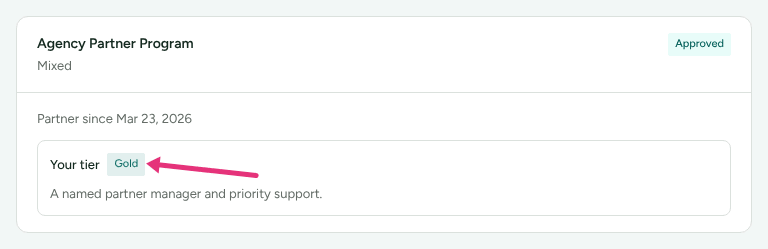
Partnership shows "Your programme, your tier, and what you have earned":
- each program you are in, your type of partner, and since when;
- Your tier, what it means and its benefits, or "Not assigned yet";
- the next tier: what it asks for, with what you have done now and before. "Your partner manager decides when you move up." Once you meet everything it asks: "You have met everything it asks for. Your partner manager moves you up.";
- Earnings: Pending, Approved and Paid, "whichever programme it came from".
Send a lead
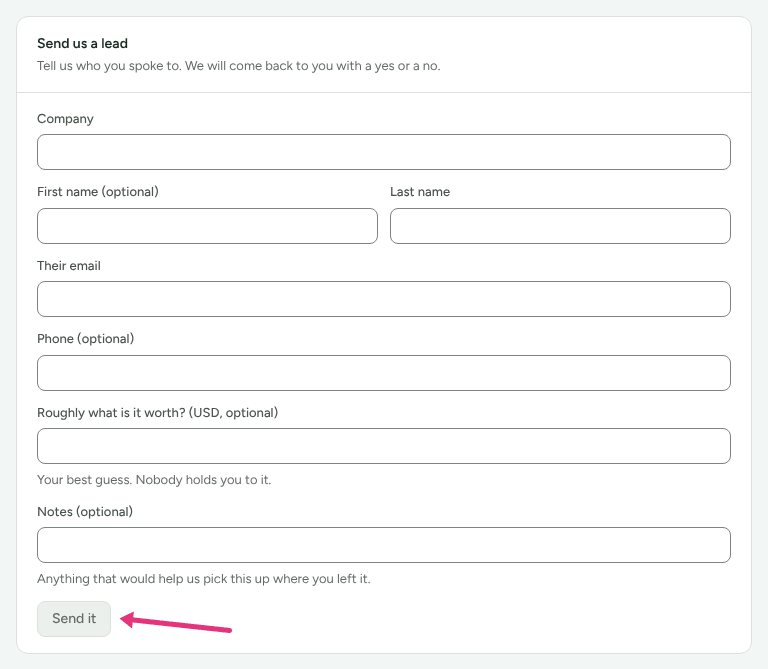
- Open Leads and find Send us a lead: "Tell us who you spoke to. We will come back to you with a yes or a no."
- If you are in more than one program, choose the Program.
- Fill in the Company and Their email, and the contact's First name and Last name. The merchant may also require Phone, Roughly what is it worth? ("Your best guess. Nobody holds you to it.") and Notes; a field you may leave empty says "(optional)".
- Press Send it. "Sent. You will see it below with whatever we decide."
A lead needs an email address for the person you spoke to, and "the company, or at least who you spoke to". A lead you have already sent is refused: "That lead has already been sent to us."
If the company is already the merchant's customer, what happens depends on the program: it is accepted, held while somebody decides whose relationship it is, or refused straight away with "This company is already a customer of ours."
What the merchant decided
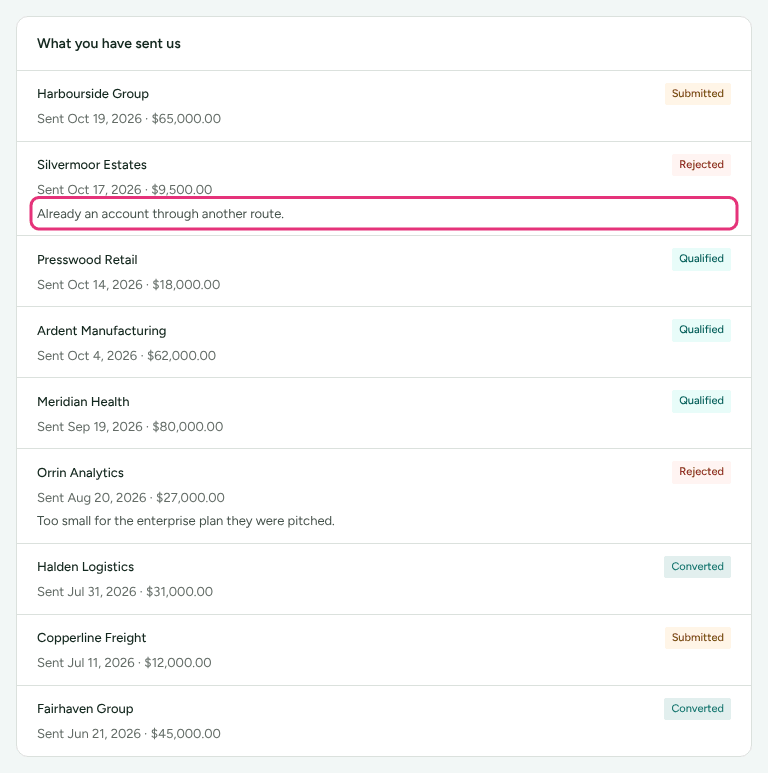
What you have sent us lists every lead with the date, your estimate and a status:
| Status | What it means |
|---|---|
| Submitted | Waiting for the merchant. |
| In review | Somebody is looking at it. |
| Qualified | The merchant is taking it forward. |
| Converted | It became one of the merchant's customers. |
| Rejected | Not taken. The merchant's reason is written under it. |
Register a deal
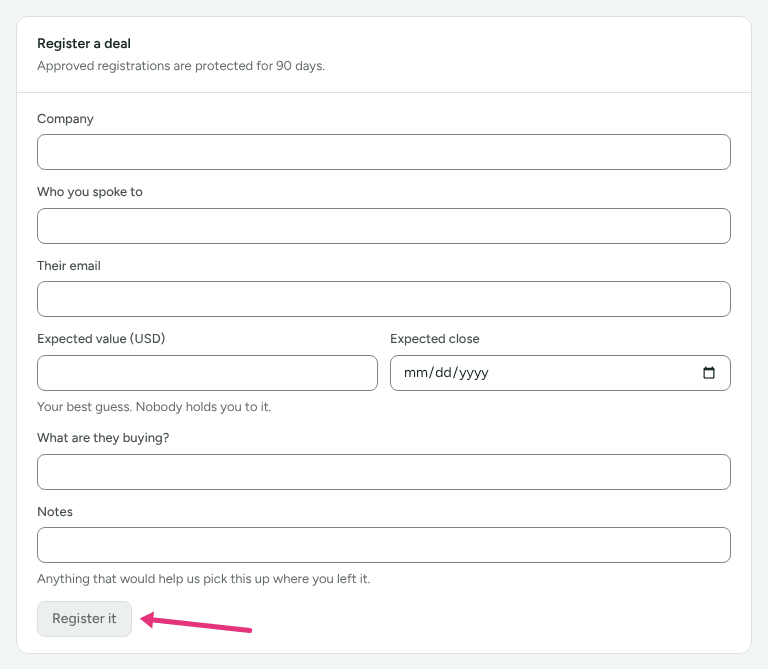
- Open Deals and find Register a deal. The card says how long an approved claim lasts: "Approved registrations are protected for 90 days." (or whatever the program sets).
- If you are in more than one program, choose the Program.
- Fill in the Company and Their email, and optionally Who you spoke to, the Expected value, the Expected close date, What are they buying? and Notes.
- Press Register it. "Registered. We will come back to you with a yes or a no."
Your registrations
| Status | What it means |
|---|---|
| Submitted or In review | Waiting for the merchant. |
| Approved | The account is yours: "Yours for another 87 days, until …". |
| Rejected | Not yours. The merchant's reason is written under it. |
| Already registered by another partner | Somebody claimed the account first. |
| Expired | The protection window ended. The account is open to anyone again. |
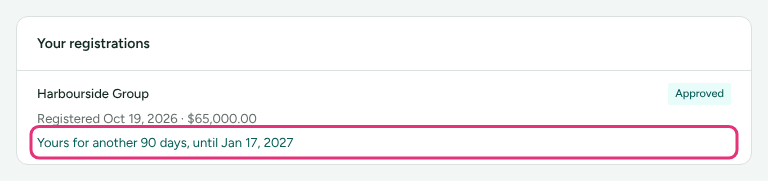
If another partner has already claimed the same company, your claim still reaches the merchant, who decides. Whoever asks second does not automatically lose or win, and neither partner is told about the other. A merchant can also end an approved claim early, with a reason you can read.
How you are paid
You are paid by your program's commission plan. In most programs commission is created when the customer actually pays an invoice; some programs pay when the deal is marked won instead. The values you give on a lead or a claim are your estimates: they are never counted as revenue and never decide what you earn. Your earnings are on Partnership, and on your Commission page with everything else.
Check it worked
The lead appears at once under What you have sent us, and the claim under Your registrations, both as Submitted.
What this does not do
- A lead does not make the customer yours. Who is credited with a customer is decided by the merchant's attribution rules.
- You do not see other partners' claims or leads.
Related
- Partner getting started: signing in.
- Understand your earnings: from pending to paid.
- When you get paid: payout timing.
- Raise a query: if a figure looks wrong.