Pay partners in store credit
Instead of money, a partner can be paid in credit on their customer account at your store: a Stripe customer balance, Shopify store credit, or a BigCommerce gift certificate. Refficks adds the credit when you press, or you add it yourself and record it. This article covers switching it on, choosing who is paid in credit, and paying it.
Before you start
Role: owner or admin to switch store credit on and to pay. Owner, admin or manager to choose how a program or a plan pays.
A store Refficks can add credit in, if you want Refficks to add it:
- Stripe: your Stripe account connected through Connect under Integrations.
- Shopify: your Shopify store connected, and the store's approval of store credit for Refficks: open Refficks from the store's Shopify admin and approve it.
- BigCommerce: your BigCommerce store connected under Integrations.
Without one, you can still pay in store credit: you add it in your own system and record its reference in Refficks.
The partner must be a customer of yours. Credit goes on their customer account, found by the email they give for store credit.
Switch store credit on
- Go to Settings › Partners and payouts › Payout runs.
- Under Store credit, tick Pay partners in store credit.
- Optional: in What partners should know (optional), say where the credit shows up and what it can be spent on. Partners read it.
- Press Save.
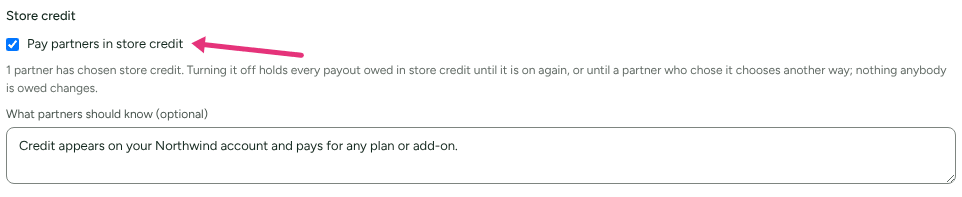
The line under the switch says where you stand, for example "Commission plans can pay in store credit, or let each partner choose it; no partner has chosen it yet. Turning it off holds every payout owed in store credit until it is on again, and nothing anybody is owed changes."
Choose who is paid in store credit
How a commission is paid is decided in three places, each a default for the next:
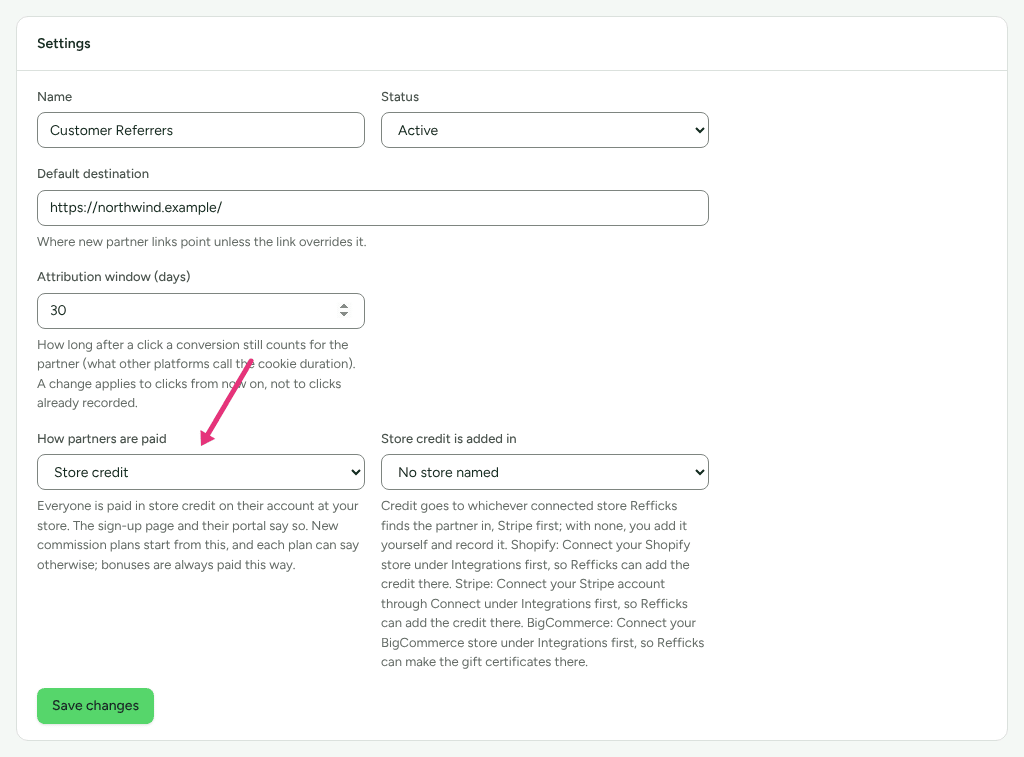
The program: on the program's page, in the Settings card, How partners are paid: The partner chooses, Money or Store credit. Press Save changes. New commission plans start from this, and bonuses in the program are always paid this way.
Each commission plan: its Paid as column on the program page. Press Change, choose, and press Save. See How commission plans work.
The partner, where the plan says The partner chooses: in their portal they choose Store credit as their way of being paid and give the Email on your account with the store.
With Store credit chosen on the program or a plan, Store credit is added in picks the store: Shopify, Stripe, BigCommerce, or No store named ("Credit goes to whichever connected store Refficks finds the partner in, Stripe first; with none, you add it yourself and record it."). With a store named: "Partners are given Shopify store credit, on the account at your store with the email they give for store credit."
Changing any of these applies to what partners earn from then on. "What they have already earned is paid as it was promised, and they are told by email."
Why is store credit greyed out?
- Store credit itself is greyed out in Paid as or How partners are paid: store credit is switched off for your workspace. The field says "Store credit is switched off for your workspace, so nothing is paid in it until an owner or admin switches it on in Settings › Payout runs." The last words are a link to the switch.
- A store is greyed out in Store credit is added in: Refficks cannot add credit there yet, and the reason is under the field, for example "Connect your Stripe account through Connect under Integrations first, so Refficks can add the credit there." or "Your Shopify store has not approved store credit for Refficks yet. Open Refficks from the store's Shopify admin and approve it."
A store a plan already names stays selectable when it stops being able, so the rest of the form can still be saved. Its payouts then say why at the press, and you can add the credit by hand.
Pay it
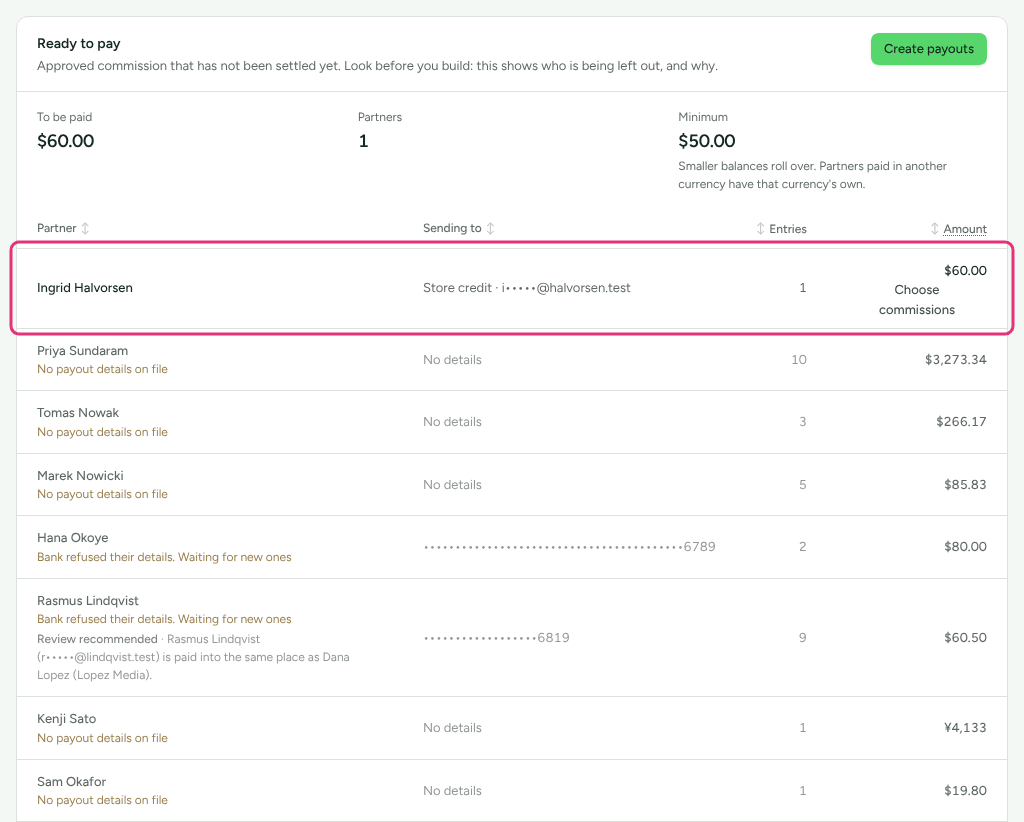
Build and approve the run as usual (see Pay your partners). In Ready to pay, a store credit row reads, for example, "Store credit in Shopify · s•••@…". A partner owed credit in two stores gets a payout for each.
Open the approved payout. Its page says where the credit goes and offers a button for the store:
- Add $50.00 credit in Stripe: "… will be added to their customer balance in your Stripe account." "Stripe takes a customer's balance off their next invoice. It does not apply to one-off Checkout payments, only to invoices, which subscriptions make."
- Add $50.00 store credit in Shopify: "… will be added to their store credit in your Shopify store." Shopify emails them with its own store credit email. They spend it in your online store, at POS or in Shop, signed in to a new customer account or with Shop Pay, in the credit's currency, and not on subscription renewals. The page also notes Shopify's third-party transaction fees for stores made since 12 May 2025.
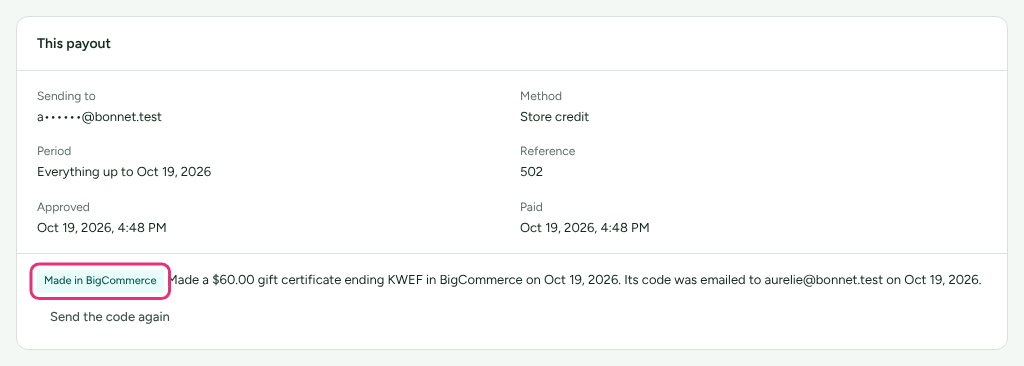
- Send a $50.00 gift certificate: Refficks makes a gift certificate in your BigCommerce store, with no expiry, and emails its code to the customer in your name; BigCommerce sends nothing itself.
Press the button, read the confirmation, and press it again. "The payout is marked paid with the store's reference once it is there."
Add every store credit on the Payouts card does all of them at once.
To add the credit yourself instead: add it in your store, type its reference in Credit reference ("Add the credit to their account in your store first, then type its reference here. It is how they find it."), and press I’ve added the credit. The reference is required.
When Refficks cannot tell whether Shopify added it
For a partner's first credit in a currency, Refficks cannot read the account back if Shopify's answer never arrived. The payout reads Check in Shopify, links to the customer's page in Shopify, and asks you to look under Store credit. Press It’s there if you find it (the payout is marked paid), or Add it again if you do not. Until you answer, nothing else settles the payout.
A BigCommerce code that did not arrive
On a paid gift certificate payout, press Send the code again.
Check it worked
- The payout reads Paid, with the store's reference (a Stripe credit's
cbtxn_…, Shopify's transaction id, or the gift certificate) or the one you typed. - The Payouts card's Paid figure says how much of it was store credit, in each currency.
- In your store, the credit is on the customer: Stripe's customer balance, Store credit on the customer in Shopify, or the gift certificate in BigCommerce.
Which customer is credited
- Stripe: the partner's Stripe customer, found from the email they gave. "Refficks has not seen this customer in Stripe…" means they are not one yet.
- Shopify: the customer Refficks has seen buy in your Shopify store under that email. Refficks does not read your store's customer list, so a partner who has not bought since the store connected reads "Refficks has not seen … buy in your Shopify store … Add it in Shopify yourself and record it here, or wait until they buy once."
- BigCommerce: the customer linked to the partner, who receives the code by email.
- With two stores of one kind connected and nothing to say which, Refficks guesses nothing and asks you to add the credit by hand.
The partner's page has a Store account card in its Money section, "The customer of yours that this partner's store credit is added to.", once there is something to credit.
What this does not do
- Store credit is never converted. It is added in the currency it was earned in, and the same minimum applies as to money.
- A refund after the credit was added does not take the credit back; you can remove it in your store if you want to.
- Referral rewards and ambassador redemptions paid in store credit go to Stripe or BigCommerce only, not Shopify.
- Store credit is kept out of the dollar totals on the 1099-NEC year card; see Tax forms and the 1099-NEC.
- Switching store credit off cancels nothing: payouts owed in credit wait until it is on again (or the partner chooses another way, where they may).
Related
- How commission plans work: Paid as on each plan.
- Pay your partners: building and approving the run.
- A partner was left out of a payout: "Owed store credit, which you have turned off".
- Connect Shopify and Connect Stripe: the connections store credit needs.