Earn points and spend them on rewards
How ambassadors do missions, follow their points, climb tiers, and spend points on the merchant's rewards. For ambassadors.
Your portal may use the merchant's own words for partner, commission, payout, referral and reward.
Before you start
- Where: Missions, Points, Rewards and Leaderboard are in your portal menu when the merchant has you down as an ambassador.
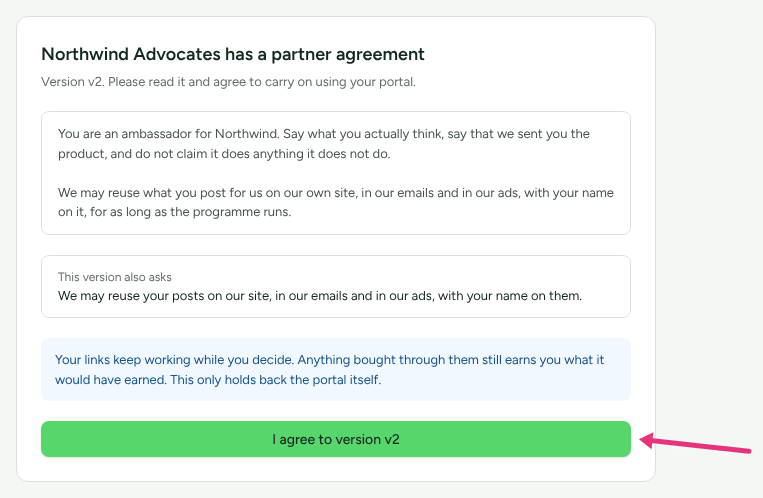
- The programme's terms. If the merchant has a partner agreement you have not accepted, the portal shows it first. Read it and press I agree to version … to carry on. "Your links keep working while you decide. Anything bought through them still earns you what it would have earned. This only holds back the portal itself." A version may also ask for permission to reuse what you make; when it does, the page says so under the terms.
Do a mission
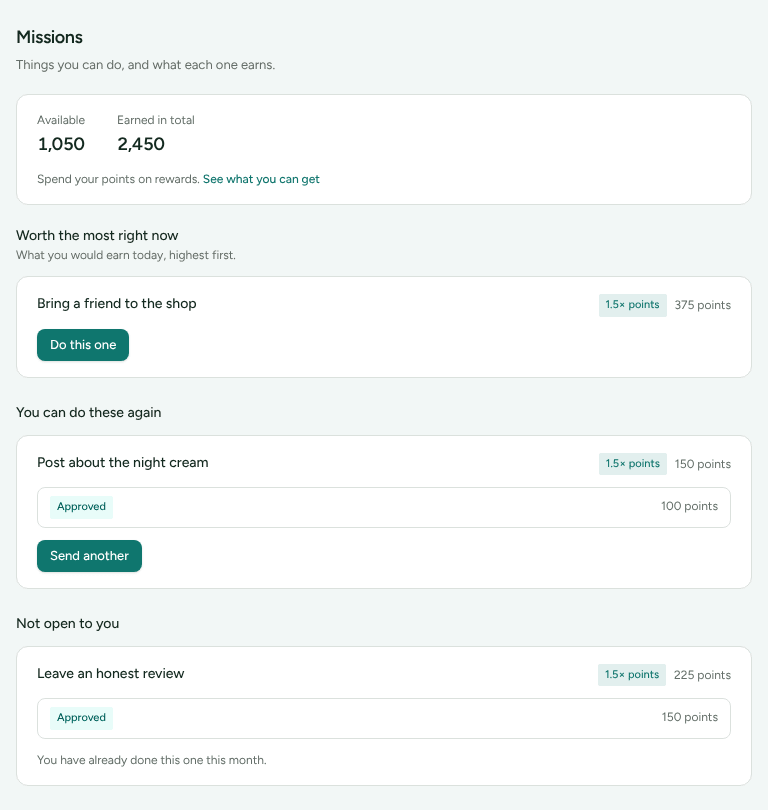
Missions lists "Things you can do, and what each one earns", with your Available points, any Waiting on review, and Earned in total at the top. Under them, "Spend your points on rewards." with See what you can get, which opens Rewards. Missions are grouped: Worth the most right now ("What you would earn today, highest first."), Ending soon, You can do these again, Open to you, and Not open to you, where each one says why, for example "You have already done this one this month."
- Find the mission and press Do this one (or Send another if you have done it before).
- Paste the link to your post into the box, or write your answer, whichever the mission asks for. A mission the merchant confirms needs nothing from you.
- Optionally fill in "Anything to add (optional)."
- Press Send it in.
The points show at once as Waiting on review, and the card shows what you sent with "… points waiting". A badge such as "1.5× points" means sending it in now earns that much.
When the merchant answers
| Status | What it means |
|---|---|
| Submitted | Waiting for the merchant. |
| Under review | The merchant is looking at it. |
| Approved | The points are yours to spend. |
| More information needed | The merchant's note says what to change. Press Send another and send it again; your points stay waiting. |
| Not approved | The points are cancelled, and the merchant's reason is on the card and in your points history. |
Follow your points
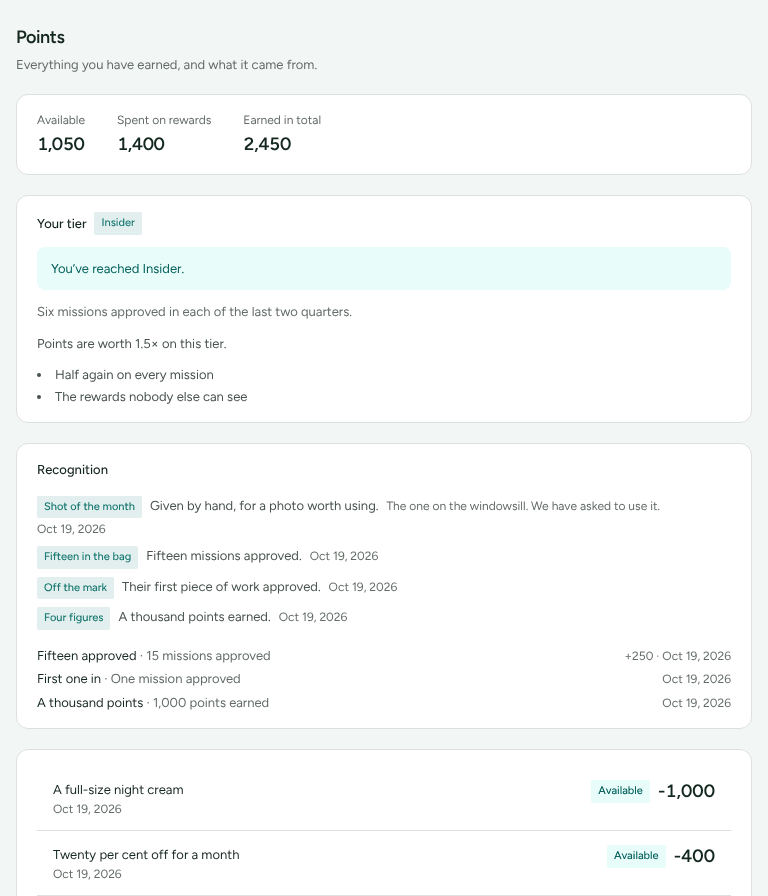
Points shows "Everything you have earned, and what it came from": Available, Waiting on review, Spent on rewards, Earned in total, and Expired if any have.
- Expiry. If the programme's points expire, you are warned 60 days ahead: "Some of your points run out soon", with how many and the date. Each line of your history shows when it expires.
- Your tier, when the programme has tiers: its name, what it means, any benefits, and "Points are worth 1.5× on this tier" when it multiplies them. Next tier lists each requirement as what you have done of what it asks, with ", done" when you have met it. The merchant moves you up; a tier with no requirements is "given by the programme rather than earned".
- Recognition: badges and milestones you have reached. They are never taken back.
Spend points on a reward
Rewards shows Points to spend, Earned in total and Spent, then what is on the merchant's shelf. A reward you cannot have yet is marked Not yet with the reason, for example how many more points it needs.
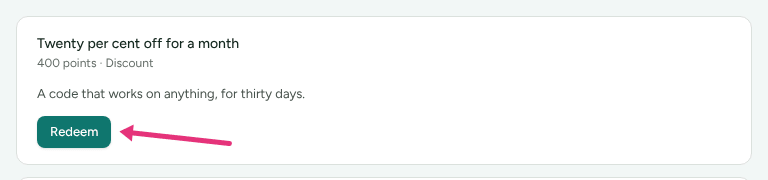
- Press Redeem on a reward.
- For something posted to you, fill in Where should we send it?.
- Optionally add anything else they should know, such as a size.
- Press Spend … points. "You get them back if it is cancelled."
What you have redeemed follows each one: Waiting to be approved, Approved, On its way, Done or Cancelled. A store credit reward goes on your customer account with the merchant once it is approved, to spend in their store.
See the leaderboard
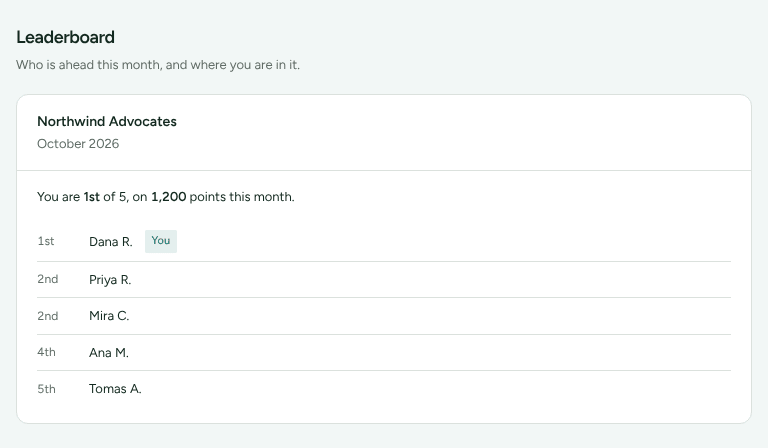
Leaderboard shows "Who is ahead this month, and where you are in it": the top ten by the name you are known by on the programme, and your own position, for points earned this calendar month. It starts again on the first. If the merchant has not turned the board on, the page says "No board to show".
Check it worked
After you send a mission in, its points appear under Waiting on review on Missions and Points. Once approved, they move to Available.
What this does not do
- Points are not money. They buy what is on the shelf and nothing else.
- You cannot hand in a file. Send a link to where it is.
- Nobody outside the programme sees the board, and it shows nobody's points total but your own.
Related
- Partner getting started: signing in.
- Get your links and codes: if the programme also gives you a link.
- Your data and account history: what the programme keeps about you.