A partner was left out of a payout, or says they were not paid
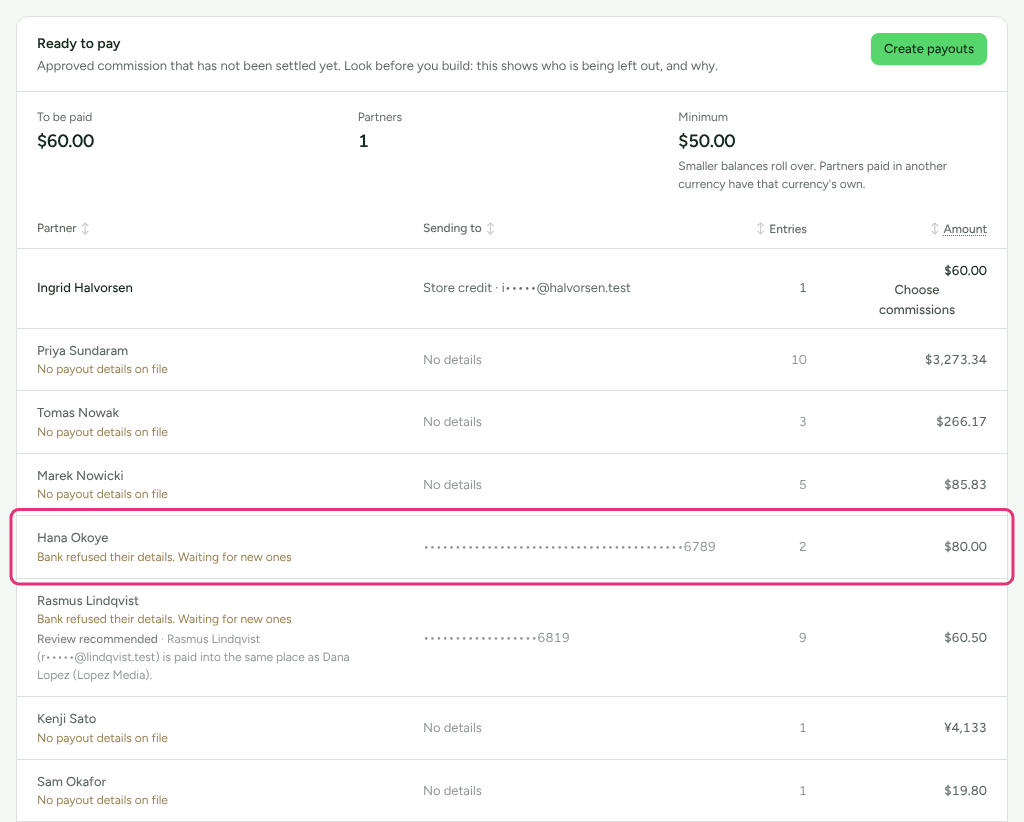
For owners and admins whose payout run skipped a partner, or whose partner says the money never arrived. Payouts › Ready to pay names every partner it will not pay and says why under their name; the most common reasons are missing payout details and a balance under the minimum.
Check this first
Go to Payouts. Owners and admins see Ready to pay at the top.
Find the partner's row. A dimmed row will not be paid, and the reason is written under the name. Find it in the table below.
If the partner has no row at all, see Not in the table at all.
If the partner was paid and says the money did not arrive, see The partner says they were not paid.
Every reason a row is left out
| Under the partner's name | What it means | Fix |
|---|---|---|
| "No payout details on file" | They have not said how to pay them. For store credit, there is no email for their account at your store. | Ask them to fill in How you get paid under Profile › Getting paid in their portal. They join the next run once they save. |
| "Under the $50.00 minimum" (in the row's currency) | What they are owed in that currency is below the smallest payout worth sending. | Nothing is lost: it rolls into a later run. To change the minimum for your workspace's currency, go to Settings › Partners and payouts › Payout runs. |
| "Owes more than they have earned" | Refunds after payout (clawbacks) add up to more than, or as much as, their new approved commission. | Nothing to do: the balance waits for later earnings. See Refunds and reversals. |
| "Bank refused their details. Waiting for new ones" | A recent payout to them was refused or returned with a reason saying the account details do not work. | Ask them to save new details. This lifts by itself as soon as they do. |
| "Held: no tax declaration on file" | You switched on Only pay partners who have a tax declaration on file, and they have none. | Ask them for their form, or open their page, choose Money, and press Pay them anyway in the Tax declaration card (see Tax forms and the 1099-NEC). |
| "Owed store credit, which you have turned off" | They are owed in store credit (their plan pays in it, or they chose it), and store credit is switched off. | An owner or admin ticks Pay partners in store credit under Settings › Partners and payouts › Payout runs, or the partner chooses another way to be paid (unless their plan pays only in store credit). |
| "Owed money, but chose store credit. Waiting for a way to pay them money" | Their plan pays in money, and store credit is the only way they have said to be paid. | Ask them to add a way to be paid in money. What they earned elsewhere is not held up. |
| "Chose Tremendous, which you no longer offer" | They chose Tremendous, and you have stopped offering it or disconnected Tremendous. | Offer it again under Integrations › Tremendous, or ask them to choose another way. The money moves the moment either happens. |
None of these cancels anything. "Nothing is taken away: what they are owed stays owed and goes out in the next run."
A row that says "Review recommended" under the name is not left out. It is paid with the rest; the line is there so you look first. Neither is a row reading "Destination changed …" under Sending to: the partner changed where they are paid in the last 30 days, and was emailed about it.
Why the minimum is not the figure you set
Your minimum applies to partners paid in your workspace's currency. A partner paid in another currency waits for Refficks's own minimum in theirs (for example EUR 50.00 or GBP 40.00), which the row shows: "Under the €50.00 minimum". The note under Smallest payout worth sending on Settings › Partners and payouts › Payout runs lists them.
Choosing commissions by hand does not get round the minimum. Choose commissions warns "Below the $50.00 minimum, so this partner would be skipped. Tick more, or pay them next time."
Not in the table at all
Ready to pay lists only approved commission that is not already in a payout. A partner is missing when:
- Their commission is not approved yet. Check Commissions with the filter on Pending and their name in Search by partner or customer, and see Approve commissions.
- Their commission is already in a payout. Type their name into Search by partner above the Payouts list below, and look for a Draft or Approved payout to them. A draft needs Approve; an approved one needs paying and recording.
- Their commission was reversed or rejected. See A commission is missing or wrong.
You ran a payout and they were not in it
- You chose commissions. While anything is ticked, "Only the N commissions you have chosen will be paid. Everything else stays owed and can be paid later." Partners whose rows you did not open are left alone. Press Create payouts again without ticking to pay them.
- They were left out for one of the reasons above. The reason was shown before you pressed; their money is still owed.
- They are owed in two currencies. Each currency is its own row and its own payout.
They are in the run but not in the PayPal or Wise file
Files for PayPal and Wise lists every approved payout that is in neither file, with why. Pay those from Export approved (CSV), the general file.
| What the card says | Why |
|---|---|
| "Paid by bank transfer, which no platform file covers yet. Pay it from the general file." | No platform file covers bank transfers. |
| "They asked to be paid some other way. Pay it by hand from the general file." | Their method is "Something else". |
| "Their PayPal details are not an email address, so PayPal cannot pay them from a file. …" | PayPal's file pays email addresses only. Their portal asks them to change it. |
| "Their Wise details are not an email address, so Wise cannot pay them from a file. …" | Same, for Wise. |
| "Wise asks whether they are a person or a business, and they have not said yet. …" | Their portal asks them; once they answer, they are in the file. |
| "Paid in store credit. …" | Store credit is added from the payout's page, not a file. |
| "No payout details were on file when the batch was built." | The payout was built without details. |
The partner says they were not paid
- Go to Payouts, type their name into Search by partner above the Payouts list, and open the payout to them.
- Read its status badge:
| Status | What it means | What to do |
|---|---|---|
| Draft | Built, never approved. | Press Approve, pay it, and record it. |
| Approved | Approved, not sent (the Payouts card counts it as "Approved, not sent"). | Pay it, then type the Reference and press I have sent this. |
| Processing | With PayPal, Tremendous or your store. The card on the payout says where it stands. | Wait. See the PayPal and Tremendous statuses below. |
| Paid | Recorded as sent, with the Reference you typed. | Give the partner the date and reference, and ask them to check with their bank or PayPal. |
| Failed | The bank, PayPal or Tremendous refused it. | Its commission is waiting for the next run. If the reason needs new details, they stay out until they save them. |
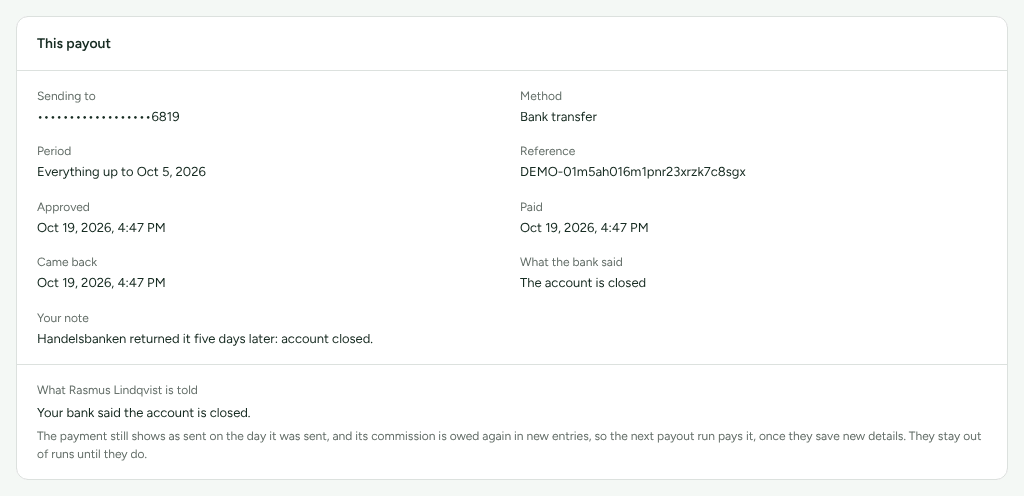
| Returned by the bank | Paid, then the money came back. | Its commission is owed again and goes into the next run. |
| Cancelled | Somebody called it off. | Its commission is waiting for the next run. |
If the money came back after you marked the payout paid, record it: on the payout, under The money came back, choose what the bank said and press Record that it came back. The partner is shown one sentence, for example "Your bank said the account is closed.", and the commission is owed again.
If you sent it through PayPal, the payout's PayPal card says where it is:
- "Waiting to be claimed": PayPal sent it to an address with no PayPal account and emailed them how to claim it. "If nobody claims it within 30 days it goes back to your PayPal balance, and Refficks records it as not paid." Ask the partner to claim it, or to sign up to PayPal with that address.
- "Held by PayPal": PayPal is reviewing it.
- "Not paid by PayPal": PayPal refused it, with PayPal's own words.
If you sent it through Tremendous, the payout's Tremendous card says where it is:
- "With Tremendous": sent, and Refficks reads it every few minutes "until Tremendous says the email arrived".
- "Waiting for approval in Tremendous": your Tremendous account holds orders for a person to approve. "Approve it under Orders in Tremendous, and Refficks reads it again within a few minutes."
- "Not delivered": Tremendous could not deliver the email. Resend or cancel the reward in Tremendous; if their address is wrong, cancel it there and then cancel this payout.
- "Paid": "Delivered by Tremendous on …". The partner chooses how to receive it from what your campaign offers; Tremendous does not say when it is cashed out. Rewards expire a year after they are sent unless your campaign says otherwise.
If you marked it paid but never sent the money, there is no way to unmark it: a paid payout cannot be cancelled. Send the money now and keep the reference, or write to support (below).
When to contact support
Write to support@refficks.com if a row's reason does not match what you know about the partner, if the partner has no row and none of the causes above applies, or if a payout was marked paid by mistake. Include:
- the partner's name and the payout's id from the page address
(
/dashboard/payouts/<id>); - the currency and amount on the row;
- the reason under the partner's name, exactly as written;
- the payout's status and, if it has one, its reference.
Never send a secret key, a webhook signing secret, or a partner's payout details. Support does not need them and will not ask for them.
Related
- Pay your partners: the whole run, from approval to recording.
- Approve commissions: what puts money into Ready to pay.
- Refunds and reversals: why a partner can owe more than they have earned.
- Add payout and tax details: what to send a partner who has no details on file.