Add your payout and tax details
Tell the merchant where to send your money, and give the tax details they may need before they can pay you. For any partner who is owed money.
Your portal may use the merchant's own words for partner, commission, payout, referral and reward.
Before you start
- Where: Profile, headed Your profile. It has four sections along the top: Details, Getting paid, Sign-in and terms and Your data. Your country is under Details; how you get paid, your tax details and self-billed invoices are under Getting paid. On Overview, the Getting set up steps Add your payout details and Fill in the tax form open Getting paid directly.
- You need: your portal password, and the details for one way of being paid. For a bank account, the holder's name exactly as the bank has it.
- One merchant at a time. Payout details and tax details belong to the merchant you are looking at. If you work with two merchants, give them to each: switch merchant (press their name at the top), then come back to Profile.
Availability: Asking for your password before payout details change, and the email that follows, were built on
mainon 11 October, after the last deployment of app.refficks.com this article was checked against.
Say where you are
- Open Profile. It opens on Details.
- Under Your details, choose your Country.
- Press Save details.
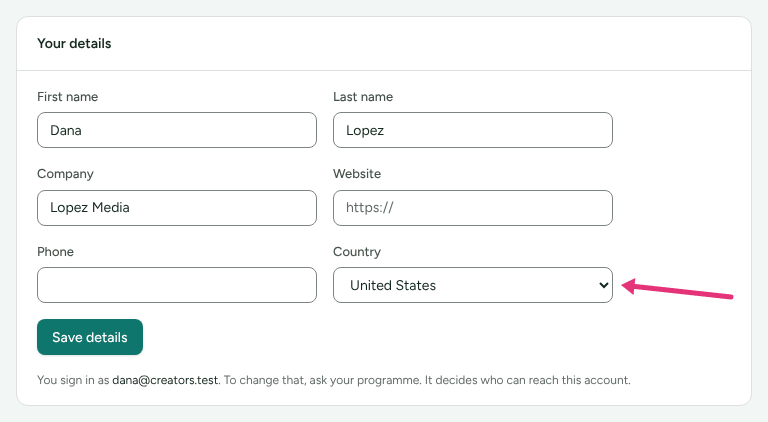
Your country decides how the merchant can pay and tax you.
Add how you get paid
On Profile, choose Getting paid, and find How you get paid. Until you add details it says Nobody can pay you yet.
Choose a Method:
Method What it asks for PayPal PayPal email: the address your PayPal account uses Wise Wise email, and Paid as Bank transfer Paid as, Kind of account, then the account's own fields (below) Something else How to pay you: one line of text Store credit Email on your account with the store. Offered only where the merchant pays in store credit Tremendous Email Tremendous sends your payout to. Offered only where the merchant pays through Tremendous
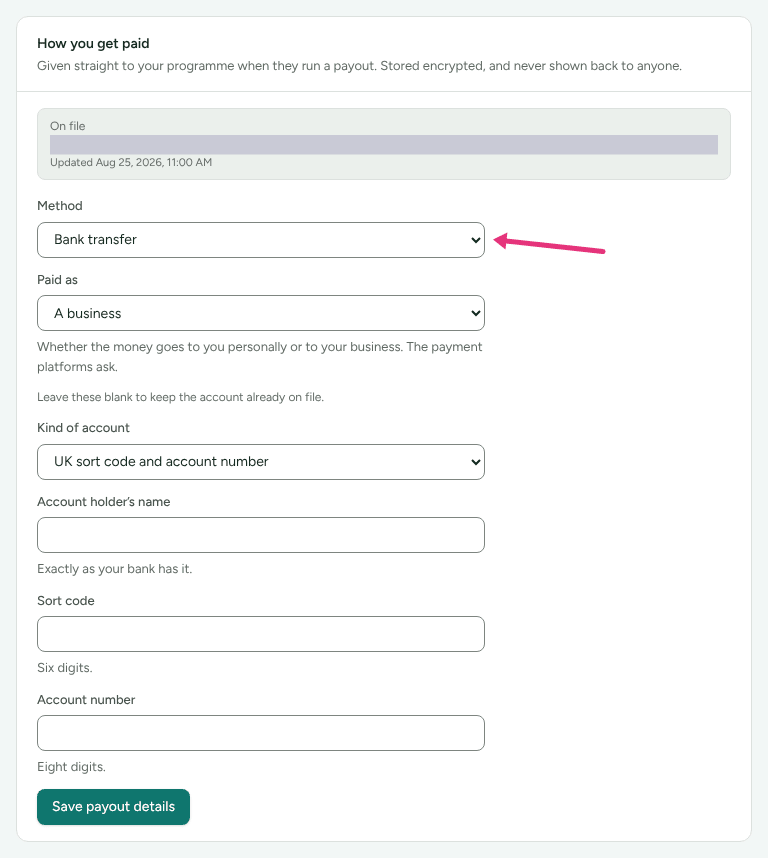
If the form asks Paid as, choose A person or A business: whether the money goes to you personally or to your business.
For a bank transfer, choose Kind of account and fill in its fields:
Kind of account Fields IBAN Account holder’s name, Currency the account holds (three letters, like EUR), IBAN, and optional BICUK sort code and account number Account holder’s name, Sort code (six digits), Account number (eight digits) US routing and account number Account holder’s name, Routing number (nine digits), Account number, Account type (Checking or Savings), and the holder's address Something else How to pay you: everything your bank needs, as the merchant would type it into their bank's transfer form Enter your portal password in Your password. It appears once you type new details, and is asked every time where you are paid changes.
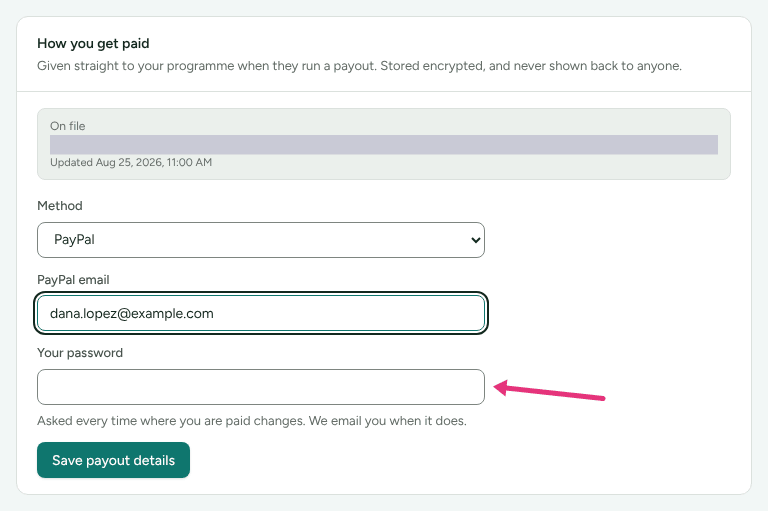
- Press Save payout details. "Your payout details are saved." appears at the top of the page.
Refficks checks an IBAN's check digits and a US routing number when you save, so a typo is caught here rather than by a bank returning the money.
If you choose Tremendous, "Tremendous emails you each payment, and you choose how to receive it from the ways it offers you there, such as PayPal, a bank transfer or a gift card. Nothing is taken from what you are owed."
Who can change where you are paid
Only you, from your own login, with your password:
- A wrong password is refused: "That is not your password." After five wrong passwords in 15 minutes the form stops answering for the rest of them: "Too many wrong passwords. Try again in … minutes."
- Refficks support cannot change it, even while helping you from your account: "Support cannot change where a partner is paid. They change it themselves, from their own login."
- Only the login on your own address. If a second login was ever made on your partner record with another address, it can read your portal but not move your money. The card says You can't change this here and names the address that can.
- The merchant cannot change it, and cannot see your details.
Changing only Paid as moves no money and needs no password.
The email you get afterwards
Every time where you are paid changes, the address on your partner record is emailed: subject "Where Merchant pays you has changed". It shows Before and Now as the same masked hints the page shows, never the details, and the time. It comes from Refficks rather than in the merchant's colours, because it is about your money. If you did not make the change, sign in, change your password, put your payout details back, and tell the merchant straight away.
What you see afterwards
Your details are stored encrypted and never shown back to anyone, including
you. Instead, How you get paid shows an On file box: the method, the
account's currency, and enough of the address or number to recognise it, such
as s•••@example.com or ••••1234, with the time it was last updated.
Change them
- On Profile › Getting paid, choose the Method you want.
- Type the new details in full. You cannot edit the old ones, because they are
never sent back to your screen.
- Staying with the same method, a field left blank keeps what is on file.
- Switching method, you must give the new method's details.
- Enter Your password.
- Press Save payout details.
The merchant can see that your details changed and when, but not what they changed to. Your Account history says so too: "Your payout details were changed".
If One thing to update appears, it names something that stops your details going into the merchant's payment file: for example, Wise needs to know whether you are paid as a person or a business, or bank details saved as one line of text that the merchant must retype. You are still paid; fixing it saves the merchant a step.
If a program pays one way for everybody, a line under the form says so: "… pays in store credit at …" or "… pays in money, to the way you choose below."
Add your tax details
- On Profile › Getting paid, below How you get paid, find Your tax details and press Add your tax details.
- Answer Do you pay tax in the United States? (Yes, I am a US taxpayer or No).
- Answer Are you paid as a person or as a business? (A person or A business).
- The card names your form: W-9 for a US taxpayer, W-8BEN for a person outside the US, W-8BEN-E for a business outside the US.
- Fill in Legal name, and Business name if it differs. A US taxpayer also gives a Tax classification (sole proprietor, LLC and so on).
- Fill in SSN, ITIN or EIN (US) or Tax identification number, Address and Country of tax residence. Outside the US, Treaty article is optional.
- Read the certification and tick I certify that this is correct.
- Press Give these details.
The card then shows the form, your legal name and a hint of your number. "We never show the full number back to anyone, including you. Replace it if it has changed." To change anything, press Replace and fill the form in again.
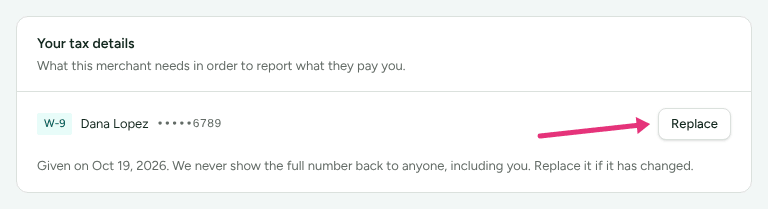
Not every merchant needs a tax form. The card says "They may need them before they can pay you, depending on where you both are." Where the merchant does need one, Fill in the tax form appears on your Getting set up list.
Agree to self-billed invoices (UK and EU merchants)
Some UK and EU merchants issue your invoices for you, so you do not send your own. Where yours does, Invoices issued for you appears on Profile › Getting paid, below your tax details.
- Read the numbered agreement on the card.
- Fill in Your name or business name (as it should appear on the invoice), Country and Address.
- If you are VAT-registered, tick I am registered for VAT and give your VAT number.
- Tick "I agree to the above, and will not send my own invoices for these payments."
- Press Agree.
Each payout then comes with an invoice in your name on Payouts, as Invoice number (PDF), and a Credit note if money comes back. To change the details, press Change these details. To stop, press Stop, and invoice myself.
Check it worked
- On Profile › Getting paid, How you get paid shows On file with your method and a hint of your details, in place of Nobody can pay you yet.
- The address on your partner record has the "Where Merchant pays you has changed" email.
- Payouts says "Going to …" under Waiting for the next payout.
- Your tax details, on the same section, shows a badge with your form's name.
- On Overview, the matching steps on Getting set up are ticked.
What this does not do
- Nobody can read your saved details back, including you. Keep your own record.
- Saving details does not pay you. A person at the merchant approves and sends each payout. See When you get paid.
- Payout and tax details given to one merchant are not shared with another.
- If a payment did not reach you, Payouts says "Your last payment did not reach you". The next one waits until you save new details. The word profile in that warning opens Profile › Getting paid.
Related
- When you get paid: the Payouts page, the minimum, and a payment that did not arrive.
- Turn on two-step sign-in: the login that changes where you are paid is worth a second step.
- Your data and account history: the record of every change to your details.
- Partner left out of a payout: for the merchant, when a partner says they were not paid.