Show partner details in Zendesk, Freshdesk or Gorgias
Put a Refficks card beside your helpdesk's tickets, so an agent answering a customer or a partner sees their link and code, their referrals and rewards, and where their commission stands, without a Refficks login. For owners and admins who run a support team in Zendesk, Freshdesk or Gorgias.
How each helpdesk shows the card
| Zendesk and Freshdesk | Gorgias | |
|---|---|---|
| What you install | The Refficks app, a zip file you download from Refficks and upload to your helpdesk | Nothing: you fill in an HTTP integration in Gorgias |
| When it asks Refficks | When an agent opens a ticket | When a ticket is created and when a customer writes |
| Where the card is kept | Nowhere. The app draws it in the sidebar, and the helpdesk does not save it, so disconnecting stops it everywhere at once | On Gorgias's own customer record, where every agent, its automations and AI, and any app you give customer access can read it. Disconnecting does not remove it there |
| Where the key is kept | As a secure setting in the helpdesk: once pasted, nobody can read it back, and it never reaches an agent's browser | In the integration's Authorization header, which every Gorgias admin can see |
The key each helpdesk gets "can look one address up and do nothing else".
What the card shows
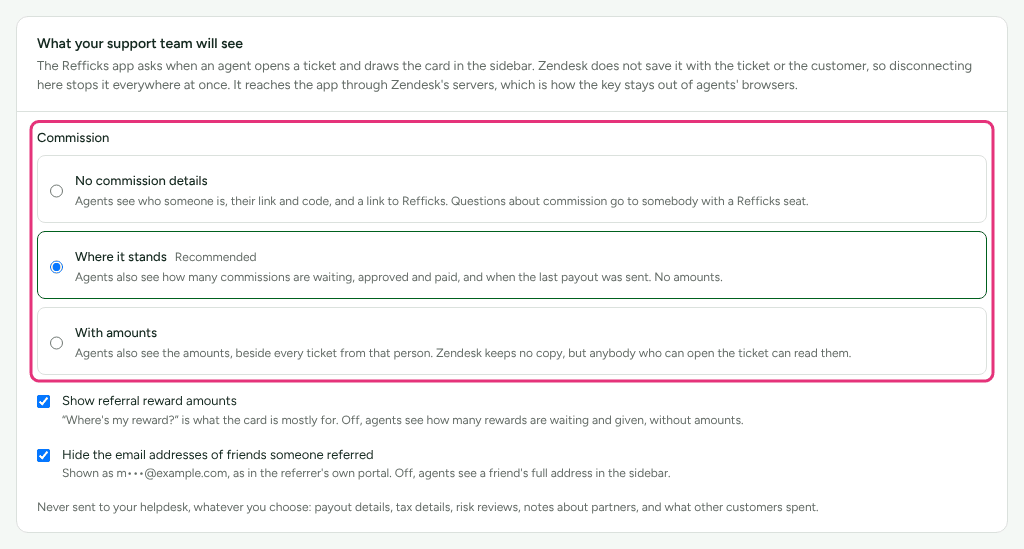
For the email address on the ticket, the card names who the person is to your programs: a partner (with their link and code), a referrer (with their recent referrals and rewards), someone who was referred and by whom, and the customer records Refficks holds, with Open in Refficks. You choose how much about money it shows:
| Commission choice | What agents see |
|---|---|
| No commission details | Who someone is, their link and code, and a link to Refficks. "Questions about commission go to somebody with a Refficks seat." |
| Where it stands (the default) | Also how many commissions are waiting, approved and paid, and when the last payout was sent. No amounts |
| With amounts | Also the amounts. In Zendesk and Freshdesk, anybody who can open the ticket can read them; in Gorgias, they are copied into the helpdesk |
Two more boxes:
- Show referral reward amounts. "Off, agents see how many rewards are waiting and given, without amounts."
- Hide the email addresses of friends someone referred, shown as
m•••@example.com, as in the referrer's own portal.
Whatever you choose, "Never sent to your helpdesk, whatever you choose: payout details, tax details, risk reviews, notes about partners, and what other customers spent."
An address Refficks does not know gets no card.
Before you start
- Role in Refficks: owner or admin to make the key, change what is shown, and preview. Others see "Only an owner or an admin can change what helpdesk is shown." A key cannot be made while Refficks support is signed in as you.
- Access in the helpdesk: Zendesk: an admin who can upload private apps. Freshdesk: access to the Freshworks developer portal and to install custom apps. Gorgias: an admin who can add HTTP integrations.
- Refficks holds: only a fingerprint of the key. It is shown once.
Connect
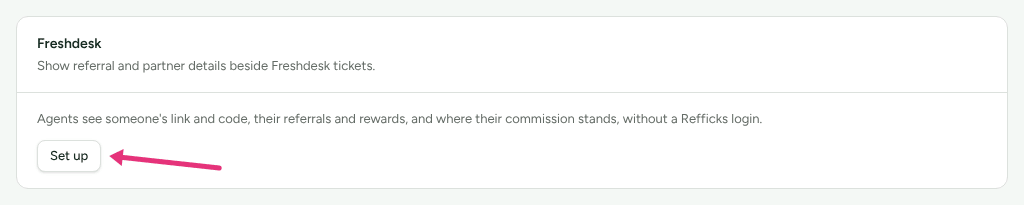
- Go to Integrations › Connections and find the card for your helpdesk. Press Set up.
- Under What your support team will see, choose the Commission detail and the two boxes. They save as you choose.
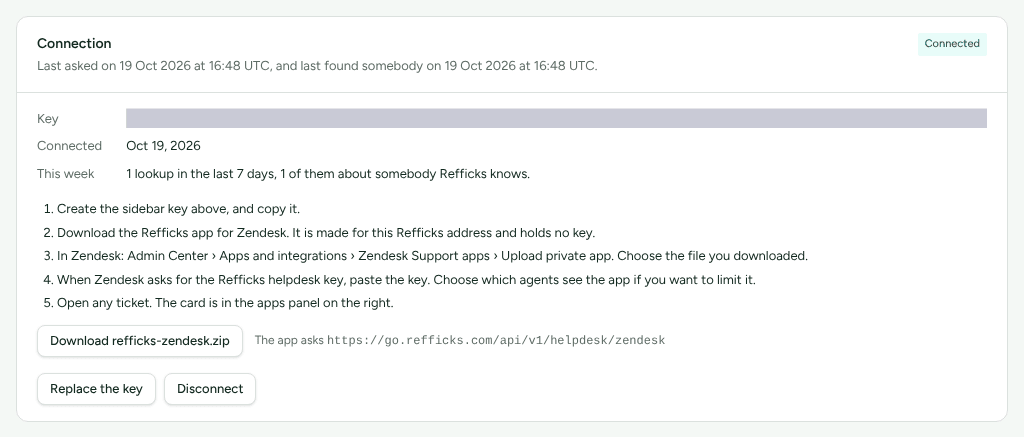
- On the Connection card, press Create the sidebar key. The card says "Copy this key now". "It is shown once. Refficks keeps only a fingerprint of it, so it cannot be shown again." Press Copy key.
- Put the key in your helpdesk:
- Zendesk: press Download refficks-zendesk.zip. In Zendesk, open Admin Center › Apps and integrations › Zendesk Support apps › Upload private app and choose the file. When Zendesk asks for the Refficks helpdesk key, paste it. You can limit which agents see the app.
- Freshdesk: press Download refficks-freshdesk.zip. In the Freshworks developer portal (your profile › Developer portal in Freshdesk), choose New app › Custom app, upload the file and publish it. Then in Freshdesk, open Admin › Apps › Custom apps › Refficks › Install and paste the key when it asks.
- Gorgias: in Gorgias, open Settings › HTTP integration › Add HTTP
integration, and copy in the URL, method, content type, body and header
the Connection card lists. The header's value is
Bearer, a space, and the whole key: press Copy the header value to copy both. Choose the triggers Ticket created and Ticket message created. Then open any ticket, click the gear in the sidebar, choose Custom integrations, and drag Refficks into the sidebar.
- Open a ticket from a known partner or customer. The card appears in the apps panel or sidebar.
The Zendesk and Freshdesk apps are "made for this Refficks address and hold no key". Each helpdesk has its own key: "This is the Zendesk key, and it only works in Zendesk." Using one helpdesk's key in another is refused.
Check it worked
- On your helpdesk's page in Refficks, find Try an address.
- Type a partner's or customer's email into Email address and press Preview. You see the card exactly as an agent would, with your choices, and under it "Exactly what the Refficks app in helpdesk receives" (or, for Gorgias, "Exactly what Gorgias will keep").
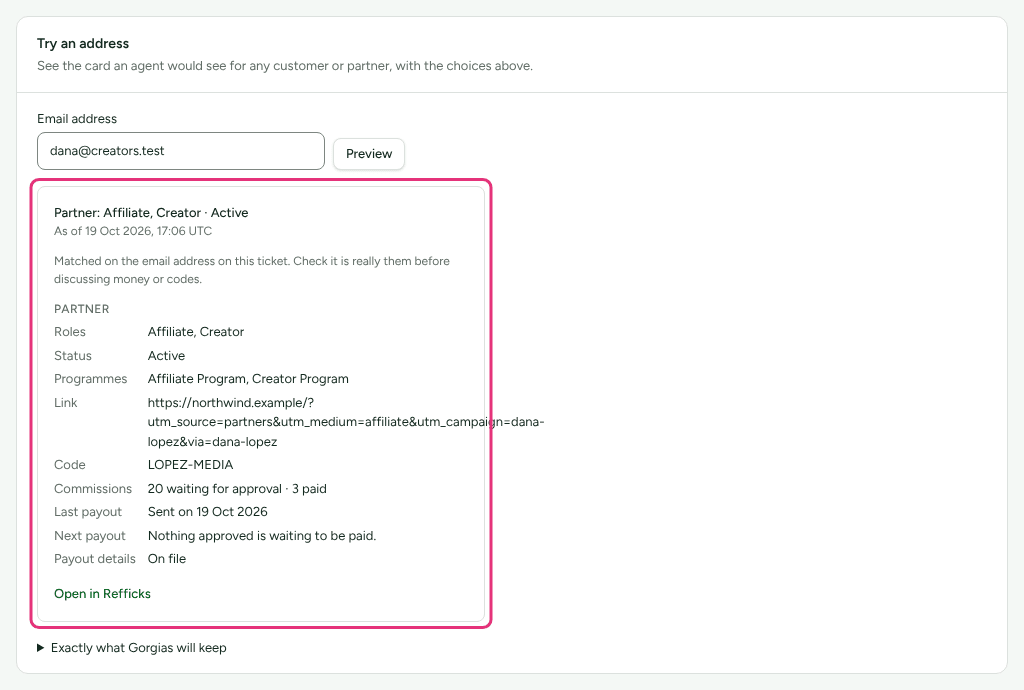
An address Refficks does not know shows "Nothing. Your helpdesk will not show a Refficks card for this address."
The Connection card also says when the helpdesk last asked, when it last found somebody, and This week: how many lookups in the last seven days, and how many were about somebody Refficks knows. Until the first ticket, it says the helpdesk "has not asked yet".
What happens when something fails
| Failure | What you see | What to do |
|---|---|---|
| The helpdesk still uses a key you replaced or disconnected | "Helpdesk is using an old key": it is refused, so no card is shown wherever it is still pasted | Paste the new key, or remove the app or integration |
| Far more lookups than usual in one day | "Far more lookups than usual today": "If you did not expect this, replace the key: anybody who has it can check whether an address is one of your customers or partners." | Press Replace the key, and paste the new one |
| The key was pasted into the wrong helpdesk | The sidebar says which helpdesk the key belongs to | Make a key on the right helpdesk's page |
| The workspace is closed | Lookups are refused | Reopen the workspace |
Replace the key or disconnect
On the Connection card:
- Replace the key: "The key in helpdesk stops working now, and no card is shown until you paste the new one into" the helpdesk's settings. Press Replace it, then paste the new key.
- Disconnect: the key stops working at once.
- Zendesk and Freshdesk: "the Refficks app in helpdesk shows no card from the next ticket opened. Helpdesk keeps no copy of the cards; uninstall the app there to tidy up."
- Gorgias: "Gorgias gets no new cards. What Gorgias already keeps on its customers stays there; remove the HTTP integration in Gorgias to tidy up."
When you forget a customer in Refficks and Gorgias has asked about them, Refficks reminds you that what it already showed in Gorgias stays in Gorgias, and to remove them there too.
Related
- Answer partner queries — when a partner asks about a sale or a commission in their portal.
- Team roles and permissions — who can set up a helpdesk, and who needs a Refficks seat to answer commission questions.
- Retention, erasure and closing — forgetting a customer, and what a helpdesk keeps.
- Which integration should I use? — everything else Refficks connects to.