Connect Claude or ChatGPT to Refficks
Connect an AI app you already use to your Refficks workspace, so you can ask it about your partners in your own words: who is doing well, why a sale was credited, what the next payout run would pay. It reads what your role can see and can save drafts for a person to send. It can never change money or send anything. For merchants and their teams; no code is needed.
Before you start
- Turning it on: an owner or admin. Connected AI apps are off until one of them switches them on.
- Connecting: anybody on the team with the analyst, manager, admin or owner role. A support seat cannot connect an app.
- AI assistance must be on. The connected-apps switch sits under the AI assistance switch on the same tab, and switching AI assistance off switches connected apps off with it. Your app brings its own model, so this works even where the tab says the deployment "has no model configured".
- An app that takes a custom connector: Claude (on claude.ai) or ChatGPT. Refficks also accepts Cursor and apps running on your own computer.
Turn connected apps on
Go to Settings › Partners and payouts › AI assistance: choose Partners and payouts in the groups above Settings' tabs, then the AI assistance tab. Find the Connected AI apps card.
Tick Let people on this team connect AI apps. Anybody who is not an owner or admin sees "An owner or admin can change this." instead.
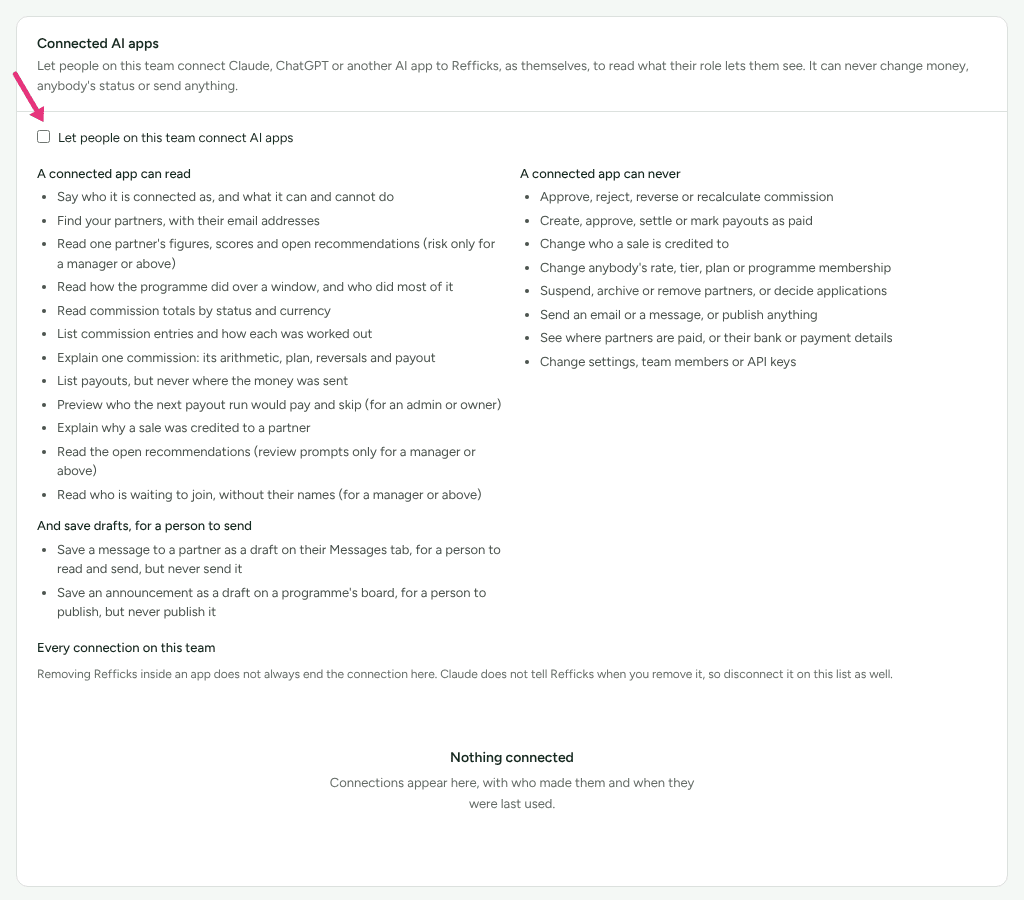
The card lists, from Refficks itself, what a connected app can read, the drafts it can save, and what it can never do. Read it before you go on.
Connect your app
Under The address to give your app, press Copy the address. On app.refficks.com the address is
https://go.refficks.com/mcp.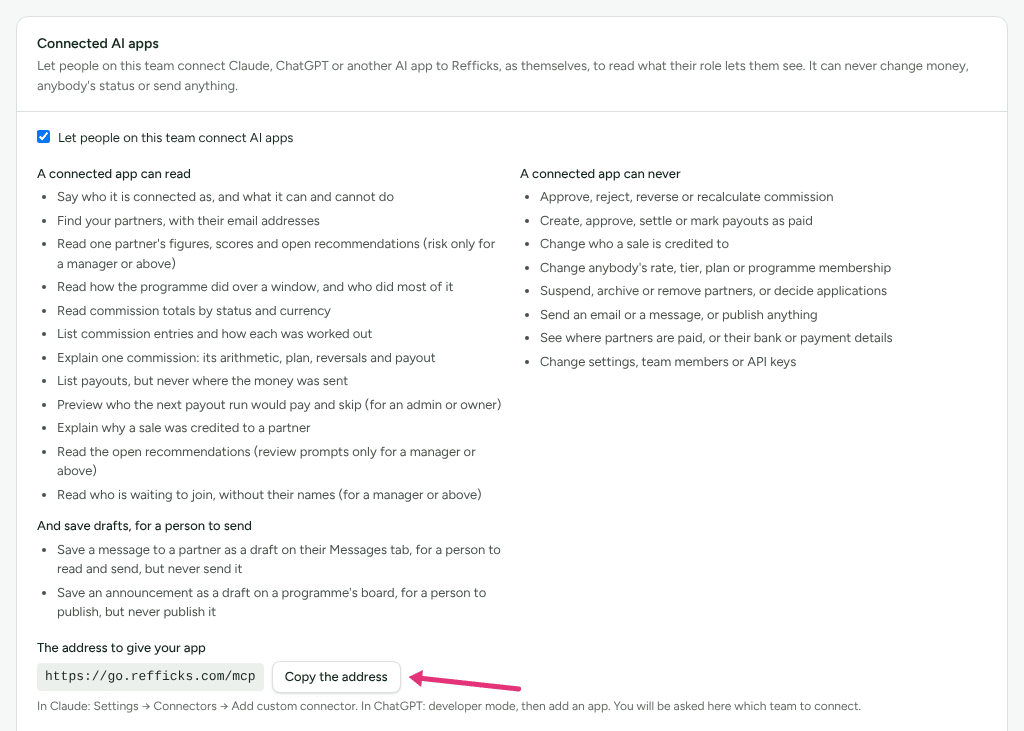
In your AI app, add a custom connector with that address. The card says where: "In Claude: Settings → Connectors → Add custom connector. In ChatGPT: developer mode, then add an app."
When the app asks you to sign in, sign in to Refficks as yourself.
On the screen headed "Claude wants to use Refficks as you" (or the name of your app), choose your workspace under Which team. A workspace you cannot connect says why beneath its name, for example "Connected AI apps are switched off for Northwind Software. An owner or admin can switch them on in Settings → AI assistance."
Read what it will be able to read, which drafts it may save, and what it will never be able to do, then press Allow. Cancel connects nothing.
Back in your app, ask it something, such as "Which partners brought in the most revenue last month?"
The screen also says where your app's reading goes: "What Claude reads goes to Anthropic, under your agreement with them. Refficks does not see your conversation." (and the same for OpenAI with ChatGPT).
Check it worked
- Settings › Partners and payouts › AI assistance › Connected AI apps lists the connection under "Every connection on this team" (owners and admins) or "Your connections" (everybody else): the App with a Connected badge, who connected it and when, and under Used "Not used yet" or the time it was last used, with how many requests it made in 30 days.
- See what it did on the row lists every request the app made, in words, and can show "Only what it was not allowed to do".
- Owners and admins are emailed "Somebody connected an AI app" as soon as a connection is made, naming who, which app and where to disconnect it, unless they turned that email off under Settings › You › Your emails.
- Settings › Developer › History records the connection under the person who made it.
What a connected app can and cannot do
It acts as the person who connected it, and sees only what that person's role lets them see.
It can read:
- who it is connected as, and what it can and cannot do;
- your partners, with their email addresses, and one partner's figures, scores and open recommendations (risk only for a manager or above);
- how a program did over a window, and who did most of it;
- commission totals by status and currency, commission entries and how each was worked out, and one commission's arithmetic, plan, reversals and payout;
- payouts, but never where the money was sent;
- a preview of who the next payout run would pay and skip (for an admin or owner);
- why a sale was credited to a partner;
- the open recommendations (review prompts only for a manager or above);
- who is waiting to join, without their names (for a manager or above).
It can save, for a person to read and send (managers and above):
- a message to a partner, as a draft in their Messages section;
- an announcement, as a draft on a program's board.
It can never:
- approve, reject, reverse or recalculate commission;
- create, approve, settle or mark payouts as paid;
- change who a sale is credited to;
- change anybody's rate, tier, plan or program membership;
- suspend, archive or remove partners, or decide applications;
- send an email or a message, or publish anything;
- see where partners are paid, or their bank or payment details;
- change settings, team members or API keys.
These are not things it is trusted not to do: no tool for them exists. It is not given your customers' names or email addresses either. The public page Connecting an AI app to Refficks lists the same, read from the same source.
Disconnect an app
- Go to Settings › Partners and payouts › AI assistance › Connected AI apps.
- Press Disconnect on the connection's row. The card says "Claude is disconnected. Its next request will be refused." (with your app's name), and the row reads "Disconnected by the person who connected it." or "Disconnected by an admin."
You can disconnect your own connections. An owner or admin can disconnect anybody's.
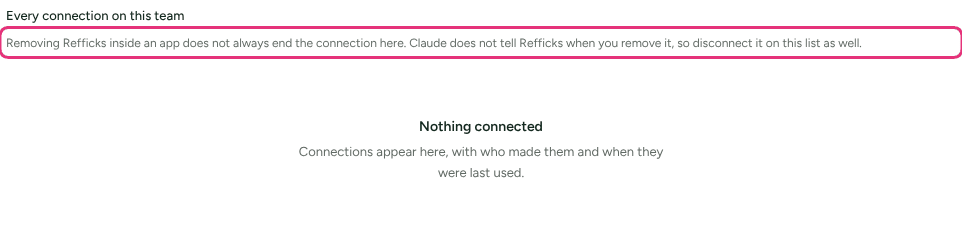
Removing Refficks inside the app is not enough. The card says so: "Removing Refficks inside an app does not always end the connection here. Claude does not tell Refficks when you remove it, so disconnect it on this list as well." A connection removed only in Claude's settings keeps working until it is disconnected here, or goes unused for 90 days.
A connection also stops on its own:
- After 90 days unused: "Stopped working after 90 days without use. Connect again from the app." The row shows the date: "stops if unused after …".
- When connected apps are switched off: every connection ends, and the card says "Connected apps are off. Every app that was connected has been disconnected."
- When the person leaves the team, is stopped from signing in, or moves to a role that cannot connect.
- When you connect the same app again, which replaces the old connection.
What this does not do
- It is not the assistant inside Refficks. That one uses Refficks's own model and is the Let the assistant answer questions about my programme switch at the top of the tab. A connected app is your app, with your agreement with its maker.
- It cannot be connected by support. During a support session the consent screen says Refficks support cannot make an AI app connection, because it would keep working after the session ends.
- It cannot stop your app's other connectors. If your app can also send email or browse, what it read in Refficks can go there. Read what it wants to send before you let it.
- Text other people wrote (a partner's name, their application answers, a note) reaches your app marked as somebody else's text, which makes it less likely to follow an instruction hidden in it. It does not make it impossible, which is why nothing an app can do in Refficks moves money or reaches a partner without a person.
Switched off: a Refficks deployment can switch connected AI apps off altogether. The card then reads "Connected AI apps are not available on this Refficks deployment."
Related
- Connecting an AI app to Refficks — the public page, readable without an account.
- Intelligence, scores and recommendations — the in-app assistant and what it is shown.
- Team roles and permissions — what each role can see, which is what its app can see.
- Create and manage API keys — for systems rather than conversations.