Sync partner codes to Stripe or your store
Turn every partner's discount code in a program into a real code at your checkout, all on one discount you choose, so a customer who types a partner's code gets the discount and the sale is credited to that partner. For managers, admins and owners.
Before you start
- Role: manager, admin or owner. Analysts and support see the card and cannot change it.
- Somewhere to send the codes, connected to Refficks:
- Stripe, approved with Connect with Stripe (a pasted signing secret alone is not enough to create codes). See Connect Stripe;
- Shopify, through the Refficks app in your Shopify admin, with its permissions approved;
- BigCommerce, through the Refficks app installed on your store;
- WooCommerce, through the Refficks WordPress plugin, which makes the coupons in your store.
- Partner codes in the program. Each partner's code is on the program's Partner discount codes card and on the partner's own page, under Overview.
Choose the discount
- Go to Programs and open the program.
- Find the Sync codes to … card ("One discount, chosen here, and every partner's code on it."). Its title names where codes go, for example Sync codes to Stripe or Sync codes to Shopify and WooCommerce.
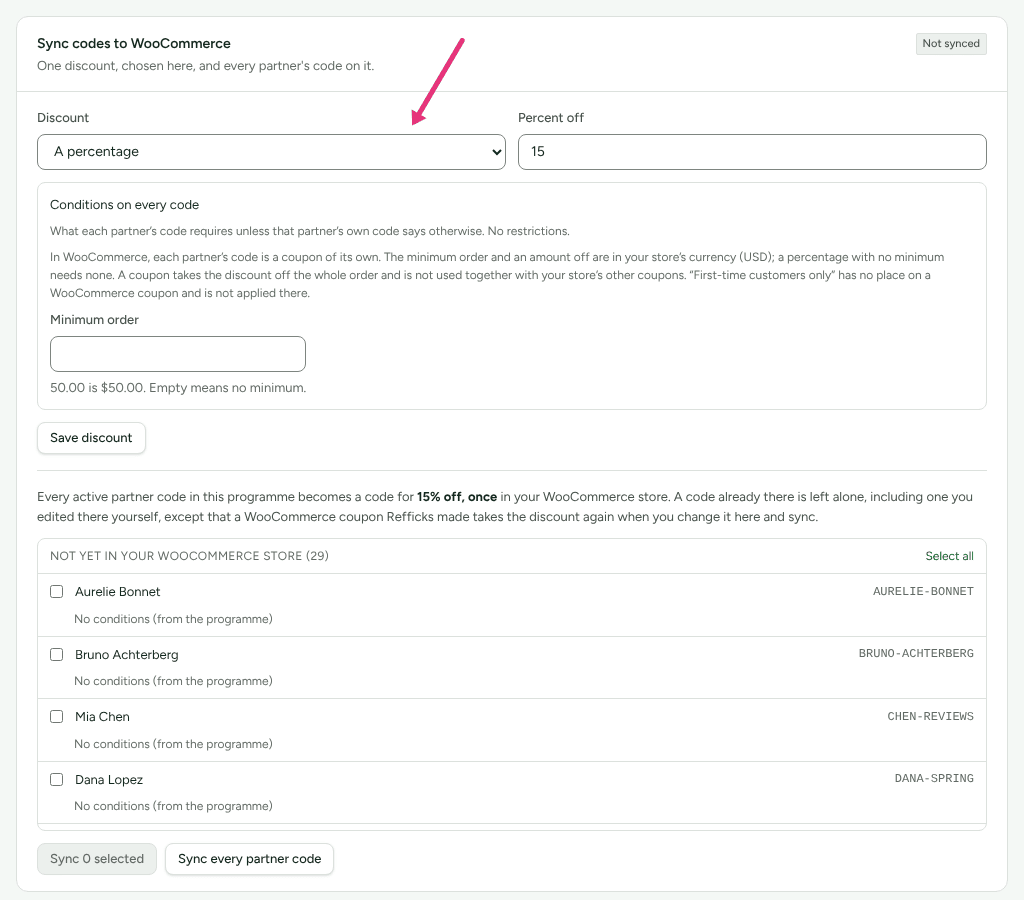
- Choose the Discount: A percentage (then Percent off) or A fixed amount (then Amount off and its Currency).
- For Stripe or Shopify, choose how it Applies: Once, For a number of months (then Months) or On every invoice. In Shopify this is a subscription's billing cycles; a one-time purchase is discounted once. To limit a Stripe discount to some of your Stripe products, press Choose products; leave it empty and the discount applies to everything.
- For a Shopify store, the card adds Shopify's own options: Applies to (One-time purchases and subscriptions, One-time purchases only or Subscriptions only), Once per customer, Can be combined with, and Which collections it applies to. For a BigCommerce store, it adds which products the discount comes off.
- Under Conditions on every code, set a Minimum order (with its currency) or tick First-time customers only, if you want either. Empty means no minimum.
- Press Choose discount (or Save discount once one is chosen).
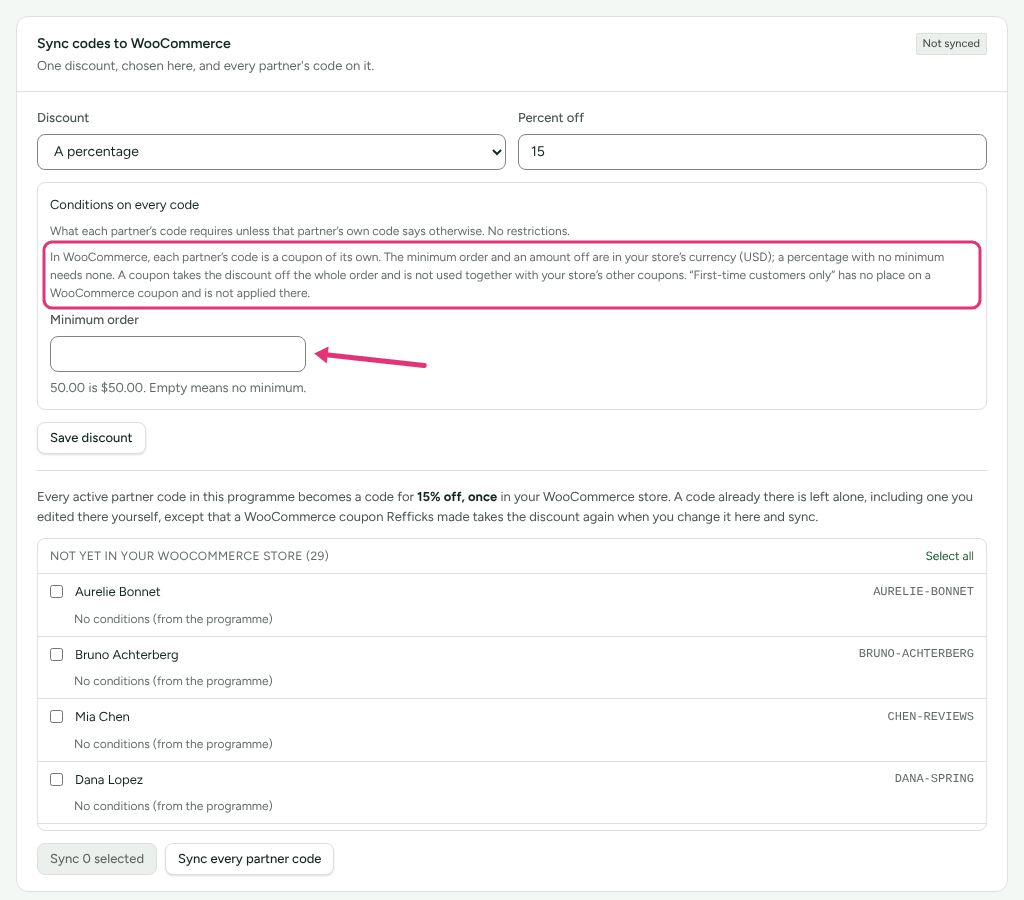
Each store applies the conditions its own way, and the card says how under Conditions on every code: in Shopify, BigCommerce and WooCommerce the minimum is in your store's currency, and First-time customers only and a partner's own conditions reach Stripe only.
Sync the codes
- Below the discount, the card lists Not yet in …: every active partner code not yet at your checkout.
- Press Sync every partner code, or tick some codes (or Select all) and press Sync … selected.
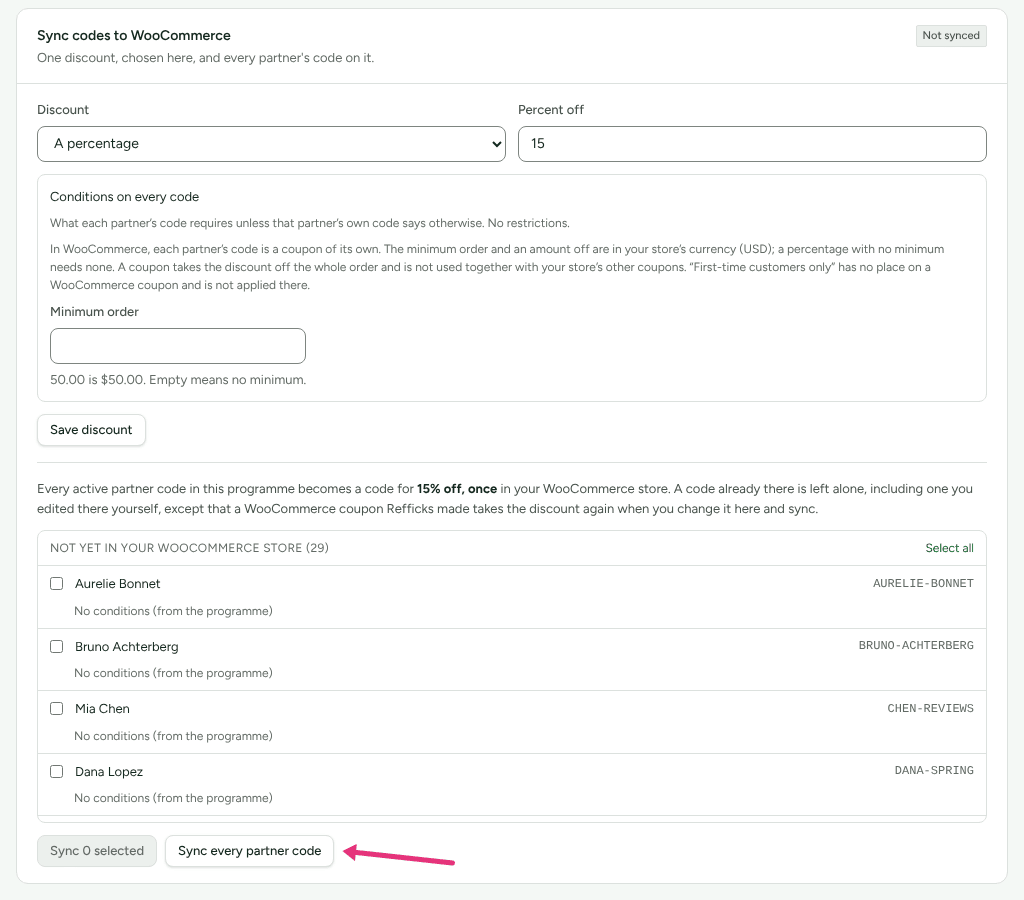
A box under the buttons says how it went: "… synced", or "… on the way" while a store is still adding them, and any code that was refused with the provider's reason.
- Stripe: one coupon with your discount, and one promotion code per partner code, in every Stripe account you approved.
- Shopify: one discount with every partner's code on it. Shopify adds them "usually within a minute".
- BigCommerce: one promotion with every code, added "one at a time at the pace your store allows".
- WooCommerce: one coupon per partner, made by the Refficks plugin, which "was asked to look now, and looks by itself every fifteen minutes". The coupons are under Marketing › Coupons in WooCommerce, each described as a Refficks partner code.
Give one partner different conditions
For Stripe, a partner's code can have its own minimum order or first-time rule. Do it before that code is synced: once a promotion code is in Stripe its conditions do not change.
- In the Not yet in … list, press Override under the partner's code.
- Set Minimum order and its Currency, or tick First-time customers only. An empty minimum "inherits the programme's".
- Press Save for this partner. The line under the code then reads "(set for this partner)" instead of "(from the programme)".
Shopify, BigCommerce and WooCommerce codes take the program's conditions only.
Check it worked
- The card's badge reads Synced, and the card says "Last synced …".
- The list reads "Every active code in this programme is already in …".
- In Stripe's dashboard, the promotion codes are there under the coupon; in your store's admin, the discount, promotion or coupons are there.
- A test order with a partner's code is credited to that partner on Conversions.
Badges and messages on the card
| You see | What it means | What to do |
|---|---|---|
| Not synced | A discount is chosen and nothing is synced yet | Sync the codes |
| Synced | Every code is in place with the current discount | Nothing |
| Changed since last sync, "Partners synced before this change keep the old discount" | You changed the discount. Stripe does not allow a coupon's discount to be edited, so the next sync makes a new coupon; partners already synced keep the old one "until you sync them again" | Sync again |
| "Your Shopify discount has not been updated yet" (or BigCommerce promotion, or WooCommerce coupons) | The store still has the old discount | Sync again: the next sync changes it in the store |
| Adding codes | A store is still adding codes | Wait; reload the page |
| Waiting for the store | The WooCommerce plugin has still to change or remove coupons | Wait up to fifteen minutes |
| Paused, "Some codes are paused with their account" | The Stripe account or store the codes are in is not connected now | Connect the same account again and they are back. A different account gets codes of its own when you sync |
| "Shopify refused these codes" (or BigCommerce, WooCommerce) | The store already uses that code for a discount of its own. Refficks "never" takes it over | Give the partner another code, or remove the store's own discount, and sync again |
Resync a Shopify store
Shown when codes are in a Shopify store. Resync all partner codes "finds codes, or the whole discount, deleted in your Shopify admin and makes them again with the discount as it is now". A code that is paused or past its expiry comes off the store by itself.
Credit one of your own Stripe coupons to a partner
If you already hand out a Stripe coupon under its own name, you can name it as a partner's code instead of syncing a new one: on the partner's page, under Overview, press Name a Stripe coupon as … on their Discount codes card. See Connect Stripe › Credit one of your own Stripe coupons to a partner.
What this does not do
- Refficks never deletes or edits a promotion code in Stripe, and never takes over a code your store already uses. "A code already there is left alone, including one you edited there yourself", except that a WooCommerce coupon Refficks made takes the discount again when you change it here and sync.
- One discount per program. Partners in the same program cannot have different discounts, only different conditions in Stripe.
- Syncing does not invite anybody or change any partner's link.
- Codes from a program are not synced until somebody presses a sync button.
Related
- Connect Stripe — approve Refficks at Stripe, which code sync needs.
- Get your links and codes — where partners find their code.
- Sale not credited — when a customer used a code and no partner was credited.
- Choose an integration — which stores and providers Refficks connects to.