Connect WooCommerce
Connect your WooCommerce store so each paid order, refund and cancellation reaches Refficks and is credited to the partner whose coupon, or whose link, brought the buyer. For owners and admins of a workspace that sells through a WooCommerce store on WordPress.
Choose a route
There are two ways to connect a store. Both start from the WooCommerce guide, on Integrations › Where you sell.
| Two webhooks | The Refficks plugin | |
|---|---|---|
| What you do | Type your store's address in Refficks, then add two webhooks in WooCommerce with the address and secret Refficks gives you. Add the Refficks script to your site's header yourself. | Download the plugin from Refficks, upload it in WordPress, and press Connect to Refficks there. |
| What Refficks holds | A secret it made for the two webhooks, stored encrypted and shown once. No WooCommerce key. | A key of the site's own, made for the plugin, which can only report for that one store. No WooCommerce key. |
| A sale with no coupon is credited through the partner's link | Only when the shopper reaches the order-received page with the Refficks script on it and cookies accepted | Whichever page the shopper finishes on, as long as they accepted cookies when they arrived |
| A partial refund takes back | The same share as its money is of the whole order, postage included: WooCommerce's webhook does not say which lines it was for | The share its goods are of the goods partners earned on. Postage or a fee refunded alone takes nothing back |
| When Refficks cannot be reached | WooCommerce does not send again what it failed to deliver, and switches a webhook off after five failures | The order waits in the store and is sent when Refficks can be reached |
| Partners' codes as WooCommerce coupons | You add each coupon by hand in WordPress | The plugin makes, changes and trashes them for you |
| Also | Puts the Refficks script on every page, waits for consent from a WP Consent API cookie banner, and tells Refficks who signs up or logs in |
Choose the plugin if you can install plugins on your site. Use the webhooks if you cannot, or would rather not.
What it does
Either way:
- Credits partners for: an order once it is paid. A partner's coupon on the order credits that partner; a buyer Refficks already knows by email credits the partner who brought them; and an order with no coupon credits the partner whose link the shopper followed, as the table above says.
- Measures an order on its goods after coupons, with their tax unless you switch Leave tax out of what partners earn on on. Shipping and fees never count. A line that sells a gift card earns nothing: the gift card earns when it is spent.
- Takes commission back for: a refund (its share, as above) and an order cancelled or failed after it counted (what is left of its commission).
- Waits 90 seconds before counting an order, so the order-received page has time to say which visit it came from.
- Never counts an order from a copy of your store, such as a staging site. It is kept and shown, and counted nowhere.
- Does not: count renewals from WooCommerce Subscriptions yet, or change anything in your store. Cash on delivery counts only once the order is Completed, because WooCommerce marks it paid before any money has changed hands.
The buyer's IP address is replaced with a one-way code before anything is stored, and their browser string is not kept.
Before you start
- Role in Refficks: owner or admin to connect, change or disconnect a store. Anyone else sees "Only an owner or admin can connect a WooCommerce store." A secret or a plugin key cannot be made while Refficks support is signed in as you.
- Access in WordPress: an administrator who can add webhooks under WooCommerce › Settings › Advanced › Webhooks, or install plugins.
- Your store's Site Address, from WordPress › Settings › General, such
as
https://shop.example.com.
Connect with the Refficks plugin
The plugin is a zip file you download from Refficks. It is not in WordPress.org's plugin directory, so it does not update itself: when a new version comes out, download it again and upload it in the same place.
Availability: On 8 October 2026 app.refficks.com did not yet serve the WooCommerce plugin. It is built on
main.
- Go to Integrations › Where you sell and open the WordPress guide.
- In its first step, press Download the plugin (.zip). The step also says "Selling with WooCommerce? Follow the WooCommerce guide instead: it is the same plugin, and it sends your orders too." The WooCommerce guide has no download of its own, so download the plugin here, and use the WooCommerce guide's checks once the store is connected.
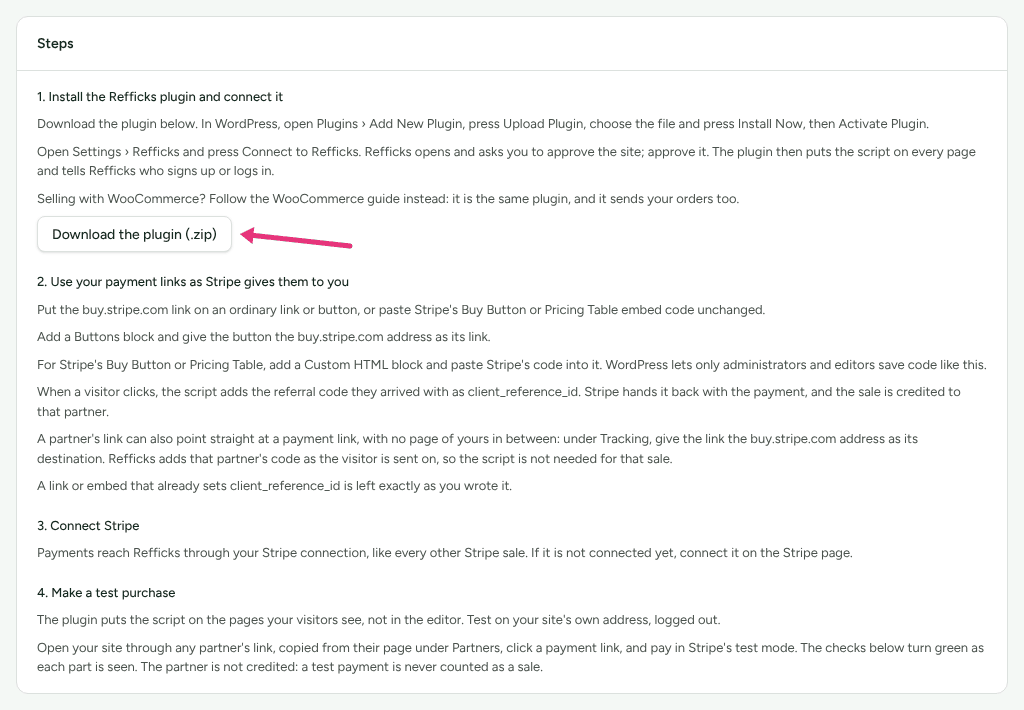
- In WordPress, open Plugins › Add New Plugin, press Upload Plugin, choose the file, press Install Now, then Activate Plugin.
- Open WooCommerce › Refficks (or Settings › Refficks on a site without WooCommerce) and press Connect to Refficks. Refficks opens in your browser.
- Sign in to Refficks if you are not. The page asks "Connect your site to workspace?". Only say yes if the site is yours and you pressed Connect in its WordPress admin just now.
- Press Connect your site. Your browser goes back to WordPress, and the plugin's screen says "Connected to workspace on Refficks."
The request waits 30 minutes for someone to approve it. After that, press Connect to Refficks in WordPress again.
Refficks then checks that the plugin really is on the site, by calling the
site back. If your host's firewall or a security plugin stops that call, the
store's card in Refficks says "Not confirmed: …" and the store is not
reserved for your account. Let Refficks's check reach
/wp-json/refficks/v1/challenge, then press Connect to Refficks in
WordPress again.
The approve button is greyed out, with the reason, when:
- the store is connected to another Refficks account: "This store is already connected to another Refficks account. Disconnect it there first.";
- you have verified storefronts under Settings › Workspace › Domains, and this site is neither your website nor one of them: "This site is not your website or one of your verified storefronts, so it cannot be connected here. If it is yours, add it under Settings › Domains as a storefront and verify it first.";
- you are not an owner or admin: "Only an owner or admin can connect a store. Ask one of them to open this link."
If your partners' links point at a different address from the store, the page also warns: "Your partners' links point at your website, not the store. Orders from the store are still credited to partners whose visitors reach it."
Connect with two webhooks
The WooCommerce guide carries the steps, in WooCommerce's own words. In short:
- Go to Integrations › Where you sell and open the WooCommerce guide.
- In its first step, type your store's address into Your store's Site Address and press Connect. Refficks shows "Copy these into WooCommerce now", with a Delivery URL and a Secret. The secret is shown once.
- In WooCommerce, add the two webhooks the guide names, Refficks: order created (topic Order created) and Refficks: order updated (topic Order updated), each with that address, that secret, status Active and API version WP REST API Integration v3.
- Put the Refficks script in your site's header, from the same guide.
- Add each partner's code as a coupon in WordPress (Marketing › Coupons), spelt the same.
Both webhooks matter. Order updated carries payments, refunds and cancellations: "Without it, no order is ever counted paid." If only Order created arrives for an hour, the guide's checks say so.
The Delivery URL contains a token that identifies your store. Keep it to yourself.
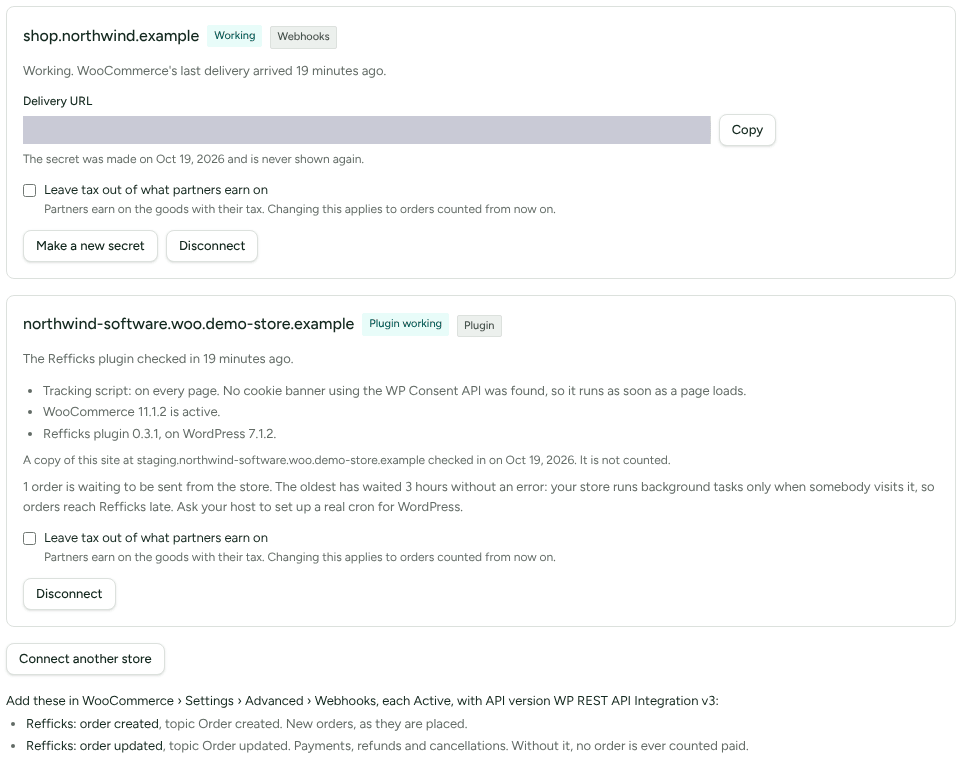
To connect a second store, press Connect another store.
Configure
Leave tax out of what partners earn on
Each store has this box on its card. Off, the card says "Partners earn on the goods with their tax." On, "Partners earn on the goods without their tax." Either way, "Changing this applies to orders counted from now on." Owners and admins only.
Partners' codes as coupons (plugin only)
Once a store is connected through the plugin, Sync codes on a program's page can put every partner's code into the store as a WooCommerce coupon. The plugin makes them, changes them when you change the discount, and moves a code that was paused, expired or used up to the trash. It never touches a coupon it did not make. Codes arrive within fifteen minutes, sooner when Refficks can reach the site to ask it to look. See Sync partner codes.
Make a new secret (webhooks only)
On the store's card, press Make a new secret. The new secret is shown once: "This replaces the old secret, which keeps working for 24 hours. Paste it into both webhooks in WooCommerce now: it is not shown again." The card then says until when the old one works.
Check it worked
- Place an order with a partner's coupon. Pay by direct bank transfer and mark the order Processing, or pay cash on delivery and mark it Completed.
- In Refficks, open the WooCommerce guide. Within about two minutes, the order appears under What WooCommerce has sent, from that store, with a Why? link to its conversion and the partner it was credited to.
- Refund part of the order in WooCommerce. The commission takes back its share.
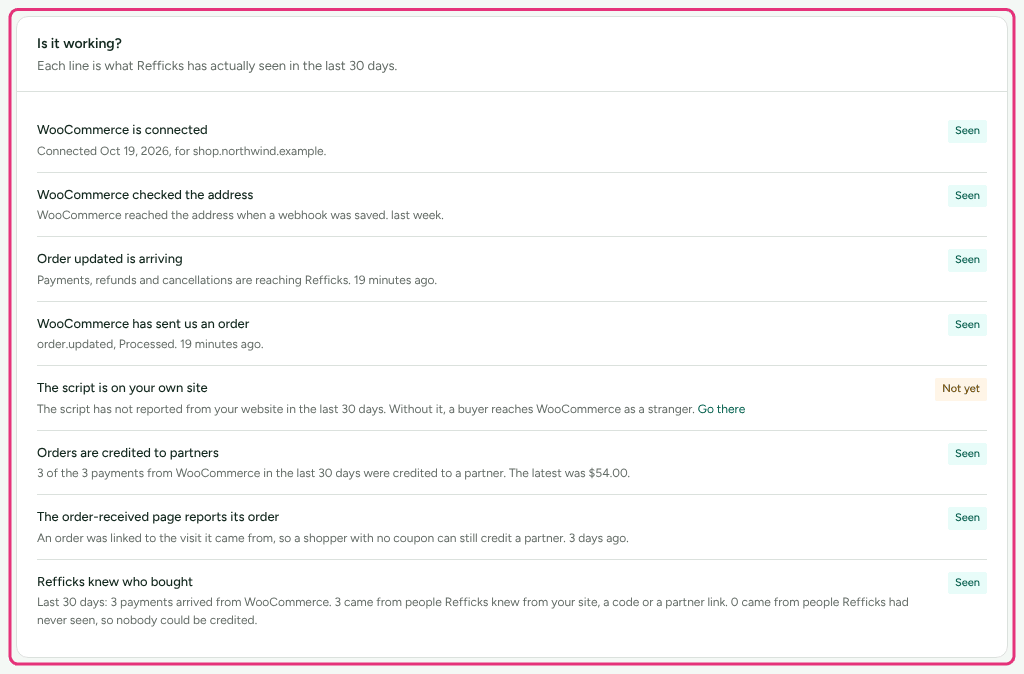
The Is it working? card on the guide shows what Refficks has seen in the last 30 days: whether the store is connected, whether WooCommerce checked the address, whether Order updated is arriving, whether WooCommerce has sent an order, whether the script is on your own site, whether orders are credited to partners, whether the order-received page reports its order, and whether Refficks knew who bought.
Each store's card has a badge:
| Badge | What it means |
|---|---|
| Waiting for WooCommerce | Connected by address; WooCommerce has not checked it yet. Add the two webhooks |
| Address checked | WooCommerce reached the address when a webhook was saved. Place a test order |
| Working | WooCommerce's deliveries are arriving |
| Gone quiet | It sent sales before and nothing for 14 days |
| A delivery was refused | A delivery's signature did not match; the card says why |
| Connected | Connected through the plugin; waiting for its first check-in, within fifteen minutes |
| Plugin working | The plugin checked in recently |
| Not heard from | The plugin has not checked in for two hours |
| Plugin deactivated | The plugin was deactivated in WordPress |
A plugin store's card also lists what the plugin last reported: whether the tracking script is on and waiting for consent, whether WooCommerce is active, the plugin and WordPress versions, and how many orders are waiting to be sent.
What happens when something fails
| Failure | What Refficks does | What you see | What to do |
|---|---|---|---|
| A webhook's secret does not match | Refuses the delivery | A delivery was refused, with the reason | Make a new secret and paste it into both webhooks |
| Only Order created arrives | Counts nothing paid | "New orders have arrived since … and not one update, so none can be counted paid. …" | Add the Order updated webhook |
| The plugin stops checking in | Emails owners and admins once for each silence | Not heard from: "We have not heard from the Refficks plugin on … since …. Orders placed since then have not been credited yet. They are kept in the store and sent when the plugin is back; …" | Check the plugin is active and the site is up |
| The store runs background tasks only on visits | Receives orders late | "The oldest has waited … without an error: your store runs background tasks only when somebody visits it, so orders reach Refficks late. Ask your host to set up a real cron for WordPress." | Ask your host for a real cron |
| A caching or optimisation plugin holds the script back | Warns when at least half of partners' clicks in seven days recorded no page view on the store | "Refficks's script is on …, but … of … partner clicks in the last 7 days recorded no page view there. … Exclude refficks.js from any setting that delays, defers or combines JavaScript." The warning names the optimiser when it recognises one, such as WP Rocket | Exclude refficks.js in that plugin's settings |
| A firewall refuses Refficks's request to look for new codes | Codes are still made at the plugin's next look, within fifteen minutes | A warning naming /wp-json/refficks/v1/nudge |
Let POST requests to that path through |
| The store is on plain HTTP | Still receives orders securely | A warning that your shoppers' checkout is not encrypted | Move the store to HTTPS |
| A copy of the site checks in or sends orders | Keeps them and counts nothing | "A copy of this site at … checked in on …. It is not counted." | Nothing |
Missed orders
Orders the plugin could not send wait in the store and are sent later, so nothing is lost while the plugin is active. A store connected by webhooks loses whatever WooCommerce failed to deliver.
Refficks staff can bring a span of missed orders in through the plugin: they look at the orders the store lists for the span, see what would be counted, and have the plugin send only the orders they confirm. Orders brought in this way carry the badge Brought in from history. Write to support@refficks.com with the store's address and the dates. A merchant cannot start this from their own screens.
Disconnect
On the store's card, press Disconnect, then confirm.
- Webhooks: "The address no longer accepts deliveries and Refficks has forgotten the secret. Past orders and commissions stay as they are." Then delete the two Refficks webhooks in WooCommerce › Settings › Advanced › Webhooks.
- Plugin: "Orders and sign-ups no longer arrive from this store, and the plugin's keys stop working. Past orders and commissions stay as they are." The plugin in WordPress then says it is disconnected. Remove it under Plugins if you no longer need it.
A store whose plugin was deactivated shows Plugin deactivated and a Remove from this list button instead.
Related
- Which integration should I use? — WooCommerce beside Stripe and the other stores.
- Sync partner codes — partners' codes as WooCommerce coupons through the plugin.
- Install tracking — the script, for the webhook route.
- Refunds and reversals — how much a refund takes back.
- WooCommerce guide and WordPress guide — the in-app steps and checks, readable without an account.
Availability: The public guide pages (
https://app.refficks.com/docs/guides/<key>) are built onmain. On 8 October 2026 app.refficks.com did not yet serve them. Inside Refficks, the same guides are on Integrations › Where you sell.