Get your partner program running
This is the whole path for a merchant, from creating a workspace to paying your first partner. Each step is short here and links to the article that covers it in full.
Before you start
- Role: anyone can create a workspace. The person who creates it becomes its Owner.
- You need: your website address (every partner link is built from it), and an email address that does not already sign in to a Refficks workspace. Two things do not count against an address: a partner portal login, which is separate, and an invitation to somebody else's team that you have not accepted.
- Who else you may need: someone who can edit your site's HTML, or access to your shop's admin, for step 2 below.
Switched off: Billing. Refficks has a 30-day trial built (from signup, no card, one trial per email address), but it is switched off on this service until the owner turns it on. While it is off, Settings › Workspace › Billing says "Refficks is not charging for this workspace. Everything is included, with no limits." and nothing on the signup page mentions a trial.
Create your workspace
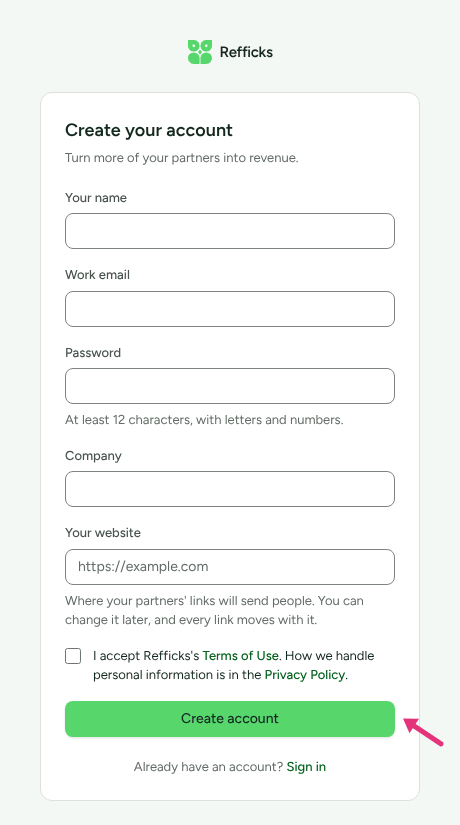
Open the signup page (Create your account).
Fill in every field. All of them are required:
Field What to enter Your name Your own name. Work email Your login. Password At least 12 characters, with letters and numbers. Company Your business name. It also becomes your workspace's address on Refficks. Your website "Where your partners' links will send people. You can change it later, and every link moves with it." For example https://example.com.Tick I accept Refficks's Terms of Use. The Terms of Use and the Privacy Policy are linked beside the box. An account cannot be opened without the tick.
Press Create account. You land on Overview.
If your company signs in to Refficks through its own identity provider, an address at its domain cannot open an account with a password. The form says "Your organization signs in through …", and asks you to get an invitation from an administrator there and choose Use your company account on the sign-in page.
The form does not ask for a country, a currency or a time zone:
- Time zone is taken from your browser. Change it under Settings › Workspace › Organization › Timezone.
- Country starts empty. Set it under Settings › Workspace › Organization › Country.
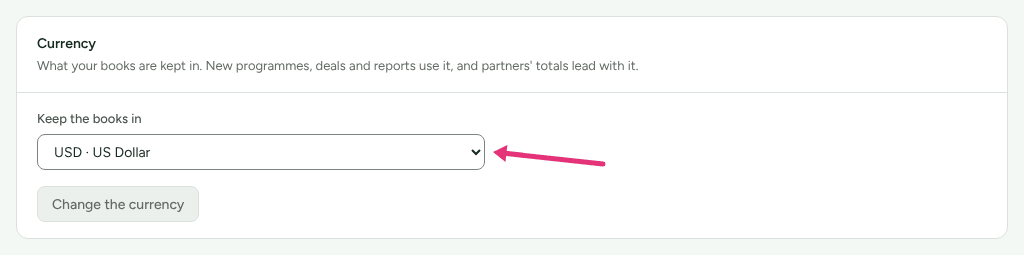
- Currency starts as US dollars. If you sell in another currency, change it under Settings › Workspace › Organization › Currency before you add a commission plan. See Change your workspace's currency, and read the note about your first program below.
What you start with
Signing up creates more than a login:
- A workspace, with you as Owner.
- One program, Affiliate Program, already Active, with a 30-day attribution window, sending partner links to the website you entered. It is in US dollars, and it keeps that currency if you change the workspace's later.
- No commission plan. Until you add one, sales are recorded but earn nobody anything.
- No public signup page. Applications from the web are off until you turn them on.
Read the Getting started screen
Getting started is the second item in the left menu. It is a checklist Refficks fills in itself: "Refficks checks these itself. Nothing here asks you to confirm something it can see for itself." Each line says what Refficks saw, or what it is waiting for, and has a Go there link while it is not done.
At the top, a card says either how many things "are not ready yet", or Ready to run once a real sale has gone all the way through.
Each group shows its open lines in full. Lines that are settled (done, confirmed by you, going ahead without, or not applicable) are folded into one link at the foot of the group, Show the N settled; press it to see them with what Refficks saw. A group with nothing open says "Nothing outstanding here." A line you have just answered stays where it was until you leave the page.
The lines, in the order Refficks lists them within each group. Lines marked Needed stop the workspace being Ready to run; the others never do.
| Group | Line | Needed | Ticks itself when |
|---|---|---|---|
| The programme | A programme exists | Yes | Any program exists. Your Affiliate Program counts, so this is done from signup. |
| The programme | It says what a partner earns | Yes | Any program has a commission plan. |
| The programme | The programme is live | Yes | Any program's status is Active. Done from signup unless you change it. |
| Your partners | You have partners | Yes | At least one partner exists. |
| Your partners | At least one is in the programme | Yes | At least one partner is enrolled in a program. |
| Tracking | A tracking link exists | Yes | Any partner has a tracking link. One is made when a partner is enrolled. |
| Tracking | A click has been recorded | Yes | A click on a partner link reaches Refficks. Open one of your own links to tick it. |
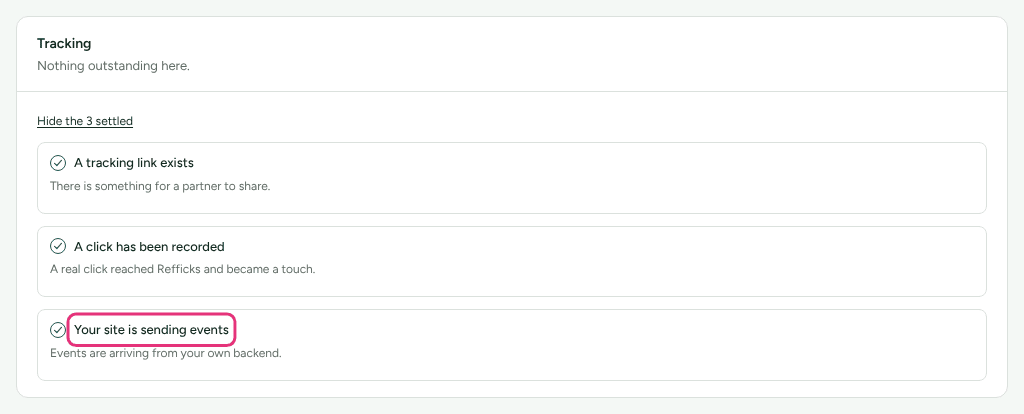
| Tracking | Your site is sending events | Yes | The tracking script on your site sends something other than a click on a partner link (a page visit counts), or your own server sends an event with your secret key. A click, and an order arriving through a connected store such as Shopify, do not tick it. |
| Sales reaching Refficks | Your billing is connected | No | A provider that sends sales (Stripe, Shopify and others) is connected. "Billing" here means your own payment system, not Refficks's. |
| Sales reaching Refficks | Something has come through it | No | A connected provider has delivered at least once. |
| Sales reaching Refficks | A sale has reached Refficks | Yes | A payment, renewal or order is recorded. |
| Sales reaching Refficks | A customer has been identified | No | A visitor and a paying customer have been joined up as one person. |
| What people get paid | A sale has been credited to a partner | Yes | A sale is credited to a partner. |
| What people get paid | A commission has been worked out | Yes | A commission entry exists. |
| What your partners see | A partner has signed into the portal | No | A partner has signed in to the partner portal. |
| What your partners see | You have read your own partner terms | No | You press Yes, I have done this. It is the only line a person ticks. Its Go there opens your program's Partner agreement; with several programs it opens Programs and asks you to choose one. |
| Your account | Your emails say who they are from | No | A sender name is set under Settings › Partners and payouts › Emails. |
| Your account | Your logo is on the portal | No | A logo is uploaded under Settings › Workspace › Branding. |
Three more groups appear only when that kind of program is switched on for your workspace: Customers referring customers (referral), Creators and Agencies and resellers. Each starts with one optional line ("You run a referral programme" and so on). The lines after it say "Not applicable", folded with the settled ones, and the group says "Nothing in here is being asked of you.", until a program of that kind is Active. From then on they are Needed.
Going ahead without a line
If you cannot complete a Needed line (for example, you cannot run a test sale before launch), an Owner or Admin can press Launch without this, add an optional note, and press Launch without it. The line then reads Going ahead without it and stops blocking. If the thing later happens, the line ticks itself as Done. Put it back on the list undoes your answer.
Anyone on your team can read the screen. Only an Owner or Admin sees the buttons.
The path, step by step
- Set up your program. Rename Affiliate Program if you like, add a commission plan, and decide whether partners can apply from the web. You need: your commission terms. See Create a program and How commission plans work.
- Install tracking. Paste one script tag into your site (needs someone
who can edit your site's HTML), or use a no-code install: the Shopify app,
the Refficks WordPress plugin, the BigCommerce app or the Google Tag
Manager template. Connecting Stripe also sends sales without any script.
See Install the tracking script,
Which integration should I use? and the
public install guides at
https://app.refficks.com/docs/guides. - Invite partners. Add them by hand, open a public signup page, or import a list. Each partner gets a tracking link and a discount code when they join a program. A portal invitation link works for 14 days. See Invite partners and Review partner applications.
- Verify your first conversion. Follow a partner link yourself, buy or sign up, and check the sale is credited to that partner. You need: a test purchase or a real first sale. See Verify your first conversion.
- Pay partners. Approve commissions, then build a payout run. Refficks never sends money on its own: a person presses for it. You need: an Owner or Admin. See Approve commissions and Pay your partners.
Check it worked
Open Getting started. When the whole chain has been proved, the top card reads Ready to run: "A sale has gone all the way through: recorded, credited to a partner, and turned into commission."
Before that, the top card lists each Needed line that is still open, and the matching line further down says what Refficks is waiting to see.
What this does not do
- Getting started is not a wizard. Nothing forces an order, and nothing on it is ticked because you said so, except You have read your own partner terms.
- Ready to run needs a real sale credited to a partner and turned into commission. A workspace that is set up correctly but has had no sale yet is not ready, by design.
- Opening one of your own partner links ticks A click has been recorded, not Your site is sending events. The second needs the script on your site or your own server.
- The signup form does not ask for your currency. Changing it later does not change Affiliate Program, which stays in US dollars, so a flat amount in its plans is written in US dollars. No dashboard screen changes a program's currency. Change your workspace's currency says what to do instead.
- A new workspace does not land on Getting started. It opens on Overview; use the left menu.
Related
- Create a program: every field on a program, and opening it to applications.
- Change your workspace's currency: what stays and what moves.
- Invite partners: every way a partner gets in.
- Install the tracking script: step 2 in full.
- Team roles and permissions: who on your team can do what.