Install the tracking script
Put one script tag on your website so Refficks can see which partner sent each visitor and who they turned out to be. This is for the merchant, or whoever edits the merchant's site.
By default a partner's link goes straight to your website with their code in
the address, such as https://example.com/?rfi=dana. The script on that page
is what notices the code and records the click. Without it, those clicks are
not recorded at all, unless you turn on Count clicks on our servers (see
Partner links settings).
Before you start
- Role: owner or admin. Only they can create API keys and see the snippet with your key in it. Anyone who can edit your site's pages can paste it.
- You need: your website address under Settings › Partners and payouts › Partner links › Your website, and at least one program.
- You need: access to the
<head>of every page a partner's link can land on, and of the pages where people sign up or buy.
Steps
1. Create a publishable key
- Go to Settings › Developer › API keys.
- Under Create a key, type a Name, for example
Website. - Set Type to Publishable. The hint reads "Tracking only. Safe in a browser."
- Press Create key.
- Copy the key shown under Copy this key now. "This is the only time it
will be shown." A publishable key starts with
rk_pub_.
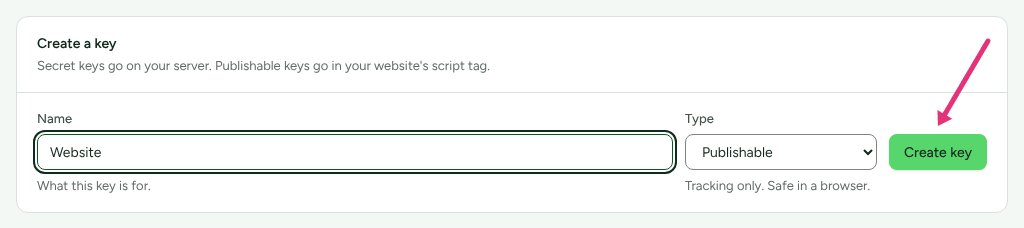
A publishable key can only record tracking. It cannot read anything, and the script's endpoint refuses any amount with "Revenue must be reported from your server, not from a browser."
2. Copy the snippet
- Go to Integrations. It opens on the Connections tab, where the Website tracking card shows your snippet.
- Press Copy snippet.
- Replace the shortened key in both places with the full key you copied in
step 1. Refficks stores only the key's first characters, so the snippet
shows them followed by
…. The card says so: "Replace the shortened key below with the full publishable key you copied when you created it."
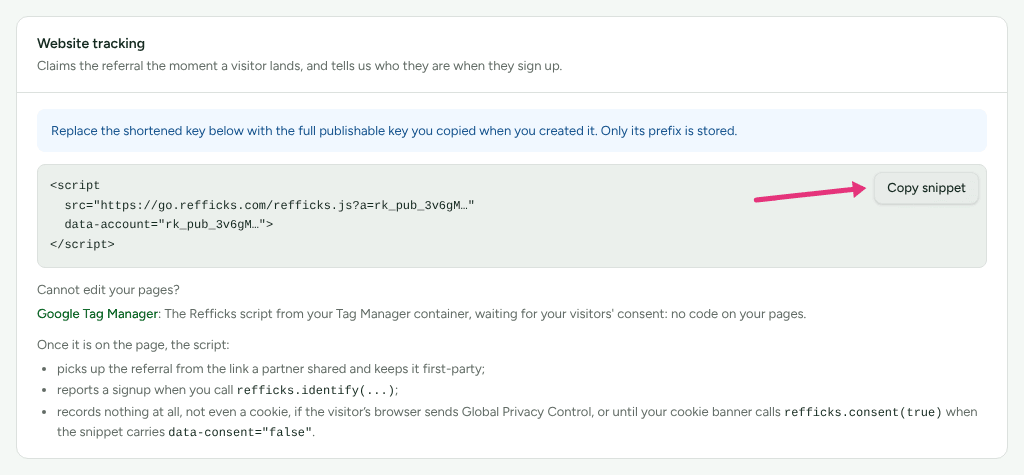
The snippet looks like this:
<script
  src="https://go.refficks.com/refficks.js?a=<PUBLISHABLE_KEY>"
  data-account="<PUBLISHABLE_KEY>">
</script>
Keep the key in both places. The ?a= key is how Refficks serves the script
with your own settings: the name of the parameter in your partners' links,
your consent setting, your other sites and your checkout links. Without it the
script runs on the default parameter and none of your settings.
If the card reads "You need a publishable key first", go back to step 1: there is no publishable key yet, or you are not an owner or admin.
Not yet documented: the snippet on your Integrations page uses the address of the Refficks service you are signed in to. The example above uses
go.refficks.com, the production address in the API reference. Copy the one your screen shows.
3. Paste it into your pages
- Paste the snippet into the
<head>of every page a partner's link can land on, and every page where people sign up or buy. - Publish your site. Many site builders run code in the head only on the published site, not in their editor or preview.
4. Tell Refficks who signed up
When somebody signs up or logs in, call identify() with the same id or email
address your billing system uses for them. This joins their earlier click to
the sale that comes later.
<script>
  (function say(tries) {
    if (!window.refficks) return tries < 40 && setTimeout(function () { say(tries + 1); }, 250);
    window.refficks.identify({ external_id: "<YOUR_USER_ID>", email: "sam@example.com" });
  })(0);
</script>
identify()takesexternal_id,emailandname. Send at least one. Refficks matches a person by external id first, then email, then the browser.- For a form or a booking where nobody makes an account, call
window.refficks.lead({ email: "sam@example.com" })instead. It ties the person to the partner the same way without counting as a sign-up. - When somebody logs out, call
window.refficks.reset(). It forgets the browser's visitor id and partner codes, so the next person on that computer is not credited to the last person's partner.
A browser's word about a customer you already knew waits for a person.
Anybody can read your publishable key from your page, so a browser can claim
to be any email address. When a partner's click reaches a sale only because
the browser named a customer Refficks knew before that click, the sale is
still credited, and its commission does not approve itself. It reads: "A
shopper's browser said it was this customer, whom you already knew, and that
is all that links the partner's click to this sale, so it waits for someone to
approve it." Somebody who signs up after clicking, the ordinary case, is not
affected. To have such sales approve on the plan's timer, name the customer
from your server too: send the browser's visitor_id with the customer, using
your secret key (Send events from your server).
5. If your site asks visitors for consent
| What the visitor or your site says | What the script does |
|---|---|
| The browser sends Global Privacy Control | Writes nothing and sends nothing, on every page. Do Not Track alone is not read. |
The snippet carries data-consent="false" |
Waits. Nothing is written until your cookie banner calls window.refficks.consent(true). |
| Settings › Partners and payouts › Partner links › Wait for consent before tracking is on | The same as data-consent="false", for every page running your snippet, within about five minutes. A snippet's own data-consent still wins. |
Your banner calls window.refficks.consent(false) |
Clears both cookies the script wrote. |
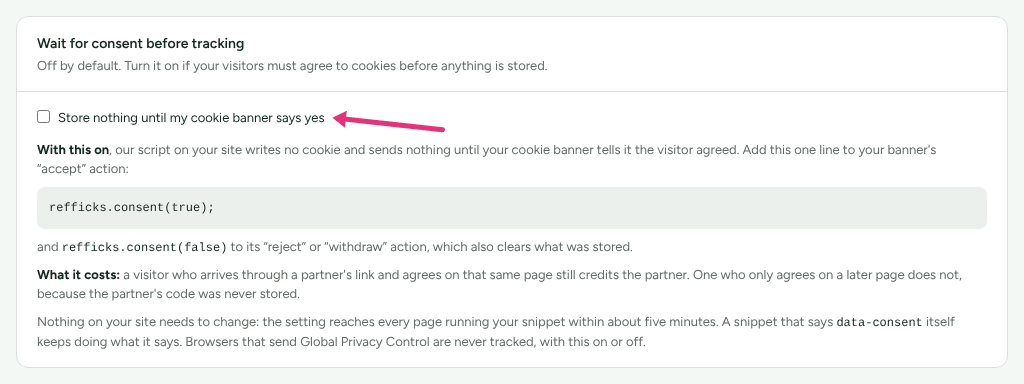
What waiting costs you: a visitor who arrives through a partner's link and agrees on that same page still credits the partner. One who agrees only on a later page does not, because the code was never stored. If they type the partner's discount code at checkout, the code can still credit the partner. Consent and privacy has the whole picture.
Switched off: Keep a partner's code in my site's links until the visitor decides (URL passthrough) appears under Wait for consent before tracking only once Refficks turns it on for its service. It is off until a legal review.
Optional: report orders from your confirmation page
Use this only if no server or store integration reports your sales.
- Go to Settings › Developer › Website orders. Owners and admins can change it.
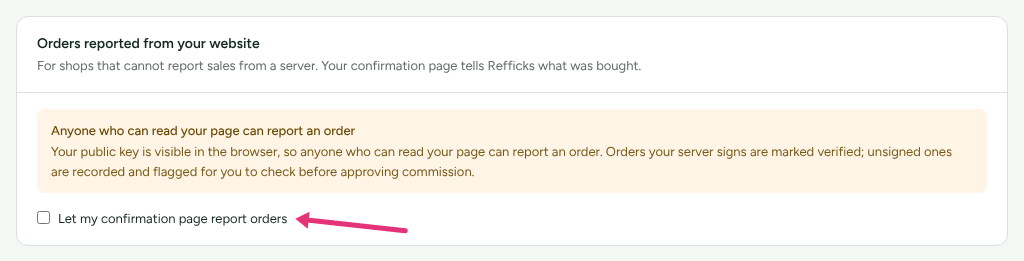
- Read the warning: "Your public key is visible in the browser, so anyone who can read your page can report an order. Orders your server signs are marked verified; unsigned ones are recorded and flagged for you to check before approving commission."
- Tick Let my confirmation page report orders.
- On your order confirmation page, report the order. Amounts are in the
currency's smallest unit:
4299is USD 42.99.
window.refficks
  .order({ order_id: "1001", currency: "USD", amount: 4299 })
  .buyer({ email: "sam@example.com" });
window.refficks.sendOrder();
- The browser never says who earns or how much commission. Refficks works that out from the visitor's own clicks.
- An unsigned order's commission does not approve itself: "Only a shopper's browser reported this sale, so it waits for someone to approve it."
- While Stripe or a connected Shopify store reports your sales, orders from a browser are refused, because they would be the same sale twice. The page says so under the switch, in place of "Accepting orders from your pages".
Sign the order, so it is trusted
An order your server signs is marked verified rather than "only a shopper's browser reported this". The secret is under Your signing secret on Settings › Developer › Website orders. Keep it on your server; never put it in the page.
- Build this line from the order, with no spaces:
order_id|CURRENCY|amount|sku:quantity:unit_amount,…amountandunit_amountare whole numbers in the currency's smallest unit (4299for USD 42.99).unit_amountis per unit, not the line total.- Sort the items by that
sku:quantity:unit_amounttext. With no items, the line ends in|with nothing after it. - If you send a
net_amount(what commission is paid on, without tax and shipping), start the line withv2|and put the net after the amount:v2|order_id|CURRENCY|amount|net_amount|items.
- Sign
<unix seconds>.<that line>with HMAC-SHA256 under your signing secret, as hex. - Pass
t=<unix seconds>,v1=<hex>to the page and on tosendOrder.
// On your server (Node.js), when rendering the confirmation page
const crypto = require("crypto");

function signOrder(order, secret) {
  const items = (order.items || [])
    .map((i) => `${i.sku}:${i.quantity}:${i.unit_amount}`)
    .sort()
    .join(",");
  const line = `${order.order_id}|${order.currency.toUpperCase()}|${order.amount}|${items}`;
  const t = Math.floor(Date.now() / 1000);
  const v1 = crypto.createHmac("sha256", secret).update(`${t}.${line}`).digest("hex");
  return `t=${t},v1=${v1}`;
}
// In the page, with the signature your server rendered into it
window.refficks
  .order({ order_id: "1001", currency: "USD", amount: 4299 })
  .item({ sku: "TSHIRT-M", quantity: 1, unit_amount: 4299 })
  .buyer({ email: "sam@example.com" });
window.refficks.sendOrder({ signature: "<SIGNATURE_FROM_YOUR_SERVER>" });
A signature is accepted for five minutes after its timestamp, so sign when the page is rendered, not in advance. The buyer's email and name are not signed; the figures that decide what a partner earns are.
A signed report beats an unsigned one. Order numbers usually count up, so somebody holding your publishable key could report tomorrow's order first. A signed report of an order is kept separately from an unsigned one:
- once your signed report of an order stands, an unsigned report of the same order records nothing;
- if an unsigned report came first, it is set aside when the signed one arrives. Its commission is reversed with "Reversed because the merchant's server reported this order, signed, and the browser's unsigned report of it was set aside.", and Settings › Developer › History shows "set aside · Event".
No-code alternatives
If you cannot edit your pages, one of these puts the same script on your site.
| Where you sell | What puts the script on your site | Where to look in Refficks |
|---|---|---|
| Shopify | The Refficks app's theme app embed, which you switch on in your theme | Integrations › Connections, the Shopify store's Storefront line, and Open the theme editor on the app embed |
| WordPress | The Refficks plugin, a zip downloaded from Refficks | Integrations › Where you sell, the WordPress guide among the site builders |
| BigCommerce | The Refficks app adds one script to each storefront once the store is linked to your account | Integrations › BigCommerce, opened from its card on Integrations › Connections, and Put the script back if it goes missing |
| Google Tag Manager | A Refficks template you import by hand | Integrations › Connections, the Google Tag Manager guide under "Cannot edit your pages?" on the Website tracking card |
On BigCommerce the script links an order to the visit through the shopper's cart. An order placed with "Buy now", which skips the cart, is credited only through the partner's code.
The WordPress and Tag Manager guides are also readable without an account at app.refficks.com/docs/guides/wordpress and app.refficks.com/docs/guides/google-tag-manager.
Availability: the public guide pages and the WordPress plugin download were built on
mainafter the last deployment of app.refficks.com that this article was checked against.
Check it worked
- Copy one of your partner links from Tracking, with Copy link.
- Open it in a private window, in a browser that does not send Global Privacy Control.
- In that window, open the browser's console and run
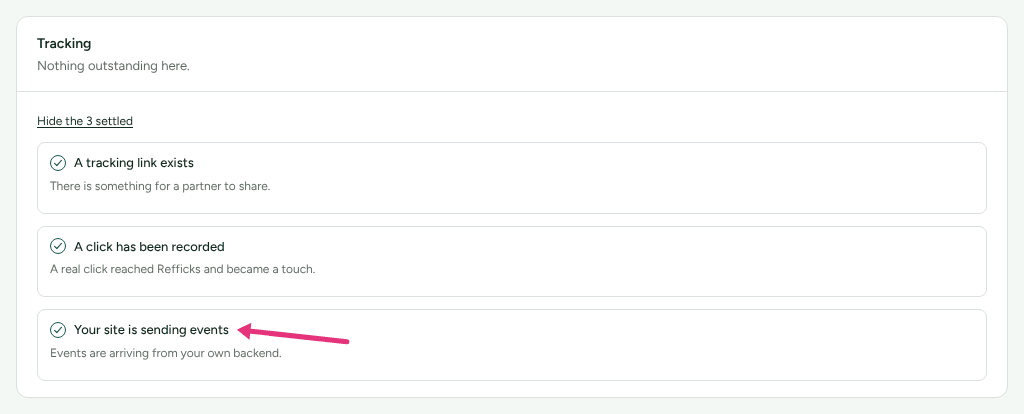
window.refficks.visitorId(). It returns an id when the script is running and allowed to record. It returnsnullwhile consent is withheld. - In Refficks, go to Getting started. Under Tracking, lines that are
done are folded: press Show the N settled at the foot of the group to
read them.
- A click has been recorded reads "A real click reached Refficks and became a touch."
- Your site is sending events reads "Events are arriving from the browser tracker on your site." A click on a partner's link does not tick this line on its own; the page view your script sends does. If your server has already sent Refficks an event with a secret key, the line may read "Events are arriving from your own backend." instead, as in the picture below; either way it is done.
- Go to Tracking. The link's Clicks number has gone up by one. The screen refreshes itself every 10 seconds; a click is written by a background job after the visitor has been sent on, so give it a moment.
If you chose a guide under Where do you sell? on Integrations › Where you sell, its Is it working? card also shows The script is on your site as "Seen on" followed by your site's address.
What this does not do
- It never reports money, except the opt-in website orders above.
- It records nothing for a browser that sends Global Privacy Control, and nothing before consent on a site that waits for it.
- It cannot backdate anything. The time of every click, page view and sign-up the script reports is the moment it reached Refficks.
- It does not run where it is blocked. Settings › Partners and payouts › Partner links says ad blockers and privacy tools "stop our script loading for roughly one visitor in five"; Count clicks on our servers counts those clicks anyway.
- It does not follow a visitor to another of your websites unless that site is added and verified under Settings › Partners and payouts › Partner links › Your other sites.
- A visitor opening the same partner link twice on the same day counts as one click on the default link.
Related
- Verify your first conversion: run one click, sign-up and sale through end to end.
- Tracker JavaScript reference:
every function and
data-attribute the script offers. - Consent and privacy: what the script writes, when, and what it never keeps.
- Clicks or visits are not being recorded: when the checks above stay empty.
- Send events from your server: report sales with a secret key.