Verify your first conversion
Run one click, one sign-up and one sale through Refficks yourself, and read the reasoning it records, before your partners start sending real customers. This is for the merchant or developer setting the program up.
Before you start
- Role: owner or admin for the whole test. A manager can generate links and read the result, but only an owner or admin can see API keys and reject the test commission afterwards.
- You need:
- a program with a commission plan. Getting started shows It says what a partner earns as done;
- a partner enrolled in that program, so they have a tracking link;
- the tracking script on your site, calling
identify()where people sign up (Install the tracking script); - a way for sales to reach Refficks: your own server with a secret key, or Stripe, or a store integration.
- Use a browser that does not send Global Privacy Control, with no ad blocker, or the script records nothing. A private window is fine.
- Sign up with an email address Refficks has never seen, such as a new
+testalias. If the address belongs to a customer Refficks already knew before your click, the test commission waits for a person instead of following the plan's timer, because only your browser said who you were.
A payment in Stripe's test mode never becomes a conversion. It is "Recorded as a test: it credits nobody, pays nothing and appears in no report." It still shows you which partner a real one would credit. Step 3 explains both routes.
Steps
1. Follow a partner's link
- Go to Tracking.
- In Tracking links, find the partner's link and press Copy link. If they have none, use New tracking link: choose the Program, type the partner's name into Partner and pick them from the list, then press Generate link. "Link ready to share" appears with the link.
- Open a private browser window and paste the link.
- Check the address you land on. It is your website, carrying the partner's
code in your link parameter, for example
https://example.com/?rfi=dana. - Back in Refficks, watch the link's Clicks on Tracking. It goes up by one. A click is written by a background job after the visitor has been sent on, and the screen refreshes itself every 10 seconds.
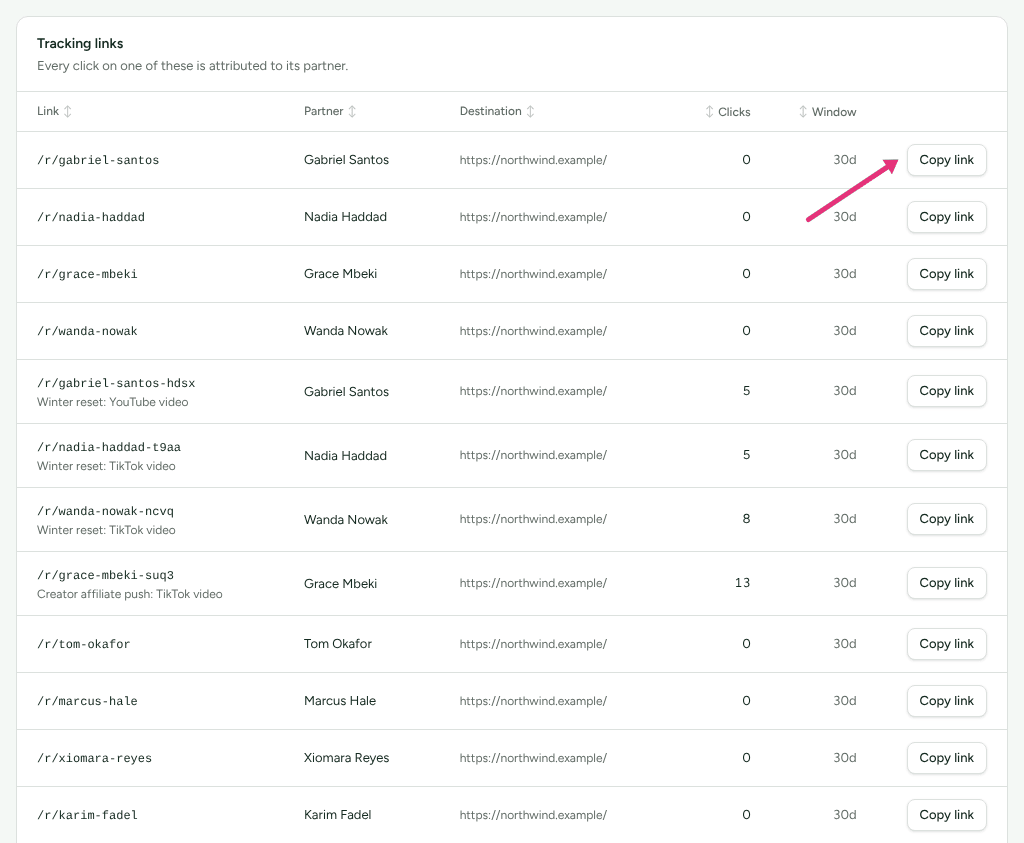
On Getting started, A click has been recorded is now done. The partner's own page shows the click under Tracking links on its Overview too.
2. Sign up as a customer
- In the same private window, sign up on your site with an address you
control, for example
sam+test1@example.com. Your sign-up page callsidentify(). - In Refficks, Getting started shows A customer has been identified.
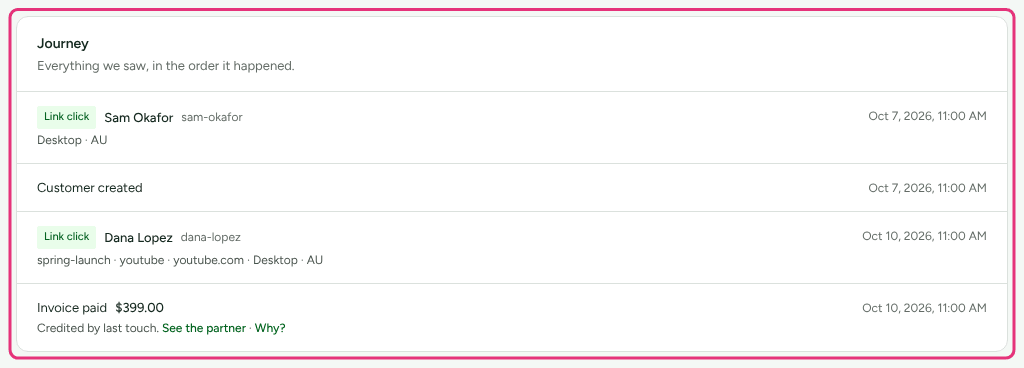
- Go to Customers, search for the address, and open the customer. Their Journey card lists the partner's touch.
3. Make a sale
Pick the route your real sales will take.
If your server reports sales. Send the sale with your secret key, for the same customer you signed up as. This is a real sale: it creates a real, pending commission, which you reject in step 6.
curl https://go.refficks.com/api/v1/events \
  -H "Authorization: Bearer <SECRET_KEY>" \
  -H "Idempotency-Key: test-order-1001" \
  -H "Content-Type: application/json" \
  -d '{
    "event_type": "order.created",
    "external_id": "test-order-1001",
    "customer": { "external_id": "<YOUR_USER_ID>", "email": "sam+test1@example.com" },
    "properties": { "amount": 4900, "currency": "USD" }
  }'
- Use the same
external_idor email you passed toidentify()in step 2. That is what joins the sale to the click. - A secret key starts with
rk_live_. Make one under Settings › Developer › API keys with Type set to Secret. Keep it on your server. - Only
order.createdandinvoice.paidare sales. Amounts are in the currency's smallest unit:4900is USD 49.00. - A
202answer means Refficks accepted it.
If you sell through Stripe Payment Links, Buy Buttons or Pricing Tables.
- Connect Stripe under Integrations › Stripe, from the Stripe card on Integrations › Connections.
- Open the Stripe Payment Links guide from Where do you sell? on
Integrations › Where you sell and press I sell with Stripe Payment
Links. From then on, the script adds the partner's code to your payment
links as Stripe's
client_reference_idwhen a visitor clicks one. A partner's link can also point straight at a payment link: under New tracking link on Tracking, put the payment link'sbuy.stripe.comaddress in Destination, and Refficks adds the code itself as the visitor is sent on. - In your private window, click a payment link on your site, or follow a partner's link that points straight at one, and pay in Stripe's test mode.
- Go to the Stripe page in Refficks. Under Recent deliveries, the payment reads "A test payment of …", says it is recorded as a test, and names who a real one would have credited and how much, for example "A real one like it would have credited Dana Lopez $9.80 through “dana”: 20% of USD 49.00 (Standard affiliate)." (USD 9.80 on a USD 49.00 payment, under a 20% plan named "Standard affiliate".)
- On the guide, Is it working? shows A payment through a payment link has reached us and Payments through your links carry referral codes.
That proves the link, the code and your plan without creating a conversion. To see steps 4 and 5 below with Stripe, make one small live payment and refund it in Stripe afterwards: the refund takes the commission back by itself.
If you sell through a store or another billing platform, make the sale the way that platform's guide on Integrations › Where you sell describes. Many of them also treat a test-mode purchase as a preview rather than a sale.
4. Find the conversion
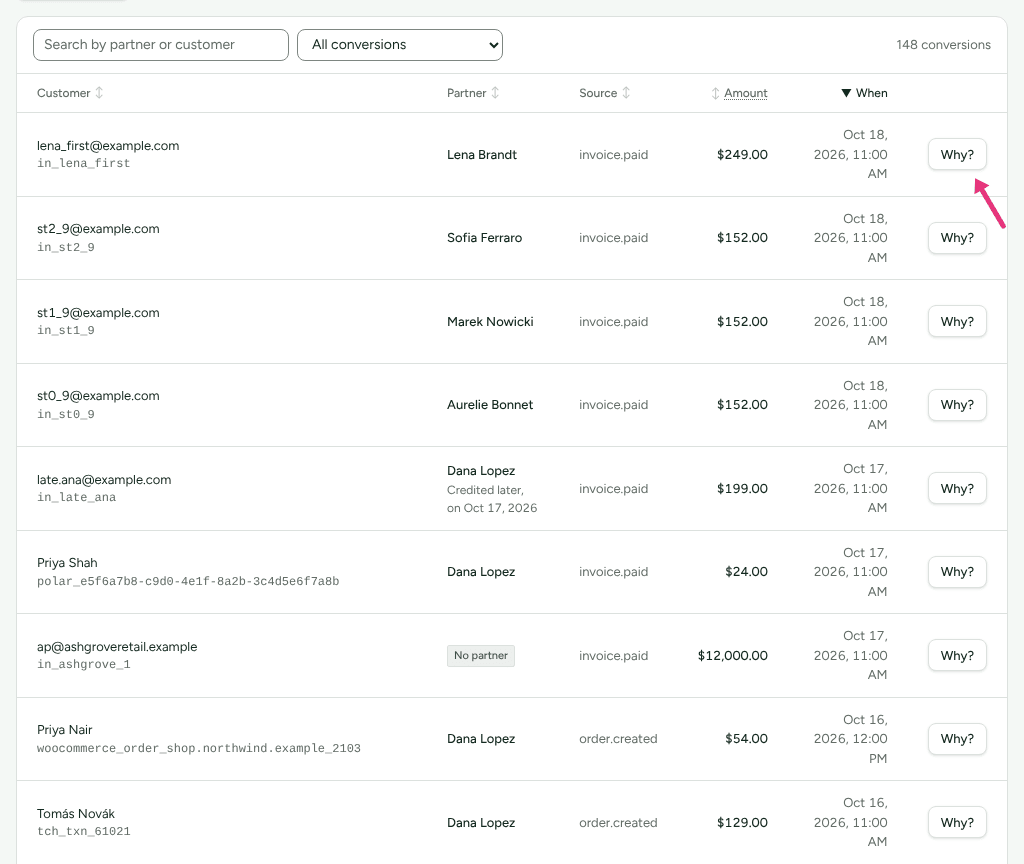
- Go to Conversions. Reload the page if the sale is not there yet: the sale, the decision and the commission are each worked out by a background job.
- Find the row with your customer and amount: typing your test address into Search by partner or customer narrows the list to it. The Partner column names the partner. "No partner" means the sale was credited to nobody; see A sale was not credited to a partner.
- Press Why?. The customer's Journey card has the same Why? link beside the sale.
5. Read why it was attributed
The page Why this conversion was attributed shows:
- Attributed partner, in the third card at the top.
- What it paid: the commission entry this sale created.
- The decision: one sentence, such as "The only touch within the attribution window was a direct URL parameter.", with a confidence badge and a line saying what it means, such as "90%: how sure the evidence is that this partner sent the sale. Refficks starts at 90% for a direct URL parameter. It is there to weigh the decision by, and changes nothing anybody is paid." Then the Method, the Source and the Window applied.
- Every touch considered: each touch on this customer, marked Selected, Eligible or Not eligible, with the reason and when its claim expires.
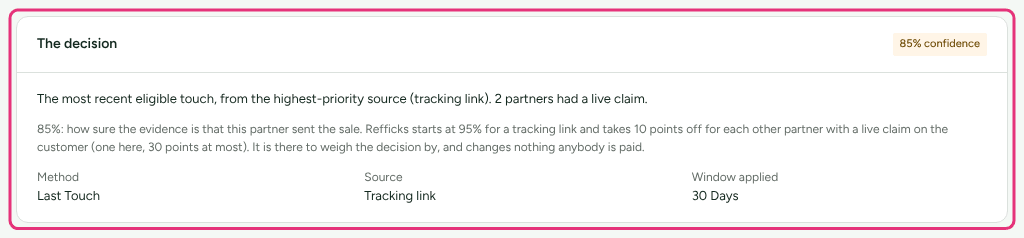
Read the attribution debugger explains every card on this page.
6. See the commission, then reject it
- Go to Commissions, and type your test address into Search by partner or customer. Your test sale is there with the status Pending and How it was worked out, for example "20% of USD 49.00".
- If this was a test, press More on that row, then Reject. There is no confirmation step. A rejected commission is never paid.
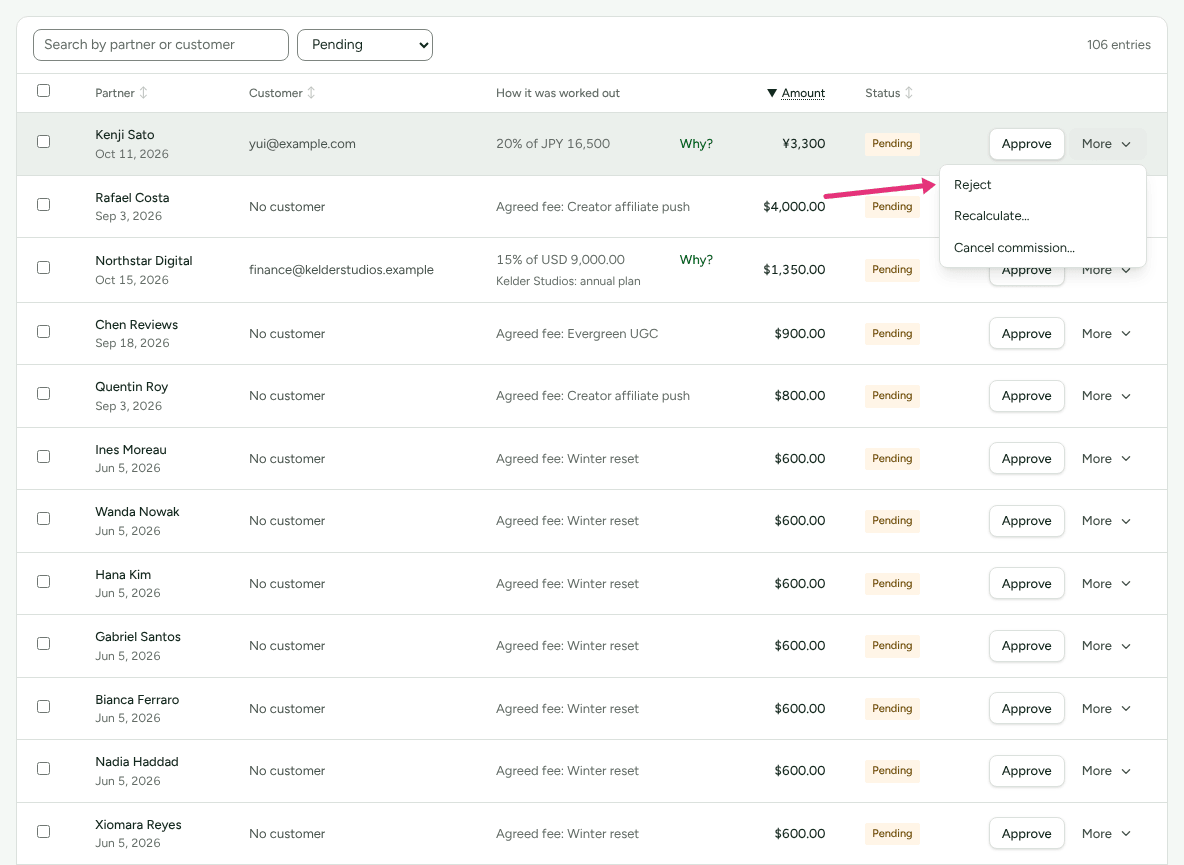
Reject it before any holding period on the plan approves it by itself: the row says "Approves automatically on" a date when that applies.
Check it worked
On Getting started, under What people get paid, A sale has been credited to a partner and A commission has been worked out are both done. Done lines are folded: press Show the N settled at the foot of the group to read them. Until it ticks, the second says "This is the last link in the chain. When it ticks, the programme works end to end." Once done, it reads "An entry exists, with the arithmetic it was written with."
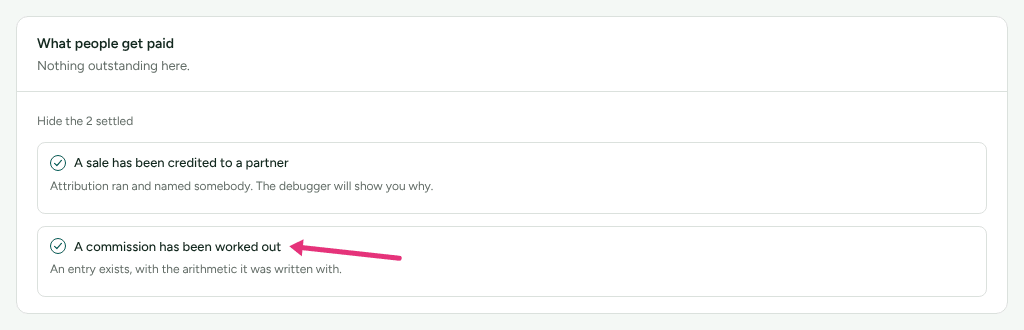
The sale's Why? page names your partner, and Commissions lists their pending entry with its arithmetic.
What this does not do
- Refficks never deletes a recorded sale. Rejecting the commission stops the payment; the conversion stays in Conversions.
- Record a sale on Conversions names the partner yourself. It does not test the click, the script or the sign-up.
- A second click on the same link from the same browser on the same day is not counted again. Use a new private window for each run.
- A Stripe Payment Link for a subscription is not credited from the link: the
invoices Refficks counts do not carry the code. Such a sale is credited only
when Refficks already knows the buyer, for example from
identify().
Related
- Install the tracking script: the script,
identify()and consent. - Read the attribution debugger: every card on the Why? page.
- How attribution works: how the decision on that page is made.
- A sale was not credited to a partner: when the Partner column says "No partner".
- Approve commissions: what to do with real pending commissions.