Turn on two-step sign-in
Ask for a six-digit code from your phone after your password, so a stolen password on its own does not open your portal. For any partner. Your login is the one that holds your payout details, for every merchant you work with.
Your portal may use the merchant's own words for partner, commission, payout, referral and reward.
Before you start
- You need: your portal password, and an authenticator app on your phone (any app that reads a QR code and shows six-digit codes).
- One login, every merchant. Turning it on once covers every merchant you work with.
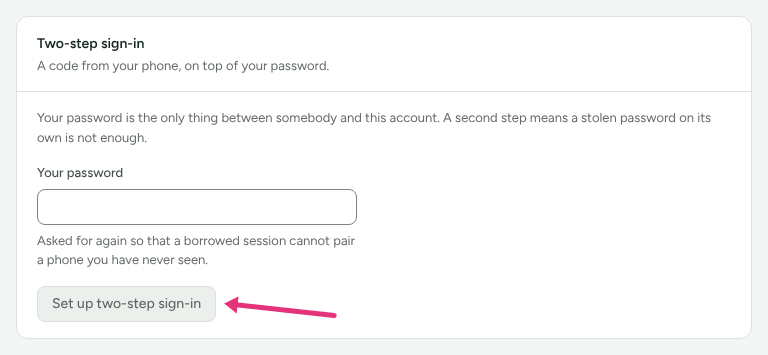
- Where: Profile › Sign-in and terms, on the Two-step sign-in card: "A code from your phone, on top of your password." While your application is still being reviewed, the portal shows only Application under review, so the card appears once you are approved.
- Time: about two minutes.
Turn it on
- Open Profile, choose Sign-in and terms, and find Two-step sign-in.
- Enter your password in Your password: "Asked for again so that a borrowed session cannot pair a phone you have never seen."
- Press Set up two-step sign-in.
- Open your authenticator app and scan the QR code. If you cannot scan it, "Can't scan it? Type this key into your app instead." Copy key copies it.
- Type the six digits the app shows into Code from your app.
- Press Turn it on.
If the code is refused: "That code is not right. Check your app is showing a code for Refficks, and that your phone clock is set automatically." The app names the account Refficks, even when your portal carries a merchant's name.
Save your recovery codes
Straight after, Your recovery codes shows eight codes: "The way back in if you lose your phone. This is the only time they are shown."
- Press Copy all, or write them down.
- Keep them somewhere that is not your phone.
- Press I have saved these.
"Each one works once." They cannot be shown again: they are stored in a form nobody can read back.
Sign in with it
After your email and password, One more step asks for a Code: "Six digits, or one of your recovery codes if your phone is gone." Enter the code the app shows now.
Replace your recovery codes, or turn it off
- On Two-step sign-in, press Replace recovery codes or Turn it off.
- Enter a code in Code, to replace your recovery codes or Code, to turn it off: six digits from your app, or a recovery code.
- Press Give me new recovery codes or Turn two-step sign-in off.
New codes replace the old ones: "Your old recovery codes no longer work. Keep these somewhere safe." The card always says how many unused codes you have left. With none left: "Without one, losing your phone means losing access to this account."
If you lose your phone
- You have a recovery code: sign in with your password, and enter the recovery code in Code. Then replace your recovery codes, or turn two-step sign-in off and set it up on your new phone.
- You have neither your phone nor a recovery code: you cannot get in yourself, and the merchant cannot help: they cannot see or change your sign-in.
Not yet documented: Refficks has no screen for removing a partner's two-step sign-in for them. Write to support@refficks.com from the address you sign in with, saying which merchant's portal you use. Never send your password or recovery codes.
Check it worked
- The card reads Two-step sign-in is on: "Signing in asks for a code from your authenticator app.", with when it was last used and how many recovery codes you have left.
- Your Account history (Profile › Your data) lists "Two-step sign-in was turned on".
- The next time you sign in, One more step asks for a code.
What this does not do
- It does not change your password. Changing your payout details still asks for the password.
- It does not text you a code. Only an authenticator app works.
- After ten wrong codes in 15 minutes, no more are taken for 15 minutes, and your address is told that somebody has your password. See A partner cannot sign in.
Related
- Add payout and tax details: what this protects.
- A partner cannot sign in: codes refused, and lost phones.
- Your data and account history: the record of every change to your sign-in.