Get started in your partner portal
How to get into a merchant's partner portal for the first time, sign in after that, and find your way around. For affiliates, creators, ambassadors, referrers and B2B partners.
Your portal may use other words. This article says partner, commission, payout, referral and reward. A merchant can rename those five words, so your portal may say "ambassador" or "reward" where this says "partner" or "commission".
Your portal may carry the merchant's name, not Refficks. It can run on the
merchant's own address (for example partners.example.com) with their logo,
colours and name. It is the same portal, and everything here applies.
Before you start
- You need: an invitation email from the merchant, or the address of their signup page.
- Password rule: at least 12 characters, with letters and numbers.
- Time: a few minutes. Some merchants review applications first, and that wait is theirs.
Join from an invitation
The email's subject is "Your Merchant partner portal". Its link works once, for 14 days.
Availability: Invitation links that run out after 14 days were built on
mainon 11 October, after the last deployment of app.refficks.com this article was checked against. Links sent before that change got 14 days from the day it shipped.
- Open the link in the email. The page is headed Join Merchant.
- Enter a password in Password.
- If this is your first Refficks login, choose a new one.
- If you already have a partner login with another merchant, enter that same password. One login covers every merchant you work with.
- Press Open my portal. Your overview opens.
If you are already signed in to your portal as the invited address, the page says "You are signed in as …" and the button reads Confirm and join: there is nothing to type. Sign in first on the invitation page gets you to that one-click version.
If terms are published, the page says "By joining you agree to the Refficks partner terms". Pressing the button is that agreement.
If the page says That link is no longer valid, the link was already used, replaced by a newer invitation, or is more than 14 days old. Ask the merchant to invite you again.
Apply through a merchant's signup page
A merchant's signup page lives at app.refficks.com/join/<merchant>, or at
an address of their own.
- Fill in First name, Last name and Email, and whatever else the page asks: a website, social accounts, the merchant's own questions. Some pages also ask you to complete a check that you are a person.
- Press Apply to join (on a creator program, Apply).
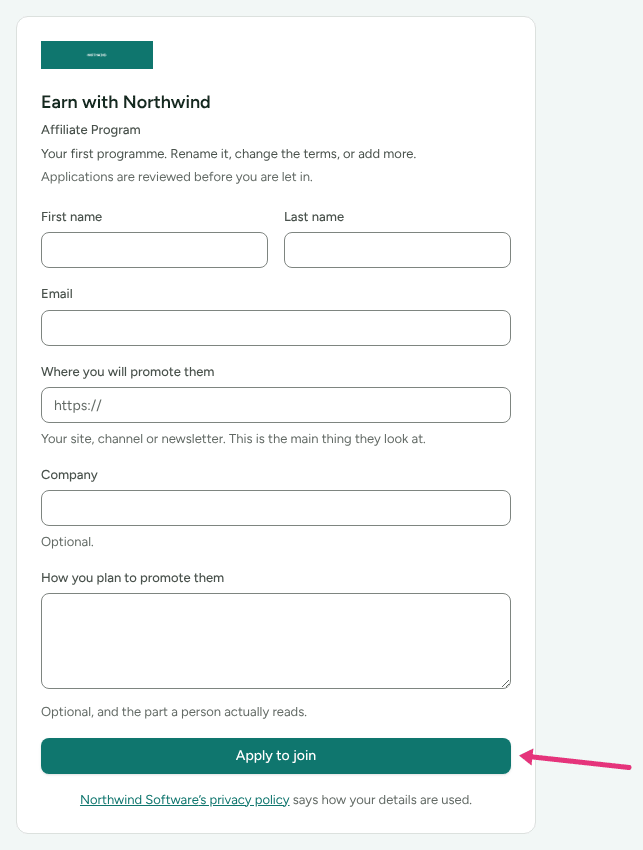
- Read the confirmation. Every application gets the same words, whoever you
are:
- "Check your email to finish joining" means the program lets people in straight away.
- "Your application is in" means the merchant reviews applications first.
- Open the email and follow its link:
- New to this merchant: the link sets your password, as in Join from an invitation.
- The merchant already knows your address (you were a partner before, or applied earlier): the email's subject is "Confirm your application to Program". Its link opens Confirm your application. Press Confirm it was me, then Sign in. The link works for 7 days. If you did not apply, ignore the email: nothing happens until the link is used.
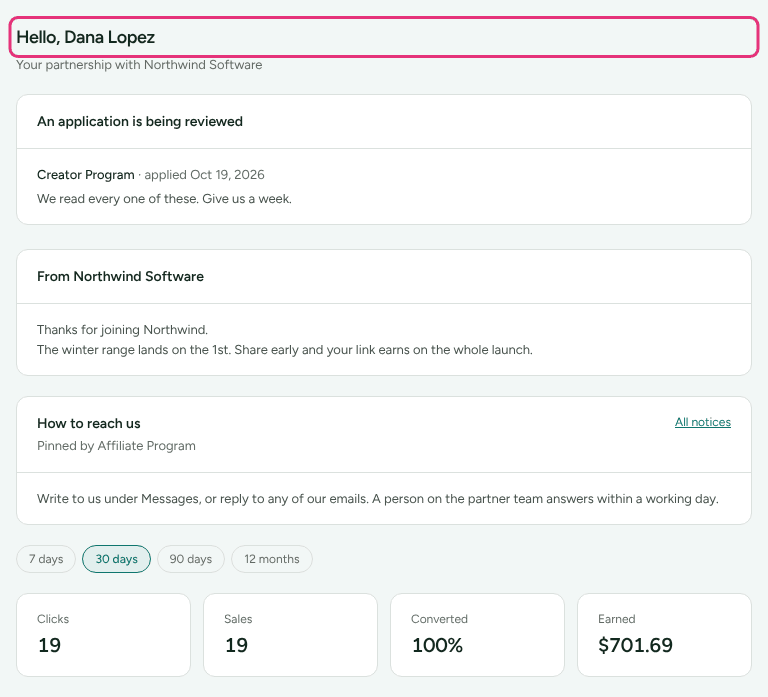
While your application is being reviewed, the portal shows Application under review with the merchant's own message and the day you applied, and nothing else. If the merchant turns it down, it shows Not taken forward.
There is no separate step to confirm your email address: following the link sent to it is the proof.
Sign in after that
- Go to
app.refficks.com/portal/login, or to/portal/loginon the merchant's own address. (app.refficks.com/portalon its own is not a page: it says "We couldn't find that page" and offers Back to your portal.) - Enter your Email and Password and press Sign in.
- If you turned on two-step sign-in, enter the six-digit code (or a recovery code) on One more step.
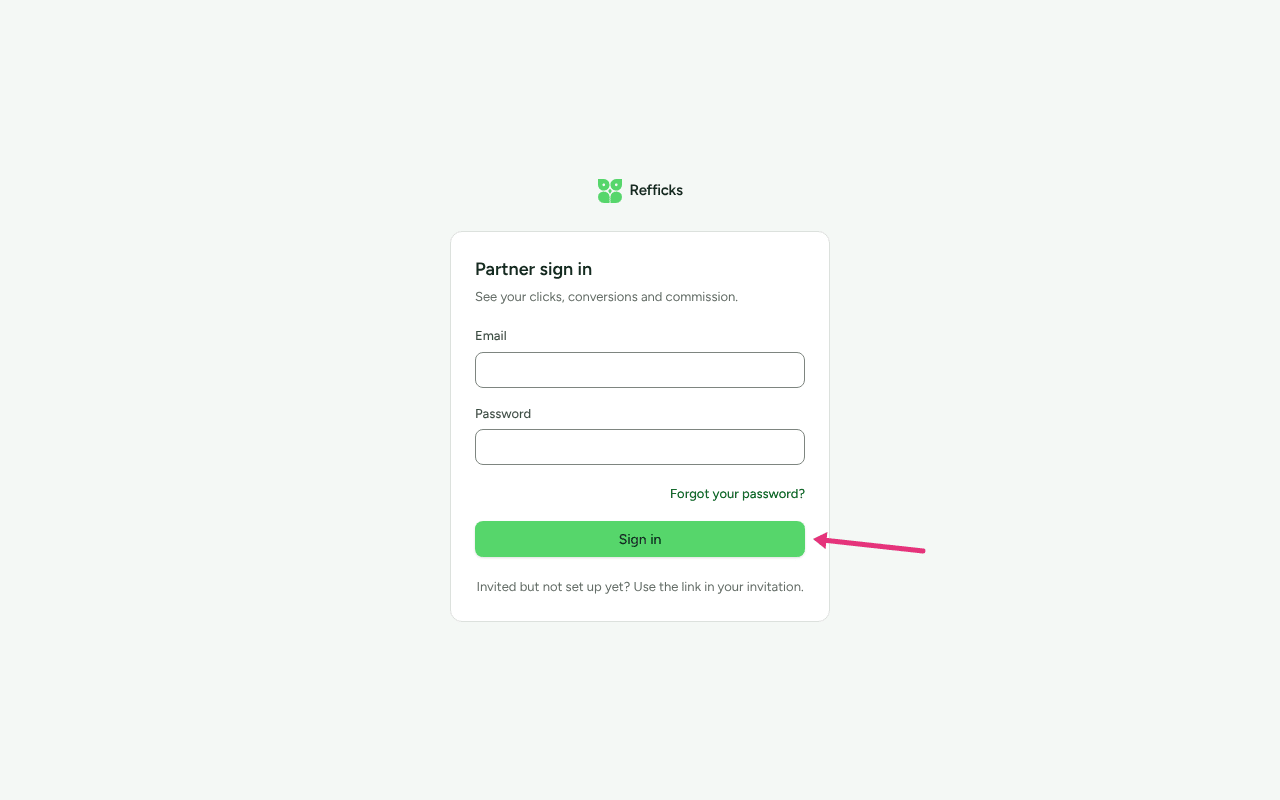
On a merchant's own address, Continue with your Refficks sign-in uses
your sign-in on app.refficks.com instead of a password. If you are not
signed in there, it asks you to sign in first and then brings you back.
Agree to the terms
Two screens can stand between you and the portal:
- Before you carry on or Our partner terms have changed: Refficks's partner terms. Press I agree to the partner terms.
- Program has a partner agreement: the merchant's own agreement. Read it and press I agree to version N. Your links keep working while you decide.
Switch between merchants
You use one email and one password for every merchant you work with. Each merchant's figures stay separate.
- Press the merchant's name at the top of the portal. This only appears when you work with more than one.
- In Your programmes, press the one you want. The one you are looking at says You're here.
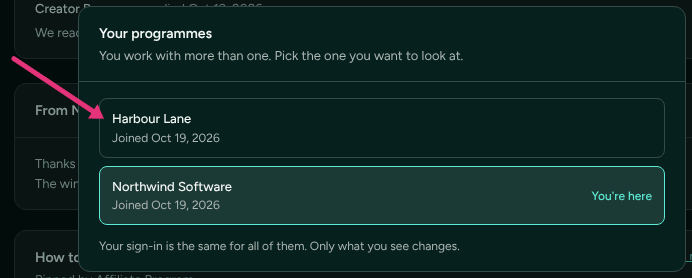
On a merchant's own address you only ever see that merchant. Your other merchants are one link away: All your programmes.
What each screen is for
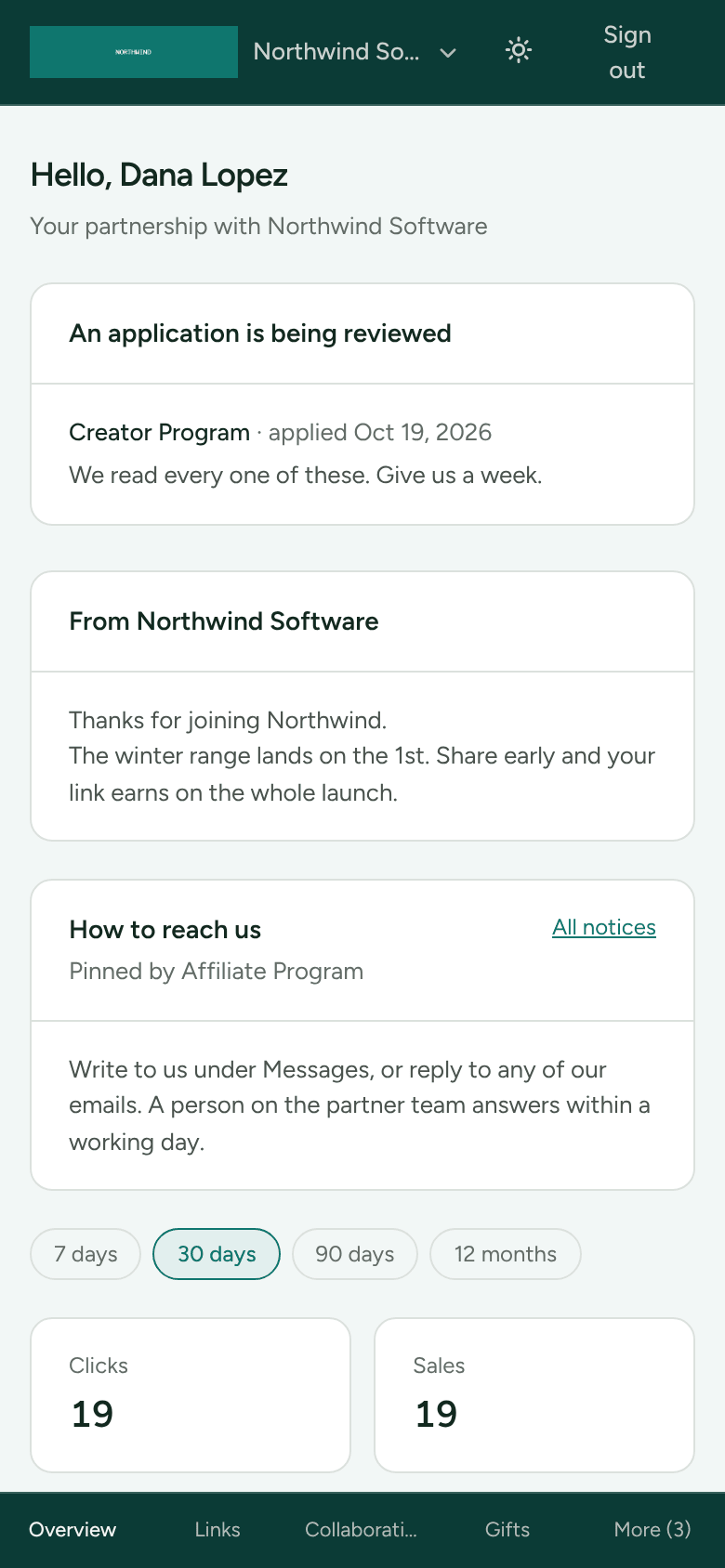
The menu follows what the merchant has you down as. On a phone it sits at the bottom of the screen: the first four sections, then More for the rest. A number after a name, such as Messages (2), is something unread.
| Screen | Who sees it | What it is for |
|---|---|---|
| Overview | everyone | Your clicks, sales and earnings over a period you choose, and Getting set up |
| Links | affiliates | Your tracking links, links to any page, sub-IDs, QR codes and coupon codes |
| Refer | referrers | Your referral link and code, and who you introduced |
| Collaborations, Gifts | creators | Work you have been asked to do, and products sent to you |
| Missions, Points, Rewards, Leaderboard | ambassadors | Things to do and what each earns, your points, what they buy, and where you rank |
| Partnership, Leads, Deals | B2B partners, where the merchant uses each | Your tier and earnings, prospects you send, accounts you register |
| Training | anyone the merchant has training for | The merchant's guides |
| Messages | everyone, unless the merchant leaves it out | Your conversation with the merchant |
| Notices | everyone, unless the merchant leaves it out | What the program has said, and what has happened to you |
| Commission | everyone | Every entry and how it was worked out, and Something not right? |
| Payouts | everyone | What has been sent and what is waiting |
| Campaigns, Assets | affiliates, unless the merchant leaves them out | Campaigns you are in, everything the program has emailed you, your email preferences; banners, logos and copy |
| Find programmes, Invitations | everyone, on app.refficks.com |
Other merchants' programs, and invitations to join them |
| Profile | everyone | Four sections: Details (your details), Getting paid (how you get paid, tax details), Sign-in and terms (two-step sign-in, the partner terms, your directory card) and Your data |
Getting set up
The Overview shows a Getting set up card until every step is done. Each step ticks itself from what you have actually done; you cannot tick one by hand. The merchant decides which steps are on it. A step still to do is a link to where you do it: Add your payout details and Fill in the tax form open Profile › Getting paid.
| Step | Done when |
|---|---|
| Say where you are | Your country is on Profile › Details |
| Add your payout details | You have chosen how you are paid and given the details |
| Fill in the tax form | You have certified a tax form, or the merchant waived it. Only where the merchant needs one before paying |
| Work through the training | You have finished every training step you can see. Only while there is training |
| Share your link | Somebody follows one of your links for the first time |
| Make your first sale | Your first sale is credited to you |
Check it worked
Your Overview is headed "Hello, your name" with "Your partnership with Merchant" under it. If you work with more than one merchant, pressing the merchant's name at the top lists them all in Your programmes.
What this does not do
- Your payout details and tax form belong to one merchant. A second merchant asks for them again, on Profile › Getting paid while you are looking at them.
- You cannot change the email address you sign in with yourself, and neither can the merchant. Only Refficks support can move it (see A partner cannot sign in).
- An invitation link works once, for 14 days. A new invitation replaces the old link.
- On a merchant's own address, Find programmes and Invitations are not
shown. Use
app.refficks.com/portal/loginfor those.
Related
- Get your links and codes: what to share, once you are in.
- Add payout and tax details: so the merchant can pay you.
- Turn on two-step sign-in: protect the login that holds your payout details.
- A partner cannot sign in: when a link or a password does not work.