Get your links and codes
Where to find the links and codes that get sales credited to you, how to make a link to any page of the merchant's site, and how to tell which of your posts brought in what. For affiliates and referrers.
Your portal may use the merchant's own words for partner, commission, payout, referral and reward.
Before you start
- You need: to be approved in the program. An applicant has a portal but no links yet.
- Where: Links is in your menu when the merchant has you down as an affiliate. If you are a referrer, your link and code are on Refer instead (see Referrers).
Copy your link
- Open Links. The page is headed Your links.
- Under Tracking links, find the link. Each one shows its name and how many clicks it has had.
- Press Copy. The button says Copied for a moment.
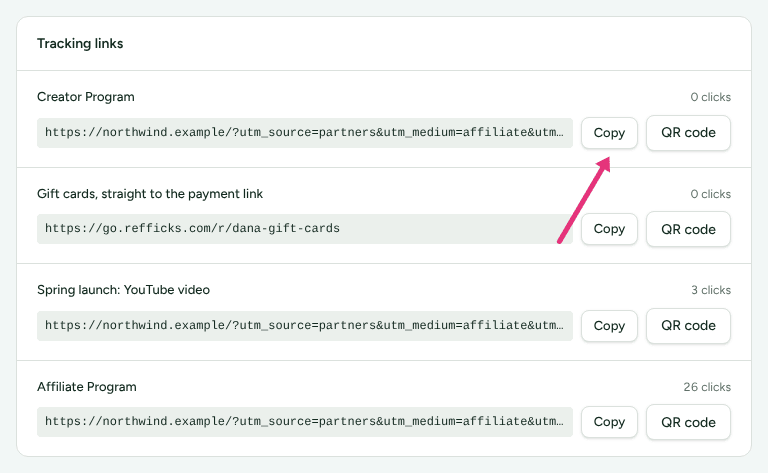
If you see "No links yet", the merchant has not given you a link. Ask them; it appears here once they do.
If a link carries a New address badge, its old address now opens another program's link with the same code, and clicks on it are not yours. Share the address shown above the badge wherever you used the old one.
Make a link to one page
Use this when you write about one product and want the link to open on it.
- On Links, find Link to a page.
- If you have more than one link, choose it in Which link.
- Paste the page's address from your browser into Page.
- Optional: type a word of your own in Sub-ID (optional), such as
newsletteroryoutube. - Press Make my link.
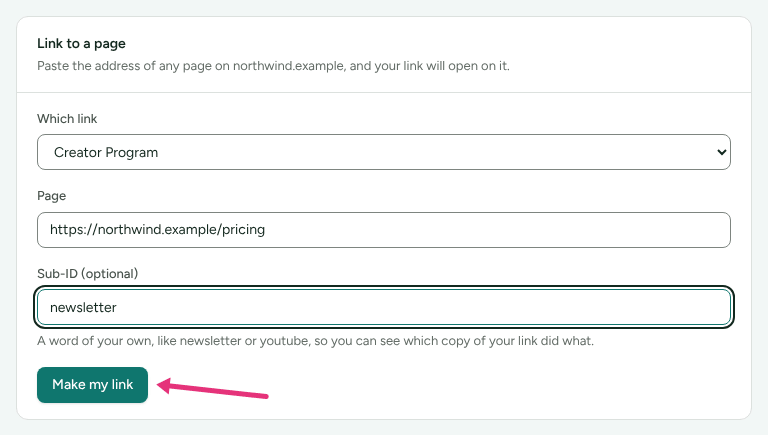
- Under Your link to that page, press Copy. The line "Opens on …" says where it goes.
A page on another site is refused: "That page is not on example.com. A link can only point at Merchant's own site." If the merchant has not told Refficks their website, the card says so and offers no box.
Tag copies of your link with sub-IDs
A sub-ID is a word you add to a copy of your link, so you can see which post,
video or email brought in what. You have five: sub1 to sub5, up to 100
characters each.
- The way that cannot go wrong: the Sub-ID (optional) box in Link to a
page puts
sub1on the link for you. - By hand: add
sub1=youtubeto the end of your link. Put?before it if your link has no?yet, and&if it already has one. For examplehttps://example.com/?via=sam&sub1=youtube. (The card's own example, "Add ?sub1=newsletter", only works on a link with no?in it.)
To see the results:
- On Links, find Your sub-IDs.
- Choose the tag in Which sub-ID and a Period.
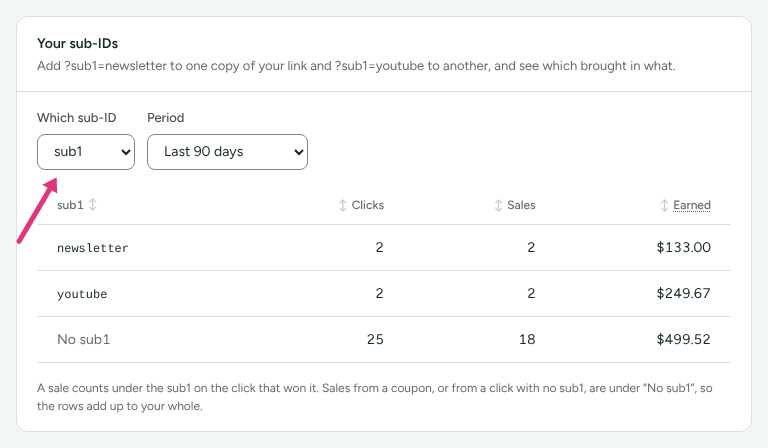
A sale counts under the sub-ID on the click that won it. Sales from a coupon code, or from a click without that sub-ID, are listed under "No sub1" (or whichever tag you chose), so the rows add up to your total.
Get a QR code
For flyers, events and anywhere a link cannot be clicked.
- Next to a link, press QR code.
- Press Download to save it as an SVG file, which prints at any size without blurring. Hide closes it.
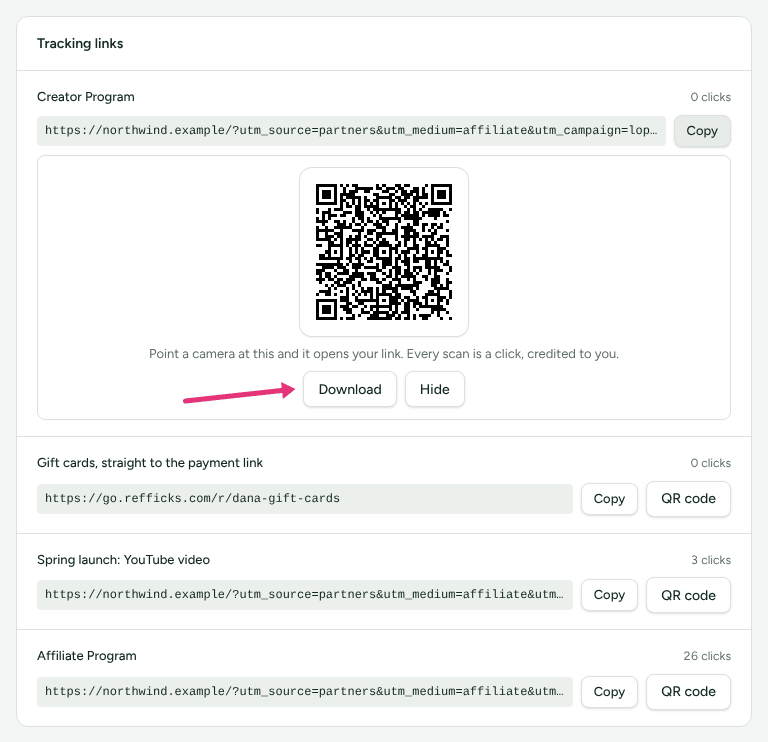
The code opens your normal link. "Every scan is a click, credited to you."
Find your coupon codes
When the merchant gives you a code, Your coupon codes appears on Links: "Customers who use these are credited to you, even without clicking a link."
- Find the code. A badge says whether it is Active, Paused or Archived. Only an active code is worth sharing.
- Press Copy code.
Under a code you may also see:
- "Works at checkout on …": the stores where the code is set up.
- "Your link puts this code in the shopper's cart at …, so they need not type it."
- QR code for the till: for staff to scan at a Shopify till, or a phone to open the shop with your code in the cart.
A code appears only once the merchant has switched it on for your program, because a code typed at a checkout that does not know it fails for the customer.
Bring in other partners
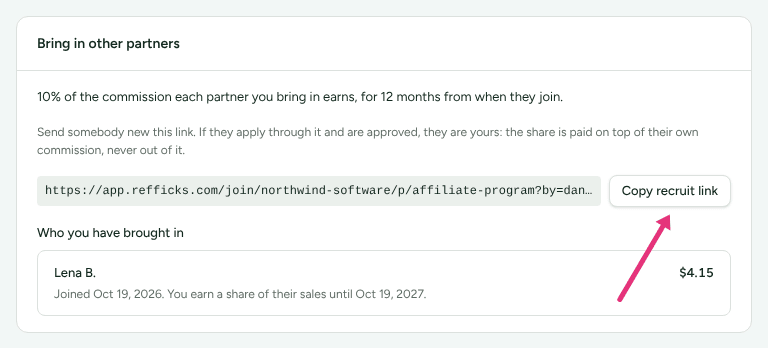
Where the program pays you a share for partners you recruit, Bring in other partners appears on Links with your recruit link and Copy recruit link. "If they apply through it and are approved, they are yours: the share is paid on top of their own commission, never out of it." Who you have brought in lists them.
Referrers
Your Refer page (headed Refer a friend) has Your link and Your code, each with Copy, plus Copy message and buttons to share by Email, WhatsApp and X. Programme terms links to the referral program's rules, where the merchant published them. See Refer a friend for the rest of the page.
What counts as a click
- A click is somebody opening your link or scanning its QR code. Each link's count is on Links, and your total is Clicks on Overview.
- Not counted: a visitor whose browser sends Global Privacy Control. They still reach the site; nothing about the visit is kept. Some sites also wait for the visitor to accept cookies.
- Not counted at all: clicks while the merchant has paused the program, stopped that link, archived you, or ended your place in the program.
- How long a click counts: the merchant sets how long after a click a sale is still credited to you. The portal does not show this number yet. Ask the merchant.
- A code needs no click. A sale where the customer used your code is credited to you, including when their click was not recorded.
What you must not do
The rules are the merchant's, and you agreed to them when you joined:
- the merchant's agreement, if they have one (the portal asks you to agree to it before anything else);
- the program terms linked from their signup page or Refer page;
- the Refficks partner terms, linked on Profile › Sign-in and terms under Partner terms.
In a referral program, a referral where you and the customer are the same person is refused, unless the merchant allows it.
Check it worked
Open your link in a browser you do not normally use, and accept the site's cookies if it asks. Clicks are recorded in the background, so allow a moment; then the link's click count on Links goes up by one, and so does Clicks on Overview. A link to one page opens on that page.
What this does not do
- You cannot make a new tracking link yourself. The merchant issues them. You can point any link you have at any page of their site.
- A link to one page is not stored: it is made on the spot and counted with the link it came from.
- The portal does not show how long a click counts for.
Related
- Get started in your partner portal: signing in and finding your way around.
- Understand your earnings: what happens after a click becomes a sale.
- Raise a query: when a sale you sent is missing.
- How attribution works: written for merchants, but it is the full rule for which partner gets credited when a customer clicked more than one link.