Find programs and answer invitations
Look for other merchants' programs and ask to join one, write a card about yourself that merchants may one day find, and answer or block a merchant who invites you. For any partner with a portal login.
Your portal may use the merchant's own words for partner, commission, payout, referral and reward.
Before you start
- Where: Find programmes and Invitations in your menu, and Your
directory card on Profile › Sign-in and terms. They are on
app.refficks.com/portal, not on a merchant's own address, which shows only that merchant. - You need: a portal login. You do not need to be in any program yet.
Switched off: Merchants cannot browse partners' cards or invite anybody from them yet. Your card says so: "No merchant can browse the directory yet." Until Refficks turns that on, Invitations stays empty. Finding programs and asking to join works now.
Find a program and ask to join
- Open Find programmes: "Merchants on Refficks who have asked to be found."
- Optional: choose a Kind of programme: Affiliate, Creator, Ambassador, Referral, Agency or Reseller.
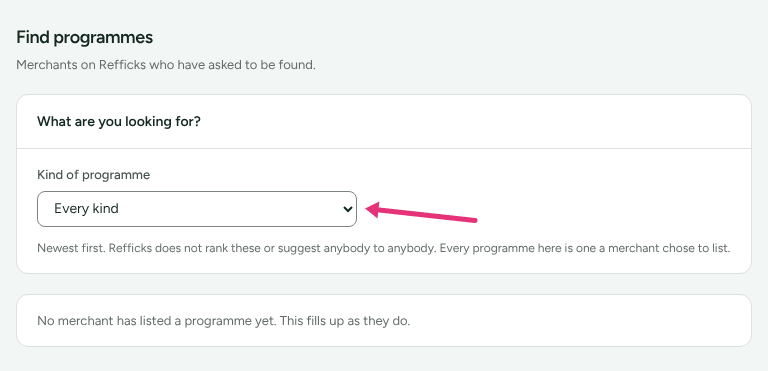
The list is "Newest first. Refficks does not rank these or suggest anybody to anybody. Every programme here is one a merchant chose to list." Each card shows the merchant, the program, what they wrote about it, and whether "Applications are reviewed before you are let in." or "You are approved straight away." Their terms opens their terms, where they have some. 3. Press Ask to join. 4. Fill in First name, Last name and Where you will promote them ("Your site, channel or newsletter. This is the main thing they look at."). Company and How you plan to promote them are optional. 5. Press Send my application.
The merchant sees what you type and the address you sign in with, never your other programs or anything you earn elsewhere. Afterwards the page says "You have applied to Merchant", and either that they will review it or "You are in. Switch to Merchant to get your link." Switch merchant at the top of the portal to see where it stands.
Write your directory card
Writing a card is private. Publishing it is a separate step.
- On Profile, choose Sign-in and terms, and find Your directory card: "What you say about yourself, to merchants you let see it."
- Fill in Headline ("One line. What you do, in your own words."), About you, what you cover, your links and your countries.
- Press Save my card. "Your card is saved."
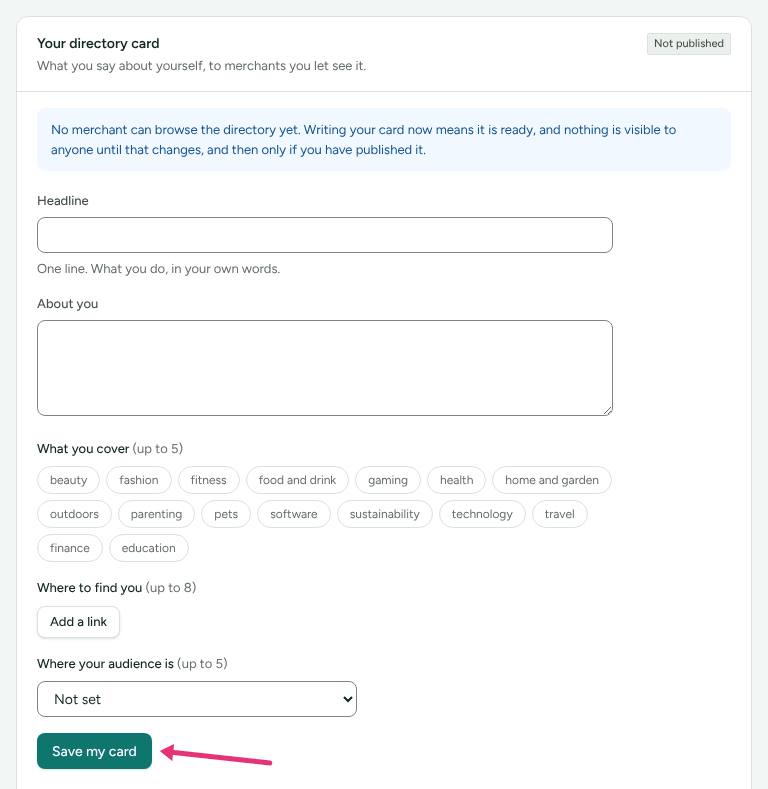
- To publish it, tick the box under Publish your card. It says what becomes visible: your name, headline, about, categories, countries and links, "It does not show which programmes you are in, what you earn, or what any merchant has written about you."
- Optional: tick Let merchants invite me.
- Press Publish my card. It is refused while the card is empty: "Write a headline, a few words about yourself, or what you cover first."
Take my card down hides it at once. To stop invitations but stay visible, take the card down and publish it again without Let merchants invite me.
If Refficks takes a card down, it reads Taken down by Refficks with the reason and where to write.
Answer an invitation
- Open Invitations: "Merchants who would like you to join them." Each one waiting reads Waiting for you, with the merchant's message.
- Choose:
- Join Merchant: gives them your name and address and puts you in their program.
- No thanks: final. "They cannot ask again."
- Block this merchant, then Yes, block them: says no, and stops them seeing your card at all. "They are never told."
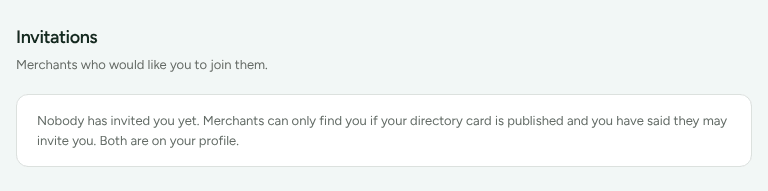
Answered invitations move to Already answered. Blocked merchants are listed under Merchants you have blocked: "They cannot see your card, and they are never told." Unblock there undoes it.
Check it worked
- After asking to join, switching to that merchant shows your portal, or Application under review.
- Your directory card reads Published, and says whether merchants may invite you.
- A merchant you blocked is under Merchants you have blocked.
What this does not do
- Refficks does not rank programs or suggest one to you.
- A published card is not seen by anybody while merchants cannot browse the directory (switched off, above).
- Blocking works even when invitations are switched off, and keeps working if they are switched off later.
- Saying No thanks cannot be undone; the merchant cannot invite you again.
Related
- Get started in your partner portal: switching between merchants once you have joined another.
- Your data and account history: what each merchant keeps about you.
- Find partners in the directory: the merchant's side.