Issue self-billed invoices for your partners (UK and EU)
With self-billing, you issue each partner's invoice in their name when you pay them, instead of waiting for them to send you one. For companies in the UK or the EU, and only for partners who agree to it in their portal.
This article is for owners and admins of a UK or EU workspace.
Before you start
- Role: owner or admin to fill in your invoice details, decide how VAT is shown, and issue a missing invoice. Anyone on your team can see and download invoices.
- Your company must be in the UK or the EU. The country is the one on your workspace. Elsewhere the card says "Self-billing is a UK and EU arrangement, and your company is not in either."
- Refficks switches self-billing on for your account. There is no switch on your screens. Ask support@refficks.com, and fill in your details (below) so invoices can be issued from the first payout.
- Self-billing is an arrangement with tax consequences for both sides. Check with your accountant before you ask for it.
Fill in your invoice details
- Go to Settings › Partners and payouts › Payout runs and find the Self-billing card: "Issue each partner's invoice for them when you pay them, instead of waiting for theirs. For companies in the UK or the EU."
- In Company name on invoices, type your registered company name.
- In Company address on invoices, type your registered address.
- Optional: in VAT number, type yours. "Printed if you give one."
- Press Save details.
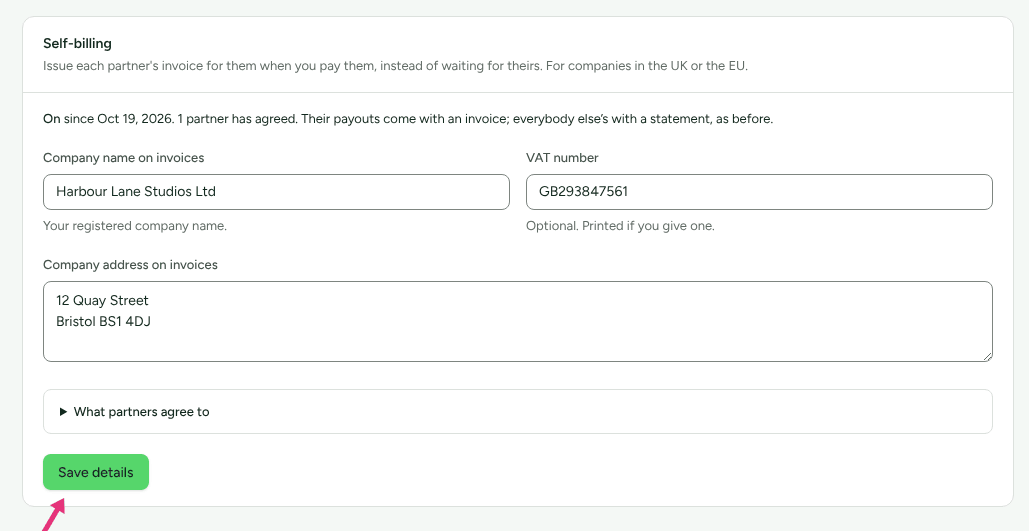
Open What partners agree to on the same card to read, word for word, the agreement your partners accept. In short: you issue an invoice in their name for each payment and send them a copy in their portal; they agree not to invoice those payments themselves; each partner's invoices are numbered in a sequence of their own; you decide how VAT is shown, and any VAT is settled between you directly; and they can withdraw at any time.
Once Refficks has switched it on, the card reads "On since …" and how many partners have agreed: "Their payouts come with an invoice; everybody else’s with a statement, as before." If your details are missing it says "Nothing is issued yet." and why.
Partners agree in their portal
You cannot agree for a partner: the invoice is theirs, in their name. Each partner who wants it opens Profile in their portal, chooses Getting paid, and in Invoices issued for you reads the agreement, fills in their name or business name, country, address and VAT status, and presses Agree. They can change their details or press Stop, and invoice myself later.
On the partner's page in Refficks (Partners, then the partner, then Money), the Self-billing card says whether they have agreed, in whose name the invoices are, and whether they are registered for VAT. Until they agree: "Not agreed. Their payouts come with a statement, and they invoice you themselves. They can agree in their portal, under Profile."
Decide how VAT is shown, for a partner registered for VAT
A partner who declares they are registered for VAT waits for your decision before any invoice is issued to them.
- Open the partner's page, choose Money, and find the Self-billing card.
- In VAT on their invoices, choose VAT at a rate you set (then type the Rate (%)), Reverse charge: you account for the VAT, or Zero-rated.
- Press Save VAT. "Saved. It applies from the next invoice."
"How VAT is shown on their invoices is your decision: it depends on your business and where each of you is. Any VAT shown is settled between you and them; the payout is not changed." A partner who is not registered gets "No VAT charged: the supplier is not registered for VAT." on every invoice, and needs no decision.
What happens when you pay
- A payout marked paid to a partner who has agreed gets a Self-billed
invoice, dated the day it was paid, numbered in that partner's own
sequence (for example
SB-4F2K9Q-0001). It prints your details and theirs as they were that day. Changing either afterwards changes no invoice already issued. - A payout recorded as returned by the bank gets a Self-billed credit note cancelling its invoice, so the partner's books show the income leaving again.
- Everybody who has not agreed gets a statement, as before.
The invoice is on the payout's page, in the Invoice card: "Self-billed: issued by you, in the partner's name, under the agreement they accepted." Press Download PDF to keep a copy. The partner finds the same invoice beside the payout in their portal.

An invoice that was not issued
If something was missing when the payout was marked paid (for example a VAT decision), the Invoice card says why, such as "This partner is registered for VAT. Choose how VAT is shown on their invoices first." Put the missing piece in place, then press Issue the invoice on the payout. It is dated the day you issue it.
Check it worked
- On a paid payout to a partner who agreed, the Invoice card lists "Self-billed invoice SB-…" with "Issued … · net …".
- On a payout recorded as returned, it also lists "Self-billed credit note".
- The Self-billing card on Settings › Partners and payouts › Payout runs counts the partners who have agreed.
What this does not do
- It does not add VAT to a payout. The payout is the net amount; any VAT on the invoice is settled between you and the partner directly.
- It does not issue anything for a partner who has not agreed, or for a payout that has not been paid.
- It does not decide the VAT treatment for you, or check a VAT number.
- It is not available to companies outside the UK and the EU.
- You cannot switch it on or off yourself; Refficks does, on request.
Related
- Pay your partners: marking a payout paid, and recording one that came back.
- Collect tax forms and prepare the 1099-NEC: the US paperwork.
- Add payout and tax details: what your partners fill in, self-billing included.
- Team roles and permissions: who can change the details.