Two-step sign-in and single sign-on
Protect your own login with a code from your phone, and, if your company has an identity provider, let your team sign in to Refficks through it. For everyone on a merchant's team (two-step sign-in) and for owners and admins (single sign-on).
Before you start
- Two-step sign-in: anyone on the team, for their own login only. You need an authenticator app on your phone and your Refficks password. Nobody, an owner included, can turn it on or off for somebody else.
- Single sign-on: an owner or admin. You need an identity provider that speaks OpenID Connect (Okta and Microsoft's are examples), permission there to register an application, and access to your company domain's DNS to prove it is yours.
- Partners have their own two-step sign-in in the partner portal. See Two-step sign-in for partners.
Turn on two-step sign-in
- Go to Settings › You › Security.
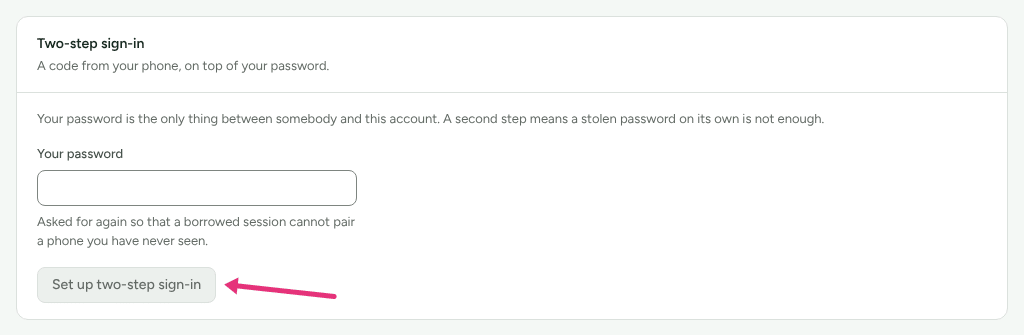
- Under Two-step sign-in ("A code from your phone, on top of your password."), type Your password and press Set up two-step sign-in.
- Scan the QR code with your authenticator app. If you cannot scan it, press Copy key and type the key into the app instead.
- Type the six digits the app shows into Code from your app and press Turn it on.
- Your recovery codes appear: eight one-time codes, "The way back in if you lose your phone. This is the only time they are shown." Press Copy all, keep them somewhere that is not your phone, and press I have saved these.
From then on, signing in asks for a code after your password: the screen reads One more step and asks for a Code ("Six digits, or one of your recovery codes if your phone is gone."). A recovery code works once.
Check it worked
Settings › You › Security shows Two-step sign-in is on ("Signing in asks for a code from your authenticator app."), when a code was last used, and how many unused recovery codes you have left.
Turn it off, or get new recovery codes
- Go to Settings › You › Security.
- Press Turn it off, or Replace recovery codes.
- Type a code from your app, or a recovery code.
- Press Turn two-step sign-in off, or Give me new recovery codes. New codes replace the old ones, which stop working.
If you have no recovery codes left, the card says so: "Without one, losing your phone means losing access to this account."
Wrong codes and passwords
Ten wrong passwords or codes for one login within 15 minutes, from anywhere, stop sign-in for that login for a while: "Too many attempts on this account. Try again in 15 minutes." When the tenth wrong code lands, the person is emailed "Somebody is trying to sign in to your Refficks account": their password is known to somebody else, and the email links to changing it.
Set up single sign-on
1. Prove your email domain
Single sign-on only covers addresses at a domain you have proved is yours.
- Go to Settings › Workspace › Domains.
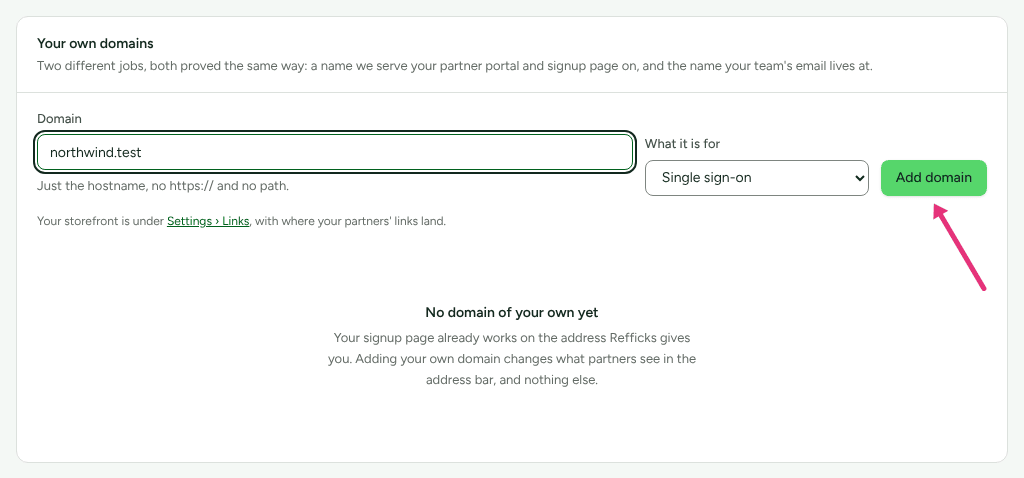
- Under Your own domains, type the domain your team's addresses use into
Domain, for example
example.com. - In What it is for, choose Single sign-on, and press Add domain.
- Add the TXT record the page shows at your DNS provider. It proves the domain is yours; nothing else changes.
- Press Check DNS. Once it is found, the domain reads "Proved. Anyone with an email address at … can sign in through your identity provider."
A domain nobody has proved does nothing: it neither signs anybody in nor blocks anybody's password.
2. Connect your identity provider
- In your identity provider, register Refficks as an OpenID Connect application, and note its issuer URL, client ID and client secret.
- In Refficks, go to Settings › Workspace › Single sign-on. The page lists the proved domains it covers.
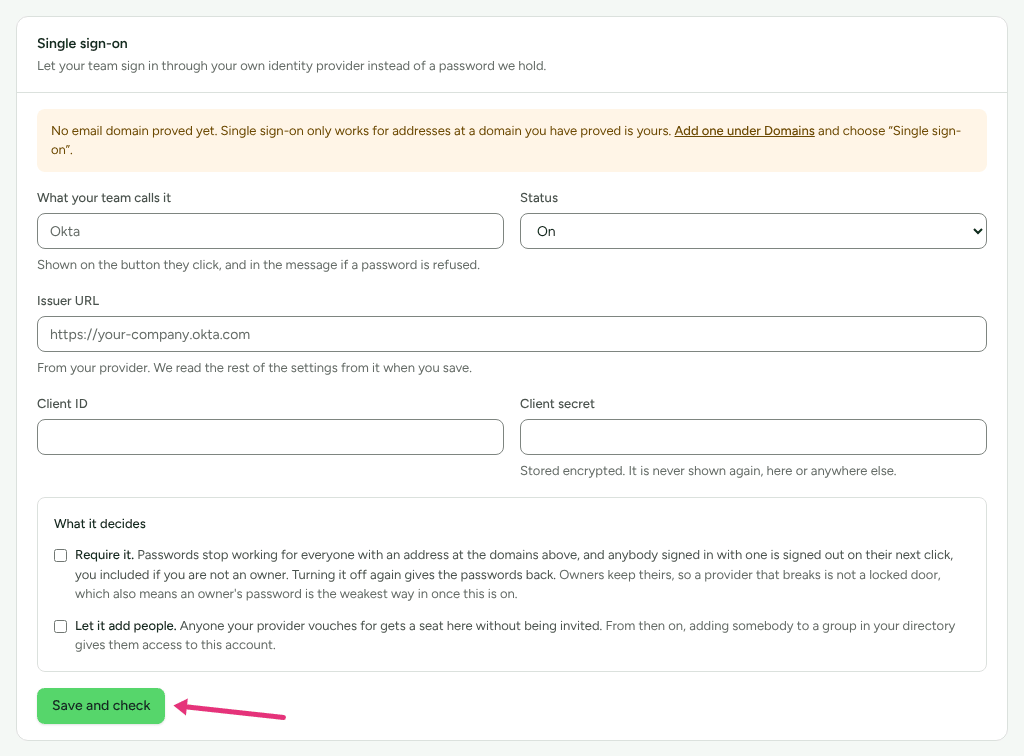
- Fill in What your team calls it (shown on the button they click, for example "Okta"), Issuer URL, Client ID and Client secret.
- Set Status to On. (Not finished saves the settings without letting anybody sign in.)
- Press Save and check. Refficks asks your provider for its settings and says "Saved, and your provider answered."
- Copy the Redirect URI that now appears and register it with your provider "exactly as it is written". Most providers refuse the sign-in if it differs by a character.
The client secret is stored encrypted and never shown again. To keep it when you change something else, leave Client secret blank: "One is stored. Leave this blank to keep it."
The issuer must be your provider's public address. It must start
https://, answer on the public internet, and not redirect. Refficks refuses
anything else when you save, in words such as "An issuer must be an https://
URL." or "… answers with a redirect, and Refficks does not follow one. Use the
issuer exactly as your provider names it." The same check applies to the
token and key addresses the provider publishes.
3. Choose what it decides
Under What it decides, tick either or both, and press Save and check again:
- Require it. Passwords stop working for everyone with an address at the proved domains, and anybody signed in with a password is signed out on their next click, you included if you are not an owner. Turning it off again gives the passwords back. "Owners keep theirs, so a provider that breaks is not a locked door."
- Let it add people. Anyone your provider vouches for gets a seat without being invited, as the role you choose under They arrive as: Support, Analyst, Manager or Admin. Owner is not offered: "Owners can only be made by an owner."
How your team signs in
- On the sign-in page, press Use your company account.
- Type their Work email and press Continue. Refficks sends them to your provider's sign-in page and back.
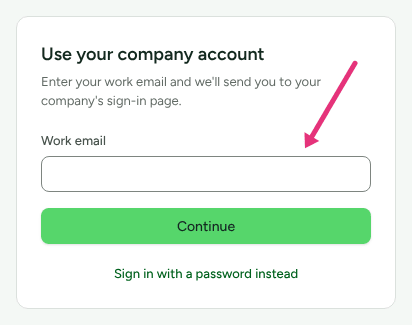
An address with no single sign-on is told "That address doesn't use single sign-on. Sign in with your password instead, or ask your IT team to set it up." Someone invited to the team whose address requires single sign-on accepts the invitation by signing in this way.
Check it worked
- Settings › Workspace › Single sign-on shows a badge: Required (passwords are locked out), Available (it works, and passwords still do), or the status you set.
- A teammate at the proved domain signs in through Use your company account and lands on the dashboard.
- Settings › Developer › History records each change to the connection.
While single sign-on is required
For everyone at the proved domains except owners:
- a session a password opened is signed out on its next request, and the sign-in page says "You were signed out because your organization now signs in through its own provider.";
- "Forgot your password?" sends a note saying to sign in through the company instead of a reset link, and a link sent before the requirement no longer works;
- nobody can open a new password account at those addresses;
- a session single sign-on made is never remembered: once it idles out, the next sign-in goes through your provider again.
Owners keep their passwords and can still reset them, so the account can be reached if the provider breaks. Turn on two-step sign-in for every owner: an owner's password is the weakest way in once single sign-on is required.
What this does not do
- Two-step sign-in is an authenticator app code. There is no text-message code and no security key.
- No screen lets anybody switch off another person's second factor, an owner included. Keep your recovery codes: they are the way back in without your phone.
- Single sign-on is OpenID Connect only, for your own team. Partners sign in to the portal with their own logins.
- Let it add people adds a seat when somebody signs in. Refficks is not told when somebody leaves your directory: once your provider refuses them they cannot sign in through it, but their seat stays until you remove it on Settings › Workspace › Team.
- Single sign-on never makes anybody an owner.
Related
- Team roles and permissions — who can change sign-in settings, and why owners are different.
- Read History — where changes to sign-in settings are recorded.
- Use your own domain — the same Domains screen, for your partner portal.
- Partner cannot sign in — when the person locked out is a partner.